
If you are annoyed with the “waiting for available socket” error on your Google Chrome, perhaps you are looking for a post on how to fix this issue. Today, MiniTool will introduce some effective methods for you to easily get rid of the sockets error.
Chrome Waiting for Available Socket
When it comes to a web browser, Google Chrome is the first one that comes to your mind. But it doesn’t work well enough. You may encounter many Chrome problems and we have shown you some on our website, for example, Google freezes Windows 10, Chrome black screen, Google won’t open, etc.
Additionally, you may encounter another common error – waiting for available socket. This usually happens when you load lots of images in multiple tabs on Chrome. The error shows in the bottom left corner of the screen. Also, the error seems to be preventing a socket connection to your web server and a huge amount of overload is generated.
By default, Chrome and any other Chromium-based browser allow up to 6 open connections at the same time. If you stream multiple media files simultaneously from more than 6 media and audio tags, the error appears.
Well then, how can you fix the issue? Try these methods below now.
Fixes for Waiting for Available Socket Chrome
Option 1: Open Sockets by Force
This is a simple method and has been proved to be helpful by many users. So, you can have a try by following these steps below:
Step 1: In your PC, open Google Chrome.
Step 2: Go to the address bar, type the command – chrome://net-internals and then press Enter on your keyboard.
Step 3: Click the Sockets tab from the left pane.
Step 4: You will get a page where is the option “Flush Socket Pools”. Just click it to clean all sockets.
This is the perfect way to fix the error. You only need to flush out all the sockets and then you can load anything you want.
Option 2: Clear Cache and Cookies on Chrome
The “waiting for available socket” error can also be caused by corrupt or huge caches and cookies saved on Google Chrome. To fix it, you can clear cookies. Here is the detailed guide on how to clear browser cache and cookies:
Step 1: Launch Google Chrome.
Step 2: Click three dots and choose Settings. Alternatively, you can directly type chrome://settings/ to the address bar and press Enter.
Step 3: Scroll down to Privacy and Security and click Clear browsing data.
Step 4: Set the time range and then click Clear data.
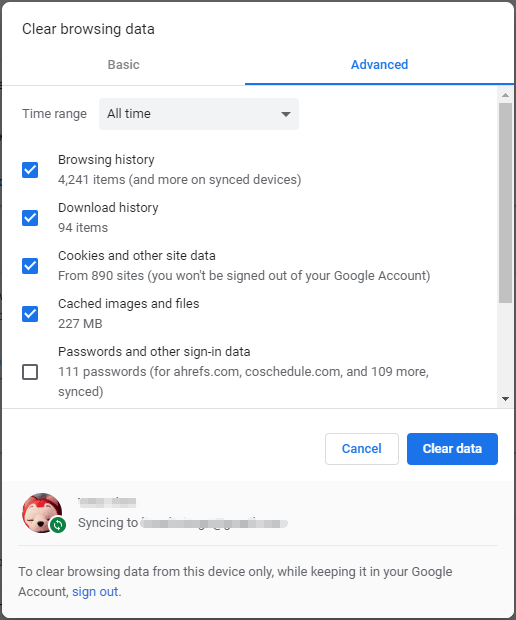
This process takes a few seconds. After finishing the clear, the Chrome waiting for available socket issue should be resolved.
These two methods are recommended by many users to fix the issue. Besides, some persons recommend clearing your extension and toolbars since bad or corrupted extensions and toolbars may also lead to the issue. So you can also have a try.
The End
Does the “waiting for available socket” error appear on Google Chrome? Don’t worry and it can be easily solved. Just try these methods mentioned above and you can effectively get rid of the trouble.
About The Author

Position: Columnist
Vera has been working at the MiniTool Team for over 10 years as a technical editor and content writer. She mainly focuses on disk and partition management, data recovery, Windows backup and restore, and PC troubleshooting. Through in-depth software testing and hands-on experience, she has helped users solve a wide range of computer problems and better protect their data on Windows devices.
User Comments :