
Some people tend to use a second monitor to improve their productivity. However, many problems might occur when you connect an external display, like mouse lagging, Wi-Fi disconnecting, and more. If your Wi-Fi disconnects when connected to an external monitor, try the following methods to fix it
MiniTool Power Data Recovery FreeClick to Download100%Clean & Safe
Method 1: Restart Computer & Check Connection
Before you try other methods to fix the Wi-Fi drops when using HDMI to connect a second monitor problem, you can restart your computer to fix the temporary bugs.
After this, check the connection of the HDMI cable and switch to other network connections to have a try. If you ensure that all devices work well, use the next methods to rectify this problem.
Method 2: Run the Network Troubleshooter
Windows contains corresponding tools to fix internet problems. You can run the Internet Connection or the network adapter troubleshooters to let your computer detect and fix problems automatically.
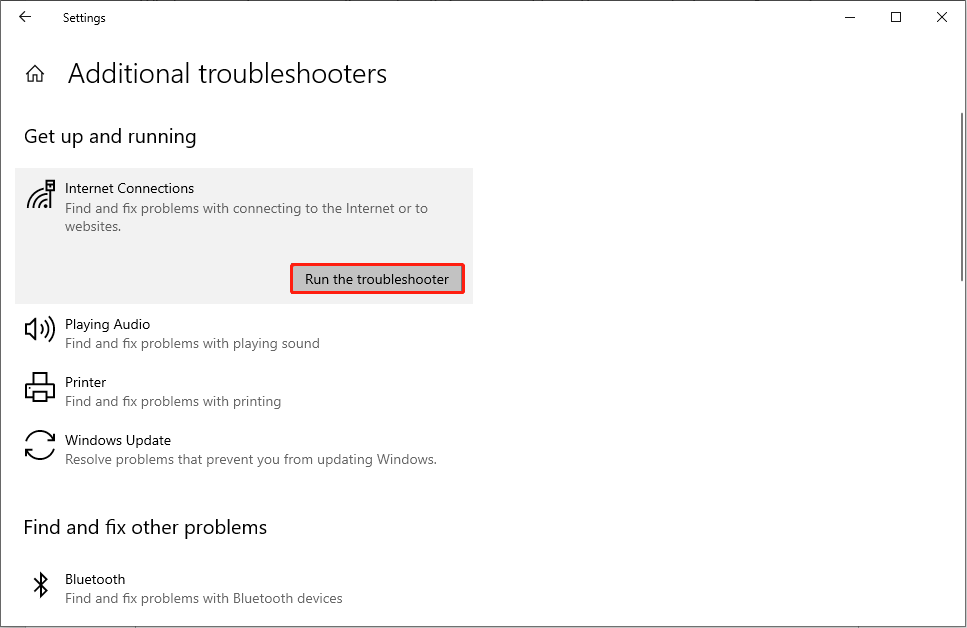
>>Run the Internet Connections Troubleshooter
Step 1: Press Win + I to open Windows Settings.
Step 2: Choose Update & Security and shift to the Troubleshooter tab.
Step 3: Click on the Additional troubleshooters on the right pane.
Step 4: Choose the Internet Connections option and click on the Run the troubleshooter button.
>>Run the Network Adapter Troubleshooter
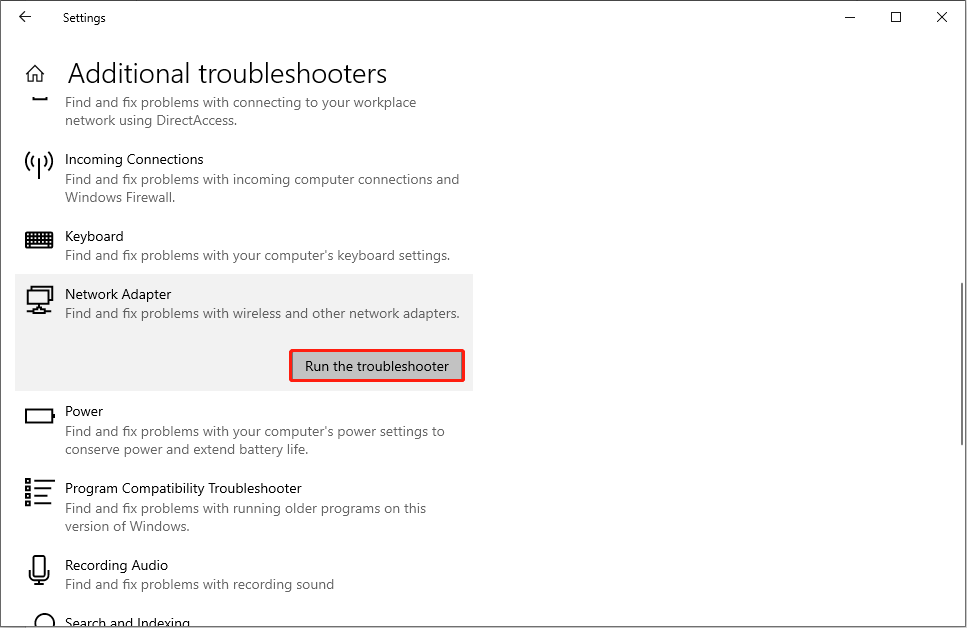
Step 1: On the same Additional troubleshooters interface, you can scroll down to find the Network Adapter choice.
Step 2: Click on it and choose Run the troubleshooter.
Method 3: Update/Uninstall the Network Drives
Another possible reason for the Wi-Fi stops working when using an external display is the incompatible network drives. The incorrect or outdated network drives will block your computer from connecting to the internet successfully. You can update or uninstall the network drives with the next steps.
Step 1: Right-click on the Windows icon in the bottom right corner.
Step 2: Choose Device Manager from the context menu.
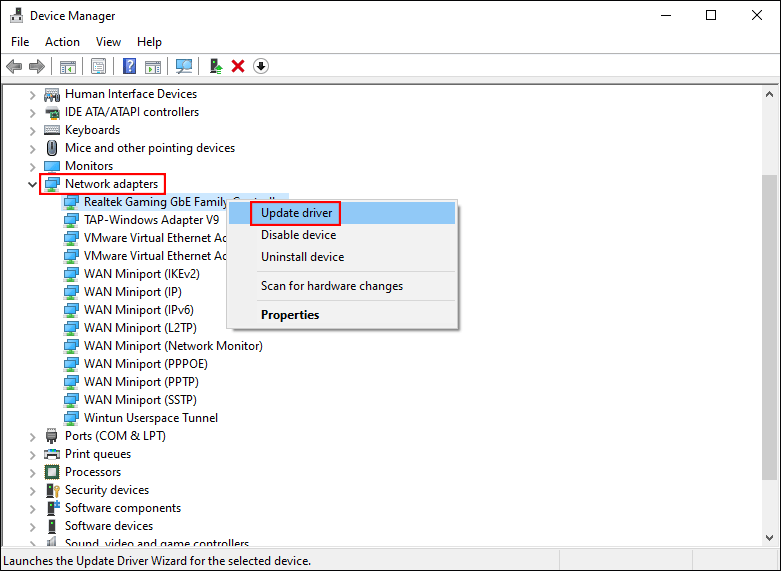
Step 3: Expand the Network adapters option and choose the network adapter drive.
Step 4: Right-click on it and select Update driver from the menu.
Step 5: Select Search automatically for drivers on the popup window.
Your computer will find the latest compatible driver for your computer and install it automatically.
You can select Uninstall device from the same right-click menu and click Uninstall again to confirm your choice. Then, restart your computer. In the reboot process, your computer will reinstall the demanded driver automatically as well.
Method 4: Change the Power Management Settings of the Network Adapter
Sometimes, your computer will reject other devices for the power save purpose, for example, when you connect a USB drive to the computer but find the USB drive is unrecognized, you can think about the power save reason. Therefore, go to check the power management settings of the network adapter to try to fix your problem.
Step 1: Press Win + X and choose Device Manager from the WinX menu.
Step 2: Expand the Network Adapter option and right-click on the drive you need to configure.
Step 3: Choose Properties from the context menu and shift to the Power Management tab.
Step 4: Uncheck the Allow the computer to turn off this device to save power option.
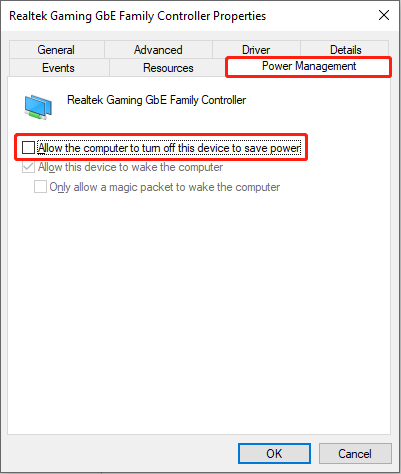
Step 5: Click on the OK button to save the change.
When all the above steps, you can connect the external monitor to see whether the Wi-Fi will drop again.
Method 5: Reset Network Adapters
Resetting network adapters can remove all the personalized settings and turn adapters back to the factory settings. You can try this as the last method to fix the Wi-Fi disconnects when connected to an external monitor error.
Step 1: Press Win + I to open Windows Settings.
Step 2: Choose Network & Internet and select the Status tab.
Step 3: Scroll down to find the Advanced network settings section, then click on the Network Reset button.
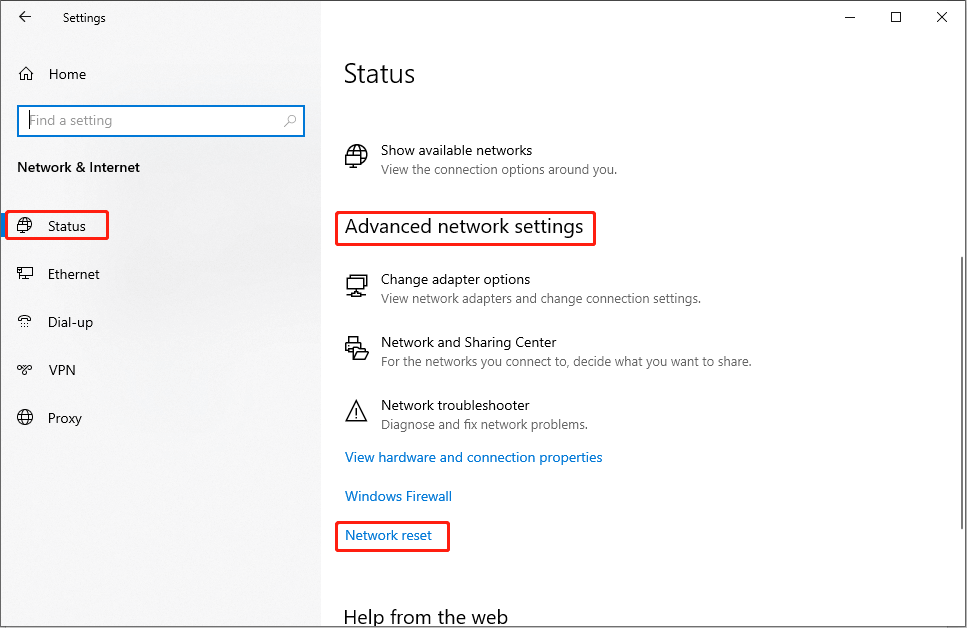
Step 4: Click on Reset Now.
Go to this passage to learn more information about how to reset Network settings on Windows 10.
Final Words
It will decrease your working efficiency if Wi-Fi disconnects when connected to an external monitor. Hope one of the methods mentioned above can help you resolve this problem.
User Comments :