
There is a bug in Windows 10 which prevents users from upgrading to the latest Windows 10 May 2019 Update. What causes this terrible situation? Actually, the root reason is the change of the drive letter. In response, Microsoft said it will fix the issue in the next rollup release.
According to study, there are a lot of issues that could affect the Windows 10 May Update. USB bugs are one of the common reasons. Recently, an increasing number of people find their Windows update blocked. To figure this out, you should read the following content.
Windows 10 Update Is Blocked with USB Drives/SD Cards Connected
A lot of people are complaining about the trouble they have met recently: no matter what they try, they can’t succeed in upgrading their Windows 10 to the latest update (Windows 10 May 2019 Update, also known as v1903). This issue will indeed occur when there is USB drive or SD card connected to the computer during the update process.
How Can You Recover Lost Files After Windows Update?
How Windows 10 May 2019 Update Blocked
The release of Windows 10 May 2019 Update has been delayed. The new update is available to Windows Insiders. The v1903 is still not perfect. Actually, no system is perfect; so it’s not strange there will be problems.
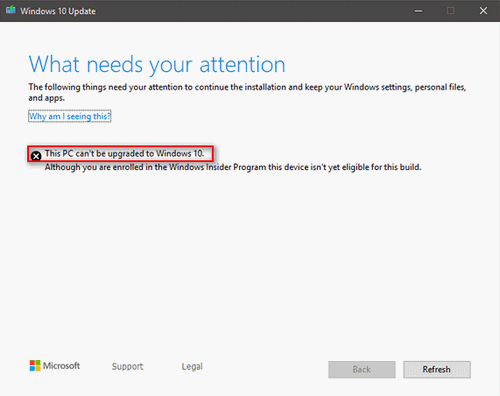
The fact is: once any external USB devices or memory cards have been connected to the computer on which users want to upgrade system, the drive letter of them may be changed inappropriately. And this will finally result in a blocked Windows update with an error message saying that This PC can’t be upgraded to Windows 10.
If your memory card happens to break without giving you a sign, you’d better start to recover data from the corrupted memory card without hesitating:
How to Fix When Windows Update Blocked
It’s easy to fix the bug: you should remove all the USB drives and SD cards and try the upgrade again via Windows Update. That is to say, if you would like to get the May 2019 Update for Windows 10, please make sure there is no USB drive or SD card connected to your PC. Besides, Microsoft responded to this issue: it plans to fix the bug in the upcoming servicing Windows 10 release.
Besides, if you are suffering from the drive letter changing issue now, you may try to reassign drive letter to make things right. MiniTool Partition Wizard is a wonderful tool to help you change USB drive letter Windows 10.
How to assign a drive letter Windows 10 with this tool?
- Keep the USB drive or SD card connected to your PC.
- Run the software and click Launch Application to enter its main interface.
- Find and select the target drive on the right side of the interface.
- Expand Partition Management option on the left side.
- Scroll down to find Change Drive Letter. Now, click it.
- Choose a new drive letter for the selected drive.
- Click on the OK button in the Change Drive Letter window.
- Click on the Apply button in the upper left corner of the main interface.
- Select Yes in the Apply Changes window to confirm.
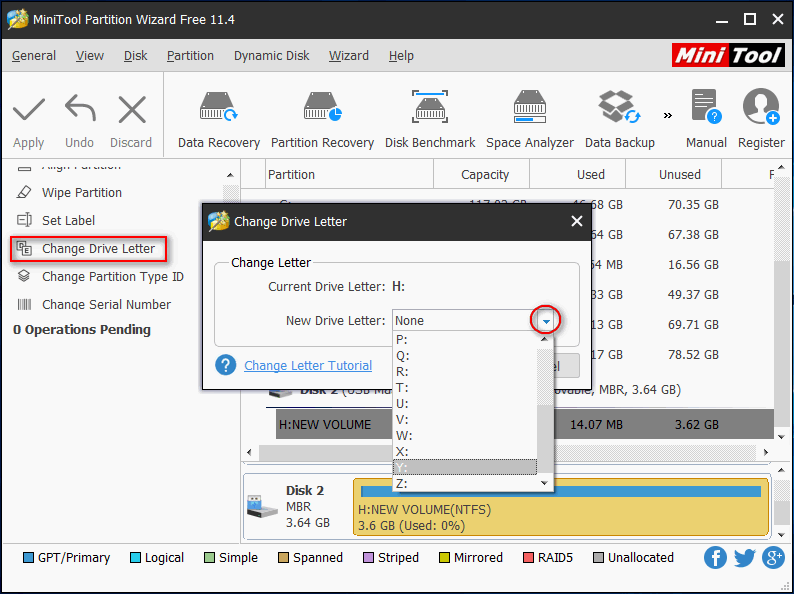
Please note that you can use this method to change drive letter Windows 10 and to assign a letter to the drive with no drive letter.
How to change drive letter with Command Prompt?
You can also use the Command Prompt to change/assign drive letter in Windows. Windows change drive letter cmd:
- Run Command Prompt as administrator.
- Type diskpart and press Enter (what if DiskPart has encountered an error).
- Type list volume and press Enter.
- Type select volume * (* is the drive number of target USB drive/SD card) and press Enter.
- Type assign letter=* (* stands for a letter that is not occupied by other drives) and press Enter.
- Wait a second.
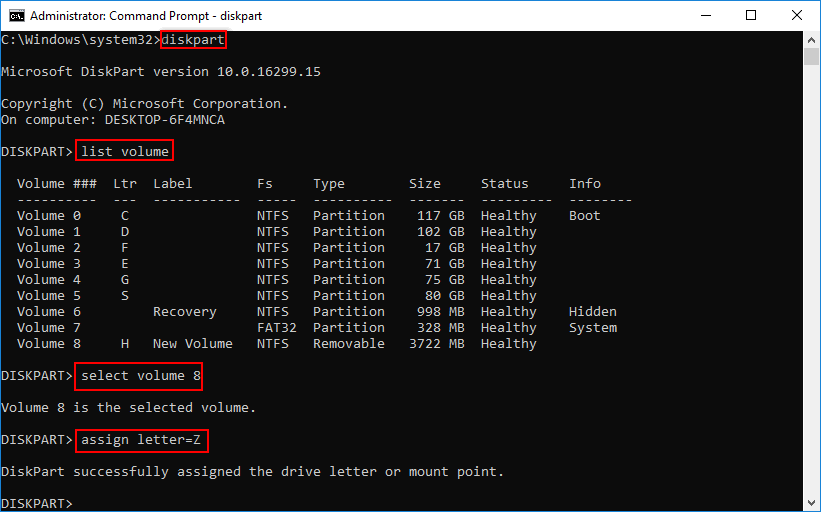
The above process will fail if the drive letter you use in step 5 is not available.
It is true Windows 10 May 2019 Update may be blocked for anyone using USB or SD storage. After reading the above content, you must know how to do when finding Windows update blocked.
User Comments :