
When installing Windows 7 Service Pack 1 on your PC, an error can stop you from doing this thing. What should you do if Windows 7 Service Pack 1 fails or won’t update/install? Take it easy and find out workarounds from this post written by MiniTool.
Windows 7 Service Pack 1 Won’t Update/Install
Windows 7 Service Pack 1, also known as Windows 7 SP1, contains a collection of updates, fixes, or enhancements. Its final version was rolled out to the public on February 22, 2011, and now Microsoft has ended its support of Windows 7.
Even so, some users persist in using Windows 7 on a PC since it is reliable. However, when trying to update/install SP1 for Windows 7, an error like 0x800F0A12, 0x80073701, 0x800f0a136, 0x800f0826, or installation was not successful appears.
Why Windows 7 Service Pack 1 fails to install/update? Possible reasons behind this could be insufficient disk space, software conflict, antivirus software interference, corrupted system files, and more. You can try some fixes to troubleshoot this issue.
How to Fix When Windows 7 Service Pack 1 Fails to Install
Make sure your PC has enough disk space to install SP1. Besides, temporarily disable your antivirus program since it may prevent the installation.
Uninstall Display Languages
When Windows 7 SP1 installation was not successful or another error prevents the installation, you can try this way that is offered by Microsoft.
Step 1: Tap on the Start button and choose Control Panel.
Step 2: Go to Clock, Language, and Region and click Install or uninstall display languages from Regional and Language.
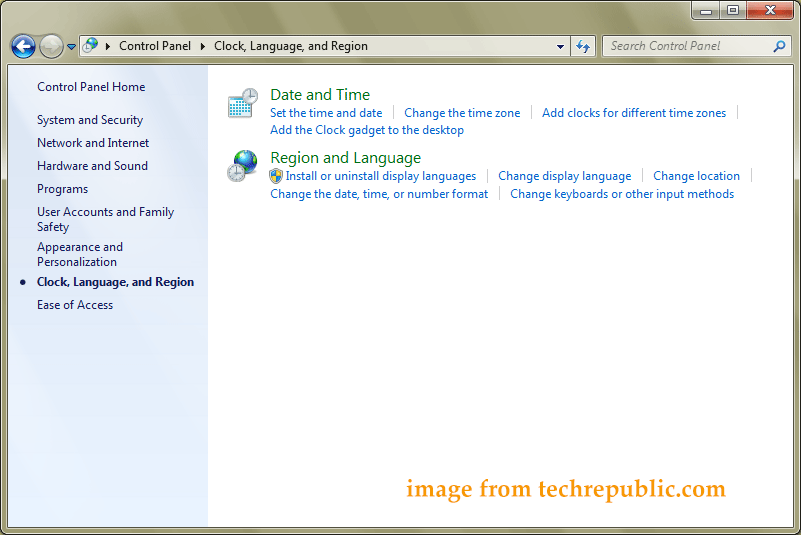
Step 3: In the new window, click Uninstall display languages to go on.
Step 4: Choose the installed languages that don’t match the language you are using on your PC now to uninstall and click Next to continue.
Step 5: The uninstallation process starts. After that, try to install Windows 7 SP1 again to see if it works smoothly.
Run System Restore
If Windows 7 Service Pack fails to install/update, perhaps there is something wrong with the Windows registry or mistaken operations impact the OS, leading to an unsuccessful installation. To undo your recent changes to Windows, you can run System Restore to revert the operating system to a previous point in time before the installation problem started.
Step 1: Type system restore into the Windows search and click it in the programs list.
Step 2: After opening the System Restore window, click Next and you can see the restore points you have created. Choose the most recent restore point created before the Windows 7 Service Pack 1 installation issue started.
Step 3: Click Finish and the restoration process starts.
Later, install Windows 7 SP1 again.
Use System Update Readiness Tool
Microsoft offers a tool called System Update Readiness Tool that can be used to fix problems that block Windows updates and service packs from installing. When Windows 7 Service Pack 1 fails to install, try this tool.
Step 1: Visit https://www.catalog.update.microsoft.com/Search.aspx?q=947821, choose the version that corresponds to the version of Windows, and click the Download button.
Step 2: Then click one link to get the .exe file of this tool.
Step 3: Double-click on this file to install it. If you are asked to install Windows software update, click Yes. System Update Readiness Tool can automatically run to scan and fix some issues it may find during the installation. After the installation is complete, close this window.
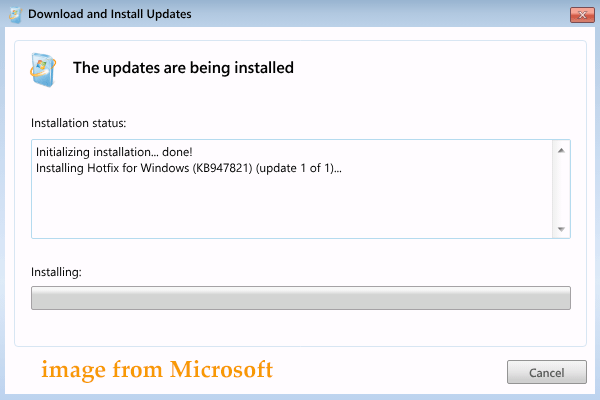
Step 4: Next, reinstall Windows 7 Service Pack 1.
Run SFC and DISM
If Windows 7 Service Pack 1 won’t install or update with an error, the culprit may be the corrupted system files and you can fix the corruption using SFC or DISM.
Step 1: Type cmd into the search box and right-click on it to choose Run as administrator.
Step 2: Type sfc /scannow and press Enter to perform a scan.

After the SFC scan, you can run DISM to run a scan with the command – DISM.exe /Online /Cleanup-image /RestoreHealth. If your update client is broken, prepare a Windows installation drive to connect to the PC and run this command – DISM.exe /Online /Cleanup-Image /RestoreHealth /Source:C:\RepairSource\Windows /LimitAccess.
Manually Install Windows 7 Service Pack 1
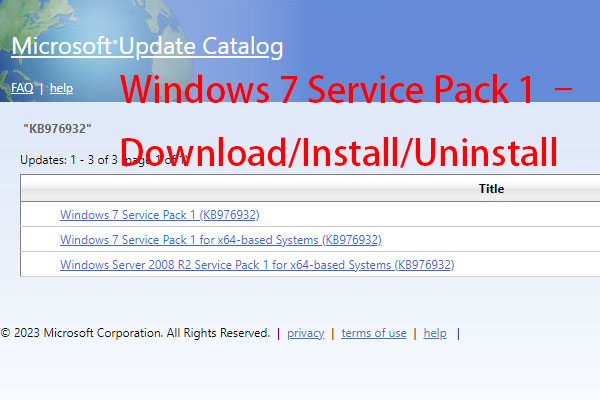
If you fail to update to Windows 7 SP1, you can manually install it via Microsoft Update Catalog. Just search for Windows 7 Service Pack 1 and download the proper version based on your Windows. Then, run the .exe file to install SP1.
Alternatively, you can go to download Windows 7 Service Pack 1 ISO 32-bit or 64-bit online, burn it to the USB drive using Rufus and clean install Windows from USB.
Back up PC Before Windows 7 Service Pack 1
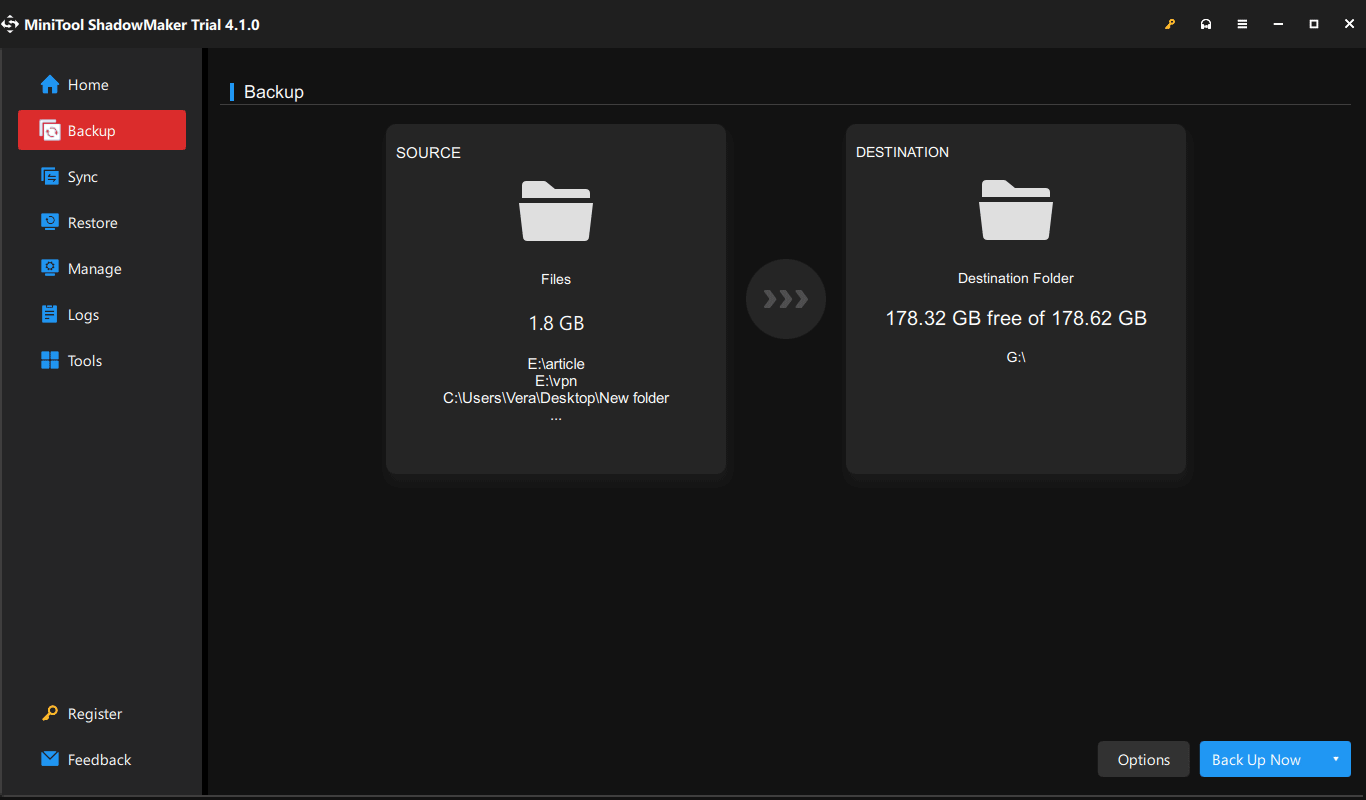
Before installing Windows 7 SP1, we strongly recommend creating a backup. This is to avoid data loss or return the system to an earlier state in case of update issues. To back up your PC, run a professional Windows backup software like MiniTool ShadowMaker. This program can help to back up files, folders, disks, partitions, and the Windows operating system.
MiniTool ShadowMaker TrialClick to Download100%Clean & Safe
Step 1: Open MiniTool ShadowMaker to the main interface.
Step 2: Under the Backup tab, choose the backup source and target.
Step 3: Start the backup by clicking Back Up Now.
About The Author

Position: Columnist
Vera has been working at the MiniTool Team for over 10 years as a technical editor and content writer. She mainly focuses on disk and partition management, data recovery, Windows backup and restore, and PC troubleshooting. Through in-depth software testing and hands-on experience, she has helped users solve a wide range of computer problems and better protect their data on Windows devices.
User Comments :