
Windows driver foundation missing error can result in your Windows PC lags or running slowly when doing resource-intensive tasks. If you find this error, unfortunately, it means some important system-related drivers fail to load on your Windows PC. This tutorial on MiniTool Website will help you handle it.
Windows Driver Foundation Missing Error
First of all, you need to know what the Windows driver foundation missing error is? This error can happen when your driver is outdated, system files are missing, or the essential Windows service stops running, etc.
The error is common when you update your Windows to the latest version, which may contribute to the incompatible hard drives with the version of your Windows.
Besides, if your Windows driver foundation fails to load, you might consider that corrupted system files or un-updated Windows and Wi-Fi drivers are the culprits.
Now, you have a general picture of the Windows driver foundation missing error. The next part will tell you how to fix the Windows driver foundation missing error.
Solutions for Windows Driver Foundation Missing Error
Solution 1: Update Your Windows
As mentioned before, outdated Windows can make your windows driver foundation not work properly. Therefore, we can try to update it.
Step 1: Open your Settings and scroll down to click the Update & Security option.
Step 2: In the Windows update part, you can click Check for updates. If any available version here, please download and install it.
When you finish, you can check if the issue persists.
Solution 2: Uninstall and Reinstall USB Controllers
If the last method has been proved to be of no use, you can also uninstall and reinstall the USB Controllers via the Device Manager when you encounter the windows driver foundation missing error.
Step 1: Press Win + R to open the Run command and input devmgmt.msc to enter.
Step 2: Expand the Universal Serial Bus Controllers node.
Step 3: Right-click on the USB controller and select Uninstall device.
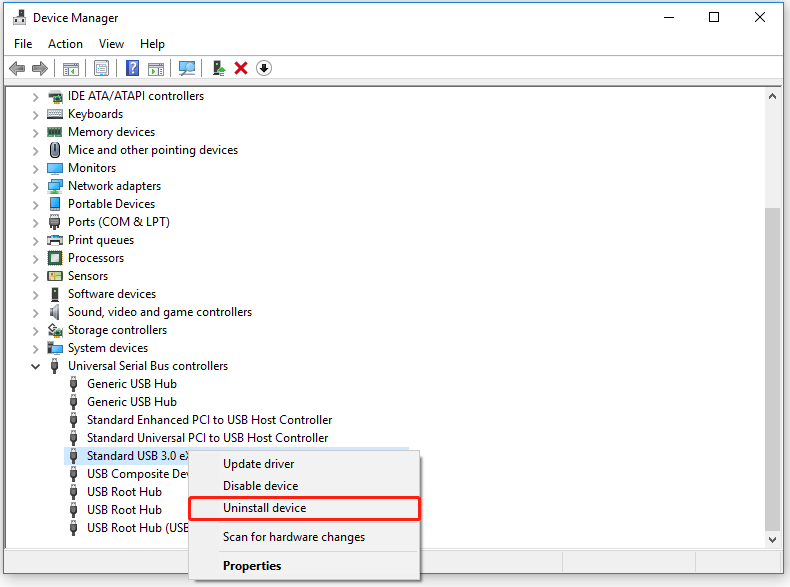
Then you can restart your PC. After restarting your device, Windows will detect the hardware changes and install the missing USB Controller driver.
Solution 3: Disable Hard Drive Hibernation
If the Windows driver foundation missing error pops up, it may be a good choice to disable the hard drive hibernation.
Step 1: Type edit power plan in the Search box and open it.
Step 2: Click on Change advanced power settings.
Step 3: Under the Hard disk option, set Never in the Setting (Minutes): part.
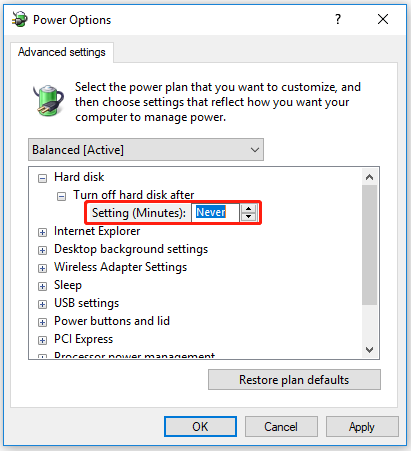
Step 4: Hit Apply and press OK. Reboot your PC.
Solution 4: Run SFC Command
The System File Checker can check your PC for all corrupt files and help you fix them. Since the corrupted files can be one of the culprits when the windows driver foundation missing error occurs, we can try to fix them.
Step 1: Search for Command Prompt in the Start menu and run it as an administrator.
Step 2: Type sfc /scannow in the pop-up window and press Enter.
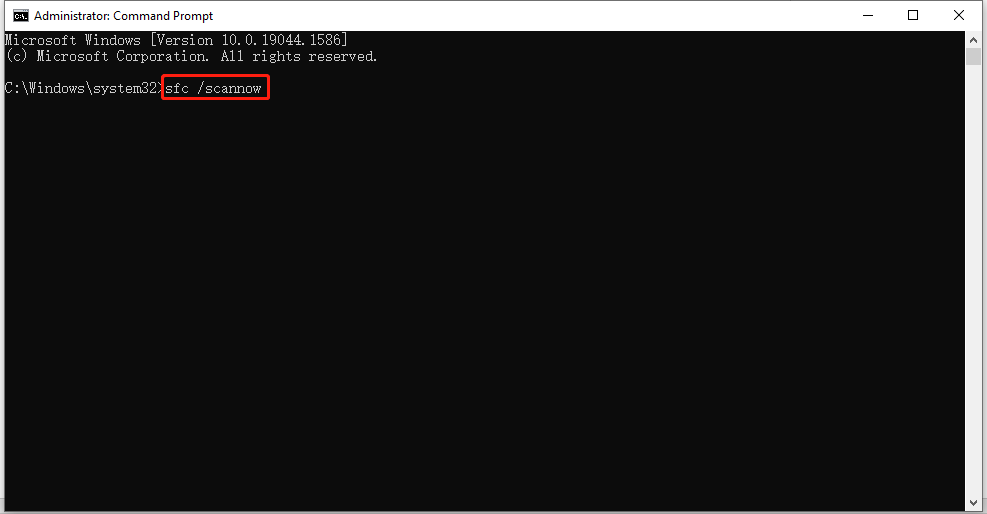
The process will take some time. You need to wait for a moment and once finished, simply reboot your PC.
Solution 5: Run Clean Boot
Some background activities may interfere with your program so that your Windows driver foundation does not work properly. In this way, the clean boot can be used to help you identify the application or service that is causing an issue.
Step 1: Open the Run dialogue and input msconfig to enter.
Step 2: Uncheck the Load startup items option and check the Load system services option and the Use original boot configuration option under the Selective startup part.
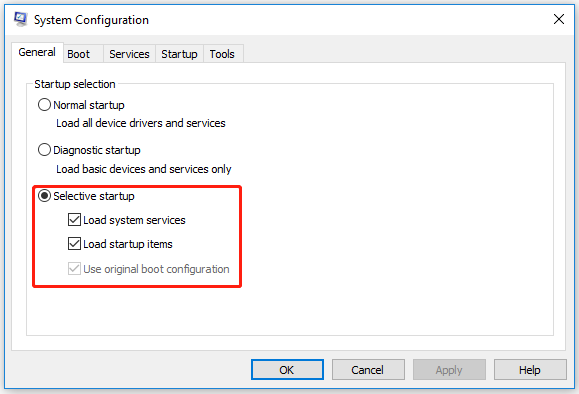
Step 3: Go to the Services tab and click on Hide all Microsoft services.
Step 4: And then select Disable all to disable all third-party unnecessary services. Click Apply and hit OK.
At last, please reboot your PC.
Just keep your PC in a clean boot state to see if the problem is gone. You can turn on each app one by one and services individually afterward to find exactly which app is the cause of your issue.
In this way, you can easily determine whether a background program is interfering with your game or program.
Solution 6: Use System Maintenance Troubleshooter
The Windows Troubleshooter is a powerful tool used to automatically find and fix various Windows errors. It also can be applied to the situation where your windows driver foundation fails to load.
Step 1: Search for Control Panel in the Start menu and open it.
Step 2: Select Troubleshooting and click on View all from the left pane.
Step 3: Find System Maintenance and click it. Then you can click Next and wait for the issue detecting process to finish and follow the next instructions.
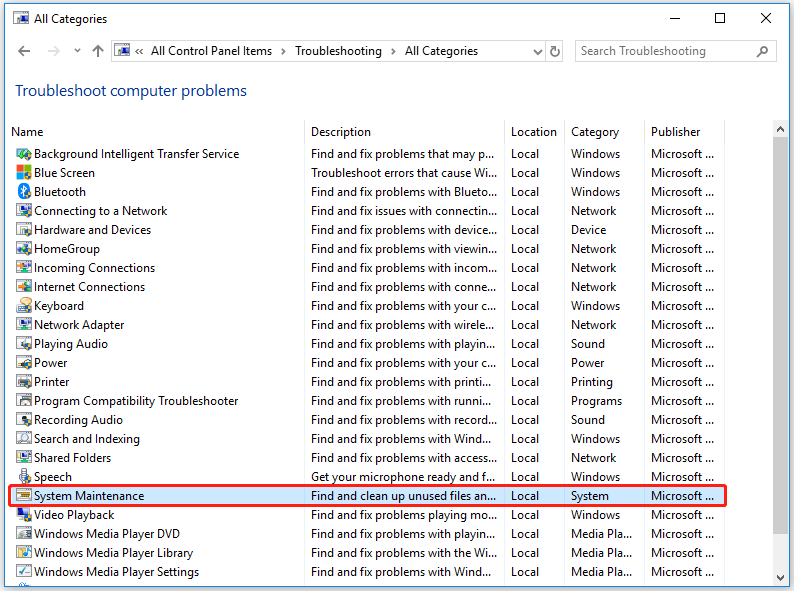
After that, restart your PC.
Bottom Line:
This article has informed you all about the windows driver foundation missing error. Here are 6 solutions aiming at this problem and you can learn the way to tackle it. I hope this article can be helpful for you.
User Comments :