
Shortcuts provide a portable way to access and open various computer utilities. There are several key combinations on your keyboard. In this MiniTool post, we mainly introduce you to some common Winkey shortcuts and how to create Winkey shortcuts by yourself.
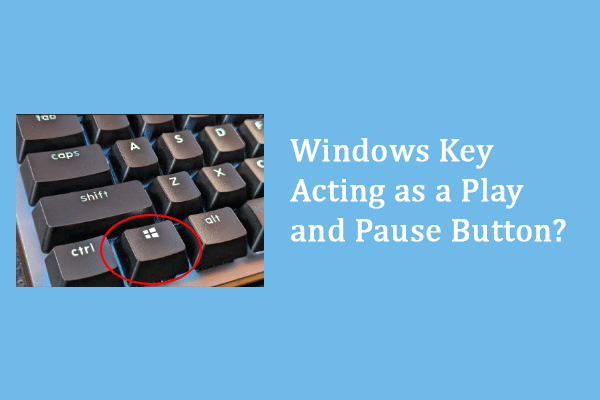
Winkey refers to the Windows key button on your computer board, distinguished by the Microsoft Windows logo from other keys. Winkey shortcuts help to access utilities related to the Windows operating system. The most basic is pressing the Windows key only to open the Start menu. In the following content, I will list several Windows key shortcuts.
Winkey Shortcuts in Windows 10/11
Since there are piles of Windows key shortcuts, you can read the following chart and try and remember the most useful ones based on your requirements.
| Winkey Shortcut | Function |
| Windows + B | Choose the first item at the right corner of the Taskbar. If the first icon is System tray, press Windows + B will select System tray. Then, you can use arrow keys to switch selections. |
| Window + D | Minimize all windows and back to the Desktop. You can press Windows + D again to cancel the operation. |
| Windows + M | Minimize all the opened windows. |
| Windows + E | Open File Explorer on your computer. |
| Windows + F | Open Feedback Hub which is designed by Microsoft to report bugs. |
| Windows + L | Lock your computer. |
| Windows + R | Open the Run dialogue box. |
| Windows + U | In Windows 10, open Ease Of Access in Settings. In Windows 11, open Accessibility settings. |
| Windows + X | Open the Quick Link menu, where you can access Device Manager, Disk Management, Task Manager, and other utilities quickly. |
| Windows + S | Open the Windows Search box. |
| Windows + Left arrow key | Snap left to the application or window. |
| Windows + Right arrow key | Snap right to the application or window. |
| Windows + “-” button | Zoom out the screen. |
| Windows + “+” button | Zoom in the screen. |
| Windows + Shift + M | Restore the minimized window to the desktop. |
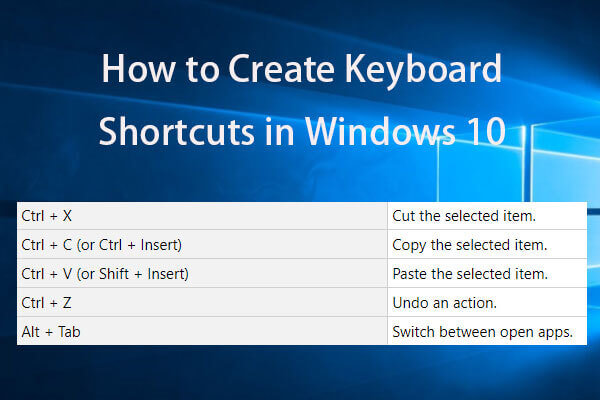
In addition to Windows key shortcuts, there are many other key combinations, such as Ctrl + Z to undo the previous operation, Ctrl + X to cut the selected content to the clipboard, Alt + Tab to switch between opened apps and more. You can read this post to learn different key combinations.
How to Create a New Windows Key Shortcut
The above chart lists several common Winkey shortcuts. Apart from those key combinations, you can try to create a personalized Windows key shortcut.
To create your own Winkey shortcuts, you may need the help of third-party tools, like PowerToys developed by Microsoft. This tool supports Windows 10 and higher operating systems. Microsoft PowerToys is a set of utilities. Keyboard Manager is one robust function of this tool. You can use it to remap keys and create your own keyboard shortcuts.
Bottom Line
For geeks, using key combinations is handy and improves their effectiveness in operating computers. Winkey shortcuts work well in accessing different Windows utilities and configuring desktop windows.
Additionally, MiniTool designs some useful tools to manage your computer and data well. If you need to recover files from your computer, external hard drive, USB drive, and other removable devices, you can get MiniTool Power Data Recovery Free to have a try. The free edition allows you to scan and restore up to 1GB of files for free.
MiniTool Power Data Recovery FreeClick to Download100%Clean & Safe
Hope this post gives you some inspiration and further knowledge of Windows key shortcuts.
User Comments :