
Windows Live Mail is a part of the “Windows Live Essentials”. Some people report that they encounter the “wldcore.dll was not found” issue when using it. If you are one of them, this post from MiniTool can help you get rid of the issue.
Wldcore.dll
What Is Wldcore.dll
What is wldcore.dll? It is known as the Windows Live Client Shared Platform Module, which is commonly associated with the Windows Live Client. It is an essential component to ensure that Windows programs operate properly. Thus, if the wldcore.dll file is missing, it may negatively affect the work of the associated software.
What Causes the “Wldcore.dll Missing” Issue
What causes the “Wldcore.dll is missing” issue? The error is usually caused by a Windows upgrade or the reinstallation of an application. If there is an error on Windows, the system will move the wldcore.dll file out of the folders and group it in the Shared Folder.
Then, I will introduce how to fix the “wldcore.dll missing” issue.
How to Fix the “Wldcore.dll Not Found” Issue
Method 1: Copy Wldcore.dll
Since the files are grouped by Windows in different folders, thus, you can copy wldcore.dll to fix the issue. For that:
Step 1: Navigate to the following address:
C:\Program Files (x86)\Windows Live\Shared
Step 2: Right-click the wldcore.dll and wldlog.dll files, then select the Copy option.
Step 3: Navigate to the following folder, right-click anywhere and select Paste.
C:\Program Files (x86)\Windows Live\Messenger
Step 4: Repeat this process for the following folders as well.
C:\Program Files (x86)\Windows Live\Contacts
C:\Program Files (x86)\Windows Live\Mail
Try to use the application and check to see if the “wldcore.dll missing” issue has been fixed. If not, try the next solution.
Method 2: Run System File Checker (SFC)
If there are corrupted or missing system files on your computer, you could also get the “wldcore.dll is missing” error. In this case, you’d better run System File Checker to scan and fix any corrupted system file. Here are detailed steps to run SFC:
Step 1: Type cmd in the Search box. Right-click the best match Command Prompt and choose Run as administrator.
Step 2: Type sfc/ scannow in the Command Prompt and press Enter.
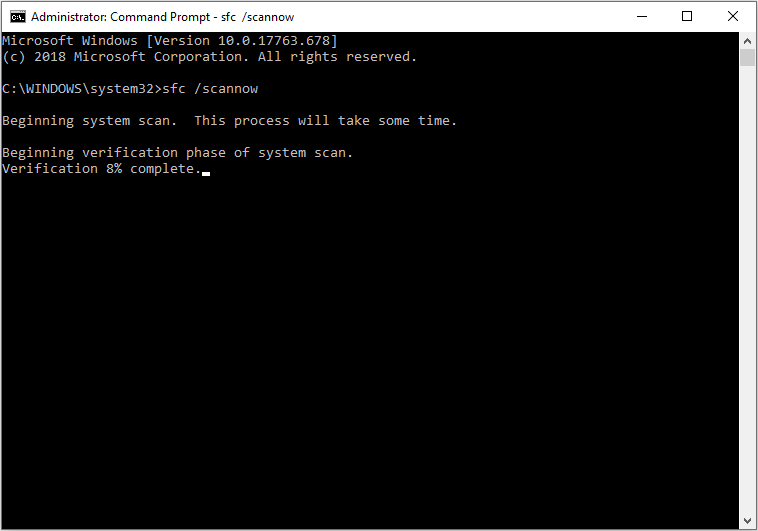
Step 3: Once there are corrupted or missing system files detected by System File Checker, it will fix them automatically. Just wait patiently when it is scanning.
Then you can check to see if the issue has been fixed or not.
Method 3: Perform System Restore
The last method for you is to perform a system restore. But only if you have created a system restore point, you can use this method. Now, follow the steps below:
Step 1: Type restore point in the Search box and then click Create a restore point.
Step 2: In the System Protection tab, click the System Restore… button.
Step 3: Then, click Next from the new pop-up window.
Step 4: Select a restore point that you want to revert your system to and click the Next button.
Step 5: Now confirm you select a correct restore point. Click Finish.
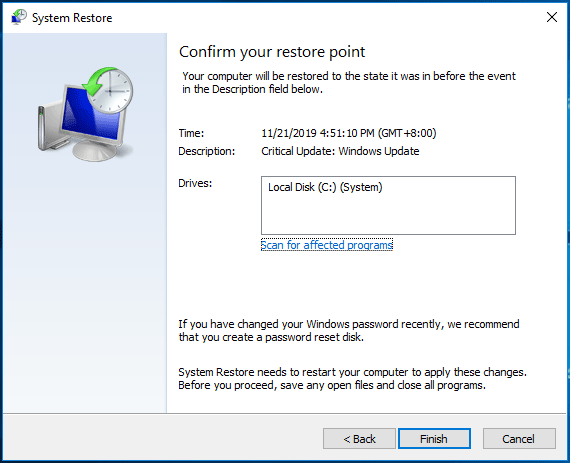
Then, Windows will restart your computer and start the restore process. Just wait patiently until the process is finished. Now, the wldcore.dll problem should have been fixed.

The End
In conclusion, you can know what wldcore.dll is and how to fix the “wldcore.dll missing” issue. If you encounter the same issue, you can try the methods above.
Wldcore.dll FAQ
- Restart your PC.
- Retrieve deleted files.
- Check for the Malware.
- Restore your system.
- Reinstall the application.
- Update drivers.
- Update Windows.
User Comments :