
What is Xtreme LiteOS 7? If you are interested in this Lite system, how to download Windows 7 Xtreme LiteOS ISO and use it to install on your PC? The operation is not hard and go to find the guide from MiniTool to get this Windows 7 Lite OS.
Overview of Windows 7 Xtreme LiteOS
Although Windows 7 has ended its life several years, there are still many users using Windows 7. For some Windows users, they are interested in its Lite OS and perhaps you are also one. Today we will introduce you to the system – Xtreme LiteOS 7.
Xtreme LiteOS 7 is a tweaked edition of Windows 7 that is specially designed to improve gaming performance on low-end PCs with the included many features. Besides, this Lite OS removes/disables some features including Internet Explorer 11, Windows 7 Games, Windows DVD Maker, Snipping Tool, Help and Support, On-Screen Keyboard, Windows Gadgets, Windows Tablet PC, Sound Recorder, Auto-Play, WordPad, Printing and Fax Compatibility and more.
If you want to try this Lite OS to play some Windows 7 games with a good experience, you can download and install it on your PC. Move to the next part to know what you should do.
Xtreme LiteOS 7 Download ISO
To install it on your PC, you need to get an ISO file of this system. You can open your web browser, search for “Windows 7 Xtreme LiteOS ISO”, “Windows 7 Xtreme LiteOS download”, or “Xtreme LiteOS 7 download” and open the given links to find the download source like https://usersdrive.com/k14qs92kx7gs.html.
After getting the ISO, use it to install this Lite OS on your PC by following the given instructions below.
Back up Files Before Installation
Before starting to install this system, there is a thing you should note: back up all your important data on the current Windows since the installation of the OS is a completely clean installation. That is, it can delete all the data on the hard drive.
So, how can you back up your PC data? The operation is not hard if you use a piece of professional PC backup software. Here, we recommend using MiniTool ShadowMaker which is compatible with Windows XP/7/8/10/11. It supports file backup, system backup, disk backup, and partition backup. Get it via the button below and then install it on the machine for a data backup.
MiniTool ShadowMaker TrialClick to Download100%Clean & Safe
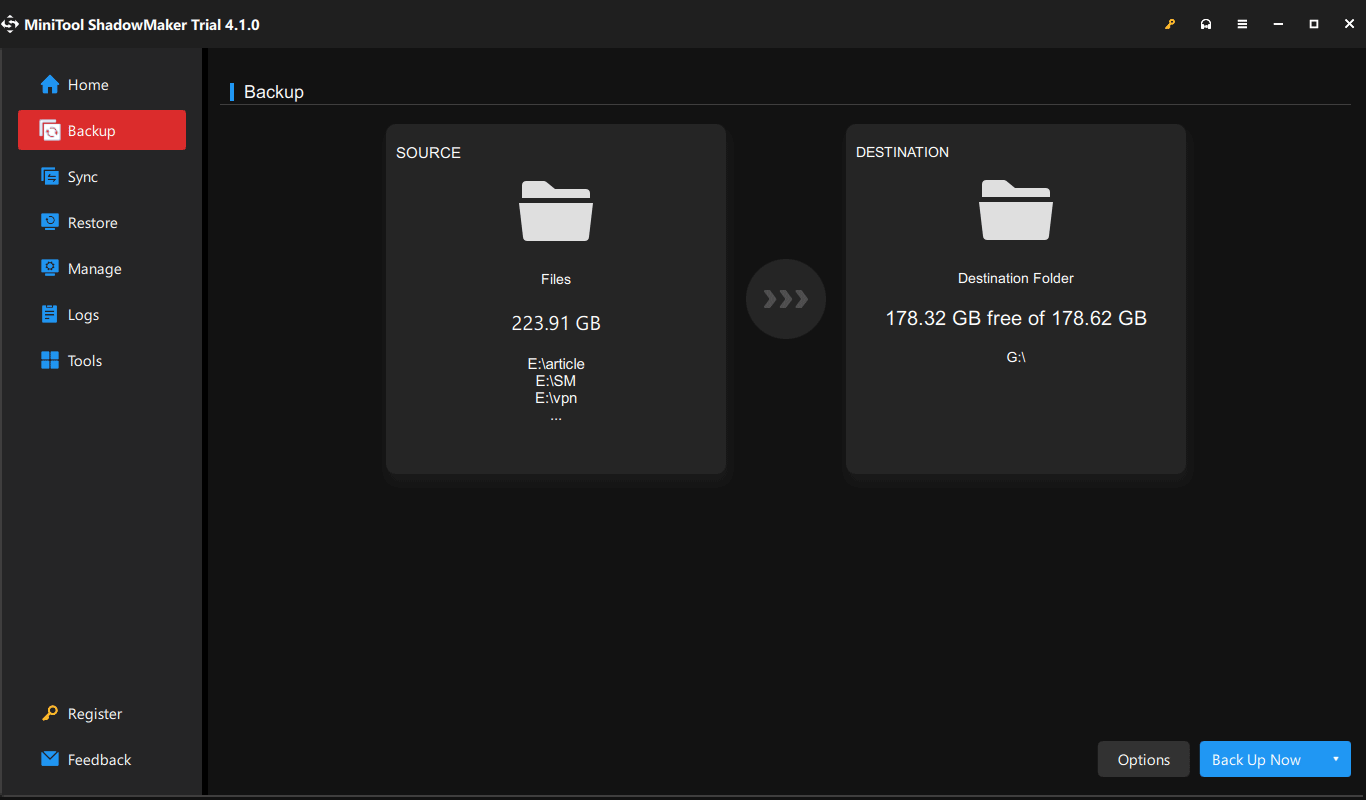
Step 1: Launch MiniTool ShadowMaker and go to its main interface.
Step 2: Under Backup, go to SOURCE > Folders and Files, choose all the data you want to back up, and click OK.
Step 3: Choose an external hard drive as the target path.
Step 4: Click Back Up Now to start the file backup.
Install Xtreme LiteOS 7
After finishing data backup, follow these steps to install this Lite OS:
Step 1: Connect a USB drive to your PC.
Step 2: Download Rufus and run it on the machine.
Step 3: Choose the ISO file of Windows 7 Xtreme LiteOS and burn the ISO to this USB drive.
Step 4: Run the machine to BIOS and boot it from the bootable USB drive.
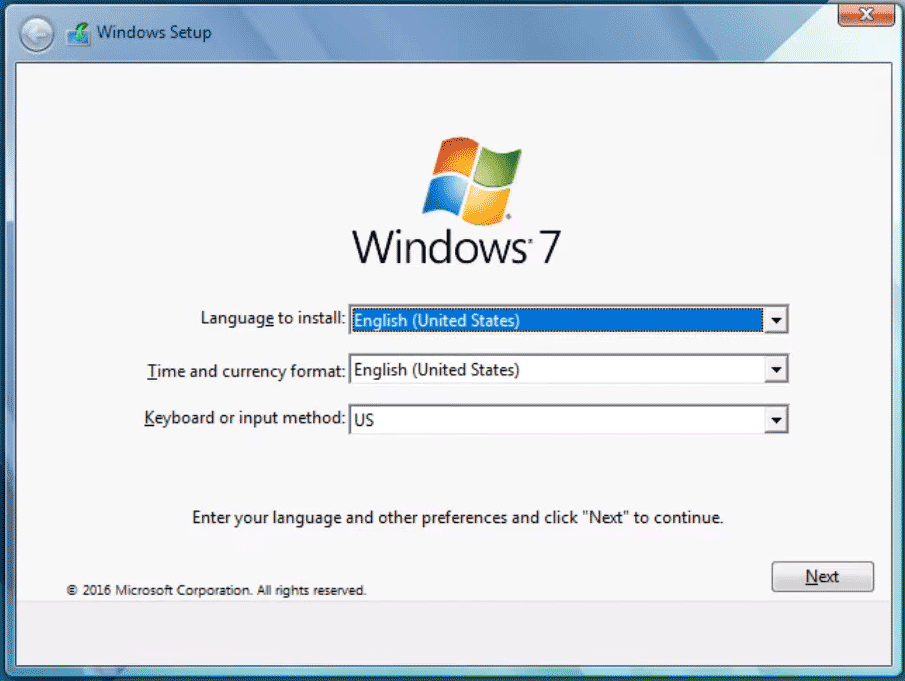
Step 5: In the Windows Setup window, choose a language, time format, and keyboard method, and click Next. Finish the installation by following the on-screen wizards.
Final Words
After reading this post, you know what Xtrem LiteOS 7 is and how to download & install Windows 7 Xtreme LiteOS on your PC. If you want to have a try, follow the given instructions to get this Lite OS.
About The Author

Position: Columnist
Vera has been working at the MiniTool Team for over 10 years as a technical editor and content writer. She mainly focuses on disk and partition management, data recovery, Windows backup and restore, and PC troubleshooting. Through in-depth software testing and hands-on experience, she has helped users solve a wide range of computer problems and better protect their data on Windows devices.
User Comments :