
Now, many open-world games exceed 100GB and are ray-traced masterpieces. Choosing a good storage device is essential for PC gamers.
Storage device choices primarily focus on mechanical hard drives (HDDs) and solid-state drives (SSDs). This choice directly impacts game loading speeds, texture streaming, and frame rate stability.
Which is better for gaming SSD or HDD? We’ll explore this question from different perspectives.
How Does Storage Device Affect Gaming?
Storage devices are a key factor affecting game performance, primarily impacting loading times.
#1. Game Loading and Launch
How does speed impact game performance? The storage drive doesn’t affect the game’s frame rate (FPS). Instead, it has a direct impact on game launch speed and level loading speed, which affect the overall smoothness and experience of the game.
2. In-Game Smoothness and Streaming
Modern games, especially open-world games, dynamically load resources (textures, models, audio) from storage drives as you explore the game environment.
Slow storage speeds often fail to load high-resolution resources in time, causing textures to appear abruptly and blurry objects to suddenly become clear.
#3. Game Installation
When you install a game, a storage device with a high write speed can make the game installation time shorter.
SSD or HDD for Gaming
Is SSD or HDD better for gaming? In the following part, it will explore this question from the 5 aspects, including performance, durability, lifespan, capacity, and price.
Here is a table to show SSD vs HDD for gaming:
| Feature | SSD | HDD |
| In-game performance | Smoother, less stuttering | Potential stutters |
| Cost | Higher cost per GB | Lower cost per GB |
| Durability | No moving parts, durable | Susceptible to damage |
| Lifespan | Longer (5-10) | Shorter (3-5) |
| Noise | No | Yes |
#1. Game Performance
SSDs use flash memory for electronic transfers, while HDDs rely on mechanically rotating platters. This significantly affects their speeds.
| Drive Type | Average Read/Write Speed |
| HDD (7200 RPM) | 80-160 MB/s |
| SATA SSD | 500 – 560 MB/s |
| NVMe SSD (Gen 4) | 3,500 – 7,500 MB/s |
| NVMe SSD (Gen 5) | Up to 14,000 MB/s |
Here is the difference between SSD and HDD for gaming performance:
- Loading times: SSDs, especially NVMe models, can reduce loading times by 3 to 10 times compared to HDDs. In multiplayer games, faster storage speeds allow you to enter matches and respawn faster, providing a strategic advantage.
- Gameplay smoothness: SSDs provide smoother gameplay than HDDs. This is due to seek time and data throughput. SSDs have virtually zero seek time due to the absence of moving parts, and they have extremely high IOPS (Input/Output Operations Per Second) to process data. HDDs, on the other hand, have a physical arm that must move across rotating platters to find data.
- Texture: SSD can keep a fast speed and ensure that high-resolution textures load. The DirectStorage technologies allow the GPU to access data directly from an NVMe SSD, bypassing the CPU bottleneck and eliminating loading pauses. While it technically works on SATA SSDs and HDDs, the benefits are minimal on these slower drives.
In summary, an SSD is vastly superior to an HDD because it provides faster loading times and smoother gaming experiences through rapid data transfer.
#2. Durability
In terms of durability, storage devices depend on a battle between two factors: mechanical wear (HDD) and electronic wear (SSD).
For gaming, SSDs are far more durable than HDDs because they lack the fragile moving parts found in HDDs, which are prone to sudden failures.
- HDDs: These drives contain a mechanical arm and magnetic platters that spin at 7200 revolutions per minute. Even minor bumps or vibrations during operation can cause “head slams,” permanently damaging the platters and resulting in lost game data.
- SSDs: Due to the absence of moving parts, SSDs are extremely shock-resistant. They can withstand drops, vibrations, and high-intensity movement, making them the only reliable option for gaming laptops or external hard drives.
#3. Lifespan
SSDs have a significantly longer lifespan than HDDs, averaging 5-10 years, while HDDs only last 3-5 years.
SSD lifespan, measured in Terabytes Written (TBW), rarely affects gaming. Gaming is a read-intensive activity and doesn’t cause wear and tear on SSDs. Wear and tear primarily occur during initial installations or when applying large patches of several gigabytes.
A typical 1TB gaming SSD has a write lifespan of 600 TBW, capable of processing approximately 160GB of new data per day for 10 years—far exceeding the needs of even the most frequent game installers.
When an SSD reaches the end of its lifespan, it typically enters a read-only mode, allowing you to still recover save files and game data. HDDs, on the other hand, are susceptible to physical shocks, vibrations, and even high humidity, making data recovery difficult.
#4. Capacity and Price
While SSDs are the requirement for modern AAA titles, HDDs remain the only viable way to store massive multi-terabyte libraries on a budget.
Game sizes have continued to grow, making high-capacity storage more critical than ever.
HDDs remain significantly cheaper per gigabyte, often costing $0.03–$0.06 per GB compared to $0.08–$0.20+ per GB for SSDs. This influences storage capacity choice, leading to game numbers.
#5. Noise
As mentioned above, SSDs use flash memory with no moving parts, making them the gold standard for silent gaming builds.
HDDs rely on physical components that generate two distinct types of noise during gaming. It can interfere with quiet gameplay, high-fidelity audio, and content creation.
When to Choose SSD or HDD?
Choosing an HDD or SSD for gaming? This depends on whether you prioritize performance or large capacity. While SSDs are now considered essential for smooth gameplay of modern games, HDDs remain a cost-effective option for massive game databases.
When to Choose an SSD?
For any modern gaming setup, an SSD should be your first choice.
- Modern AAA games: New games like StarCraft, Cyberpunk 2077, and Alan Wake 2 all list SSDs as a minimum requirement.
- Open-world games: Choosing an SSD can prevent texture pops and minor stuttering in large games with dynamically loading resources.
- Competitive games: Compared to 15-30 seconds on an HDD, SSDs reduce loading times for multiplayer games like Valorant or League of Legends to 3-8 seconds, speeding up the process.
- Laptops: Because SSDs have no moving parts, they are more durable for portable gaming. Therefore, gaming laptops prefer SSDs.
When to Choose an HDD?
While HDDs are no longer recommended for running modern games, they remain suitable for specific high-capacity needs.
- Bulk game archiving: If you have a large game library of hundreds of games, storing them on an HDD is the most cost-effective way, and you won’t delete any files. You can move them to an SSD only when you’re ready to play the game.
- Secondary storage: Traditional HDDs have the lowest cost per GB, making them ideal for storing media files, recorded game clips, and backups.
- Older games or indie games: Many retro games or simple indie games don’t require high-speed streaming and run perfectly on an HDD.
For most gamers, the most practical solution is a hybrid approach.
- Primary Hard Drive (SSD): 500GB to 1TB NVMe SSDs (e.g., Samsung 980 PRO or WD_BLACK SN850X) are suitable for your operating system and games.
- Secondary Hard Drive (HDD): 2TB to 8TB internal hard drives (e.g., Seagate BarraCuda) are used for a wider collection and backups.
How to Transfer Game Between HDD and SSD?
How to transfer games between HDD and SSD without reinstalling? Most modern launchers have a built-in “Move” button. This is the safest way to ensure the game still launches correctly.
Steam
Steam includes a dedicated Storage Manager that allows you to move multiple games simultaneously.
- Open Steam and go to Settings > Storage. Click the “+” icon next to your current drive and select your SSD to create a new library folder.
- Click on your HDD in the Storage menu to see its installed games.
- Check the boxes next to the games you want to transfer and click Move at the bottom right. Choose your SSD as the destination.
Epic Games Launcher
Epic does not have a native “Move” button, so you must use a specific “backup and replace” method.
- Manually copy the game’s folder from its HDD location (usually C:\Program Files\Epic Games) to your SSD.
- In the Epic launcher, click the three dots next to the game and select Uninstall.
- Click on the game to install it, choosing your desired SSD location. Once the download reaches 2–3%, cancel the installation.
- Copy your backed-up game folder into the new install folder on the SSD.
- Click the game in your library to resume. The launcher will verify the existing files and complete the installation instantly.
Battle.net & Ubisoft Connect
Battle.net and Ubisoft (Uplay) require moving files manually and then re-linking them.
Close the launcher and manually move the game folder from your HDD to your SSD. Then re-link them.
- Re-link in Battle.net: Go to Settings > Game Settings in the launcher, select the game, and click Use a Different Folder to point to the new SSD location.
- Re-link in Ubisoft: Open the game’s details page in the launcher. Under the Download button, click Locate installed game and select the new SSD folder.
How to Upgrade HDD to SSD for Gaming?
As mentioned above, using an SSD for gaming is a better choice. Well, how to upgrade from an HDD to an SSD without reinstalling your OS or games? You can use the Copy Disk feature of MiniTool Partition Wizard.
First, connect the SSD to your computer with an NVMe/SATA to USB adapter. Then download and install MiniTool Partition Wizard on your computer.
MiniTool Partition Wizard DemoClick to Download100%Clean & Safe
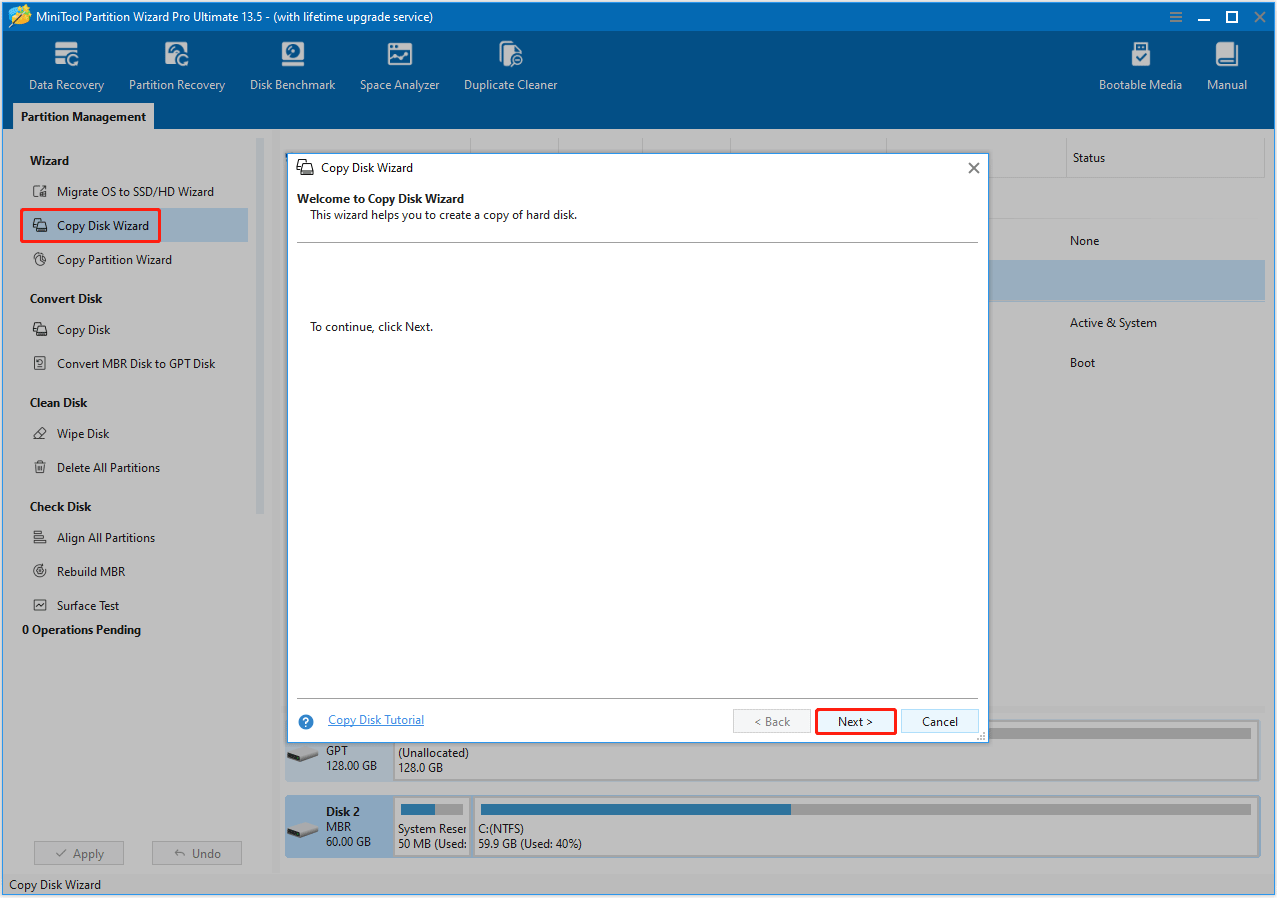
Step 1. Start the Copy Disk wizard.
- Launch MiniTool Partition Wizard on your computer.
- In the main interface, click Copy Disk Wizard in the left action panel.
- Click Next on the wizard’s screen.
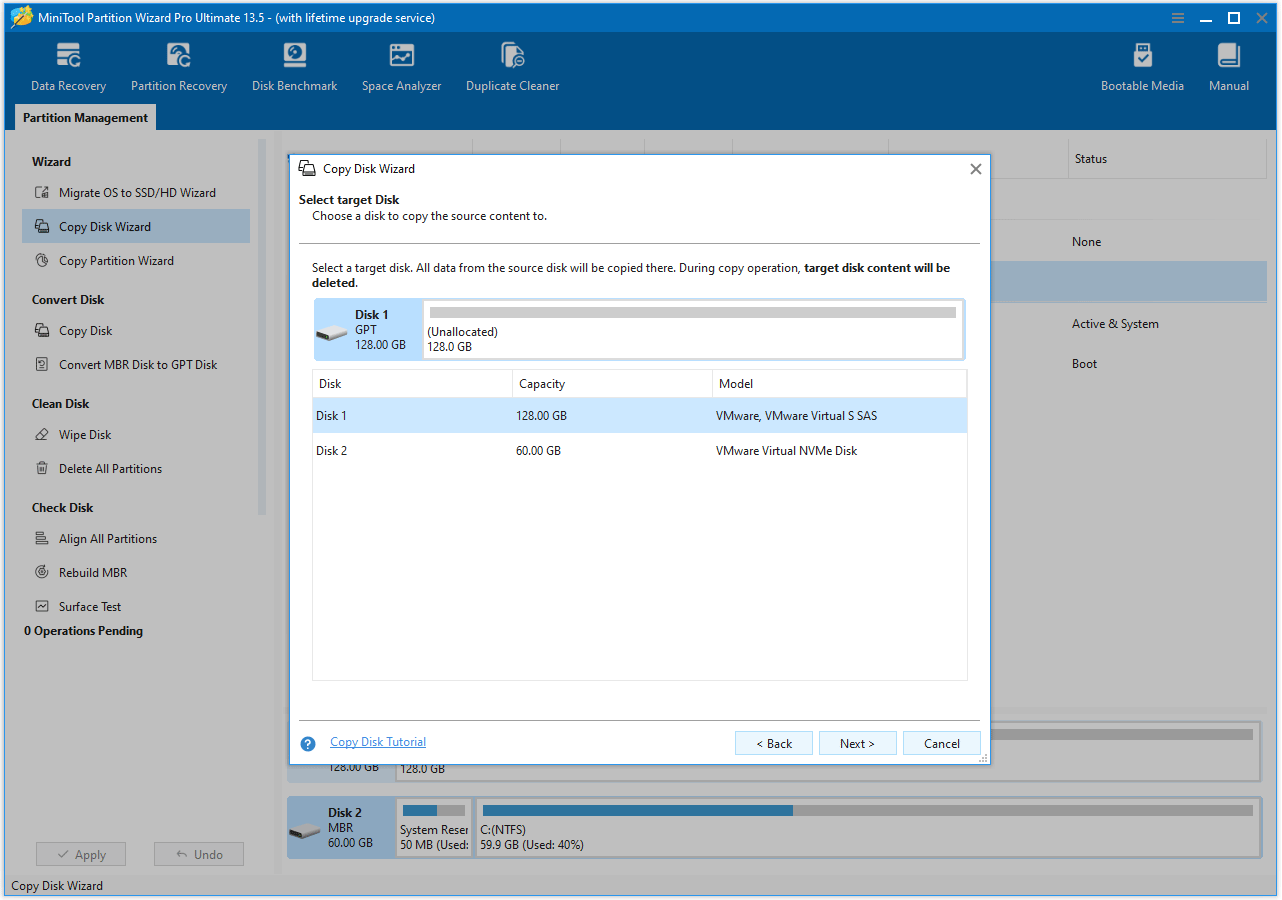
Step 2. Select source and target disks.
- On the Select Disk to copy window, choose the HDD and click Next.
- On the Select target Disk window, select the SSD and click Next.
- When prompted that all the data on the target disk will be destroyed, click Yes to continue.
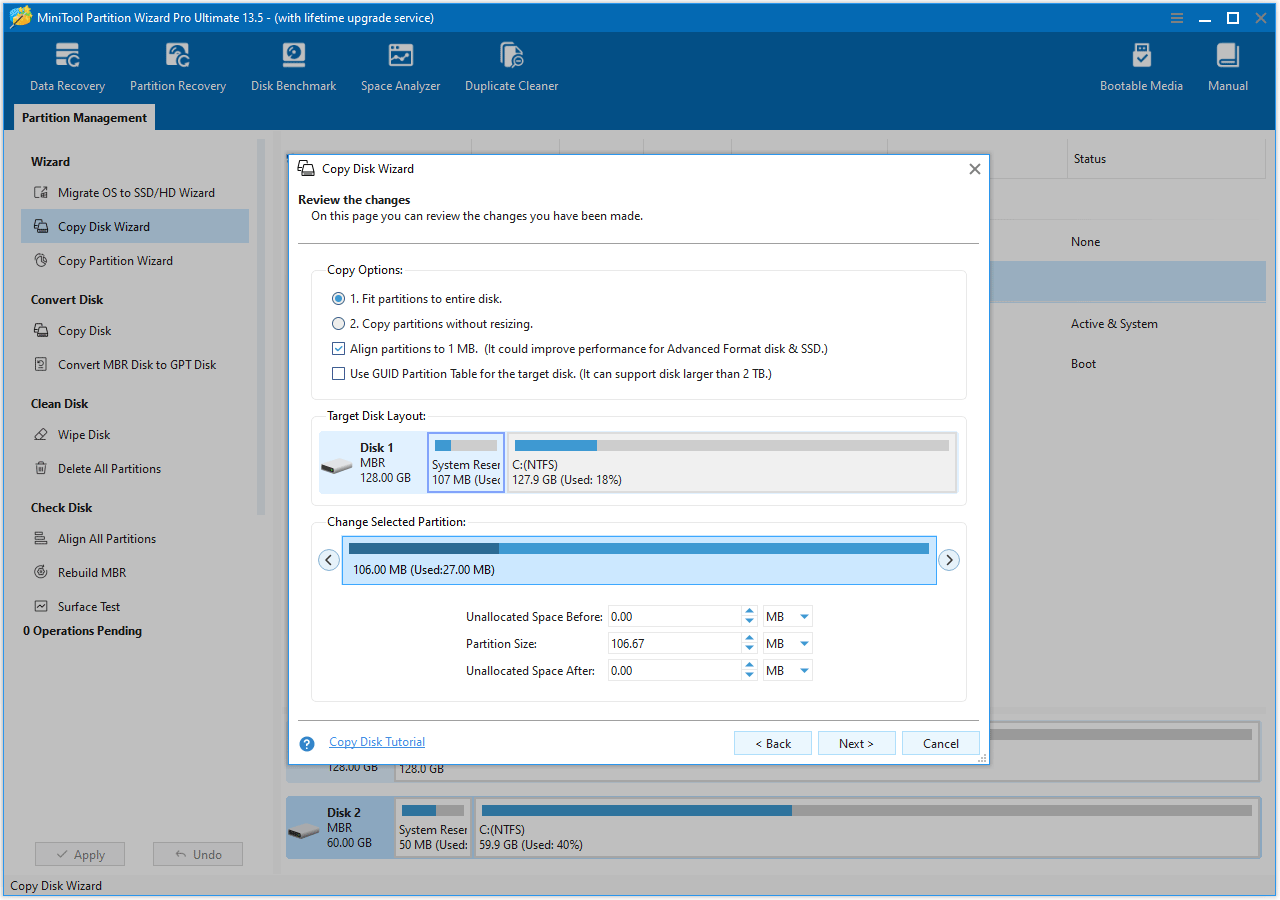
Step 3. Review the copy options and choose how the partitions will be arranged on the new disk. Then click Next to go to the final step.
- Fit partitions to entire disk: Resizes the partitions to fill the entire target disk proportionally.
- Copy partitions without resizing: Copies the partitions with their original sizes, leaving any remaining space as unallocated on the target disk.
Step 4. Apply the cloning process.
- Read the NOTE information and click Finish.
- Click Apply to execute the pending operation and click Yes to confirm and allow the operation to proceed.
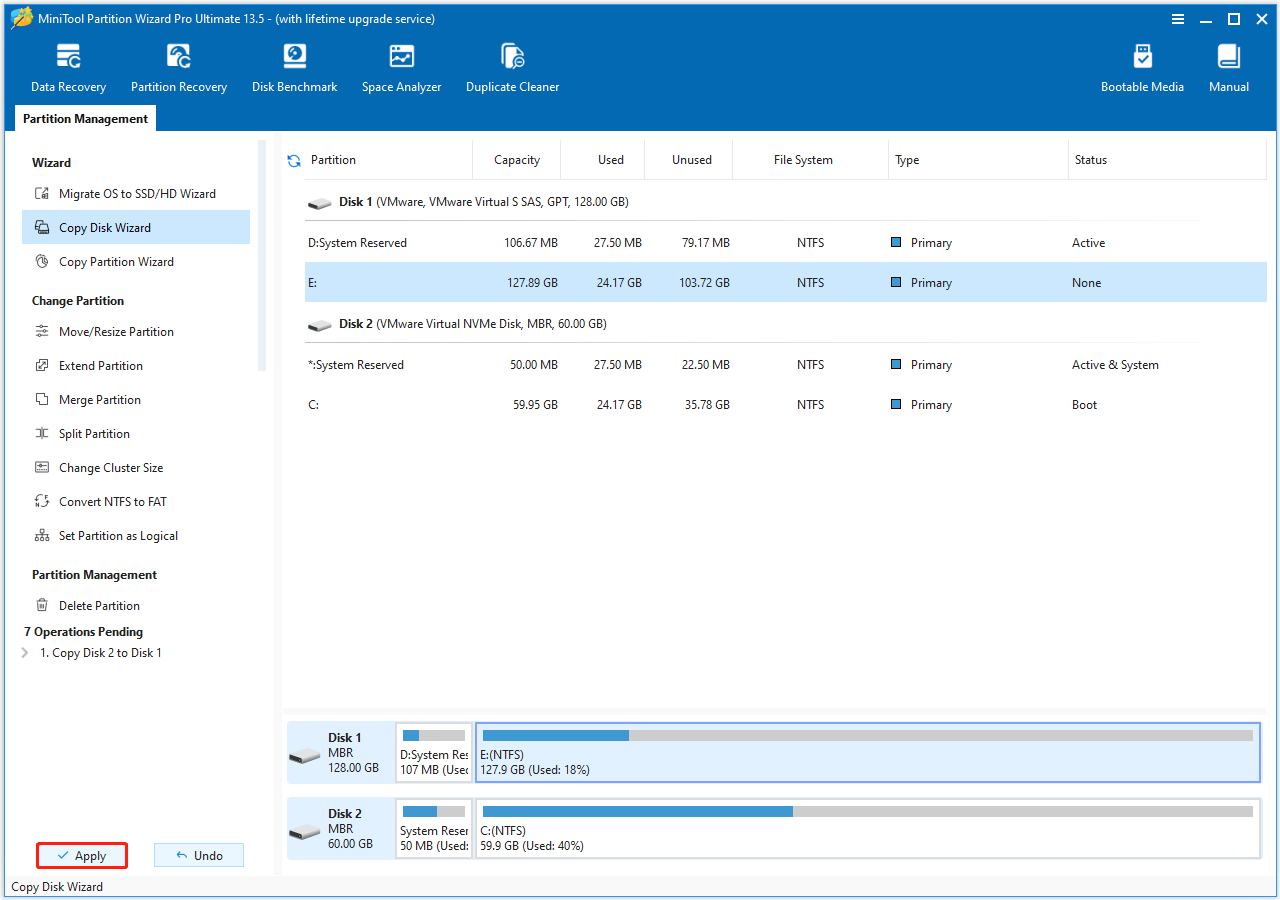
After completion, restart and enter the BIOS to set the SSD as the primary boot drive.
Which is better for gaming HDD or SSD? This post compares them in different aspects.Click to Tweet
SSD or HDD for Gaming FAQ
Bottom Line
Choosing an SSD or HDD for gaming depends on your demands. SSDs are suitable for good gaming performance, while HDDs are suitable for large capacity.
If you have any questions related to MiniTool Partition Wizard, just contact us by sending an email to [email protected].
User Comments :