
SSDs and HDDs differ in several key aspects, including lifespan, speed, capacity, and durability. Here is a comprehensive guide on SSD vs HDD from MiniTool. From the comparison, you know it is smart to choose an SSD for optimal performance and pick an HDD for more storage space.
Solid-state drives (SSDs) and hard disk drives (HDDs) are data storage devices in computers. SSDs are becoming the standard storage solution because of their high performance. If you bought a laptop or desktop in the last few years, it almost certainly uses an SSD as the boot drive.
But in some situations, you still require traditional HDDs, especially when you need more space in a desktop PC.
If you are considering upgrading or replacing your hard drive, it is crucial to learn the details on SSD vs HDD. Below, we will make a comparison for you so you can determine which one to choose.
SSD vs HDD
SSDs and HDDs differ in technology and features. Simply speaking, SSDs offer superior reliability, durability, and performance due to the lack of moving parts. However, HDDs that use mechanical components are typically used for their larger storage capacities at low prices.
Here is a detailed breakdown to help you know the main differences between HDDs and SSDs.
#1. HDD vs SSD Technology
About SSD
An SSD uses NAND flash that relies on non-volatile memory to store data in memory cells. This means data can be retained even when you power off the computer. Besides, this technology offers a cost-effective way to store data with high speed and reliability.
Compared to traditional hard drives, an SSD doesn’t have moving parts. This allows it to deliver faster access speed, increased resistance to physical shock, lower latency, and quiet operation.
Moreover, the absence of moving parts makes the SSD very compact, making it a popular choice for tablets and laptops.
About HDD
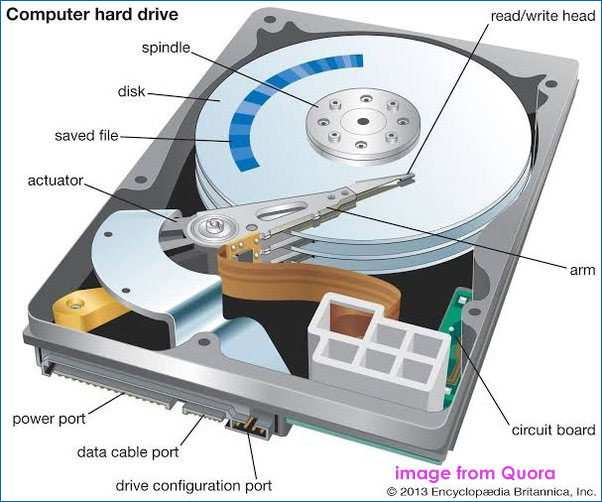
A hard disk drive consists of several key mechanical components, including the platters, spindle, read/write head, and actuator arm.
HDDs utilize magnetic storage to store and retrieve digital information on one or more rapidly rotating platters. This platter is coated with magnetic material. Data is written and read by a read/write head on an arm while the platter is spinning.
#2. SSD vs HDD Form Factor
SSDs and HDDs offer various form factors to fit different devices and usage situations.
An HDD comes in two form factors:
- 2.5-inch: This type is commonly found in laptops.
- 3.5-inch: Usually, you can use it in desktops.
The standardized size contributes to the ease of maintenance and replacement when things go wrong. Currently, most of the traditional hard drives employ the SATA (Serial ATA) interface to connect to the computer.
A solid-state drive offers a range of form factors:
- 2.5-inch: This type of SSD is compatible with the drive bays of desktops and laptops. It is easy to install via the SATA interface.
- M.2: It is a smaller and rectangular form factor that directly connects to the motherboard. An M.2 SSD uses either the SATA or NVMe (via PCIe) interface. The SATA M.2 SSD can offer speeds up to 6 Gb/s. Due to the PCIe interface, the NVMe M.2 SSD can provide higher speeds and lower latency.
- mSATA: This SSD type uses the mini-SATA (mSATA) interface. It is ideal for space-limited laptops and tablets. Compared to a standard 2.5-inch SSD, an mSATA SSD offers a smaller form factor.
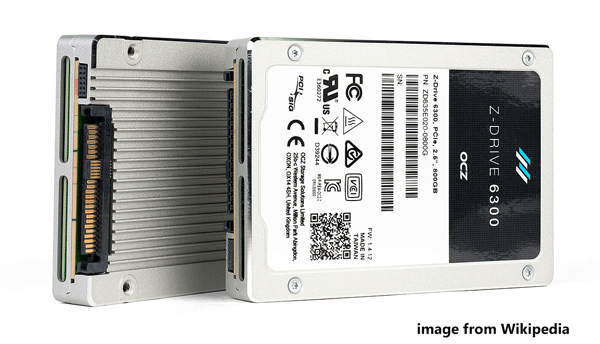
- U.2: U.2 SSDs use the U.2 interface to connect to a computer. Physically, a U.2 SSD resembles standard 2.5-inch HDDs and SSDs.
#3. SSD vs HDD Speed
In terms of read/write speeds, SSDs are faster than HDDs. Due to NAND flash, an SSD can get faster data access, boot time, and app loading time. It can significantly boost the overall PC performance. This is where SSDs shine.
However, the HDDs’ mechanical nature limits their overall performance. Although hard drive manufacturers work tirelessly to improve data transfer speeds and reduce latency, what they can do is finite.
Read/Write Speeds
Typically, SSDs can offer read/write speeds ranging from 500MB/s to 3500MB/s, or even higher. In contrast, HDD speeds range from 30 to 150MB/s. This is because an HDD relies on mechanical parts, especially the rotational speed of the spinning platters.
Boot Time
In boot time, an SSD outperforms an HDD. The average boot time of an SSD is about 10-20 seconds, while an HDD takes 30-40 seconds to boot.
#4. HDD vs SSD Capacity
In terms of capacity, an HDD is superior to an SSD.
Consumer HDDs range from 500GB to 4TB: For basic computer use, 500GB to 1TB is enough. For the needs of storing large files and games, consider 1TB or 2TB. If you need to configure RAID or deal with intensive tasks like high-resolution video editing, 4TB or larger is recommended.
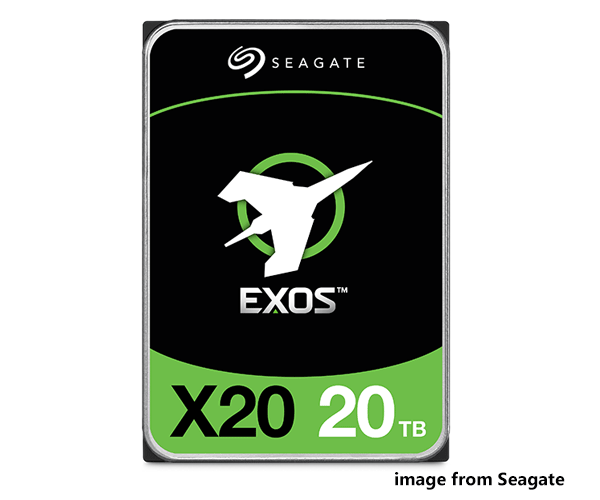
Enterprise HDDs can reach up to 20TB or larger: For example, Seagate Exos X20 offers 20TB of storage space. WD Ultrastar DC HC680 Data Center HDD offers 28TB of capacity.
Consumer SSDs come in 128GB, 256GB, 512GB, 1TB, 2TB, and 4TB: 128GB or 256GB is used for basic computing tasks and lightweight applications. For everyday computing and light gaming, use a 512GB SSD. Consider 1TB, 2TB, or 4TB if you need to handle large files, video editing, or gaming.
Enterprise SSDs can offer 16TB or more storage space: For instance, SanDisk G-RAID Shuttle SSD offers 16TB of storage space.
#5. SSD vs HDD Lifespan
How long do SSDs last? The average SSD lifespan is around 5 to 10 years. But this can vary due to some factors such as Total Bytes Written (TBW), Drive Writes Per Day (DWPD), etc.
What is HDD lifespan? Most HDDs can last 3-5 years. But with proper care and maintenance, they can last up to 10 years or even longer.
#6. SSD vs HDD Price
As for the price, HDDs are relatively affordable, especially for larger capacities. They offer a cost-effective way to store massive amounts of data.
Typically, SSDs are more expensive per GB, although they are becoming more affordable.
#7. SSD vs HDD Durability
SSDs are more durable than HDDs.
SSD: Due to the lack of moving parts, they are insusceptible to physical damage, such as vibrations, shocks, and drops. Also, SSDs are extremely reliable in harsh environmental conditions.
HDD: The spinning platters and other mechanical components make them more prone to failure from physical damage. In harsh conditions, an HDD can easily suffer from issues.
#8. HDD vs SSD Power Consumption
SSD: A solid-state drive uses less power, benefiting from the absence of mechanical parts.
HDD: An HDD consumes more energy since mechanical components require more power.
#9. SSD vs HDD Gaming
Games installed on an SSD will typically boot faster than those on a traditional hard drive. SSDs can save you minutes of loading time in every gaming session and give you smoother gameplay.
Summary of the Differences Between SSD and HDD
| Feature | SSD | HDD |
| Form Factor | 2.5-inch, M.2, mSATA, U.2 | 2.5-inch, 3.5-inch |
| Capacity | Generally available in smaller capacities | Offers larger storage space at a lower cost per GB |
| Speed | Faster (500 to 3500MB/s) | Slower (30 to 150MB/s) |
| Lifespan | 5-10 years | 3-5 years |
| Cost per GB | Higher | Lower |
| Durability | More durable due to NAND flash | Less durable due to moving parts |
| Noise | No noise | Audible noise |
| Power consumption | Less power | More power |
How to Choose: HDD vs SSD
People also ask: SSD vs HDD which is better? Should I choose SSD or HDD?
In a nutshell, solid-state drives are better than HDDs because of their superior speed, no noise, energy efficiency, and durability. If performance is key you consider, use an SSD.
However, an HDD is a more suitable option when considering higher storage space at a lower cost.
When to Use an SSD
In these situations, choose an SSD:
- You need a faster boot time, quicker app loading, and a more responsive system.
- You want to play games with reduced latency and a smoother experience.
- You need to edit high-resolution photos and videos.
- You frequently work with large files and access data.
- You often go to travel (due to high durability).
When to Choose an HDD
Use a hard disk drive in these situations:
- You need lots of storage capacity, but on a budget.
- You don’t care too much about how fast your computer boots up or runs programs.
- You want to store large files, including videos, photos, backups, and archive files.
- You plan to build disk arrays.
Combination of an SSD and HDD
You can use an SSD and an HDD at the same time in the same computer. It is beneficial to install the OS on an SSD and store data on an HDD. That way, your computer can experience the optimal performance while having enough storage space for files.
Best Practices to Maintain Your Disk
Whether you use an SSD or HDD, it is crucial to keep the hard drive running smoothly and lasting longer. Take care of your disk with some tips.
Maintain SSD
#1. Regularly update firmware
SSD manufacturers often release firmware updates to improve performance, fix bugs, and enhance security. Make sure you install the update for your SSD.
To do this, check the website of the vendor, download and install the latest firmware update. Or, use the SSD management tool of the manufacturer for the update.
#2. Avoid Defrag
Generally speaking, don’t defragment your SSD. This is because that can increase wear & tear and shorten the lifespan. Besides, the TRIM technology helps automatically manage the SSD to optimize performance and lifespan.
#3. Enable TRIM
With enabled TRIM, the operating system informs the SSD which data blocks are no longer in use and can be erased. This contributes to SSD performance improvement and efficient free space management.
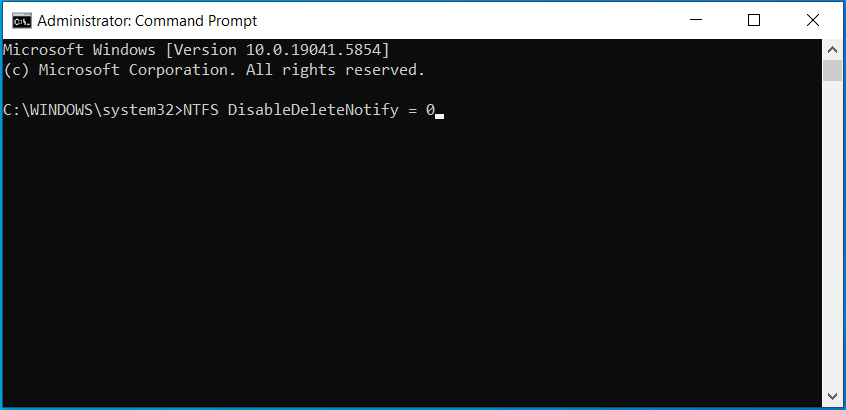
To enable TRIM, launch Command Prompt with admin permissions, type fsutil behavior set DisableDeleteNotify 0, and press Enter.
#4. Manage Storage Space
How much free space to leave on an SSD?
To ensure stable performance, you had better keep around 20% of free space on your solid-state drive. Once the SSD is filled up, free up some disk space. You can use Disk Cleanup or the professional PC tune-up software, MiniTool System Booster, to uninstall apps and clean up a PC.
MiniTool System Booster TrialClick to Download100%Clean & Safe
Maintain HDDs
To maintain your hard disk drive, take these measures:
- Update the system and drivers regularly: Go to Windows Update in Settings, check for available updates, and install them.
- Uninstall unused apps: Access Control Panel, go to Uninstall a program under Programs. Then, choose the target app to uninstall.
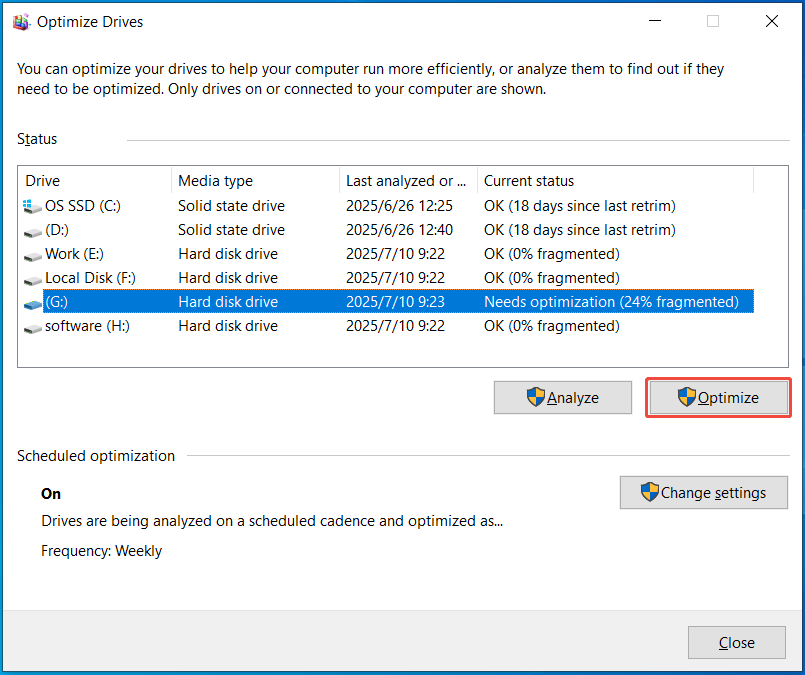
- Defragment your HDD: Type defragment and optimize drives in Search, press Enter to open the Optimize Drives window. Next, select the hard disk drive and hit Optimize.
How to Upgrade a Hard Drive
From the part of SSD vs HDD, you know SSDs come with fast speed while HDDs give large storage space. So, we strongly suggest that you upgrade to an SSD for better performance if you use an HDD.
When to Upgrade Your Disk
When there are some signs of failure, the system has poor performance, or the storage space is insufficient, it is time to upgrade the hard drive.
Case 1: Signs of Hard Drive Failure
- Unusual noises: Clicking, buzzing, grinding, or repetitive tapping indicate a failing hard drive.
- Data corruption: Your hard drive needs to be replaced if a warning for bad sectors or corrupted data always displays.
- SMART errors: You may receive some errors like SMART status bad, hard disk error 301, SMART failure predicted, etc. They indicate a failing disk.
- Frequent errors and crashes: Data is inaccessible, the PC keeps crashing, and BSOD errors often appear.
Case 2: Disk space is running out
An upgrade is necessary if you frequently run out of space for system updates, app installations, and new files. Besides, once the hard drive gets full, it may work harder to find and access files.
Seriously, having less space can affect the PC performance, resulting in slow response time and potential errors & crashes.
Case 3: Performance Bottlenecks
- Slow boot time: As the section of SSD vs HDD states, an HDD can be a major factor when the system starts up slowly. Upgrading to an SSD helps reduce the boot time a lot.
- Game loading time: SSDs contribute to fast loading times and overall gaming performance improvement.
- Slow app response time: Consider upgrading to an SSD when you encounter frequent delays in opening apps.
What to Consider Before Proceeding
Before upgrading an HDD to an SSD, take some things into account.
#1. Back up Important Data
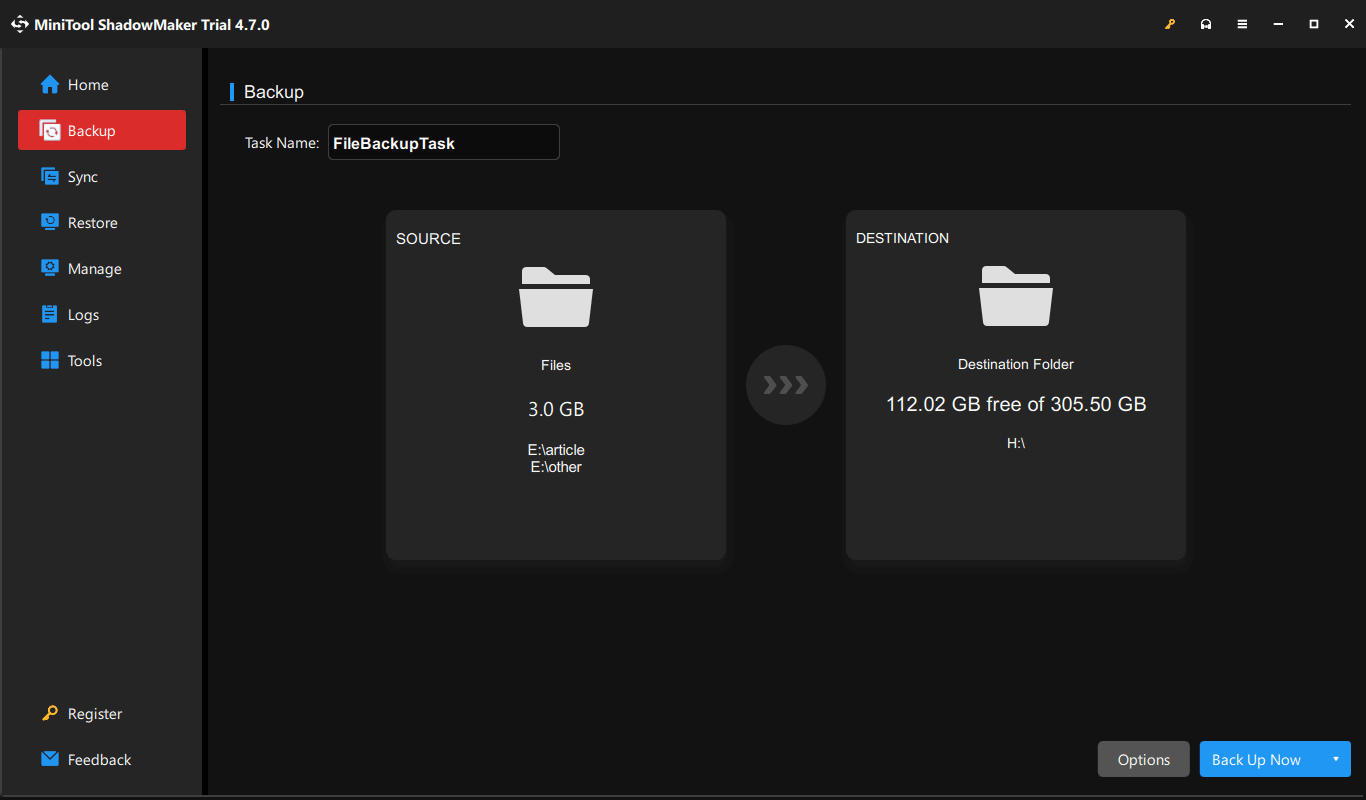
It is crucial to back up all your precious data to an external drive to avoid data loss. For data backup, we recommend running the backup software, MiniTool ShadowMaker.
This program enables you to easily backup files, folders, systems, partitions, and disks. Besides, it allows for automatic backup, incremental, and differential backup.
Just install it on your PC and begin the data backup.
MiniTool ShadowMaker TrialClick to Download100%Clean & Safe
#2. Choose the Right SSD
Make sure the new SSD is compatible with your computer. You should consider the form factor, capacity, and speed.
Let’s explore a detailed breakdown.
Form Factor: SSDs come in various shapes like M.2, SATA, etc., as the part of SSD vs HDD says. You should choose the proper one to match the computer’s M.2 slot or drive bay.
Capacity: How much storage space do you need? Determine your needs first. Then, you know how big a solid-state drive you should have. For example, purchase a 1TB SSD for large files and games.
Speed: SSDs have different read/write speeds. Usually, NVMe SSDs are faster than SATA SSDs. For gaming, an NVMe SSD is recommended. Go to learn more about SATA vs NVMe SSD for gaming.
#3. Which Way to Use for Disk Upgrade
People ask: How do you upgrade your disk?
To replace the old HDD with a new SSD, here are two ways:
Perform a fresh installation of the Windows system: This wastes much time. You need to replace the disk and reinstall the system & apps.
Clone HDD to SSD: Cloning helps transfer all data from an HDD to an SSD, avoiding system and app reinstallation.
Recommended: Upgrade your disk to a solid-state drive via the cloning method to save time and effort.
How to Clone HDD to SSD
How can you upgrade to an SSD? Super easy! MiniTool ShadowMaker comes in handy. Not only is it disk imaging software, but it can also be hard drive cloning software.
It comes with the Clone Disk feature, allowing for cloning HDD to SSD and moving Windows to another drive. In addition, you can use MiniTool ShadowMaker to clone an SD card, USB drive, or other storage device to another one.
Once completed, the SSD has the same content as the HDD, including system files, applications, and user data. You can set the SSD as the boot drive to experience fast speed. Install such a tool on your computer and get started now.
MiniTool ShadowMaker TrialClick to Download100%Clean & Safe
Here are detailed steps to clone an HDD to SSD for better performance.
Step 1: First, connect your SSD to a computer via a cable or an adapter.
Step 2: Double-click on MiniTool ShadowMaker and hit Keep Trial to finish loading.
Step 3: Head to the Tools page on the left side. Then, click Clone Disk to proceed.
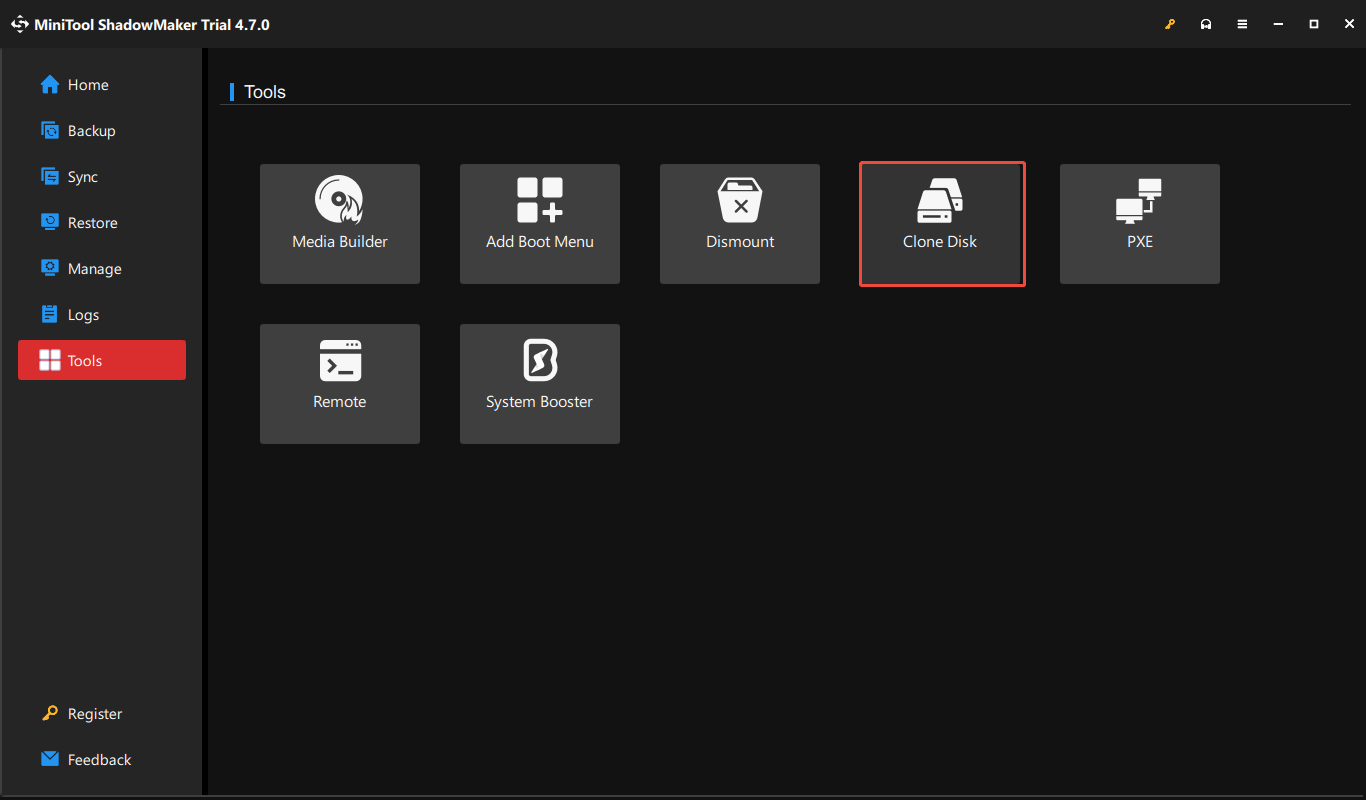
Step 4: You are required to choose the source and the target drive. Here, you intend to clone the HDD to SSD; thus, set the HDD as the source disk and SSD as the target disk.
Step 5: Finally, hit Start to begin the cloning process.
How to Replace a Hard Drive
After cloning, it is time to replace the old disk with the new SSD.
Remove the traditional hard drive
- Shut down the computer.
- Open the computer case or the back panel of your laptop.
- Disconnect any power cables connected to the disk.
- Remove any screws that hold the drive in place.
- Slide or lift the disk out of the drive bay.
Install the new SSD
- Put the solid-state drive in the bracket or M.2 slot and use screws to fasten it.
- Plug any power cables.
- Put back the case or back pane.
- Power on the computer, and Windows will boot from the new SSD.
In laptops or desktops, the steps of SSD installation are a bit different. Learn more from the guide on how to install SSD in a PC.
Bottom Line
From this post, you find the answer to “SSD vs HDD which is better”. Both SSDs and HDDs have their advantages. Use an SSD if speed and performance are your top priorities. If you require massive capacity but have a limited budget, an HDD is the ideal option.
Regardless of disk type, it is necessary to maintain the disk for a longer lifespan. Moreover, upgrade your hard drive to an SSD by following the instructions when needed.
Now, enjoy the fast speed!
SSD vs HDD FAQ
2. General less storage capacity
3. Limited number of write cycles
4. Difficult to recover data from an SSD
About The Author

Position: Columnist
Vera has been working at the MiniTool Team for over 10 years as a technical editor and content writer. She mainly focuses on disk and partition management, data recovery, Windows backup and restore, and PC troubleshooting. Through in-depth software testing and hands-on experience, she has helped users solve a wide range of computer problems and better protect their data on Windows devices.
User Comments :