
Acer Nitro 5 SSD upgrade is a good option to improve the overall system performance on your laptop. You can run MiniTool software to clone the old disk to the new SSD without reinstalling everything from scratch. Now, let’s delve into how to upgrade an SSD in Acer Nitro 5 AN515-53/54/55/57.
Can You Upgrade the SSD in an Acer Nitro 5?
Most Acer Nitro 5 gaming laptops support SSD upgrades, although compatibility and available slots vary by model.
Some models feature two M.2 slots, with Slot 1 for an NVMe SSD and Slot 2 for an NVMe SSD or M.2 SATA SSD. Additionally, certain models include a 2.5-inch SATA drive bay.
Before purchasing an SSD, check Acer’s official specifications or service manual for your exact model to confirm the supported interface and drive dimensions.
Why Upgrade Acer Nitro 5 SSD
Upgrading a hard drive to an SSD is conducive to improving the laptop’s responsive speed and overall performance. For those who need a faster and more reliable storage solution, it is worth the investment.
You may be looking to upgrade the SSD in a specific Acer Nitro 5 model, such as the AN515-55, AN515-54, AN515-57, or AN515-53.
The following are common scenarios:
- The old hard drive has insufficient disk space to store data.
- Your PC with an HDD runs slowly.
- Disk write/read speed obviously slows down.
To get more storage space, gain fast transfer speed, and speed up your PC, take the Acer laptop SSD upgrade into account now.
Acer Nitro 5 Supported SSDs
Before the upgrade, you should check the supported SSDs for your Acer Nitro 5 so that you can purchase a compatible model. Besides, it is necessary to know the information on the SSD slots on your laptop.
Most Acer Nitro 5 laptops come with two slots and let’s see a chart (from Acer’s official website) based on some common models:
| Acer Laptop Model | M.2 Slot 1 | M.2 Slot 2 | Additional Storage |
| AN515-51, 52 and 53 (Intel) | NVMe PCIe or SATA | None | Only one M.2 slot; features an internal 2.5-inch drive bay |
| AN515-54 | NVMe PCIe | NVMe PCIe or SATA | 2.5-inch drive bay |
| AN515-55 and 57 | NVMe PCIe | NVMe PCIe or SATA, depending on configuration | 2.5-inch drive bay |
| AN515-41 and AN515-42 (AMD) | SATA only | None | 2.5-inch drive bay |
| AN515-43 (AMD) | NVMe PCIe | SATA only | 2.5-inch drive bay |
| AN515-44 (AMD) | NVMe PCIe | NVMe PCIe or SATA | 2.5-inch drive bay |
Slot 1 is usually the primary M.2 slot where Windows is installed. Slot 2 is an additional M.2 slot for additional storage. The supported SSD interfaces can vary by slot and laptop model.
Which Upgrade Method Should You Choose
Check the table below to know which upgrade method to use quickly.
| Your goal | Recommended method |
| Replace a small or slow SSD | Replace the existing SSD |
| Your laptop has only one M.2 slot | Replace the existing SSD |
| The laptop has an unused M.2 slot, and you want to keep Windows on the original drive | Add a second SSD |
| You want a fresh Windows installation | Replace the SSD and clean install Windows |
How to Upgrade SSD in Acer Nitro 5
Things to Prepare
Before you proceed with the upgrade, you need to make all the preparations.
- Identify your Acer Nitro 5 model to check which M.2 interface it supports and purchase a compatible SSD with enough space for an upgrade.
- Prepare a Phillips screwdriver to open and close the back cover.
- Get a piece of professional hard drive disk cloning software like MiniTool ShadowMaker.
- Back up your target drive like SSD to avoid unnecessary data loss.
- Delete unnecessary junk files and apps (optional but effective).
Clone HDD/SSD to a Larger SSD for Acer Nitro 5
If the disk upgrade process involves system & data migration, it is a good idea to use hard drive cloning software to help you do this operation.
That is, if you want to replace the system disk and don’t want to reinstall the Windows operating system & apps, moving everything to a new hard drive via disk cloning is ideal. After the cloning process, you can directly boot the Acer laptop from the target disk like an SSD.
For the Acer Nitro 5 SSD upgrade, the best cloning tool – MiniTool ShadowMaker helps a lot. With it, you can make sure all the disk data (including the Windows operating system, settings, user profile, installed apps, games, personal files, registry items, and other data) is transferred to the new SSD.
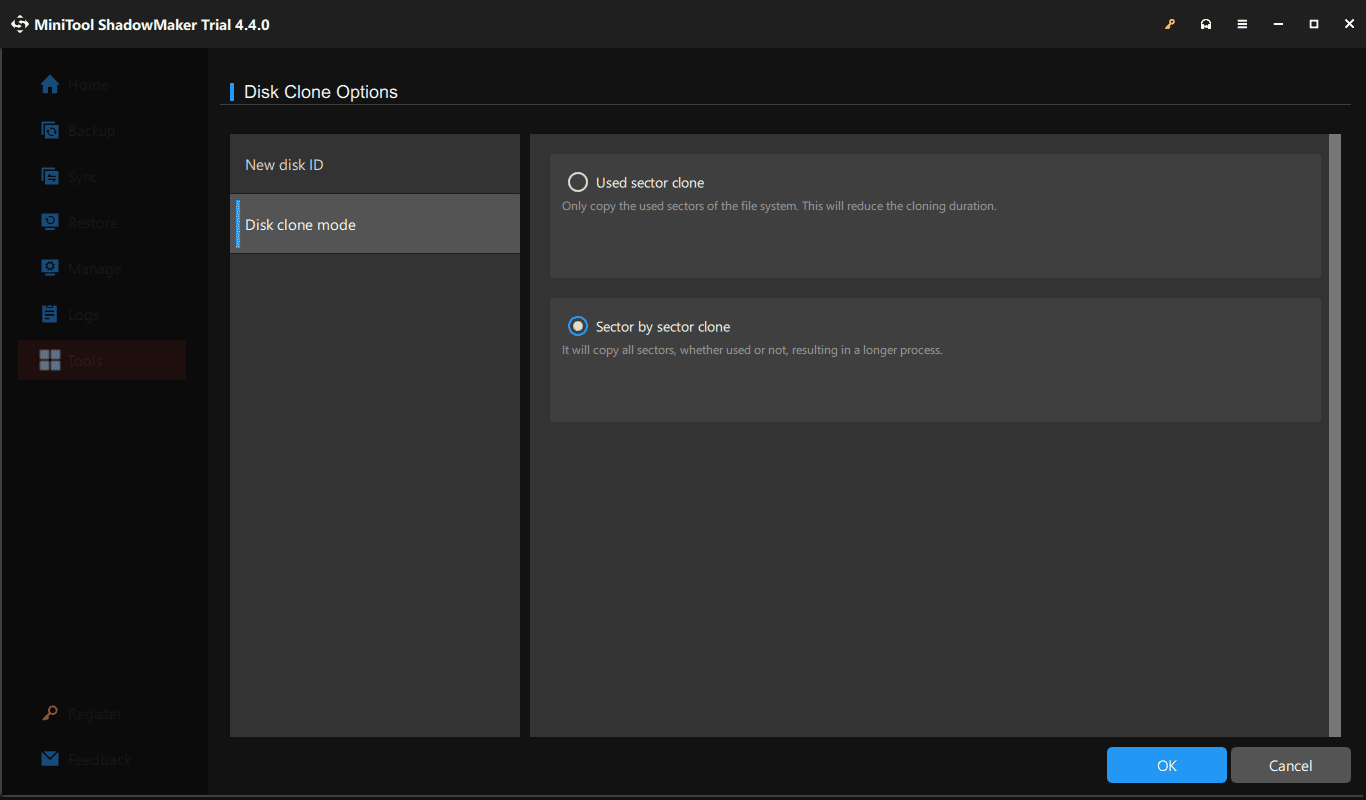
This SSD cloning software offers a simple user interface and only several simple clicks are required to clone a hard drive. You can run MiniTool ShadowMaker to easily move Windows to another drive. It supports sector by sector cloning, cloning HDD to SSD, etc.
This software is compatible with various HDDs & SSDs and works properly on Windows 11/10/8/8.1/7. To upgrade SSD in Acer Nitro 5, download Trial Edition and install it on the PC for a try.
MiniTool ShadowMaker TrialClick to Download100%Clean & Safe
Next, let’s see how to upgrade Acer Nitro 5 SSD:
Step 1: Connect your new SSD to the computer.
- If your Acer Nitro 5 has two slots, you can install the SSD to the second M.2 slot by following the steps in the next part.
- If the laptop only has a single slot, connect this SSD to the PC using an M.2 to USB adapter. What’s more, remember to initialize this new disk in Disk Management.
Step 2: Launch MiniTool ShadowMaker and click Keep Trial to go on.
Step 3: Move to the Tools tab and then click Clone Disk.
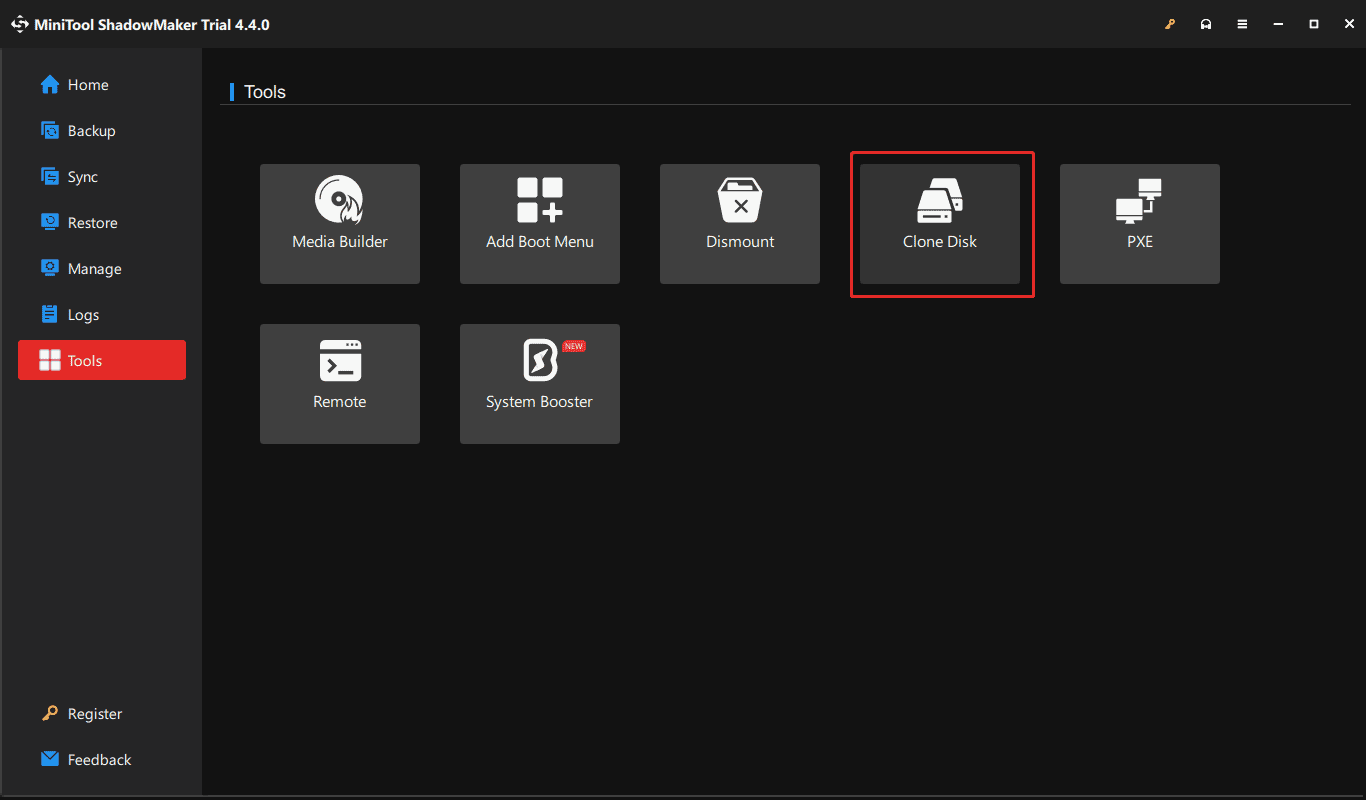
Step 4: Choose the clone source drive (original system disk) and target drive (SSD), register this software, and then start the disk cloning process.
Further reading:
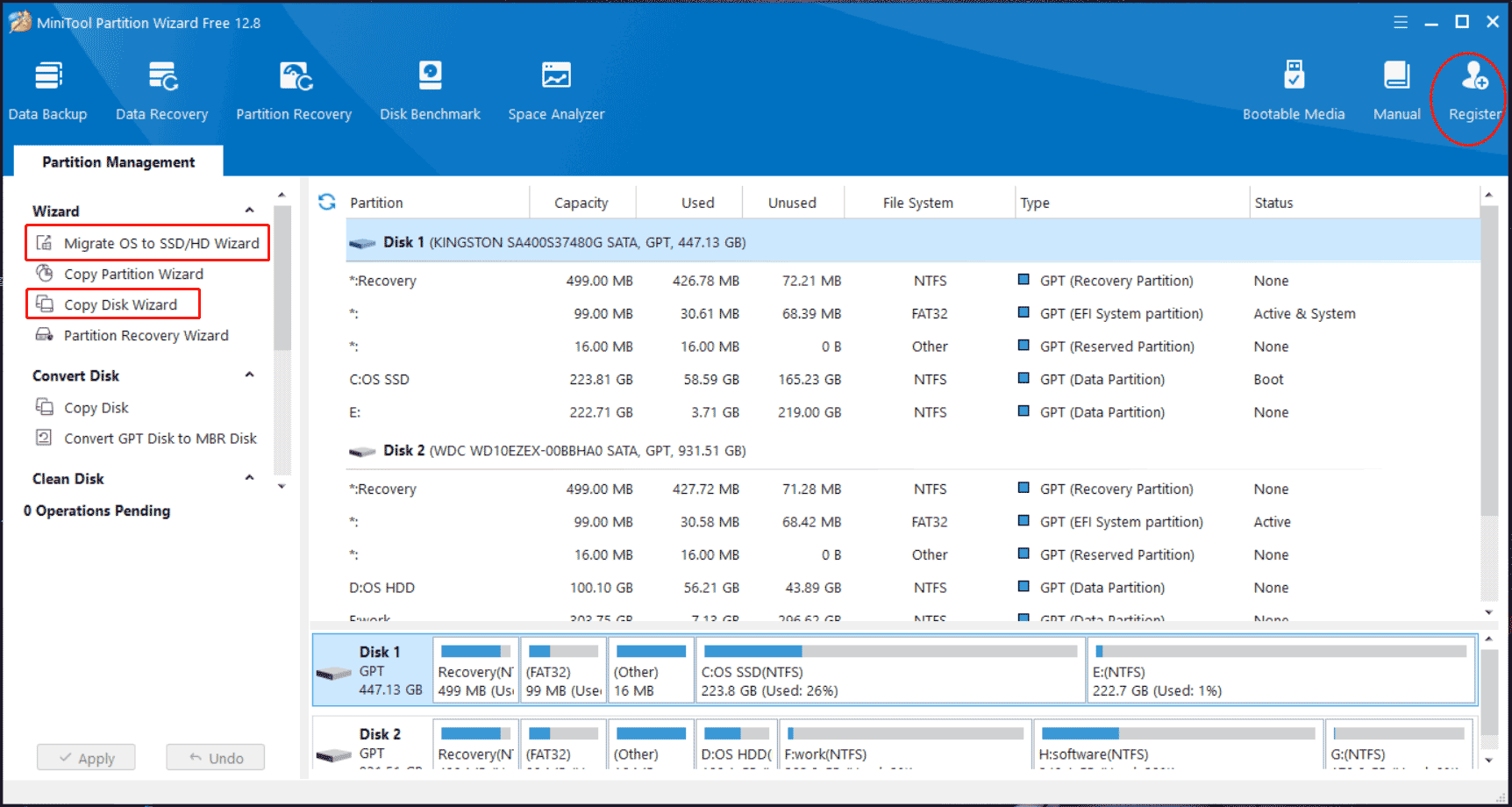
In addition to MiniTool ShadowMaker, another SSD cloning software – MiniTool Partition Wizard can be used for Acer Nitro 5 SSD upgrade. As a professional partition manager, this tool enables you to manage disks and partitions with ease, including copying a disk and migrating OS to an SSD/HDD.
To run the Acer laptop SSD upgrade, get this tool. If you need to clone the system disk to an SSD, also register it.
MiniTool Partition Wizard FreeClick to Download100%Clean & Safe
Then, tap on Migrate OS to SSD/HD Wizard or Copy Disk Wizard and follow the on-screen instructions to clone a hard drive to an SSD.
Related post: Easily Migrate Windows 10/11 to SSD Without Reinstalling OS Now!
After completing the cloning process, take measures to set the cloned SSD to be bootable drive. Make sure this SSD is installed properly. If you don’t know how to install it on a laptop, continue reading to find details.
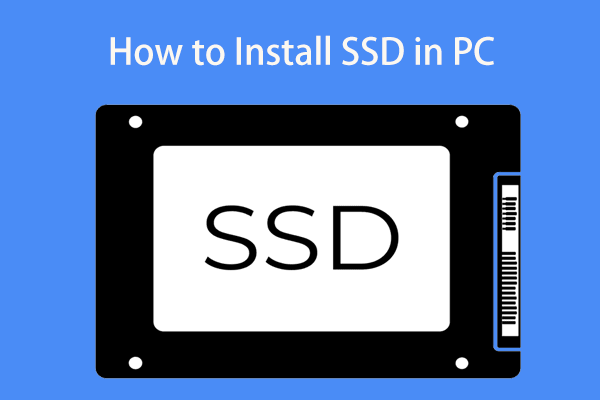
How to Install an SSD to the M.2 Slot
Usually, Acer Nitro 5 has two M.2 slots. You can choose to install the new SSD to the second M.2 slot, keep your original disk, and then use it as the second drive. Or, you can remove the old hard drive and replace it with the new SSD.
So, how to install the new SSD on your PC? See these steps:
Step 1: Shut down your Acer Nitro 5 laptop and remove its power cord.
Step 2: Place the laptop upside down so that the bottom faces up. Then, open its back cover using a screwdriver to remove screws.
Step 3: Identify and locate the slots to install SSDs in on the motherboard. Sometimes you need to detach the components that block the M.2 slots, for example, the battery.
- To install the new SSD to the second M.2 slot, gently insert the SSD and screw it in the slot.
- To replace the old disk with a new SSD, use a Phillips screwdriver to remove the screw that secures the old disk and then remove the drive from the PC at an angle. Then, insert the new SSD for the Acer Nitro 5 SSD upgrade.
Step 4: Reconnect all the components to the original locations, plug the power cable, and boot the laptop.
What If Cloned SSD Won’t Boot
In some cases, the cloned SSD fails to boot your Windows operating system after the Acer Nitro 5 storage upgrade. What happens? Perhaps your original hard drive contains bad sectors, there is a GPT/MBR conflict, the SSD isn’t installed properly, etc. As a result, the boot issue appears.
Thus, how can you solve the annoying issue? Multiple solutions are offered in our previous post – What if Cloned Drive/SSD Won’t Boot Windows 11/10/8/7? Fix It. Just follow the given workarounds when confronted with such a situation.
Wrap Things up
That’s a step-by-step full guide on the Acer Nitro 5 SSD upgrade. When your old hard drive runs slowly or has insufficient disk space, upgrade the disk to an SSD for optimal performance. Before the upgrade, prepare some things, clone the old disk to the new SSD and replace the original disk or install the new SSD to the second slot, then boot the device from the cloned disk.
This guide applies to Acer Nitro 5 AN515-53 SSD upgrade, Acer Nitro 5 AN515-54 SSD upgrade, Acer Nitro 5 AN515-55 SSD upgrade, Acer Nitro 5 AN515-57 SSD upgrade, etc. Hope this post helps easily solve your issue.
Acer Nitro 5 SSD Upgrade FAQ
About The Author

Position: Columnist
Vera has been working at the MiniTool Team for over 10 years as a technical editor and content writer. She mainly focuses on disk and partition management, data recovery, Windows backup and restore, and PC troubleshooting. Through in-depth software testing and hands-on experience, she has helped users solve a wide range of computer problems and better protect their data on Windows devices.
User Comments :