
If quick system recovery matters, pick backup software with fast restore performance, just as crucial as backup speed. This MiniTool guide compares Windows backup solutions based on restore speed, recovery features, ease of use, and reliability.
Quick Answer
If minimizing downtime after a system failure is your priority, choosing backup software with quick restore capabilities can speed up Windows recovery. Popular options differ in restore speed based on factors, such as imaging technology, support for incremental backups, the recovery environment, and hardware optimization.
| Best For | Software |
| Best for Home Users | MiniTool ShadowMaker |
| Fastest Image Restore | Macrium Reflect |
| Best Disaster Recovery | Acronis True Image |
| Best Free Option | Hasleo Backup Suite |
| Best for Beginners | AOMEI Backupper |
| Best Balance | EaseUS Todo Backup |
What Makes Backup Software Restore Files Quickly?
Not all backup software restores data at the same speed. While hardware like SSDs and CPUs plays a role, the software’s technology is equally important.
Key factors affecting restore performance include:
- Image-based backup: Restores a complete system image faster than reinstalling Windows and manually copying files.
- Incremental and differential backups: Streamlines the restoration of recent changes while significantly reducing process time.
- Compression and storage optimization: Optimizes storage space without creating noticeable recovery bottlenecks.
- Recovery environment: Provides dedicated WinPE media to restore systems that fail to boot successfully.
- Disk optimization: Leverages SSD and NVMe architectures to maximize data transfer speeds during recovery.
When comparing backup software, consider restore speed, reliability, and ease of recovery—not just backup speed.
How We Tested Fast Backup Software
This comparison focuses on the factors that affect real-world recovery performance. Each backup solution was evaluated based on restore speed, system image recovery, bootable media, backup options, ease of use, and reliability.
The goal is to identify which tools can restore Windows backups quickly while providing a smooth recovery experience.
MiniTool ShadowMaker: Balanced Backup Software
Best For: Home users who need simple and fast recovery
Restore Speed: Fast
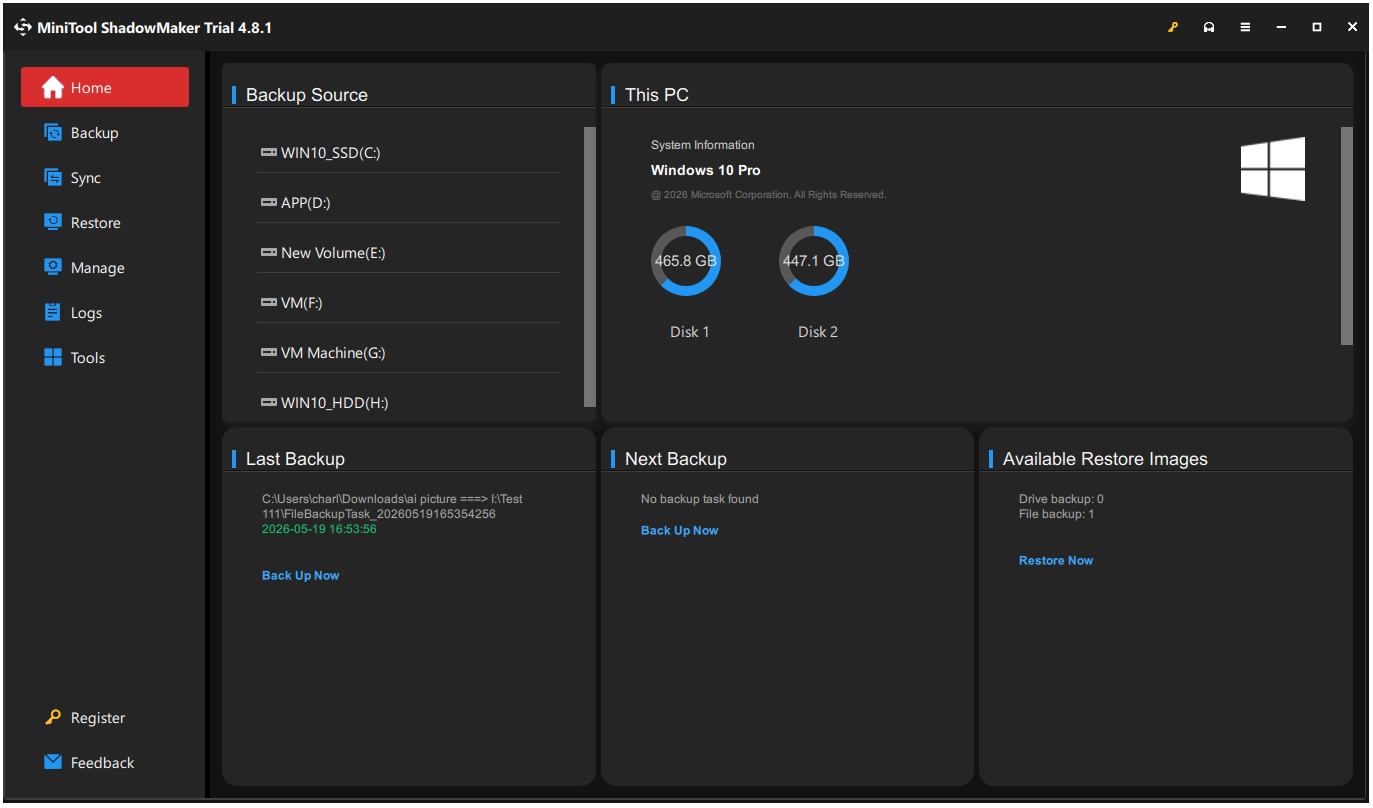
MiniTool ShadowMaker is one of the fastest backup and recovery solutions for Windows, designed for home users and small businesses. It supports backups of systems, disks, partitions, and files, while providing a user-friendly interface and reliable recovery options.
Key Features
- Simplifies file, partition, and system backup with a beginner-friendly interface.
- Schedules automated differential and incremental backups based on user-defined plans.
- Syncs important folders and files directly to target locations for quick access.
- Creates WinPE bootable media for system recovery and troubleshooting.
- Clones system disks to HDDs or SSDs without reinstalling Windows.
- Manages storage space with customizable backup retention policies.
Pros and Cons
| Pros | Cons |
| 1. Provides a simple UI for easy navigation. 2. Syncs files quickly alongside system backups. 3. Automates disk cleanup to save space. | 1. Lacks active ransomware protection. 2. Slower when syncing huge file sets. 3. Provides fewer enterprise-level features than some competitors. |
User Experience
MiniTool ShadowMaker offers a simple backup experience with fast backup and recovery capabilities for daily use. Creating bootable media and restoring a system image involve just a few steps, making them ideal for users with limited technical skills.
The interface is clean, managing backup jobs is straightforward, and the recovery wizard minimizes errors during restoration. Overall, it strikes a good balance between fast restores and ease of use.
Macrium Reflect: Professional Backup Software
Best For: Advanced users who need reliable system recovery
Restore Speed: Excellent
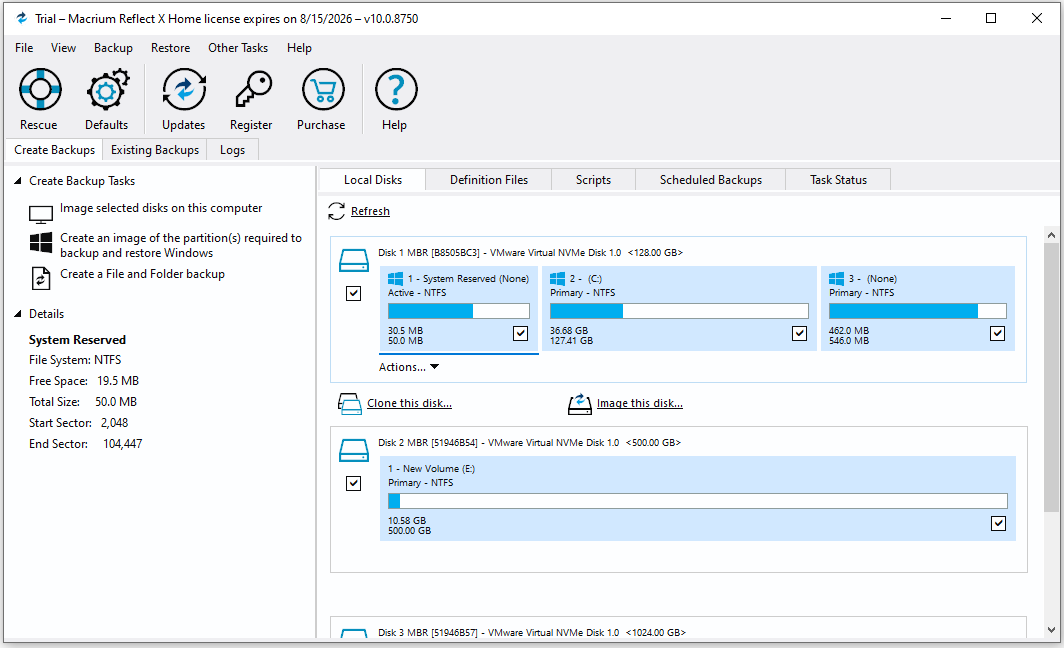
Macrium Reflect, developed by Paramount Software, is an industry-standard Windows backup tool built for IT professionals. It uses advanced block-level technology to deliver ultra-fast disk imaging, cloning, and reliable bare-metal system recovery.
Key Features
- Accelerates image restoration with proprietary Rapid Delta Restore (RDR) technology.
- Mounts system backup images as virtual machines using integrated Macrium viBoot technology.
- Protects backup files from unauthorized modification with Macrium Image Guardian (MIG).
- Tracks changing disk blocks at the kernel level to speed up incremental imaging.
- Supports advanced scripting for automated enterprise deployment.
- Provides bare-metal recovery to restore systems after hardware failure.
Pros and Cons
| Pros | Cons |
| 1. Speeds up recovery via Rapid Delta Restore. 2. Mounts backups instantly as virtual machines. 3. Delivers high-speed, enterprise-grade reliability. | 1. Presents a steep curve for beginners. 2. Costs more than standard home utilities. 3. Lacks a perpetual free edition. |
User Experience
During everyday use, Macrium Reflect focuses heavily on raw performance and precision recovery rather than basic wizard guidance.
The dense, technical interface suits advanced users, making it ideal for those who prioritize powerful imaging tools and rapid system recovery.

AOMEI Backupper: Practical Backup Software
Best For: Windows users needing flexible recovery options
Restore Speed: Fast
AOMEI Backupper provides versatile, practical recovery tools tailored specifically for diverse Windows setups.
Featuring fast restoration performance, the application allows users to restore backup quickly with flexible backup options that suit both basic home setups and complex multi-disk environments.
Key Features
- Provides multiple file synchronization modes, including basic, real-time, two-way, and mirror sync.
- Restores backup images to dissimilar hardware with Universal Restore.
- Adds a recovery environment to the Windows boot menu for system recovery without bootable media.
- Merges incremental backup chains into a single image to simplify backup management.
- Splits large backup images automatically for storage on FAT32 drives and other media with file size limits.
- Includes disk partition management tools alongside its backup features.
Pros and Cons
| Pros | Cons |
| 1. Offers a feature-rich, free basic edition. 2. Embeds boot options directly into Windows menu. 3. Supports multi-mode real-time file sync. | 1. Runs slower than block-level competitors. 2. Uses an older interface design. 3. Requires paid tier for cross-hardware restores. |
User Experience
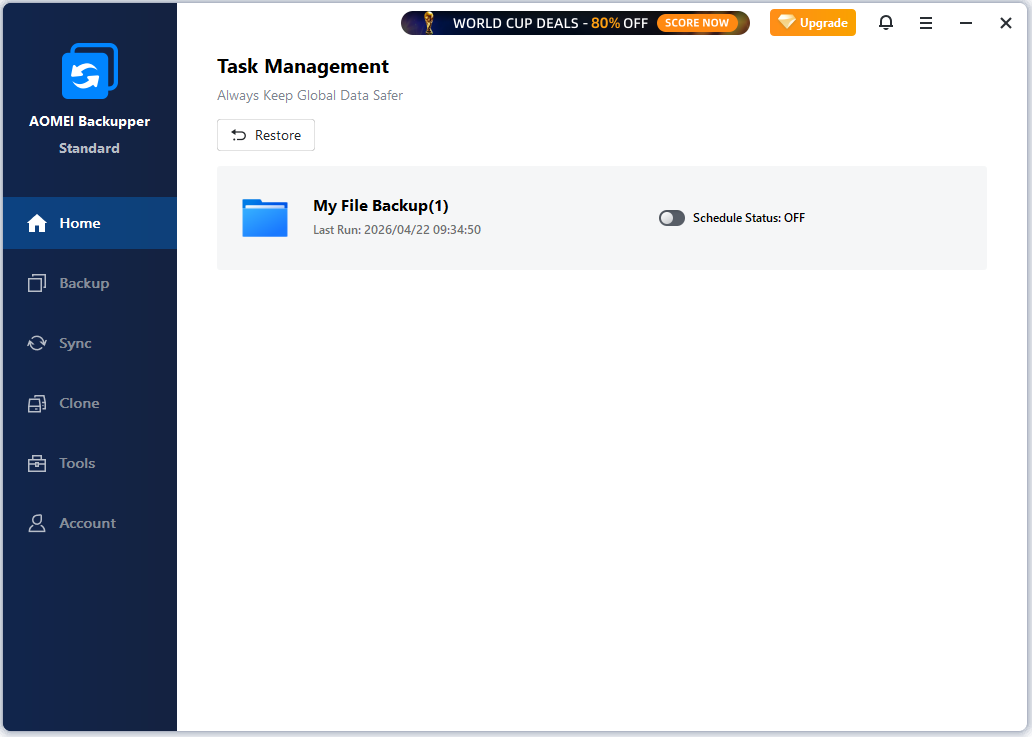
AOMEI Backupper offers an easy-to-use recovery workflow, prioritizing simplicity over speed. While its restoration speed isn’t the fastest among competitors, the intuitive step-by-step process makes it simple to operate.
Navigating menus is effortless, making it ideal for beginners seeking a practical recovery tool.
EaseUS Todo Backup: Easy Backup Software
Best For: Beginners who want simple backup and restore
Restore Speed: Fast
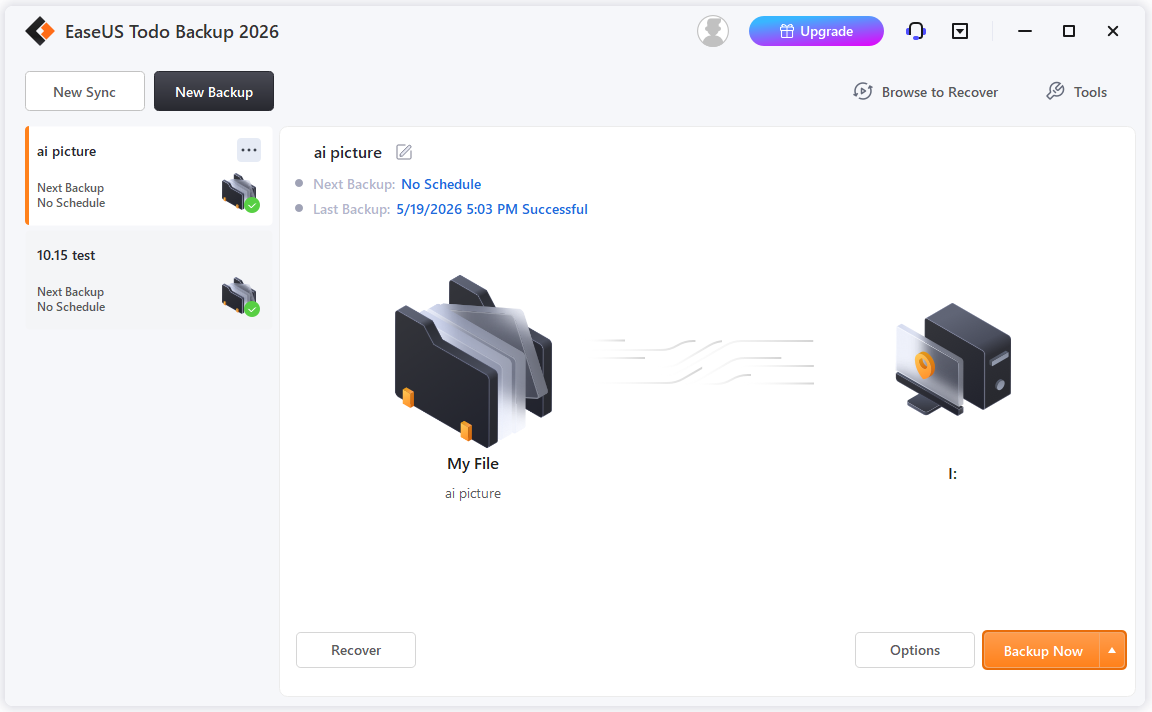
EaseUS Todo Backup focuses on accessibility by providing an intuitive interface for quick file and OS recovery. Ideal for beginners, the software eliminates technical complexity while maintaining dependable restoration speeds during system failures.
Key Features
- Simplifies OS migration to SSDs with a guided disk cloning wizard.
- Offers backup options for files, systems, disks, partitions, and SQL/Exchange databases.
- Supports backups to EaseUS Cloud and cloud services such as Google Drive and Dropbox.
- Protects backup files with an encrypted Security Zone against ransomware.
- Runs event-triggered backups at system startup, shutdown, or user logon.
- Enables hot system recovery before Windows starts.
Pros and Cons
| Pros | Cons |
| 1. Simplifies OS cloning with step-by-step wizards. 2. Protects backups in a ransomware-safe zone. 3. Triggers backups on system startup or shutdown. | 1. Locks disk cloning behind a paywall. 2. Shows frequent upgrade prompts in the free edition. 3. Strains lower-end CPUs during compression. |
User Experience
EaseUS Todo Backup focuses on simplicity and clarity in the recovery process. Its clean UI guides users through a straightforward recovery wizard, making it easy to restore system images or files.
Even in stressful situations, the smooth workflow helps users bring their systems back online without hassle, making it ideal for those seeking an accessible and guided recovery experience.
Hasleo Backup Suite: Lightweight Backup Software
Best For: Users looking for a free backup solution
Restore Speed: Good
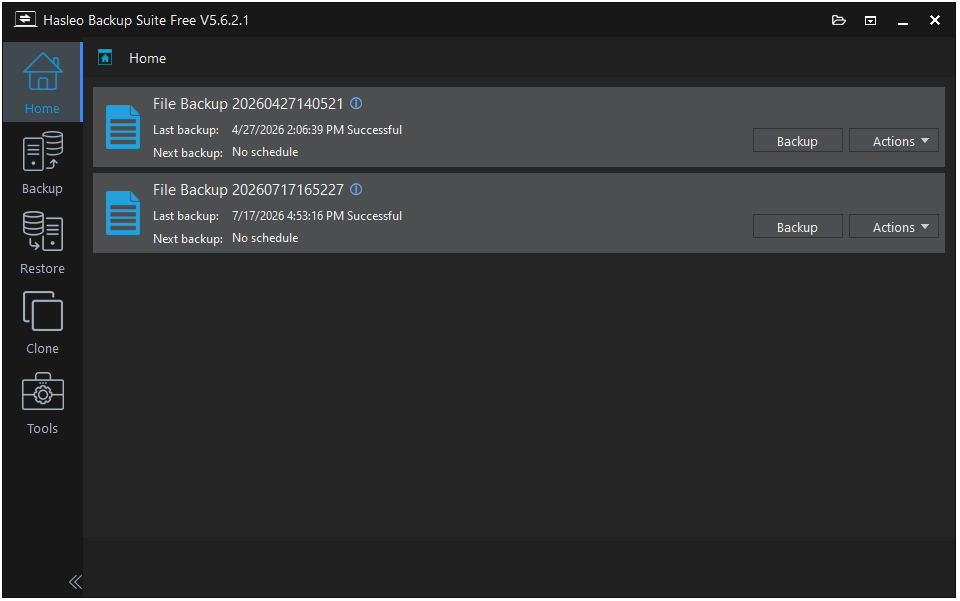
Hasleo Backup Suite offers a completely free, lightweight recovery engine without sacrificing core functionality. Serving cost-conscious users, this utility maintains good restore speeds alongside essential Windows backup capabilities.
Key Features
- Provides a free backup solution without advertisements.
- Supports multiple compression levels to reduce backup image size.
- Creates WinPE bootable media for system recovery.
- Uses Delta Backup to reduce backup time and storage usage.
- Erases partitions and unallocated space with built-in data wiping tools.
- Supports command-line automation for advanced backup management.
Pros and Cons
| Pros | Cons |
| 1. Delivers full features completely free without ads. 2. Runs smoothly with low RAM and CPU usage. 3. Includes built-in disk wiping utilities. | 1. Lacks direct cloud storage options. 2. Features a basic, unpolished design. 3. Has a smaller community for troubleshooting. |
User Experience
Hasleo Backup Suite offers solid recovery capabilities for everyday PC maintenance, and it’s completely free. The restoration process is reliable and fast, though the user interface is more utilitarian compared to commercial options.
It provides a straightforward restore experience without ads or unnecessary features. This makes it ideal for budget-conscious users seeking effective recovery tools in a lightweight package.
Acronis True Image: Premium Backup Software
Best For: Users who need secure and reliable recovery
Restore Speed: Very Fast
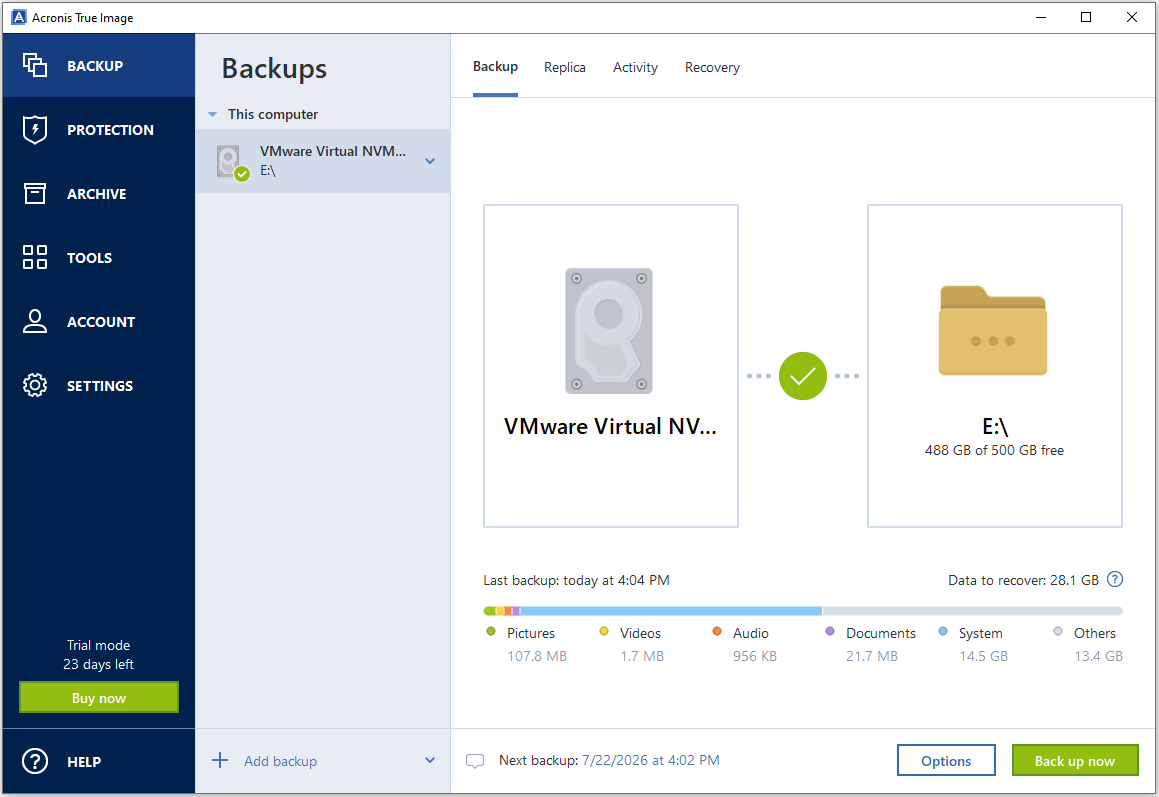
Acronis True Image pairs active cyber protection with remarkably fast restore capabilities for comprehensive data security. This premium solution caters to users seeking top-tier reliability alongside secure local and cloud-based system recovery.
Key Features
- Integrates backup with real-time antivirus and ransomware protection.
- Replicates local backups to cloud storage for off-site protection.
- Protects backup files with AES-256 encryption.
- Restores system images to dissimilar hardware with Universal Restore.
- Mounts backup images as virtual drives for file recovery.
- Backs up Microsoft 365 data, including Outlook and OneDrive files.
Pros and Cons
| Pros | Cons |
| 1. Combines image backups with anti-malware security. 2. Replicates backups to the cloud automatically for off-site protection. 3. Restores systems to different hardware seamlessly. | 1. Requires ongoing subscription payments. 2. Consumes high RAM and CPU resources. 3. Features a complicated layout that may confuse new users. |
User Experience
Acronis True Image offers a polished, easy-to-navigate interface that makes backup and recovery straightforward. Its restore performance is reliable across various scenarios, giving users confidence when recovering data.
However, the integrated cybersecurity, antivirus, and cloud features consume more system resources and may require a longer learning curve than traditional backup software. Overall, it is best suited for users who want an all-in-one backup and data protection solution.

Comparison Table
| Software | Restore Speed | Backup Speed | System Recovery | Incremental Backup | Best For |
| MiniTool ShadowMaker | Fast | Fast | Excellent | Yes | Home users |
| Macrium Reflect | Very Fast | Fast | Excellent | Yes | Advanced users |
| AOMEI Backupper | Fast | Fast | Very Good | Yes | Beginners |
| EaseUS Todo Backup | Fast | Fast | Very Good | Yes | General users |
| Hasleo Backup Suite | Moderate | Moderate | Good | Yes | Free backup |
| Acronis True Image | Fast | Very Fast | Excellent | Yes | Premium users |
Backup Speed vs Restore Speed
Backup speed shows how quickly a backup can be created, while restore speed means how fast data or Windows systems can be recovered.
Although both are important, restore speed often matters more during emergencies because it directly affects downtime.
When choosing backup software, users should also consider recovery performance instead of focusing only on backup creation speed.
How to Improve Backup and Restore Performance
To enhance backup efficiency and restore speed, consider the following tips:
- Use a solid-state drive (SSD) or high-speed storage for backups.
- Create bootable recovery media before an emergency.
- Schedule regular incremental backups to reduce time.
- Periodically verify backup images for usability.
- Ensure ample free space on both source and destination drives.
Good backup practices with reliable software help ensure quick Windows restoration when needed.
Backup Software with Fast Restore FAQ
However, restore speed also depends on backup software, file size, compression level, and the speed of source and destination drives. Using SSDs for large system restores can greatly reduce waiting time.
Bottom Line
Each backup and recovery software has different strengths. MiniTool ShadowMaker offers a good balance of restore speed and usability, while Macrium Reflect provides advanced recovery features.
Acronis True Image, AOMEI Backupper, EaseUS Todo Backup, and Hasleo Backup Suite also offer reliable backup and recovery options. The best backup software with fast restore depends on recovery needs, experience level, and budget.
About The Author

Position: Columnist
Charlotte is a technology columnist with a strong focus on the Windows operating system, specializing in disk management, backup, and data recovery. She is passionate about analyzing computer errors, identifying root causes, and delivering practical solutions. In her free time, she stays updated on the latest developments in computer systems and hardware while continuously learning new technologies to broaden her expertise. Her writing style is clear and easy to understand, making complex technical topics accessible even to users with limited computer knowledge.
User Comments :