
Over time, you might find that your MSI laptop becomes less efficient than the newer models. If your budget is tight, upgrading the current disk is a good option. This post from MiniTool covers all you can do to clone MSI HDD to SSD.
Why Do You Need to Clone MSI HDD to SSD?
When it comes to choosing a laptop, MSI laptops might be the first choice of many gamers and general users because of powerful hardware configurations, robust system performance, and vibrant displays. Although they can last for years if maintained properly, it’s not a new thing to find that the storage space might run out and the system performance deteriorates over regular use.
If you don’t have a deep pocket, why not clone MSI HDD to SSD? In other words, you can upgrade the current HDD to a new SSD to give it a second life. Here, we summarize why MSI laptop SSD upgrade is worth the time and effort:
1. Less expensive
Since SSD is a fraction of your MSI laptop, it is much cheaper to buy an (either new or second-hand) SSD than a brand-new PC.
2. Lower latency
SSDs utilize SSD to achieve immediate data access. Unlike HDDs, they don’t need to take more time to physically move the head to the correct location because they lack moving parts. This means that your system will be more responsive and programs will be launched quicker.
3. Less troublesome
With the help of disk cloning, the new SSD can be immediately booted, so you don’t need to spend much time reinstalling the operating system from scratch. Meanwhile, the cloning process will also copy personal files, installed programs, system settings, and partitions, hence manual data transfer and system configuration modification will be no necessity.
4. More durable and reliable
There are some moving parts in HDDs, like magnetic heads, spinning platters, and spindles that make them susceptible to damage from physical shocks, drops, or vibrations. SSDs don’t contain these components, so it will be more durable and reliable in the event of accidents.
How to Clone MSI HDD to SSD?
Move 1: Buy an SSD with a Reasonable Price
It’s essential to pick a suitable SSD, as it can significantly impact your computer’s performance. Depending on your MSI laptop’s storage specifications, not all SSDs will fit into the motherboard. When you are going to buy a new SSD, primarily consider the following key factors:
- Brand – Hard disk manufacturers like Kingston, Samsung, Toshiba, Western Digital Corporation, Intel, and more seem to offer products of higher quality because they invest more in research development, and testing.
- Capacity – On average, a 64-bit Windows system takes up 32 GB of free space and some large video games even have a size of 50GB to 200GB or more. As a result, you had better not take SSDs with 128GB and 250GB of storage into consideration even if they are the cheapest. Drives of 500GB and above offer a reasonable amount of room for large files and programs at decent prices.
- Form factor – SSDs come in 4 form factors: 2.5-inch serial SATA, M.2, mSATA, and U.2. Currently, the mainstream SSDs on the market are SATA and M.2. If you wonder what form factor your MSI laptop supports, please refer to your device manual to get the information.
In addition, other elements like price, compatibility, power consumption, storage memory and endurance should also be taken into consideration.
Move 2: Initialize the New SSD
Before the MSI laptop hard drive replacement, please connect the new SSD with the SATA to USB enclosure or M.2 to USB closure to your computer. After that, Windows will identify the SSD but won’t use it, so you can initialize it.
Initialization is of vital importance because it prepares the SSD for use so that your operating system can recognize and control it. Without initializing, your drive will keep unallocated. To do it:
Step 1. Right-click on the Start menu and select Disk Management.
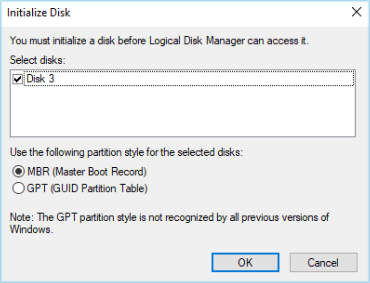
Step 2. If requested to initialize the disk, choose a partition style for the new SSD and hit OK. Please make sure that the partition styles of your source disk and target disk are the same. To be more specific, if your old hard drive is MBR-based, tick MBR in this step, and vice versa.
Step 3. In the Specify Volume Size window, ensure the two numbers match and then hit Next to continue.
Step 4. Assign a drive letter for the disk and click on Next.
Step 5. Select NTFS as the file system > set the allocation unit size > add a volume label > hit Next.
Step 6. Once done, click on Finish and then your new SSD will be ready to use.
Move 3: Select a Reliable Disk Cloning Program
Now, it’s time to replace hard drive for MSI laptop. Everyone might prefer a handy tool to complete this process, especially for those who are not computer literate. In this case, MiniTool ShadowMaker serves a purpose when you need to streamline the disk cloning process.
This program creates a one-to-one copy of your hard drive, allowing you to migrate Windows from HDD to SSD or clone SSD to larger SSD. There are 2 types of cloning modes available – used sector clone and sector by sector cloning. The former will take less time, while the latter can be used to clone an encrypted or malfunctional hard drive.
Besides cloning, this PC backup software supports backing up various items including crucial files, the operating system, selected partitions, and even the whole disk to rescue your MSI laptop in case of hard disk failures, system crashes, virus infection, black screen of death, etc.
Now, let’s see how to upgrade SSD storage in MSI laptop with MiniTool ShadowMaker:
Step 1. Click on the button below to get this freeware. After downloading and installation, launch this program to enter its main interface.
MiniTool ShadowMaker TrialClick to Download100%Clean & Safe
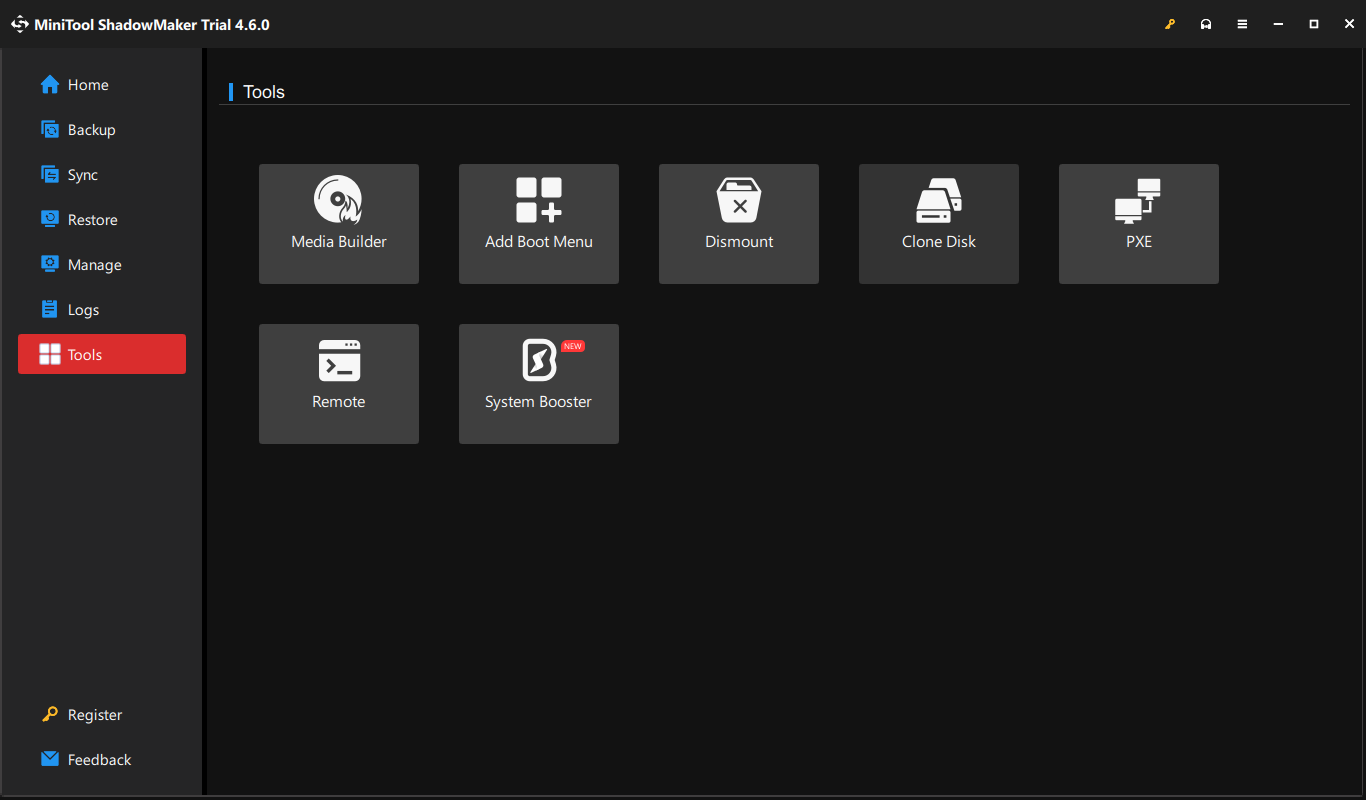
Step 2. Move to the Tools page and select Clone Disk.
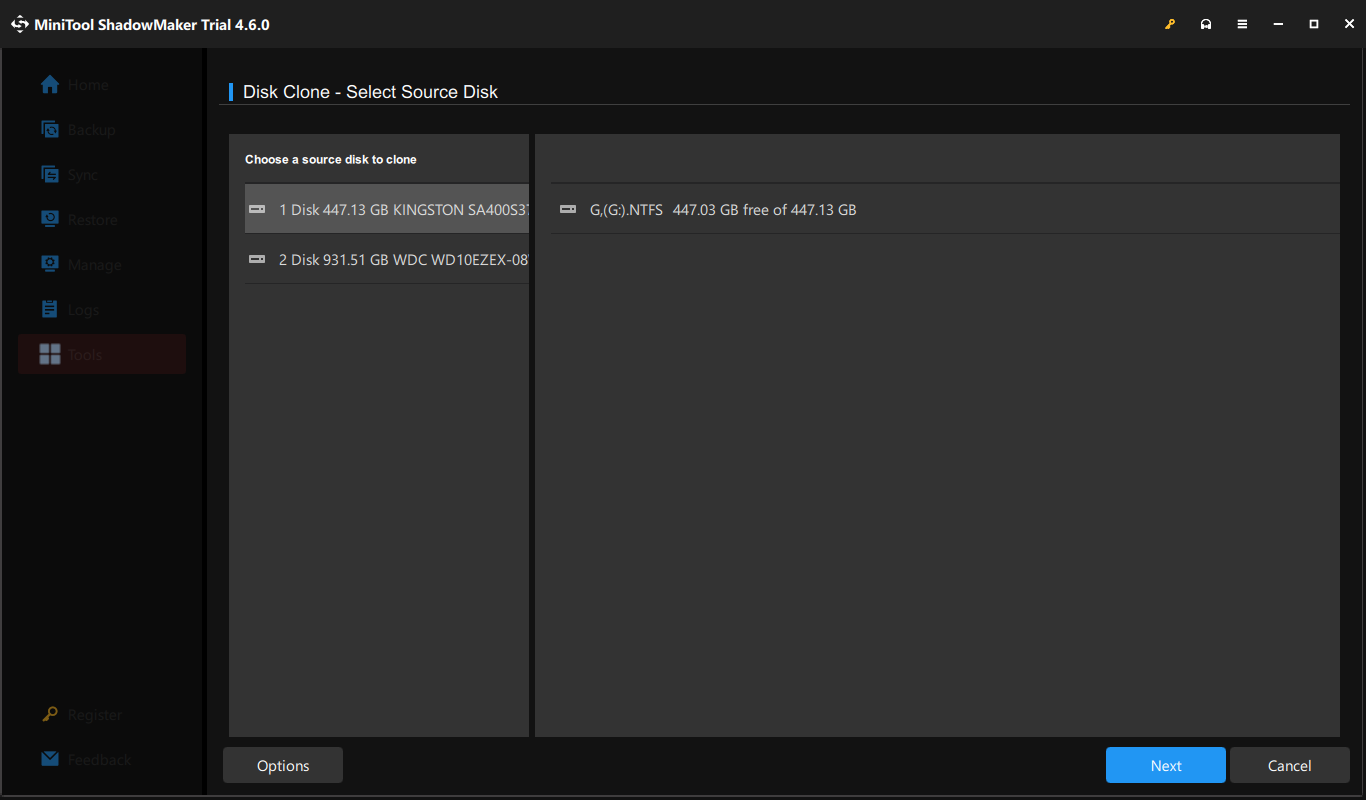
Step 3. Then, you need to specify the clone source and destination.
- Source disk – Select your old HDD as the source disk and hit Next.
- Target disk – Choose the new SSD as the target drive.
Step 4. After making your choice, tap on Start to initiate the process right now. To avoid any potential disk clone failures, please make sure to close other unnecessary programs and your MSI laptop is fully charged during the process.
Move 4: Boot from the New SSD
After cloning, you need to change the boot order in BIOS. First, go to the Boot section to set your MSI laptop to boot from a hard drive and then determine the cloned SSD as the first boot device. To do so:
Step 1. Press the physical power button to boot your computer.
Step 2. During the boot screen, press the Delete key on your keyboard repeatedly to enter the BIOS Setup menu.
Step 3. In the left-hand pane, use the arrow keys to locate SETTINGS in the left-hand pane and hit Enter. Select Boot and hit Enter.
Step 4. Under FIXED BOOT ORDER Priorities, select Boot Option #1 to your boot device type.
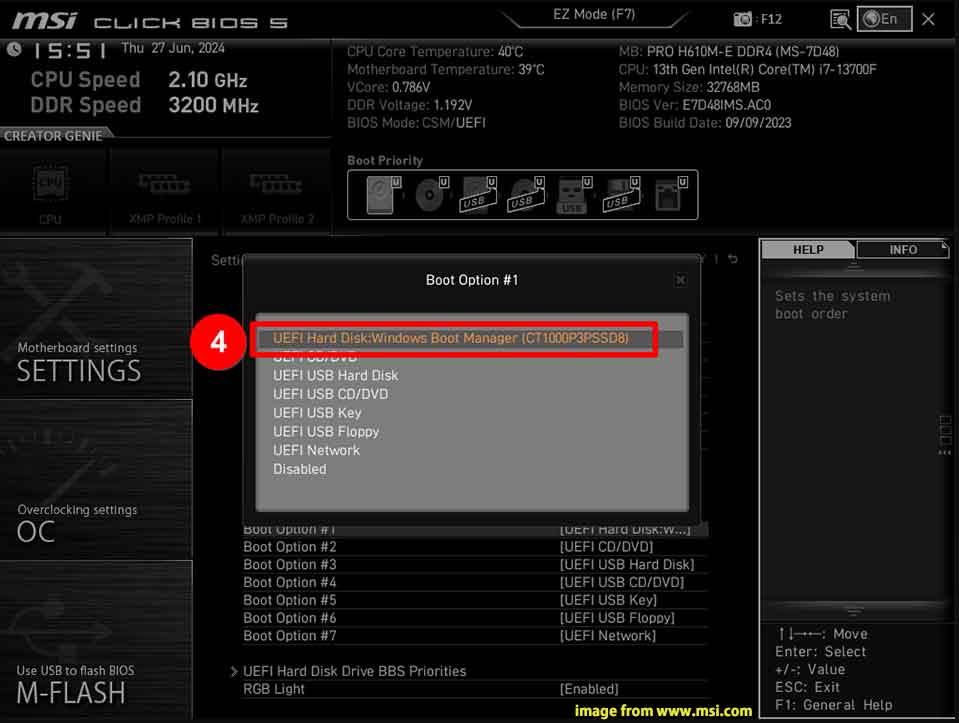
Step 5. Select UEFI Hard Disk Drive BBS Priorities > Boot Option #1 > set the new SSD as the first boot option.
Step 6. Press F10 to save and exit.
Move 5: Deal with the Source Drive after Cloning
Some of you might wonder how to deal with the old disk after cloning. This might depend on how many disk slots your MSI laptop has:
- For MSI laptops with only 1 disk slot: shut down your computer > open its case > replace the old disk with the new one.
- For MSI laptops with 2 or more disk slots: power off your PC and directly install the new SSD to another available disk slot.
No matter if you intend to continue to use it as a data disk or sell it to others, formatting and repartitioning are indispensable. To format the hard drive, a partition manager called MiniTool Partition Wizard is worth a try. Available on Windows PCs, servers, and workstations, this tool is designed to create, resize, increase, delete, merge partitions, and more. Get this freeware to optimize your hard drive and partitions now!
MiniTool Partition Wizard FreeClick to Download100%Clean & Safe
Wrapping Things Up
In this guide, we illustrate why you need to upgrade MSI gaming laptop hard drive to SSD at the beginning part. On the one hand, even though you manage your disk space regularly, the storage space will run out gradually because there will be more and more files, programs and other data stored on your disk. On the other hand, the overall performance of your MSI laptop tends to decline with age due to outdated software, insufficient storage space, wear and tear on hardware components, and more.
After figuring out the reasons, pick a suitable SSD, connect it to your MSI laptop, and migrate all the content to the new SSD with MiniTool ShadowMaker. Finally, there will be a noticeable boost in your system performance and speed.
MiniTool ShadowMaker TrialClick to Download100%Clean & Safe
Do you have any problems while experiencing our software? For any constructive suggestions or feedback, don’t hesitate to share them with us via [email protected]. Appreciate your time and support!
User Comments :