
Quick Answer: What Is the Best Easy Backup Software
The best easy backup software should offer:
- Simple setup
- One-click backup options
- Automatic backups
- Easy recovery
- Clear user interface
- Affordable pricing
Here are the top user-friendly options:
- MiniTool ShadowMaker
- EaseUS Todo Backup
- AOMEI Backupper
- Windows File Recovery
- FBackup
What Is Easy Backup Software
Easy backup software should be a “set it and forget it” tool, and the best backup software for beginners. This type of software is designed to automatically protect your digital data from loss, theft, or corruption.
Users can back up files, folders, or even an entire operating system to an external drive or cloud storage with minimal technical setup.
Key Features of Easy Backup Software
Easy backup software simplifies data protection and reduces manual work. Here are its key features:
- Simple User Interface: Provides clear navigation and easy-to-understand backup options.
- One-Click Backup: Starts backup tasks instantly with default settings.
- Automatic Scheduling: Runs backups automatically on a daily, weekly, or monthly basis.
- Easy Recovery Process: Restores files or systems in just a few steps.
- Smart Backup Modes: Saves storage space and time by backing up only modified data.
- Data Encryption: Protects sensitive files from unauthorized access.
- Status Notifications: Sends alerts about backup successes, failures, and warnings.
- Setup Wizards: Guides users seamlessly through the backup configuration process.
- Automatic Cleanup: Removes outdated backup versions to optimize storage space.
When choosing the simple backup software for beginners, check these aspects:
- Consider ease of use
- Check backup types
- Verify recovery options
- Evaluate scheduling features
- Compare pricing
# 1. MiniTool ShadowMaker — User-Friendly Backup Software
Best for Home Users
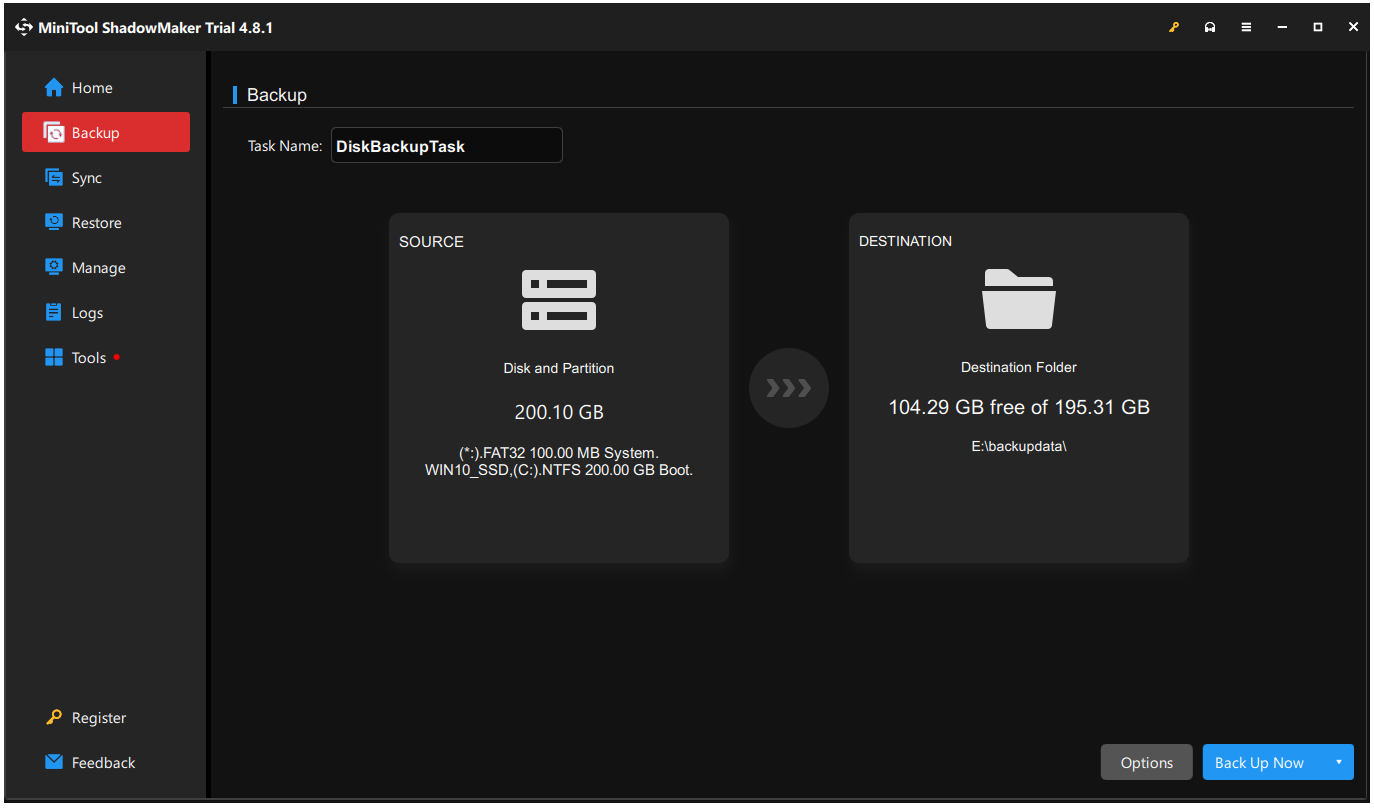
MiniTool ShadowMaker is designed for simplicity, serving as a user-friendly backup solution for everyone. Users can effortlessly manage system backups, file backups, and file synchronization without a steep learning curve.
Additionally, its user-friendly interface and straightforward options perfectly streamline the entire process.
Key Features
- Provides flexible backup sources, including system, files, folders, disks, and partitions.
- Supports daily, weekly, monthly, and event-triggered automated backups.
- Offers smart backup schemes, including full, incremental, and differential backups.
- Allows users to create an exact copy of a hard drive to a secondary drive.
- Supports disaster recovery and media builder.
Pros & Cons
| Pros | Cons |
| 1. Simplifies backup tasks for beginners with an intuitive design. 2. Delivers robust and reliable system backup capabilities. 3. Provides flexible automation options for scheduled tasks. | 1. Restricts certain advanced features to the paid edition. 2. Lacks cloud services. |
Personal Experience
MiniTool ShadowMaker stands out for its modern and clean interface. The backup process is straightforward, and system backups can be completed in just a few clicks without a learning curve. The free edition is also feature-rich, which is sufficient for most everyday backup needs.
The one-click backup software delivers flexible backup options with stable and fast performance. However, background tasks can feel noticeable at times, and the free edition occasionally shows Pro upgrade prompts.
# 2. EaseUS Todo Backup — Beginner-Friendly Backup Software
Best for First-Time Users
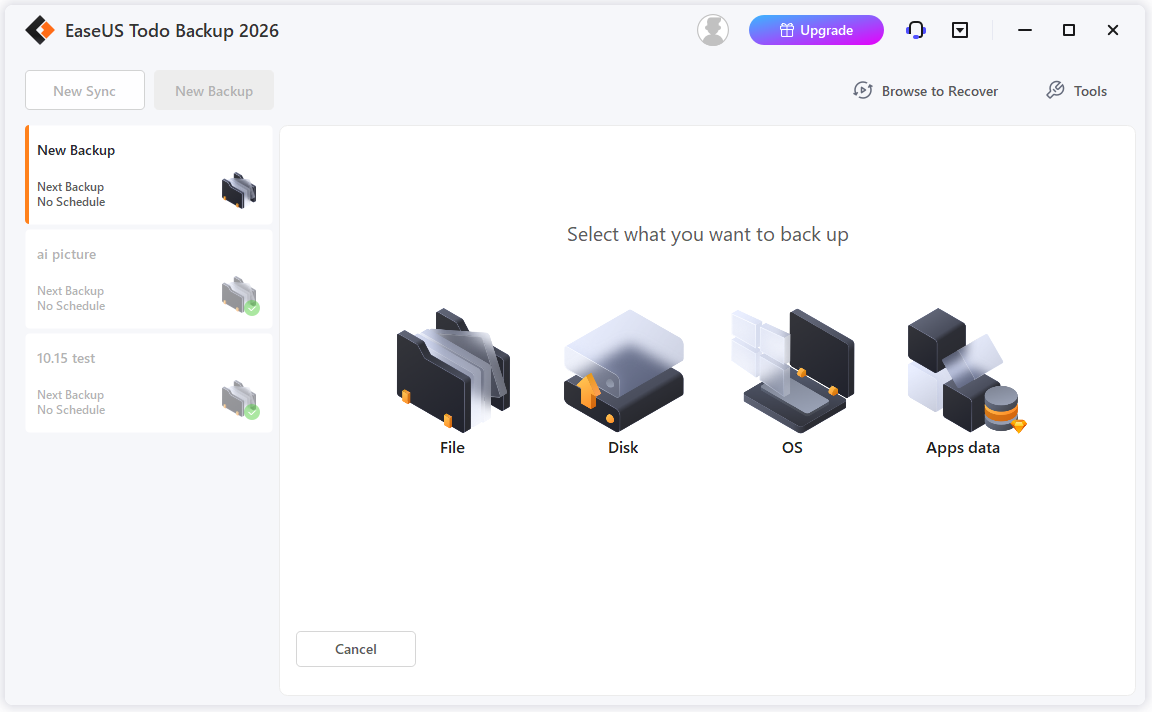
EaseUS Todo Backup is known for its user-friendly interface and straightforward backup process.
Even users with limited experience can schedule and run backups effortlessly, thanks to clear menus and guided wizards that simplify setup and operation.
Key Features
- Allows scheduled backups to run silently in the background daily, weekly, or monthly without manual intervention.
- Retrieves lost data without needing technical expertise.
- Provides versatile backup options, including File Backup, System Backup, and App Data Backup.
- Saves backup images to multiple locations, including local/external hard drives, network locations (NAS), or the cloud.
- Saves time and space by backing up only changed data.
Pros & Cons
| Pros | Cons |
| 1. Offers an extremely intuitive interface. 2. Supports reliable automation features. 3. Provides excellent recovery options tailored for beginners. | 1. Prompts frequent upgrade notices. 2. Requires paid upgrades to unlock advanced features. |
Personal Experience
EaseUS Todo Backup delivers fast backup and compression speeds, helping reduce waiting time. The free edition is feature-rich and includes cloud storage.
Security is another notable strength, with Security Zone and Backup Protection helping safeguard backup files from unauthorized modification or deletion.
However, the free edition contains frequent upgrade promotions and pop-up messages. These can be distracting for users who prefer a cleaner experience.
# 3. AOMEI Backupper — Cost-Effective Backup Software
Best Budget-Friendly Option
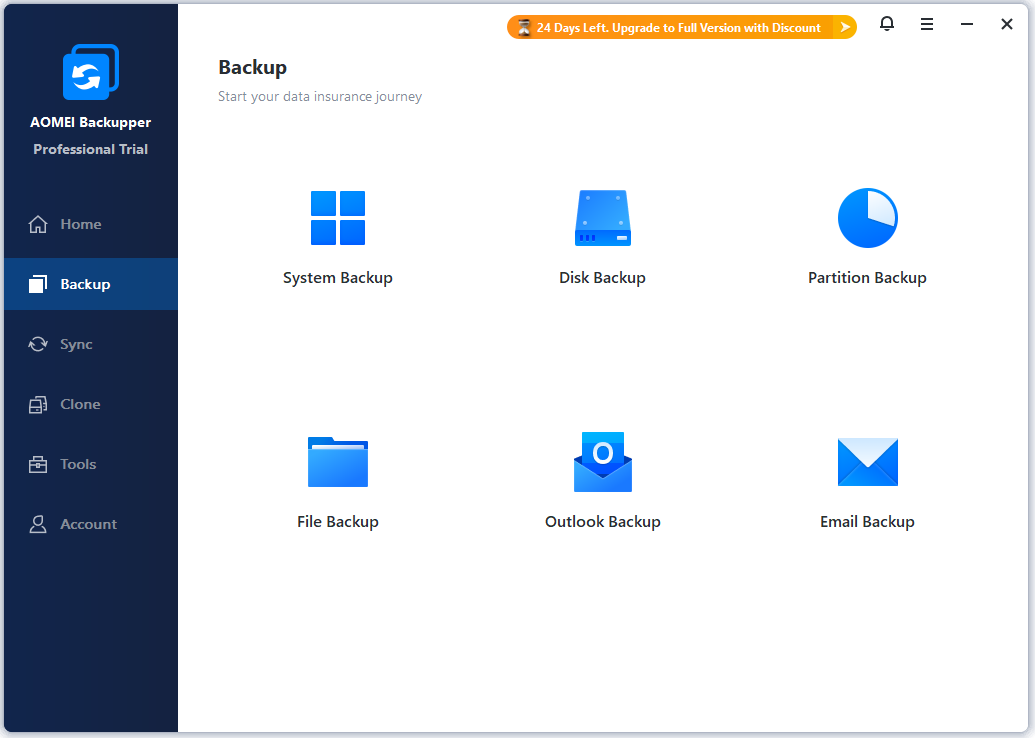
AOMEI Backupper delivers great value at an affordable price. It includes essential backup, cloning, and recovery tools.
System resource usage stays remarkably low during operation. This software perfectly balances high functionality with efficiency.
Key Features
- Allows flexible storage destinations, including local disks, NAS devices, and major cloud services.
- Schedules backups by date or triggers them automatically by specific events.
- Automatically purges old backups to save storage space.
- Runs quietly in the background and won’t slow down performance.
- Creates a quick rescue USB drive to restore data when Windows fails to boot.
Pros & Cons
| Pros | Cons |
| 1. Offers a robust and highly capable free edition. 2. Balances comprehensive features with user-friendly simplicity. | 1. Features a slightly traditional and dated interface design. 2. May be challenging for beginners due to its advanced technical options. |
Personal Experience
AOMEI Backupper is lightweight and easy to use, with a clean interface and a complete set of backup, sync, and recovery tools. The availability of a perpetual license is also a major advantage for users who prefer a one-time purchase.
However, automatic backup cleanup is limited to paid editions, so large-scale data backups can quickly consume storage space. The software also displays frequent Pro upgrade prompts, which can affect the overall experience.
# 4. Windows File History — Built-in Backup Solution
Best Native Windows Option
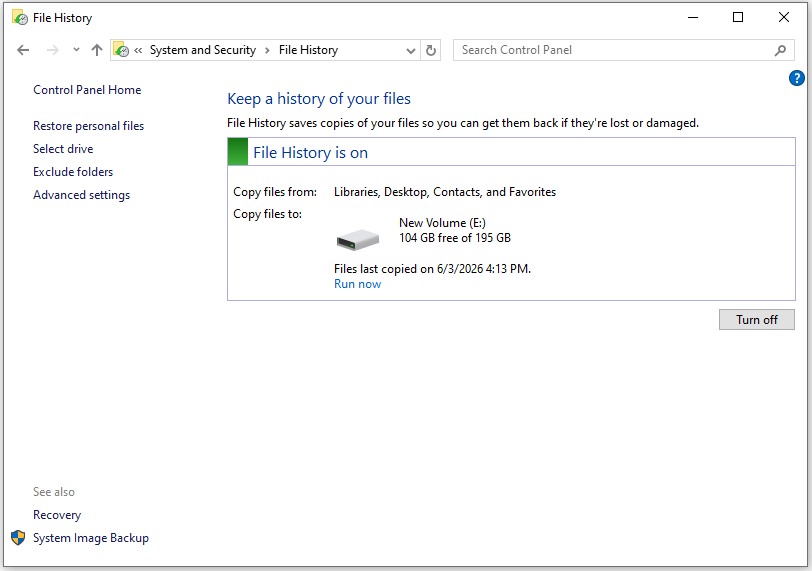
Windows File History provides continuous file protection with zero extra installation. Deep OS integration and automatic versioning seamlessly simplify routine backups.
For users seeking basic data protection without third-party software, this built-in tool is the easiest starting point.
Key Features
- Tracks file changes continuously to restore previous document versions.
- Runs quietly in the background as a built-in Windows utility.
- Backs up default user folders including Documents, Desktop, and Pictures.
- Provides an intuitive timeline-based interface to easily restore older files.
- Manages storage by keeping old versions indefinitely, or removing them only when additional space is needed.
- Excludes specific folders manually to optimize backup storage space.
- Saves data securely to external hard drives or network locations.
Pros & Cons
| Pros | Cons |
| 1. Fully integrated into the Windows system and no installation required. 2. Extremely simple to use. 3. Simple restore options. | 1. Limited to file-level backup. 2. Fewer advanced customization options. |
Personal Experience
Windows File History offers a clean and ad-free experience. It runs quietly in the background with very low system impact and supports multiple file versions for easy recovery of older data.
However, its functionality is limited. Custom folder selection is restricted, and it does not support system backup or disk cloning. Storage usage can also grow quickly because old backups are not managed efficiently.
# 5. FBackup — Simple Backup Software
Best for Absolute Beginners
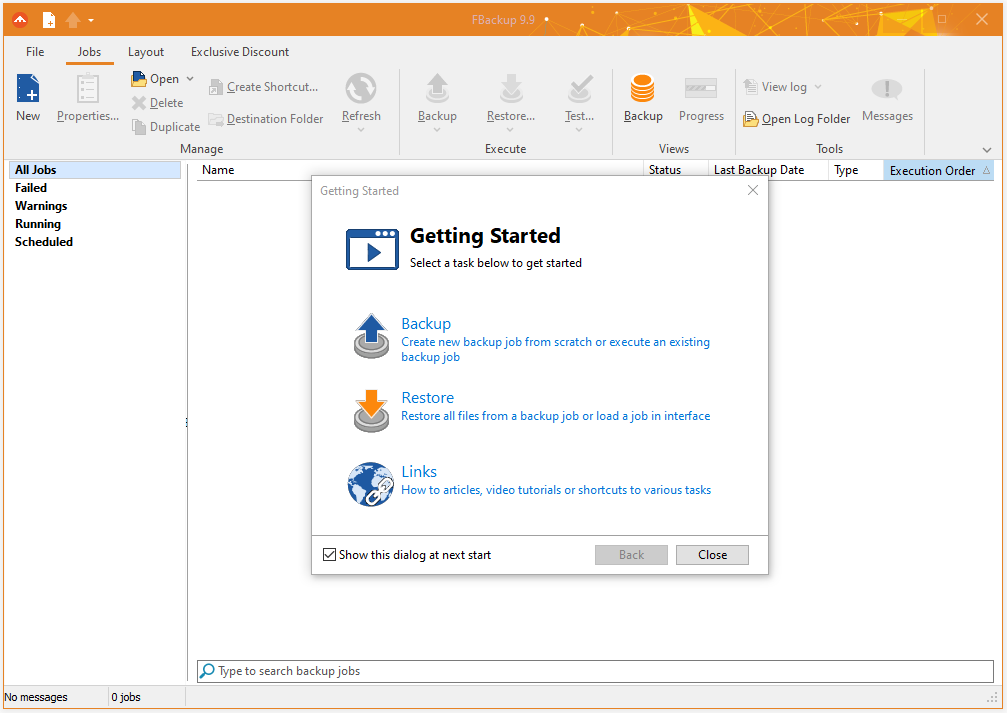
FBackup delivers straightforward functionality for quick backup creation. The software supports multiple storage destinations with minimal setup steps.
This lightweight design ensures backups run smoothly with very little system overhead.
Key Features
- Offers two backup methods, including Full Backup and Mirror Backups.
- Saves data to local drives, external USB drives, network locations, Google Drive, or Dropbox.
- Schedules backups automatically on a daily, weekly, monthly basis, or upon system logoff.
- Guides users through a simple wizard or offers an advanced configuration mode.
- Detects and backs up settings for specific applications automatically using free plugins.
- Triggers PC shutdown, hibernation, or custom commands after completing a backup.
Pros & Cons
| Pros | Cons |
| 1. Very easy setup process. 2. Beginner-oriented interface. 3. Straightforward backup workflow. | 1. Limited advanced backup features. 2. Not suitable for complex system imaging. |
Personal Experience
FBackup is free for both personal and commercial use, making it a safe choice without licensing concerns. It also supports Google Drive and Dropbox integration, which adds convenience for cloud backups.
However, backup performance can be slow, especially when handling large numbers of files. The interface contains frequent upgrade prompts, and the software does not support system backup or disk imaging, limiting its protection against major system failures.
Easy Backup Software Comparison Table
| Software | Ease of Use | Automatic Backup | System Backup | Best For |
| MiniTool ShadowMaker | Yes | Yes | Yes | Home Users |
| EaseUS Todo Backup | Yes | Yes | Yes | Beginners |
| AOMEI Backupper | Yes | Yes | Yes | Budget Users |
| Windows File History | Yes | Yes | No | Basic File Backup |
| FBackup | Yes | Yes | No | First-Time Users |
Final Verdict
The ideal easy backup software varies based on your needs and experience.
MiniTool ShadowMaker offers a balanced combination of ease of use and rich features. Complete beginners might prefer EaseUS Todo Backup and FBackup for their simplicity and ease of use. If you want a built-in solution, Windows File History is a solid choice for basic file safeguarding.
In the end, the best beginner-friendly backup software is the one that keeps data protection automatic, straightforward, and trustworthy.
Easy Backup Software FAQ
1. Personal Use: Backup weekly or after important downloads/creations (e.g., photos, tax documents).
2. Business Use: Backup daily.
3. Best Practice: Use automatic backups with Time Machine (macOS) or File History (Windows).
1. External Hard Drives / SSDs: Fast and reliable for large image backups.
2. Network Attached Storage (NAS): Ideal for backing up multiple computers over Wi-Fi.
3. Cloud Storage: Use services like OneDrive, Google Drive, or Dropbox.
About The Author

Position: Columnist
Charlotte is a technology columnist with a strong focus on the Windows operating system, specializing in disk management, backup, and data recovery. She is passionate about analyzing computer errors, identifying root causes, and delivering practical solutions. In her free time, she stays updated on the latest developments in computer systems and hardware while continuously learning new technologies to broaden her expertise. Her writing style is clear and easy to understand, making complex technical topics accessible even to users with limited computer knowledge.
User Comments :