
A well-designed server backup strategy helps safeguard critical business data and enables faster recovery from unexpected failures. This guide covers how to create a backup plan, from choosing backup methods to automating schedules.
Key Takeaways
- A strong server backup strategy helps organizations minimize the impact of unexpected data loss and downtime.
- It is necessary to define your RPO and RTO, choose proper backup types, automate backup tasks, encrypt backups, and follow the 3-2-1-1-0 strategy.
- MiniTool ShadowMaker provides flexible backup options for creating full, incremental, differential, and automated backups to meet different needs.
What Is a Server Backup
A server backup is a copy of a server’s system settings, personal data, apps, and configurations. It is stored on a separate storage device, such as an external hard drive, or in the cloud, such as OneDrive or Google Drive.
It allows businesses to restore the system or files if the server crashes or loses important data.
Why Is a Server Backup Strategy Important
A server backup strategy serves as a safety net for businesses, protecting critical data from loss and ensuring faster system recovery after unexpected failures. This helps maintain business continuity and minimize downtime.
The table below shows common risks and their potential impact.
| Risk | Impact |
| Ransomware attack | Files encrypted or unavailable |
| System or hardware failures | Days of downtime or inaccessible files |
| Accidental deletion | Permanent data loss |
| Natural disaster | Destroyed on-site servers and local drives |
How to Build a Server Backup Strategy
#1. Define RPO and RTO
It is essential to define your Recovery Point Objective (RPO) and Recovery Time Objective (RTO) first. The table below explains these two key concepts at a glance.
| Metric | Definition | Focus on |
| RPO | Specifies how much data loss you can tolerate | Data loss tolerance |
| RTO | Defines how long systems can be down. | Downtime tolerance |
These metrics can help you choose the right backup frequency, storage method, and disaster recovery approach.
#2. Choose Appropriate Server Backup Types
There are three common backup types, each designed for different backup scenarios. Choosing the right method depends on how much data you need to protect and how frequently it changes.
- Full backup: Creates a complete copy of all selected files, folders, and system data, providing comprehensive data protection. However, it requires the most storage space and takes the longest to complete. In return, it offers the fastest and simplest recovery process.
- Incremental backup: Copies only the files that have changed or been created since the last backup. It saves storage space and reduces backup time, but recovery is slower because it relies on the last full backup and all subsequent incremental backups.
- Differential backup: Copies all changes made since the last full backup. As data changes accumulate, backup size and time gradually increase. However, recovery is faster because only the last full backup and the latest differential backup are required.
Check the table below to quickly know the key differences.
| Feature | Full Backup | Incremental Backup | Differential Backup |
| What it copies | All selected files | Changes since the last backup | Changes since the last full backup |
| Backup speed | Slow | Fastest | Moderate |
| Storage space | Highest | Lowest | Moderate (grows over time) |
| Restore speed | Fatest | Slowest (full + all incremental backups) | Fast (full + latest differential backup) |
#3. Automate Server Backup Tasks
Automating backup tasks is a key part of an effective server backup strategy, as it ensures critical data is protected even when manual backups are overlooked.
The backup frequency depends on the server’s role and how often its data changes. For data that often changes, daily backups are recommended to minimize data loss. For non-critical data, consider weekly backups.
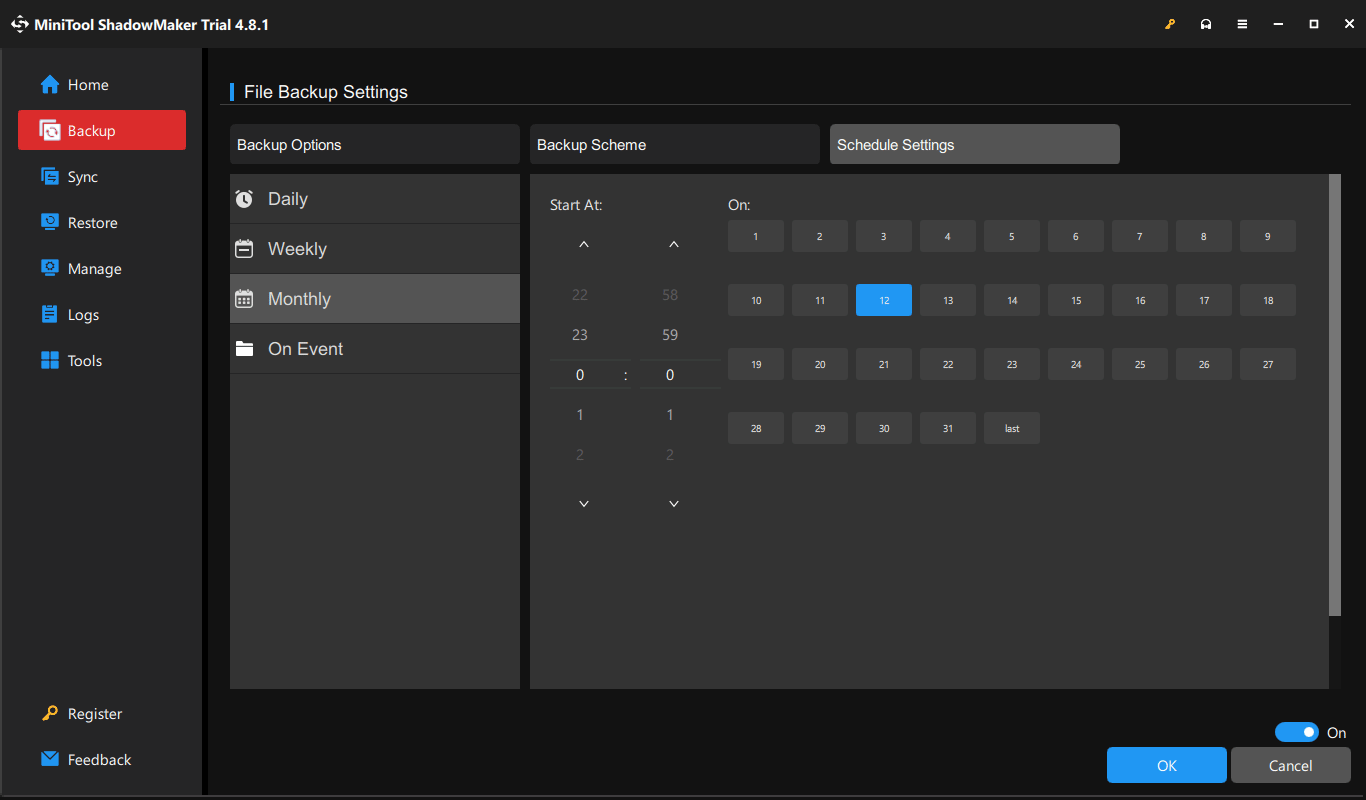
MiniTool ShadowMaker supports automatic backups on a daily, weekly, monthly, or event-triggered basis, helping reduce manual work and maintain reliable data protection.
In the next section, we will walk you through the steps to set up automated server backup tasks with this software.
#4. Encrypt Backups
Backup copies may contain sensitive business data, so encryption is essential to protect them from unauthorized access, data breaches, and other security risks.
Ensure you use professional backup encryption software, such as MiniTool ShadowMaker, to protect backup files with password protection and AES-256/AES-128 encryption.
#5. Apply the 3-2-1-1-0 Rule
The 3-2-1-1-0 backup rule is a proven data protection strategy that helps organizations minimize data loss risks and maintain business continuity. It plays an important role in keeping data accessible and enabling fast recovery after data loss.
Check the table below to better understand this backup strategy.
| Rule | Description |
| 3 Copies | Keep three copies (original server data + two backups). |
| 2 Media types | Store backups on at least two different devices (local + cloud or tape). |
| 1 Offsite copy | Keep one backup in a separate geographic location. |
| 1 Immutable or offline copy | Maintain one backup that is physically/logically disconnected from the network or immutable (cannot be modified). |
| 0 Errors | Regularly test backups to guarantee zero recovery errors. |
How to Create an Automated Server Backup with MiniTool ShadowMaker
After building your server backup strategy, the next step is to put it into practice. Choose a reliable backup solution that can automate backup tasks and restore data efficiently.
MiniTool ShadowMaker is a professional server backup software for individuals and businesses, providing comprehensive data protection with reliable backup, scheduling, and recovery features.
Key features:
- Back up files, folders, operating systems, partitions, and disks on Windows 11/10 and Windows Server 2025/2022/2019.
- Schedule automated backups on a daily/weekly/monthly basis or trigger backups at system logon/logoff.
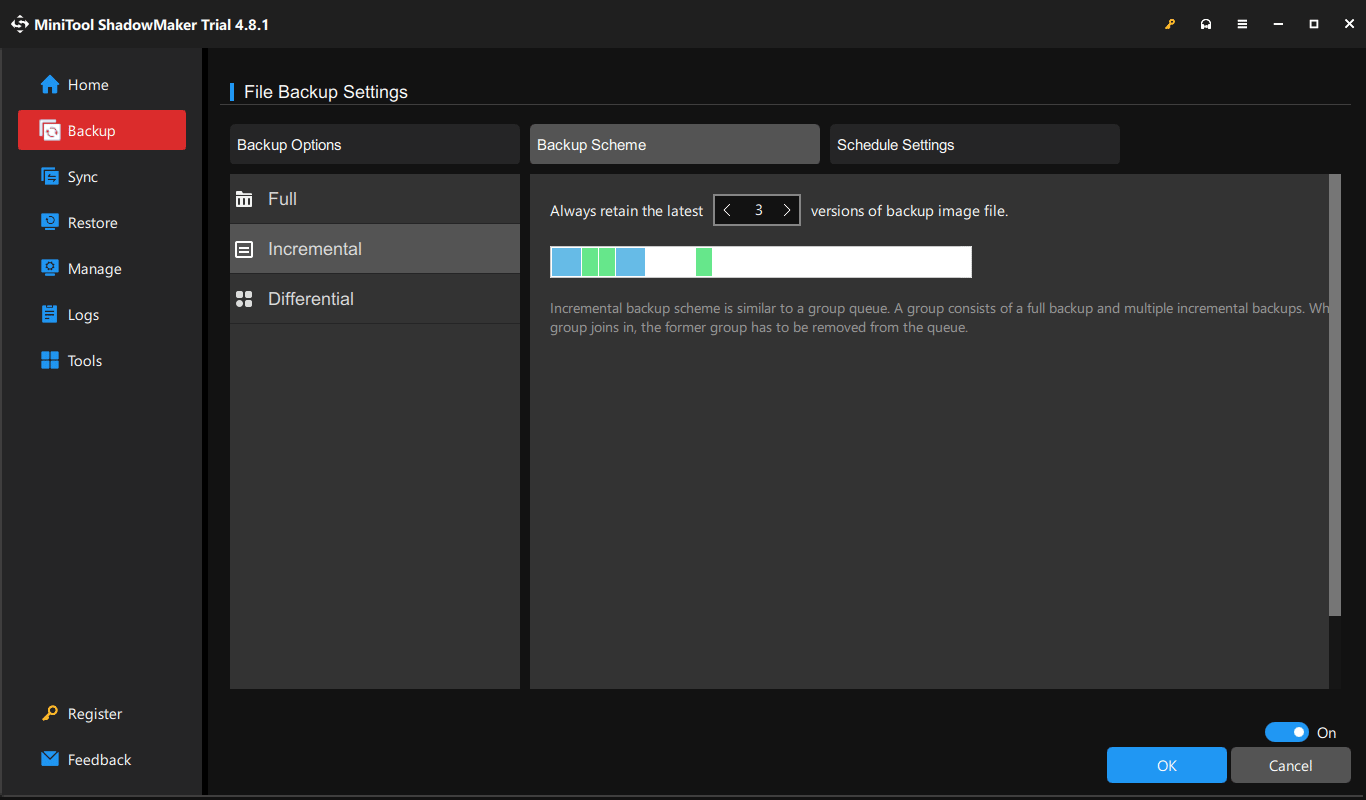
- Provide flexible backup options including full, incremental, and differential, while deleting old backup versions for storage management.
- Support AES-256 encryption for file backups and AES-128 for system backups.
- Create a WinPE bootable USB drive for disaster recovery.
- Restore systems to dissimilar hardware with Universal Restore.
Follow these steps to automate server backups.
Step 1: Connect an external hard drive to your server PC.
Step 2: Download, install, and launch MiniTool ShadowMaker. This free backup software for Windows Server provides a 30-day free trial.
MiniTool ShadowMaker TrialClick to Download100%Clean & Safe
Step 3: Go to Backup and select your backup source and destination.
- System drives for Windows to run are selected automatically. To back up files, click SOURCE > Folders and Files, and choose the items you want to back up.
- Click DESTINATION to select the external drive to save backups.
Step 4: Make advanced settings for your backups.
1. Click Options > Schedule Settings, switch the toggle to On, and configure a backup plan.
2. Under Backup Scheme, choose a scheme such as incremental, differential, or full.
3. Navigate to the Backup Options tab, click Password, enable password protection, enter a password, and choose a data encryption method.
Step 5: Click Back Up Now to begin the backup.
Your server is now protected with automated backups.
Server Backup Strategy FAQ
1. Check backup logs
2. Run native validation commands
3. Perform automated or manual test restores
1. Back up only one copy of data
2. Store all backups in the same location
3. Neglect backup security
4. Rely on manual execution
5. No test recovery processes regularly
Conclusion
A reliable server backup strategy helps protect critical business data and reduce downtime. By following the best practices above, you can build a solid data protection plan using MiniTool ShadowMaker.
If you have issues with our software for automated backups, contact us at [email protected].
About The Author

Position: Columnist
Vera has been working at the MiniTool Team for over 10 years as a technical editor and content writer. She mainly focuses on disk and partition management, data recovery, Windows backup and restore, and PC troubleshooting. Through in-depth software testing and hands-on experience, she has helped users solve a wide range of computer problems and better protect their data on Windows devices.
User Comments :