
Syncing folders to OneDrive in Windows 11/10 allows you to access files across multiple devices. Follow the comprehensive guide to run MiniTool ShadowMaker to sync multiple folders from your PC to the cloud or use the OneDrive app to perform two-way sync tasks.
Why Sync Local Folders to OneDrive
Syncing folders from your computer to OneDrive offers three main benefits:
- Storing copies of important documents, videos, photos, work files, and other files in the cloud to reduce the risk of data loss when a computer encounters an issue.
- Accessing synced files across multiple devices linked to the same Microsoft account, such as other computers, tablets, or smartphones.
- Sharing files and folders with other persons through OneDrive.
What to Check Before Syncing Local Folders to OneDrive
Before starting the folder sync in Windows 11 or 10, consider the following factors to prevent sync errors and ensure a smooth process.
- Available OneDrive storage: Check whether your OneDrive has available storage. A standard Microsoft account usually offers 5GB of free space.
- Internet connection: A stable internet connection is required for syncing files or folders to OneDrive.
- File and folder limits: OneDrive has certain restrictions on file names, sizes, and paths. Check Microsoft’s requirements to ensure your files and folders meet the syncing criteria.
- Sync settings and direction: Available options may vary depending on the sync method. Review the settings before starting.
How to Sync Folders from PC to OneDrive Using MiniTool ShadowMaker
If you need to perform OneDrive folder sync, a third-party backup and sync tool, such as MiniTool ShadowMaker, is a solid choice. It allows you to back up the operating system, files, folders, disks, or partitions to an external drive or NAS.
Additionally, its Cloud Sync feature supports syncing files or folders from a Windows computer to Google Drive or OneDrive. You can choose any local folders, regardless of their location on your PC.
MiniTool ShadowMaker also lets you schedule regular sync tasks to keep your files up to date.
MiniTool ShadowMaker TrialClick to Download100%Clean & Safe
Follow these steps to sync specific folders to OneDrive:
Step 1: Launch MiniTool ShadowMaker on your Windows computer.
Step 2: Navigate to the Sync tab and choose Cloud Sync.
Step 3: Click SOURCE to browse your computer for the folders you want to synchronize and choose them.
Step 4: Choose OneDrive as the destination.
- Select OneDrive to open the sign-in page.
- Sign in to your Microsoft account and authorize access if prompted.
- Choose an existing folder in OneDrive or create a new one.
- Confirm the selection by clicking OK.
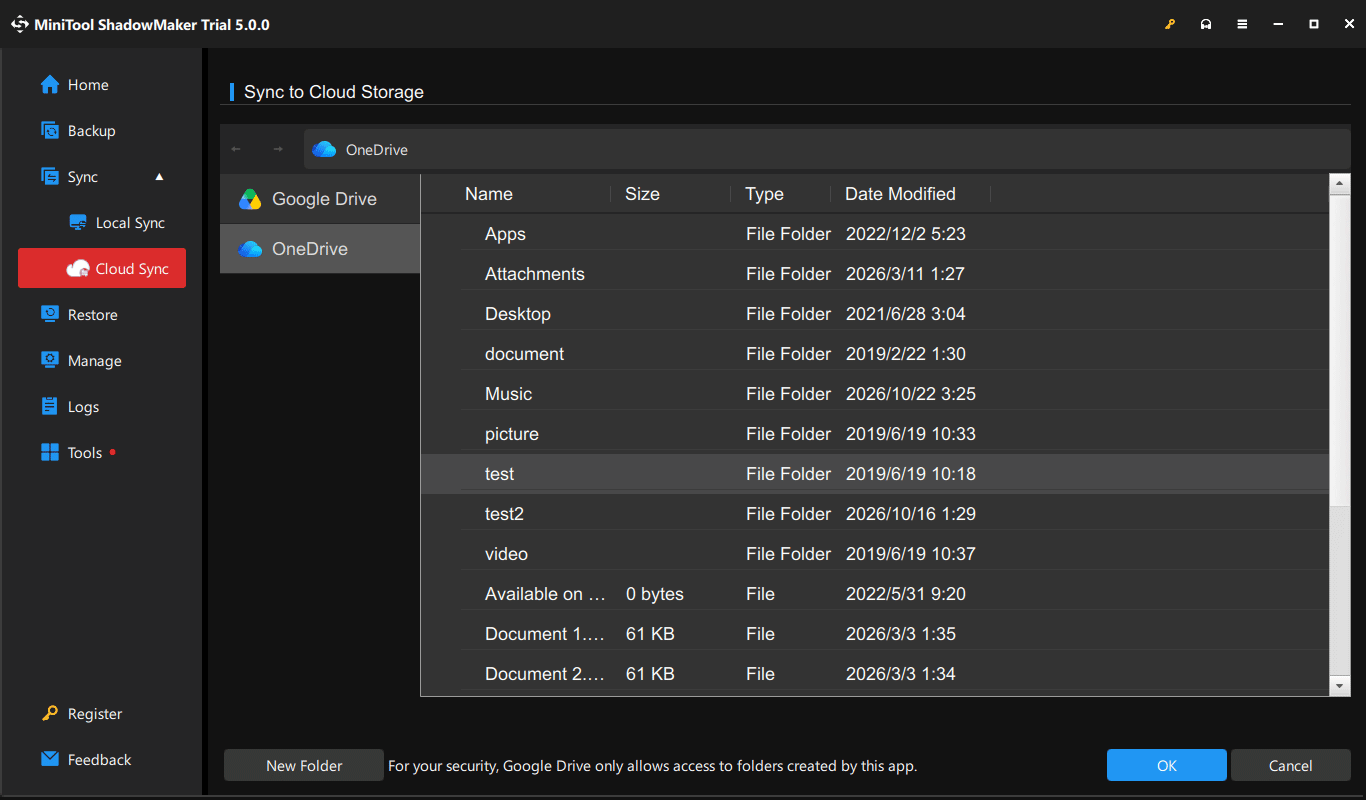
Step 5: Go to Options to configure the sync settings as needed, including file filtering, comparison, and sync scheduling.
Step 6: Click Sync Now to start the task immediately.
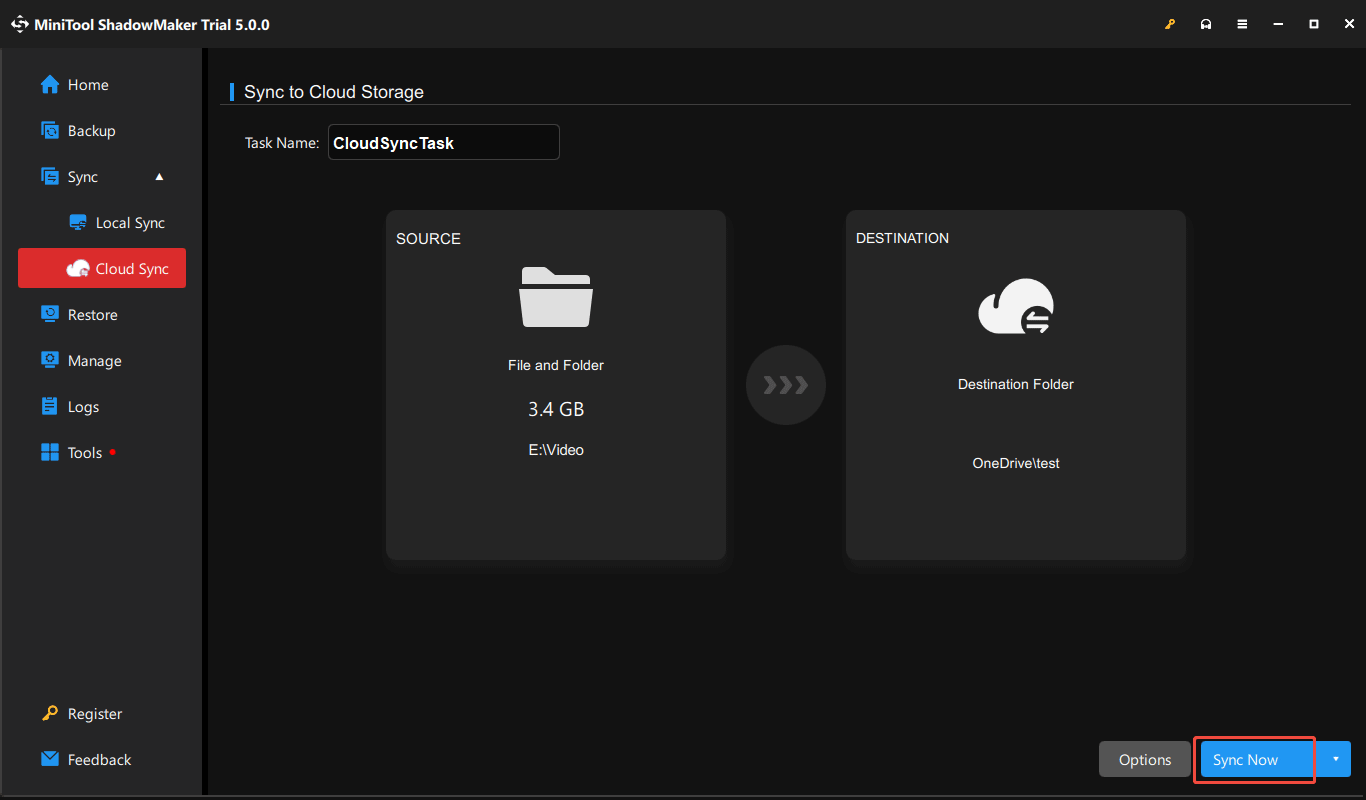
Wait for the process to finish. Then, you can access the chosen OneDrive folder to find the synchronized folders.
How to Sync Folders to OneDrive Using the OneDrive App
OneDrive offers different options to sync a local folder to the cloud depending on where it is stored. Choose the method that fits you:
- Move a Folder into Your OneDrive Folder: For files and folders stored outside the OneDrive folder.
- Back Up Desktop, Documents, Music, Videos, or Pictures: For files and folders located in your Desktop, Music, Documents, Videos, or Pictures folders.
Option 1: Move a Folder into Your OneDrive Folder
If the folder you want to sync is stored outside the OneDrive directory, the simplest method is to move it to your OneDrive folder in File Explorer. OneDrive will then automatically sync its contents to the cloud for cross-access.
Follow these steps to sync folders outside OneDrive to OneDrive:
Step 1: Open File Explorer and locate the folder you want to sync.
Step 2: Go to the OneDrive folder and open it.
Step 3: Copy the local folder and paste it to OneDrive, or move it to this directory if you don’t need to keep it in its current location.
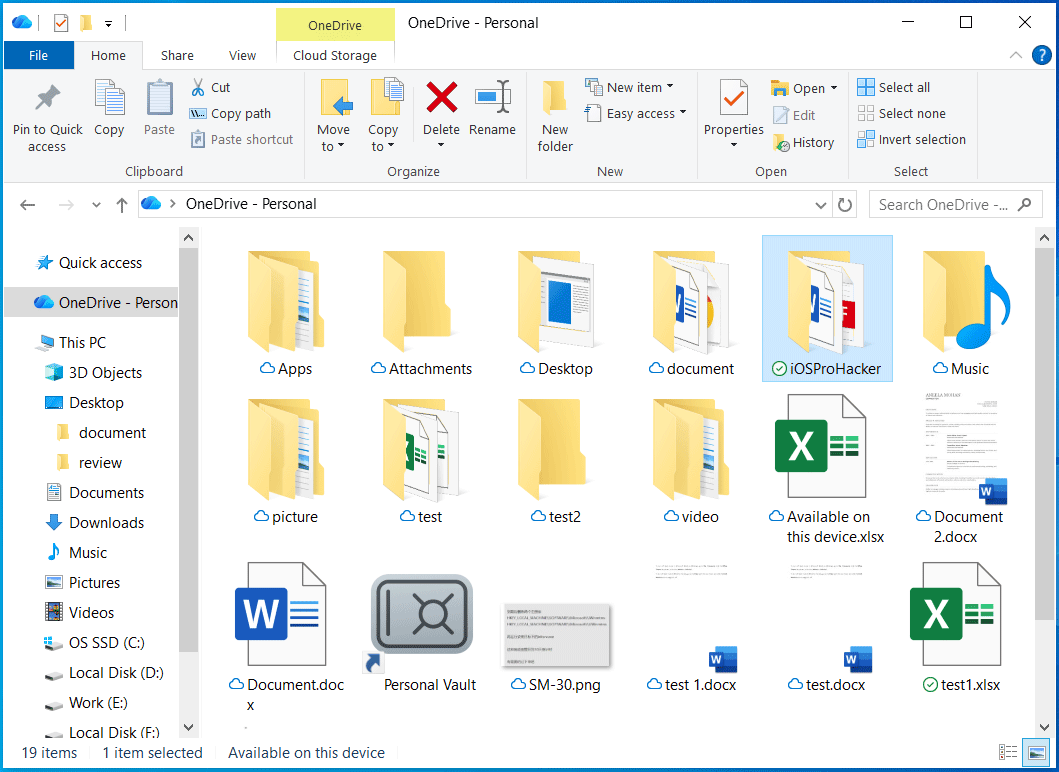
After syncing, visit the OneDrive website to verify that the folder appears in your cloud storage.
Option 2: Back Up Specific Folders (Desktop, Documents, Pictures)
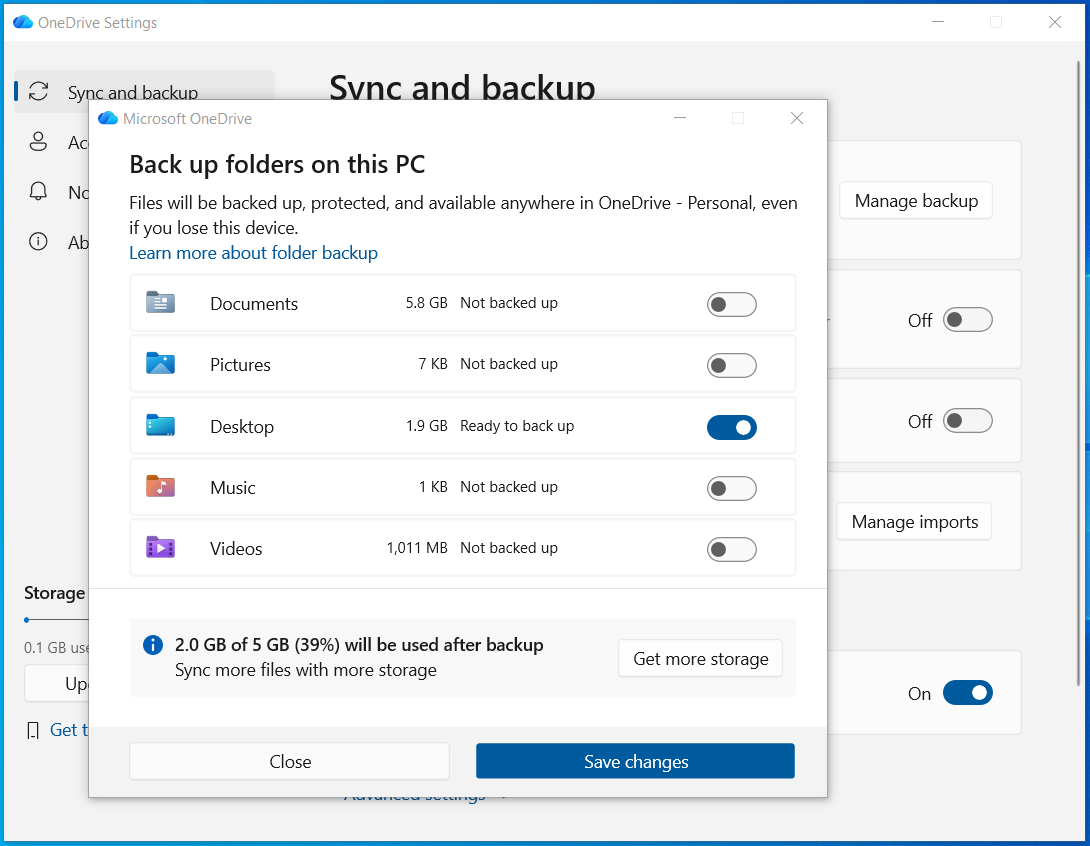
If you want to sync specific folders to OneDrive, such as Documents, Pictures, Desktop, Music, and Videos, use the built-in Manage backup feature in OneDrive.
Step 1: Click the OneDrive cloud icon in the taskbar.
Step 2: Choose Help & Settings > Settings.
Step 3: Open the Sync and backup tab and click Manage backup.
Step 4: Turn on the toggle for Desktop, Documents, or another available folder.
Step 5: Click Save changes to start syncing.
MiniTool ShadowMaker vs the OneDrive App
Compare MiniTool ShadowMaker with the two OneDrive options below to find the right solution for folder sync.
| Feature | MiniTool ShadowMaker Cloud Sync | Move a folder to OneDrive | Sync specific folders via Manage backup |
| Supported folders | Any folders on your computer | Folders outside OneDrive | Desktop, Documents, Pictures, Videos, and Music |
| Synchronization direction | One-way (PC to OneDrive) | Two-way | Two-way |
| Automatic sync | Scheduled sync tasks | Automatically syncs changes | Automatically syncs changes |
| Best for | Syncing selected local folders without moving them | Syncing the files you want to store in the OneDrive folder | Syncing supported Windows folders to OneDrive |
Data Security and Best Practices
Syncing local folders to OneDrive makes files easier to access, but data protection is more than enabling sync. Follow these steps to prevent data loss and protect your privacy.
- Keep a separate backup: Sync cannot be used to replace a backup. For important files, combine a local backup and cloud backup to add an extra layer of protection. Also, use MiniTool ShadowMaker to back up your PC to an external drive or USB drive.
- Secure your account: Use a strong, unique password for your account, enable two-factor authentication, and enable device encryption if needed.
- Choose what you sync carefully: Avoid syncing folders containing passwords, encryption keys, or other sensitive data unless necessary.
- Verify uploads regularly: Open the OneDrive website and confirm if important files and folders have uploaded successfully.
Sync Local Folders to OneDrive FAQ
Conclusion
With MiniTool ShadowMaker or the OneDrive app, syncing specific folders to OneDrive in Windows 11/10 is easy. Choose the method that fits you and follow the instructions to finish the folder sync.
If you have issues when running MiniTool ShadowMaker to sync local folders to OneDrive without moving them, contact us at [email protected].
About The Author

Position: Columnist
Vera has been working at the MiniTool Team for over 10 years as a technical editor and content writer. She mainly focuses on disk and partition management, data recovery, Windows backup and restore, and PC troubleshooting. Through in-depth software testing and hands-on experience, she has helped users solve a wide range of computer problems and better protect their data on Windows devices.
User Comments :