
Quick Answer
Windows XP cannot be upgraded directly to Windows 10. Instead, you need to use Windows 10 installation media to perform a clean installation. Before proceeding, ensure the hardware meets the requirements and back up your important files.
Should You Upgrade Windows XP to Windows 10
For many Windows XP users with older hardware, upgrading to Windows 10 is still a practical option.
Although Windows 10 has been discontinued on October 14, 2025, it remains far more secure and compatible than Windows XP. If your PC meets Windows 11 requirements, consider installing this system.
| Situation | Recommendation |
| Doesn’t meet Windows 10 requirements | Consider replacing the hardware |
| Supports Windows 10 but not Windows 11 | Upgrade Windows XP to Windows 10 |
| Meets Windows 11 requirements | Upgrade to Windows 11 for longer support |
Windows XP to Windows 10 Upgrade Checklist
Before starting the upgrade, follow these steps:
- Check hardware compatibility
- Check if you have enough disk space
- Connect the PC to reliable power
- Back up important files
Check Your Hardware for Compatibility
Windows 10 update depends on the components in your system. Checking if your hardware of the machine is compatible is the first thing you should do.
Before doing the check, let’s look at the system requirements of Windows 10.
- Processor: 1 gigahertz (GHz) or faster processor or SoC
- Graphics card: DirectX 9 or later with WDDM 1.0 driver
- Display: 800 x 600
- RAM: 1GB for 32-bit or 2GB for 64-bit
- Hard disk space: 16GB for 32-bit, 20GB for 64-bit. Since May 2019 Update, the 64-bit system needs at least 32GB.
To know more details on Windows 10 system requirements, refer to this post – Windows 10 Requirements: Can My Computer Run It.
Now you should check the computer to see its specifications. There are some ways you can try and let’s see them.
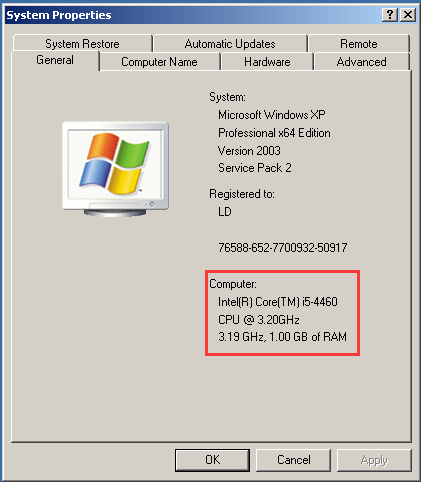
Right-click My Computer and choose Properties. Then, you can see some information including system version, CPU, and RAM.
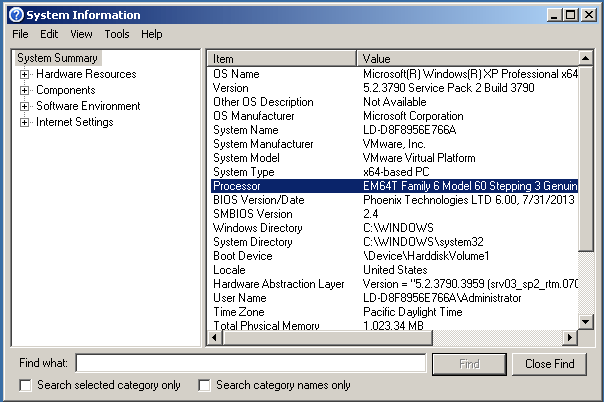
Or you can press Win + R to get the Run window, type msinfo32, and click OK. In the System Information interface, you can see the system specifications.
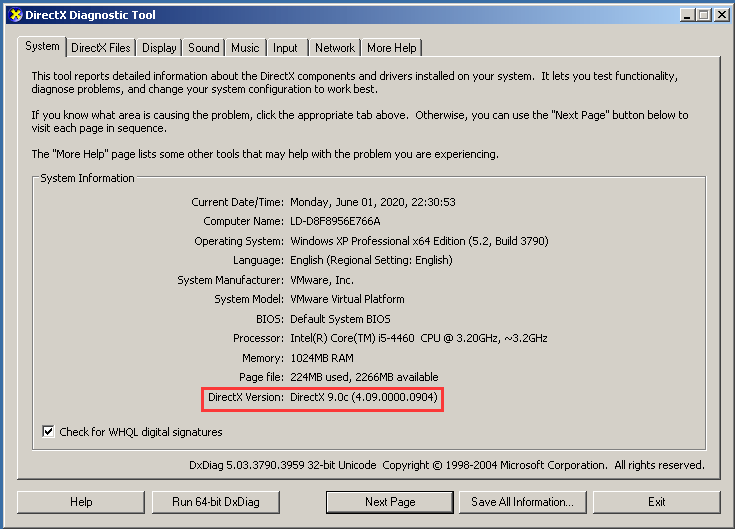
To know the DirectX version, you can type dxdiag to the Run window and press OK to open DirectX Diagnostic Tool. Then, you can see the version information. Also, you can see the specifications of the processor and memory.
After finishing the check, you should know if your computer can be upgraded to Windows 10 from XP. If yes, it is time to upgrade Windows XP to Windows 10 by following these steps below.
Create a Backup for Your PC
Backing up files in Windows XP is fairly important to make sure the data security since some data will be erased during the system installation process.
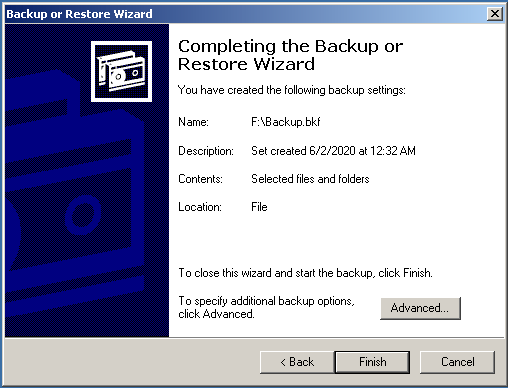
In Windows XP, there is a built-in tool that can be used to back up your files. You can use it before you upgrade Windows XP to Windows 10. Just follow these instructions:
1. In XP, click Start > All Programs > Accessories > System Tools > Backup to get the Backup or Restore Wizard.
2. Decide what you want to do: Back up files and settings.
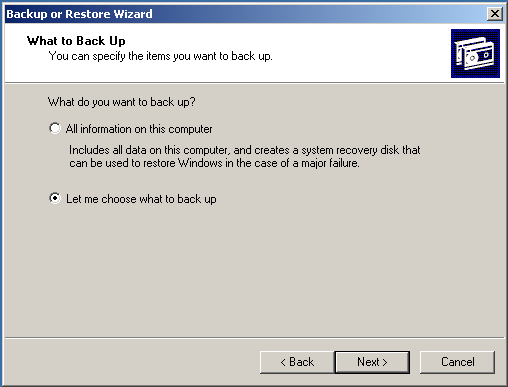
3. Specify the item you want to back up and here we check Let me choose what to back up.
4. Check the boxes of the folders that you want to back up.
5. Choose a place to save the backup. Here, we recommend using an external hard drive.
6. Click the Finish button to start the backup operation.
How to Upgrade Windows XP to Windows 10?
#1. Create an Installation USB Drive
When referring to creating a bootable drive, many of you consider using Media Creation Tool. In Windows XP, it cannot be used since the operating system is too old. But you can choose to use this tool on another PC that runs Windows 7/8/10.
In this post – How to Create a Bootable USB from ISO Windows 10 for Clean Install, we have described many details on the creation.
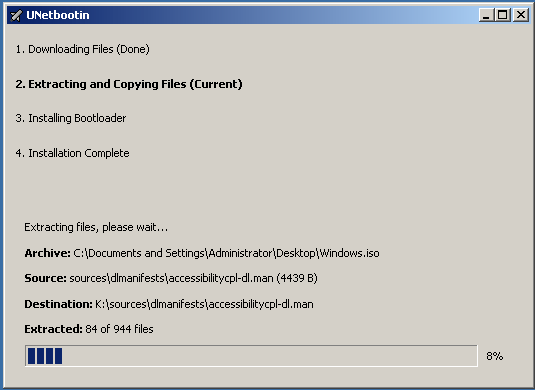
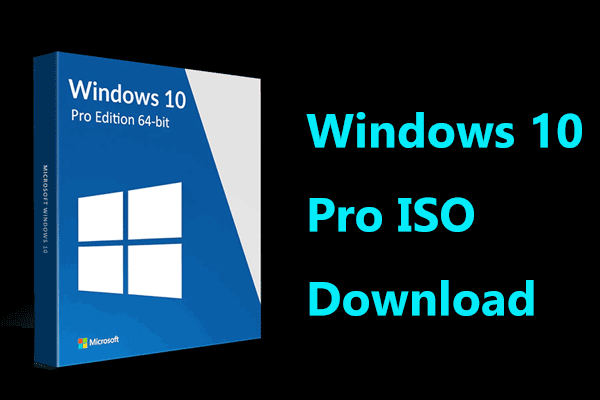
If you still need to create an installation drive in Windows XP, you need to firstly download an .iso file of Windows 10 and then use a third-party tool like UNetbootin to burn the .iso file to your flash drive.
#2. Clean Install
The following is how to upgrade Windows XP to Windows 10 via a clean install.
1. Boot your computer to BIOS and change the boot order to boot it from the created bootable USB drive.
2. Select the language, keywords, time and currency format.
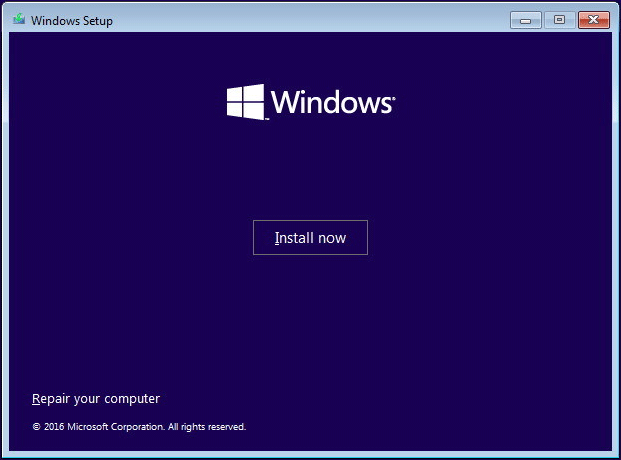
3. Click the Install now button from the new window.
4. Type the license key that you have purchased and click Next.
5. Decide the edition that you need to install. Note that the edition should be the one you have bought a key for.
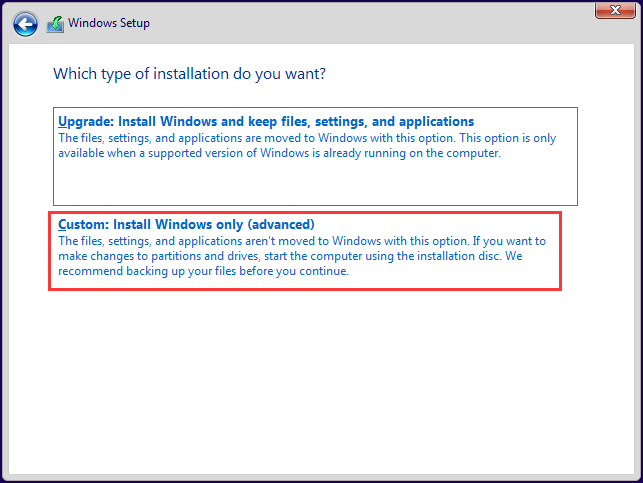
6. After accepting the agreement, click Custom: Install Windows only (advanced).
7. Delete the system partition where Windows XP is installed to get an unallocated space
8. Choose this unallocated space to install Windows 10 and click Next to start the installation process.
After finishing the installation, follow the on-screen instructions to configure your computer. After that, restore your backed up files to your hard drive. Also, you can set up your new system and here this related article – Computer Setup: How to Set up a New Computer with Windows 10 is helpful for you.
How to Upgrade Windows XP to Windows 10? See the Guide!Click to Tweet
Some Suggestions After You Upgrade Windows XP to Windows 10
After Windows 10 upgrade from XP, there are some things you can do:
- Restore your backed-up important data if necessary.
- Ensure your device drivers are up-to-date. You can open Device Manager to right-click a driver and choose Update driver. Also, use a professional driver update tool for this work.
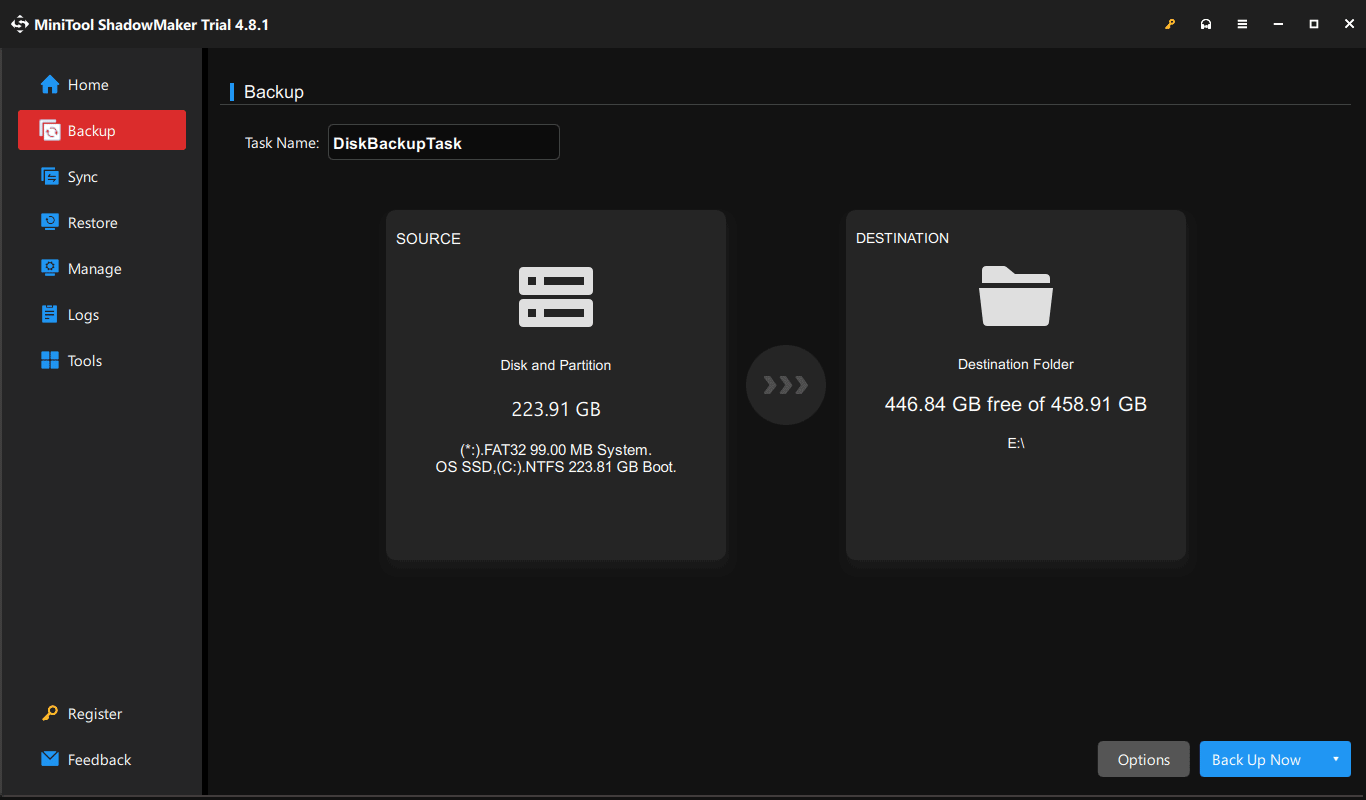
- Create a full system backup with MiniTool ShadowMaker that can help you recover quickly from future system failures or hardware issues.
MiniTool ShadowMaker TrialClick to Download100%Clean & Safe
Step 1: Launch this professional backup software on Windows 10.
Step 2: Under Backup, choose a target drive.
Step 3: Click Back Up Now.
Bottom Line
Do you want to upgrade Windows XP to Windows 10? How to perform the update from Windows XP to 10? After reading this post, you know much information on the update. Just follow the guide for the update.
If you have any idea on this topic or any question, remember to tell us. You can leave a comment below or send an email to [email protected].
Upgrade Windows XP to Windows 10 FAQ
1. Use the Display If It Can Work
2. Turn the Old Hard Drive into an External Hard Disk
3. Sell Parts to a Computer Repair/Rebuild Shop or Sell PCs Online
4. Turn an Old Computer Into a Do-Anything Home Server
5. Use the Old Computer as a Printer Server
6. Sell Old Computers Online or a Shop
About The Author

Position: Columnist
Vera has been working at the MiniTool Team for over 10 years as a technical editor and content writer. She mainly focuses on disk and partition management, data recovery, Windows backup and restore, and PC troubleshooting. Through in-depth software testing and hands-on experience, she has helped users solve a wide range of computer problems and better protect their data on Windows devices.
User Comments :