
Quick Answer
A Windows 10 compatibility check helps determine whether your PC meets Microsoft’s minimum system requirements and whether its hardware, drivers, and software are ready for Windows 10. You can check compatibility by reviewing your PC specifications or using tools like Windows Update Assistant and Media Creation Tool before upgrading.
It Is Necessary to Check for Windows 10 Compatibility
Many users still upgrade older PCs from Windows 7, Windows 8, or other legacy operating systems to Windows 10.
However, not every computer is fully compatible. Even if your device meets the minimum hardware requirements, outdated drivers or incompatible applications can still cause installation failures, system instability, or performance issues.
Performing a Windows 10 compatibility check before upgrading helps you:
- Confirm your PC meets the minimum system requirements.
- Identify incompatible hardware, drivers, or software.
- Reduce the risk of upgrade errors or failed installations.
- Prepare your computer before installing Windows 10.
A few minutes spent checking compatibility can save hours of troubleshooting later. If any issues are detected, you can update drivers, uninstall incompatible software, or upgrade hardware before starting the installation.
Windows 10 Minimum System Requirements
Before checking software or driver compatibility, first make sure your PC satisfies Microsoft’s minimum hardware requirements for Windows 10.
| Component | Minimum Requirement |
| Processor | 1 GHz or faster processor or SoC |
| RAM | 1 GB (32-bit) / 2 GB (64-bit) |
| Storage | 16 GB (32-bit) / 32 GB (64-bit) |
| Graphics | DirectX 9 or later with WDDM 1.0 driver |
| Display | 800 × 600 resolution |
If your PC doesn’t meet these requirements, Windows 10 may fail to install or run properly. In that case, consider upgrading your RAM, replacing your storage drive, or using newer hardware before installing the operating system.
Check Your Graphics Card
The graphics card requirement includes support for DirectX 9 or later, so it’s worth confirming your GPU before upgrading.
Step 1: Open the Run box by hitting Win + R keys.
Step 2: Input dxdiag and click OK.
Step 3: Go to the Display tab and you can see much information about your graphics card.
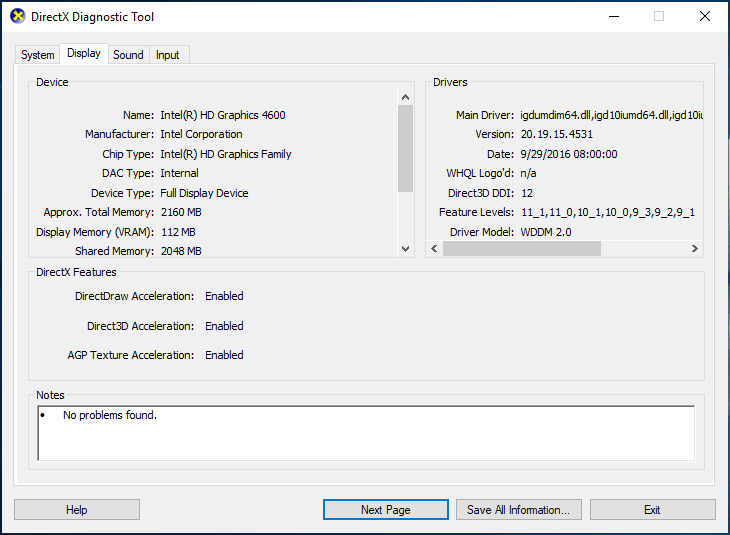
Step 4: Go to the Internet and check if the specifications of your graphics card support DirectX9 or later.
Go Beyond System Requirements to Ensure Windows 10 Compatibility
Meeting the minimum hardware requirements doesn’t guarantee a successful Windows 10 installation. Along with CPU, RAM, and storage, check if your software, drivers, and peripherals are compatible.
Often, issues arise from outdated drivers or unsupported applications, so checking these before upgrading can help avoid installation errors and performance problems.
Check Software Compatibility
It has been a long time since the release of Windows 10. Most of the software suppliers have already rolled out the new versions of their popular software and they are compatible with Windows 10. Just update your software if you haven’t updated them.
For critical and frequently-used apps, you can go to the developer website to know if they have the current version of Windows 10.
Check Hardware Specifications and Driver Compatibility
When upgrading from Windows Vista/XP/7/8 to Windows 10, you should consider the hardware requirements. Driver issues can be troublesome, especially during your system update.
So, it is necessary to download updated drivers from the hardware manufacturers’ websites and install them after or before installing Windows 10 update to ensure the system can run flawlessly without any issue.
How to Perform a Windows 10 Compatibility Check EasilyClick to Tweet
How to Run a Windows 10 Compatibility Check
If you’re unsure whether your computer can run Windows 10, Microsoft’s compatibility tools can automatically detect hardware compatibility and identify potential issues before the upgrade.
Option 1: Use Windows 10 Compatibility Appraiser Manually
Microsoft Compatibility Appraiser can scan Windows 7/8/8.1 app files on your computer to assess the compatibility with Windows 10 if you perform an upgrade.
Step 1: Input cmd to the search box and right-click it to choose Run as administrator.
Step 2: Type the command – schtasks.exe /Run /TN “\Microsoft\Windows\Application Experience\Microsoft Compatibility Appraiser” and press Enter.
This app can take up to 15 minutes to perform a full scan. If you cannot run Windows 10 on the machine, the message “Windows 10 will not run on” will display on the screen and you can see the critical issues that stop Windows 10 from running.
Sometimes you cannot run this command line with an error. In this case, you can try another tool.
Option 2: Use Windows Update Assistant
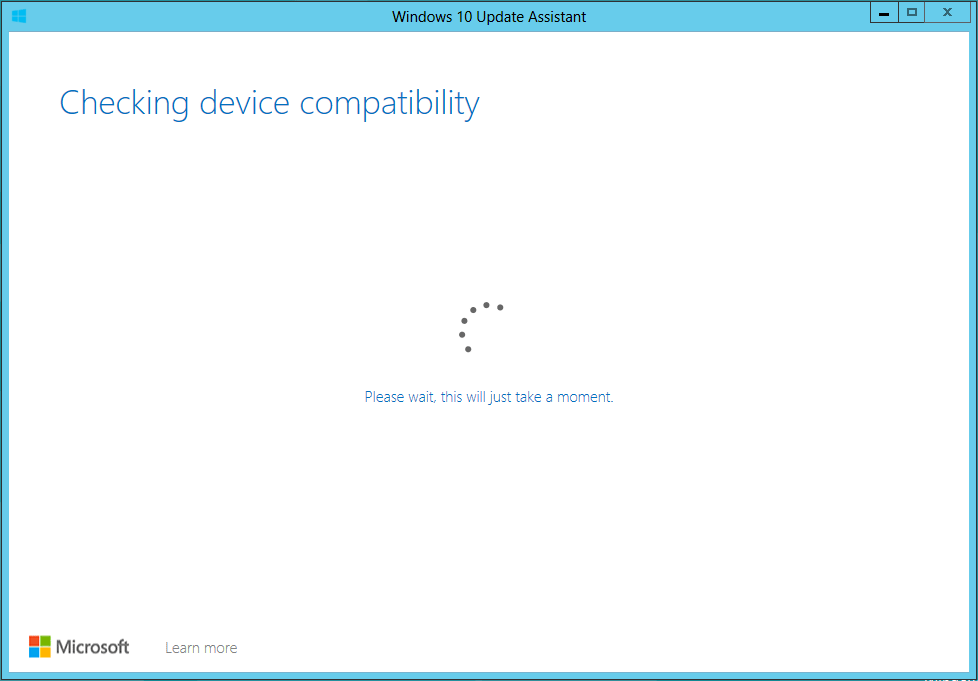
You can run Windows Update Assistant on your machine and check if it meets the system requirements of Windows 10. After launching this tool, you need to accept the license terms, and then this tool will check device compatibility. After a few seconds, a result will be shown to you.
Option 3: Run Media Creation Tool
In addition, you can download Media Creation Tool offered by Microsoft. If the app detects that your PC is too old to run Windows 10, it will give you a notification and stop right here. If no notification is sent to you, this means the system is compatible and you can perform a Windows 10 update.
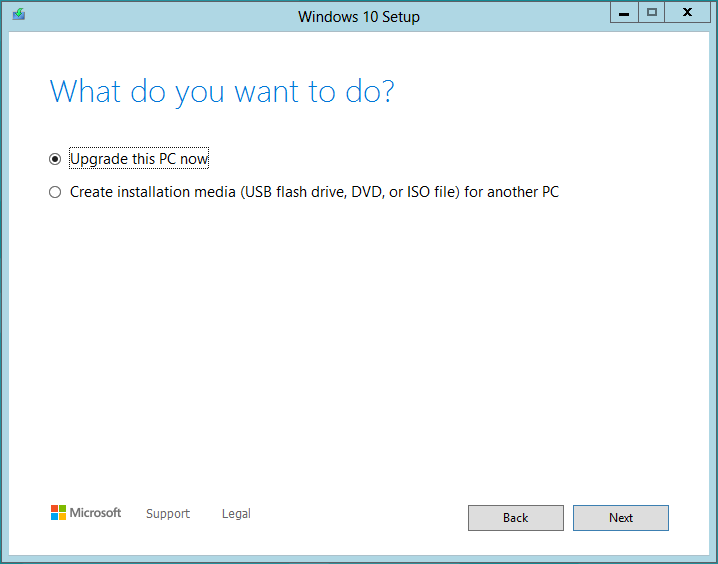
After finishing Windows 10 compatibility check, you know clearly if you can run Windows 10 on your machine. What to do next if the machine meets all the requirements? Upgrade the old version of the Windows operating system to Windows 10 now.
Upgrade to Windows 10 After Compatibility Check
Windows Update Assistant and Media Creation Tool can work on some of your machines and help you perform the in-place upgrade without damaging your files. However, sometimes you fail to use these two tools to finish the update along with some errors although your machine meets system requirements and hardware requirements.
Besides, some older operating systems like Vista cannot support Update Assistant and Media Creation Tool. To successfully update your device to Windows 10, performing a clean install is recommendable no matter you are using Windows XP/Vista/7/8. This can avoid many troubles.
Back up Files
Before performing a clean installation, backing up your important files is highly recommended. You can copy files manually or use professional backup software like MiniTool ShadowMaker to create a system or file backup.
Now, download MiniTool ShadowMaker Trial Edition and install it to the computer that needs to upgrade to Windows 10.
MiniTool ShadowMaker TrialClick to Download100%Clean & Safe
See how to back up files via imaging (as an example):
Step 1: Launch MiniTool ShadowMaker.
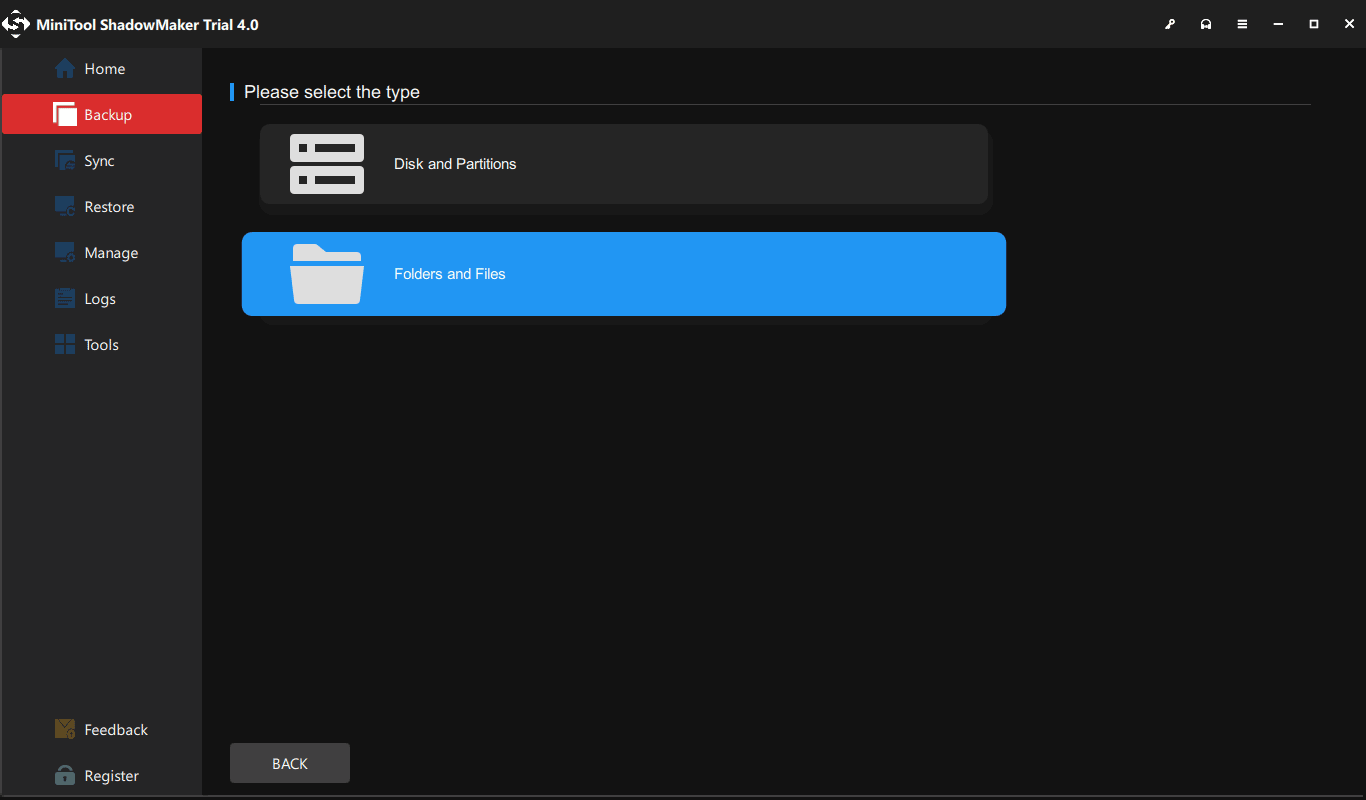
Step 2: Go to Backup, click Source > Folders and Files and choose items that you want to back up.
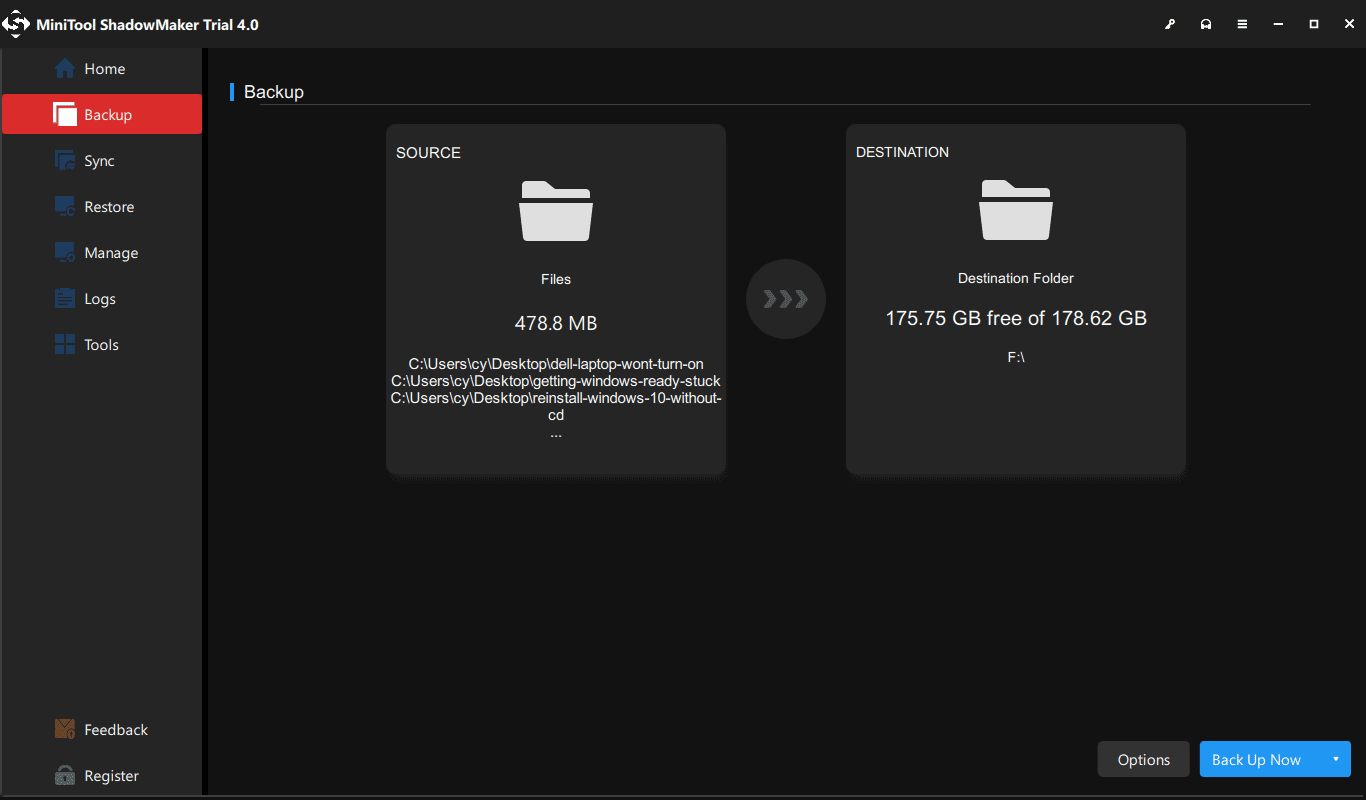
Step 3: Decide where you want to save the backed up files to.
Step 4: Start the file backup by hitting Back Up now.
How to Perform a Windows 10 Compatibility Check EasilyClick to Tweet
Clean Install Windows 10 on Your Old Machine
See how to upgrade your old operating system to Windows 10:
Step 1: Download an ISO file of Windows 10 from the Internet and create a bootable USB drive or CD/DVD disc.
Step 2: Connect the bootable device to your computer and boot it to BIOS so that you can change the boot order to boot the computer from your USB drive or disc.
Step 3: Select the language, time and currency format and keyboard.
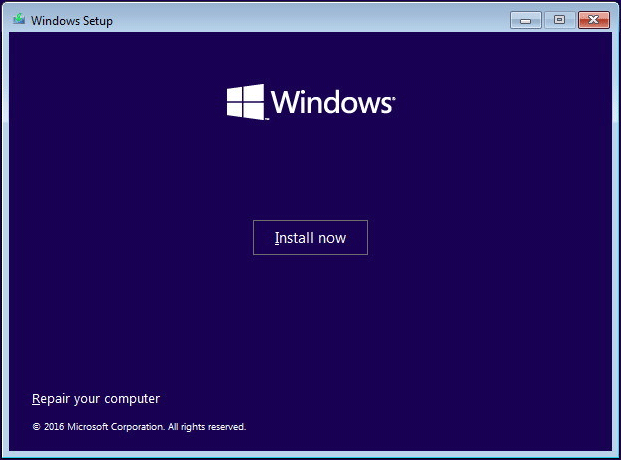
Step 4: Click Install now button when seeing the following interface.
Step 5: Input the license key of Windows 10 you have bought.
Step 6: Choose a Windows 10 edition.
Step 7: After accepting license terms, choose to install Windows only.
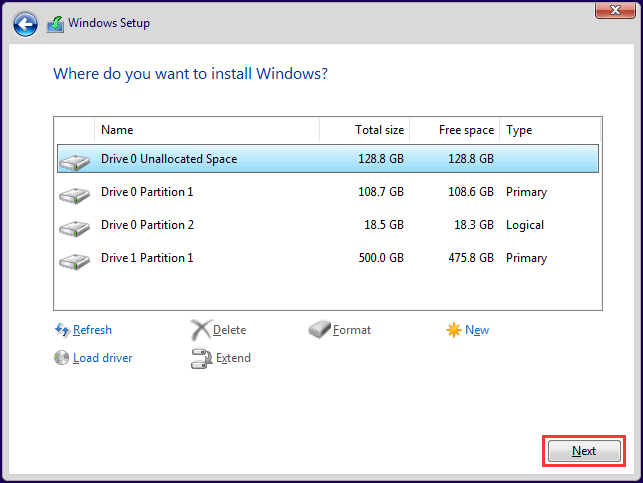
Step 8: Delete Drive 0 Partition 0 and install Windows 10 on it.
Step 9: Follow the on-screen guide to finish the Windows installation. After that, customize the new system based on your needs and you can enjoy powerful features.
1. This post – How Long Does It Take to Download/Install/Update Windows 10 may be the post you are looking for.
2. After the update, there are some things you should do to ensure a better user experience. Just do as this post says – What to Do After Installing Windows 10.
Bottom Line
Performing a Windows 10 compatibility check before upgrading helps you identify hardware, software, and driver issues in advance. Once your PC meets the requirements, you can safely upgrade or perform a clean installation with fewer risks.
In addition, if you have any questions or suggestions while using MiniTool ShadowMaker, contact us via [email protected].
Windows 10 Compatibility Check FAQ
Microsoft shows you the Windows 10 minimum system requirements:
- Processor: 1 gigahertz (GHz) or faster processor or SoC.
- RAM: 1 gigabyte (GB) for 32-bit or 2 GB for 64-bit.
- Hard disk space: 16 GB for 32-bit OS 20 GB for 64-bit OS.
- Graphics card: DirectX 9 or later with WDDM 1.0 driver.
- Display: 800×600.
About The Author

Position: Columnist
Charlotte is a technology columnist with a strong focus on the Windows operating system, specializing in disk management, backup, and data recovery. She is passionate about analyzing computer errors, identifying root causes, and delivering practical solutions. In her free time, she stays updated on the latest developments in computer systems and hardware while continuously learning new technologies to broaden her expertise. Her writing style is clear and easy to understand, making complex technical topics accessible even to users with limited computer knowledge.
User Comments :