
This guide lists several Windows 10 performance tweaks to speed up your computer. Start with software tweaks such as disabling unnecessary startup apps, freeing up space, and adjusting visual effects. For a more noticeable performance boost, consider hardware upgrades.
Some computer users complain that their computer and Windows 10 become very slow and unresponsive after being used for a while. And they wonder whether there is a way to improve computer performance and make Windows 10 faster.
Obviously, there are Windows 10 performance tweaks tips for you to speed up Windows 10 and even optimize Windows 10 for gaming.
How to Make a Windows 10 Computer Faster
If you are not sure which step to try first, check the table below to find a suitable option for your situation. Start with software-based tweaks, then move to hardware upgrades.
| Performance tweak | Best for |
| Disable startup apps | Slow boot |
| Free up disk space | Low storage |
| Adjust visual effects | Older PCs |
| Scan for malware | Suspicious or unusual slowdown |
| Optimize an HDD | Fragmented hard drives |
| Add more RAM | High memory usage |
| Upgrade HDD to SSD | Slow storage performance |
1. Disable Unnecessary Startup Programs
Some programs may launch automatically at startup, slowing down the boot process and consuming system resources. Try to disable unnecessary startup apps.
- Press Windows key and I key together to open Settings.
- Choose Privacy.
- On the left pane, choose Background apps.
- Then go to the section Choose which apps can run in the background.
- Turn off the switch to disable the unnecessary programs running in the background.
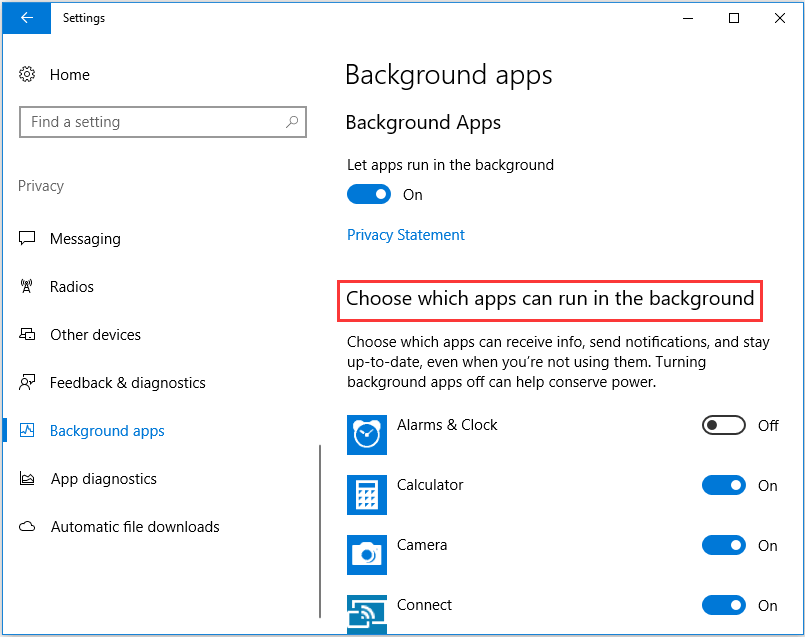
After that, reboot your computer and check whether the computer performance is boosted.
Besides disabling the unnecessary programs running in the background, you can also choose to uninstall some unnecessary programs.
2. Free up Disk Space
When it comes to Windows 10 performance tweaks for gaming, the disk space would be an essential factor. If there are a lot of files on your hard disk or your hard drive is running out of space, the computer performance will be slowed down. In this situation, you need to check what takes up disk space and free up space.
Now, here is the tutorial.
- Open Windows Settings.
- Then choose System > Storage.
- Under Local Disk section, select the drive you want to clean.
- Then click the files you want to remove, including the temporary files, apps and games and so on.
- Then check the files you want to delete and click Remove files.
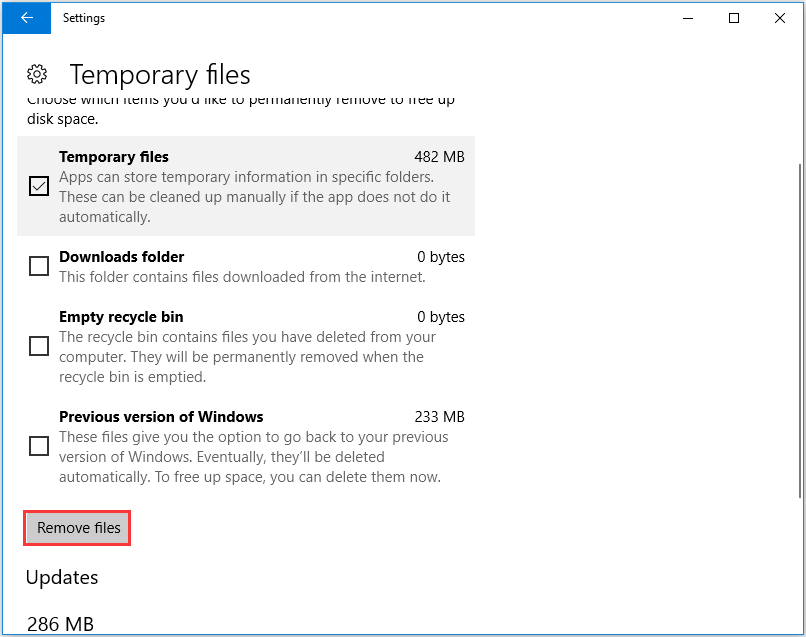
Besides this way to free up space, to check what takes up your space, you can use the Space Analyzer feature of MiniTool Partition Wizard, too. If deleting files is not able to get enough space, you can choose to extend partition.
MiniTool Partition Wizard FreeClick to Download100%Clean & Safe
3. Reduce Visual Effects
Reducing Windows visual effects can free up system resources and improve performance, especially on older or lower-end PCs.
- Press Windows key and R key together to open Run dialog.
- Type sysdm.cpl in the box and click OK to continue.
- Then navigate to the Advanced tab.
- Click Settings under Performance section.
- On the Visual Effects tab, check the option Adjust for best performance.
- Then click Apply and OK to continue.
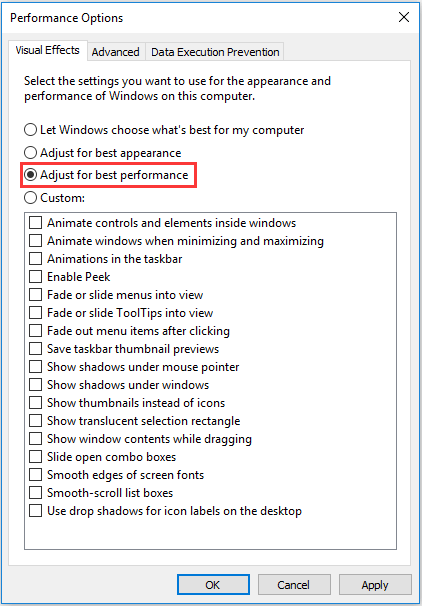
4. Change Power Plan Settings
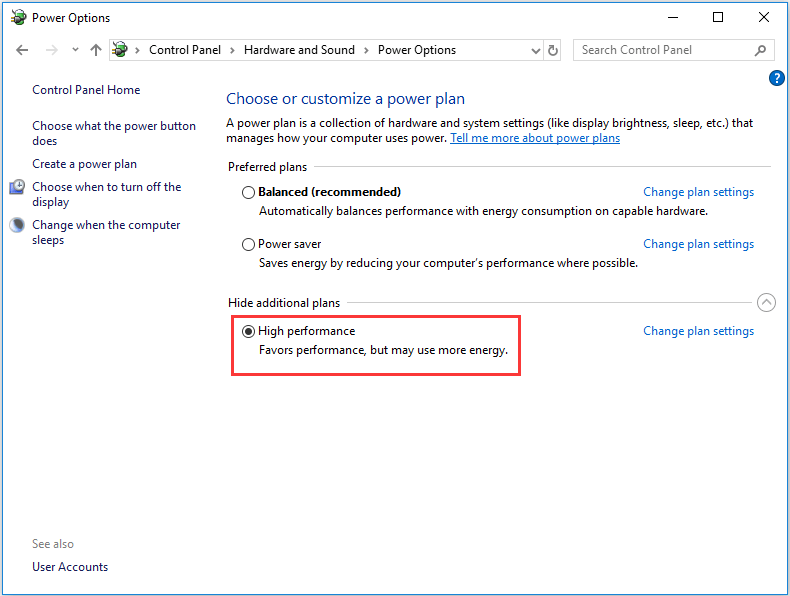
To speed up Windows 10, you can choose to change the Power Plan settings.
Now, here is the tutorial.
- Open Control Panel.
- Choose Hardware and Sound.
- Click Power Options.
- Under Hide additional plans, check the option High performance.
5. Enable Fast Startup
Apart from changing power plan settings, to speed up Windows 10, you can also choose to enable fast startup.
Now, here is the tutorial.
- Open Power Options according to the way above.
- Then click Choose what the power button does from the left panel.
- Click Change settings that are currently unavailable.
- Next, check the option Turn on fast startup (recommended).
- Last, click Save changes to continue.
6. Check for Viruses on Your Computer
If there are viruses on your computer, the Windows 10 performance would be affected. Try checking whether there are viruses on your computer and remove them.
- Press Windows key and I key together to open Settings.
- Then choose Update & Security.
- Choose Windows Defender from the left panel.
- Click Open Windows Defender Security Center.
- In the pop-up window, choose Virus & threat protection.
- Then click Quick Scan to continue.
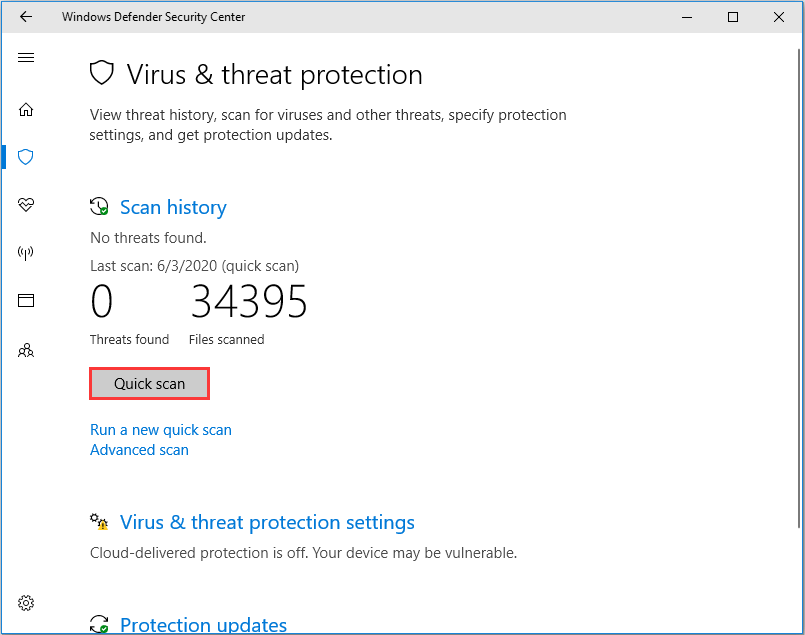
If any viruses or other threats are detected, remove them.

7. Optimize Your HDD
Optimizing an HDD helps rearrange fragmented data to improve file access speed and overall computer performance.
Follow these steps:
1. Type Defragment and Optimize Drives in the search box of Windows 10 and choose the best matched one.
2. Then select the drive you want to defrag and choose Optimize to continue.
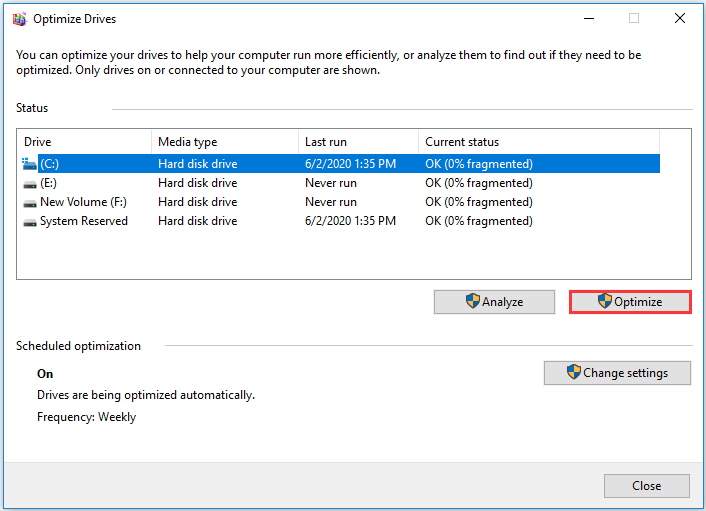
When all steps are finished, reboot your computer and check whether the Windows 10 performance is improved.
8. Turn off Notifications and Tips
Windows 10 keeps an eye on what you are doing and offers tips about things you might want to do with the operating system. However, the tips and notifications may slow down your computer. So, in order to speed up Windows 10, turn off notifications and tips.
- Press Windows and I keys together to open Settings.
- Then choose System > Notifications & actions.
- Scroll down and find the option Get tips, tricks, and suggestions as you use Windows.
- Then turn off it.
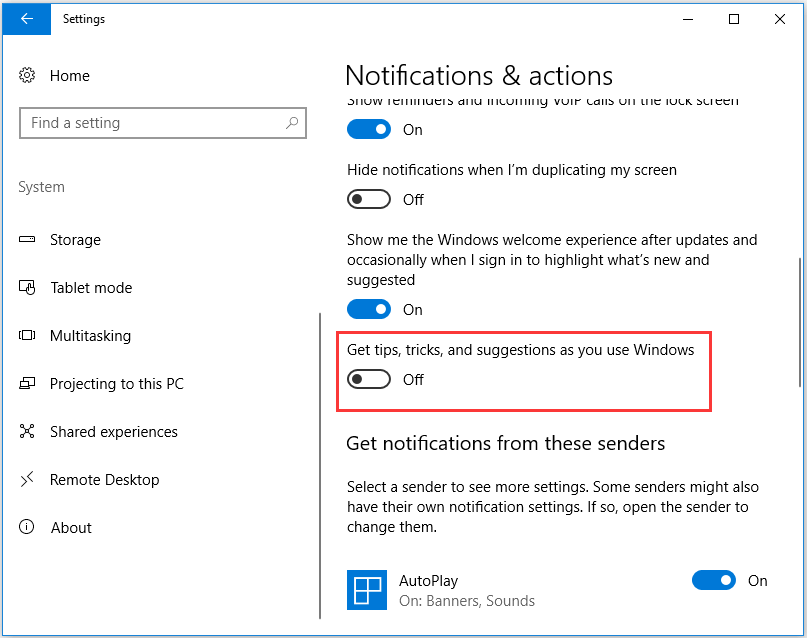
After all steps are finished, check whether the performance tweaks for Windows 10 does work.
9. Turn on Windows 10 Automatic Maintenance
Automatic maintenance can perform background tasks, such as software updates, security scans, and disk optimization, to improve PC performance.
Enable this feature:
- Open Control Panel.
- Then choose System and Security.
- Then choose Security and Maintenance.
- Under Automatic Maintenance, click Start maintenance.
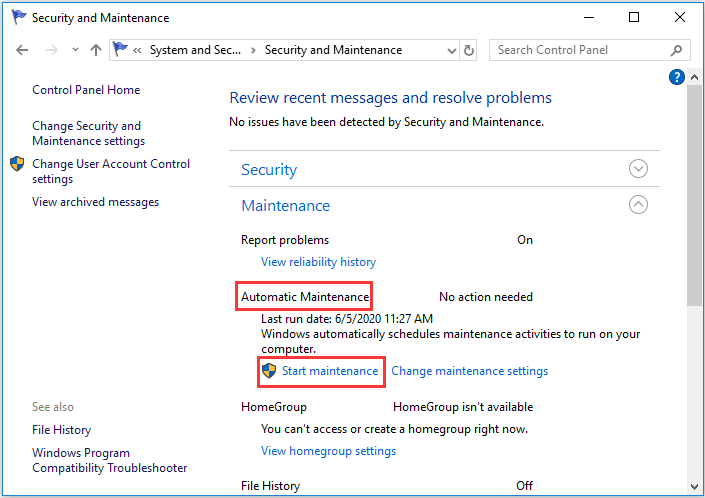
Then it will begin to check your computer. After all steps are finished, reboot your computer and check whether this Windows 10 performance tweaks tips is effective.
10. Turn on Game Mode
Game Mode can prioritize system resources for games and reduce background activity to improve your gaming experience.
Follow these steps to enable it:
- Press Windows key and I key together to open Settings.
- Then choose Gaming.
- Click Game Mode in the left panel.
- Then turn on the Game Mode.
11. Upgrade Your System Drive to an SSD
If Windows 10 is installed on an HDD, consider upgrading the system drive to an SSD for optimal performance. It can provide obvious improvement in boot times, application loading, and overall responsiveness.
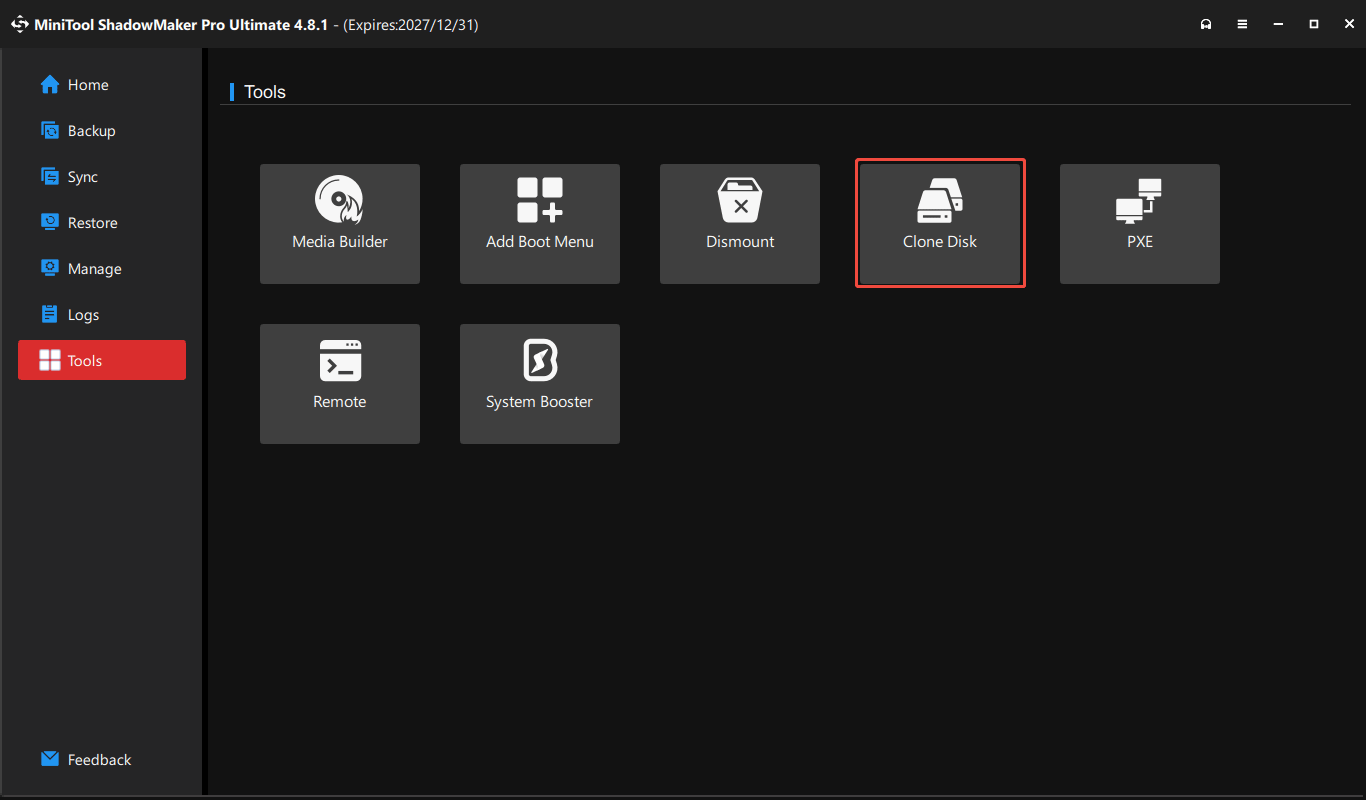
To upgrade an HDD to an SSD, use MiniTool ShadowMaker, a professional disk cloning tool. Its Clone Disk feature can transfer all the disk data to another drive, including system files, apps, registry, and files.
MiniTool ShadowMaker TrialClick to Download100%Clean & Safe
Step 1: Launch MiniTool ShadowMaker and activate it for system disk cloning.
Step 2: Go to Tools > Clone Disk.
Step 3: Select the source and target drives.
Step 4: Click Start to begin the cloning process.
12. Add More RAM
If your Windows PC slows down and you suspect insufficient RAM, check the following situations to determine whether you need more RAM.
| Situation | Meaning |
| Browser becomes slow with many tabs. | Available RAM is insufficient. |
| Games stutter while multitasking. | Memory capacity may be limiting. |
| RAM usage is frequently near 100%. | RAM may be a bottleneck. |
To add more RAM to your computer, refer to the RAM installation guide.
Conclusion
These Windows 10 performance tweaks can help improve system responsiveness. Follow the steps to disable startup apps, free up disk space, reduce visual effects, add more RAM, or upgrade to an SSD.
If you encounter issues with MiniTool ShadowMaker for disk cloning, contact us at [email protected].
Windows 10 Performance Tweaks FAQ
About The Author

Position: Columnist
Vera has been working at the MiniTool Team for over 10 years as a technical editor and content writer. She mainly focuses on disk and partition management, data recovery, Windows backup and restore, and PC troubleshooting. Through in-depth software testing and hands-on experience, she has helped users solve a wide range of computer problems and better protect their data on Windows devices.
User Comments :