
Quick Answer
A white screen in Windows 11 can be due to graphics driver issues, corrupted files, failed updates, or software conflicts.
To fix it, you can:
- Restart Windows Explorer.
- Update or reinstall graphics drivers.
- Run SFC and DISM commands.
- Use Startup Repair.
- Restore your system.
These steps can help resolve the problem.
Why Is My Windows 11 Screen White
A white screen in Windows 11 can occur for various reasons. Understanding the potential causes helps you select the appropriate solution.
| Possible Cause | Description |
| Graphics driver issues | Outdated or corrupted drivers cause display errors |
| Windows update problems | Failed updates affect system or display functions |
| Corrupted system files | Damaged Windows files prevent proper loading |
| Windows Explorer crashes | Explorer issues cause blank or frozen screens |
| Display connection problems | Cable, monitor, or GPU issues affect display |
| Software conflicts | Conflicting programs affect Windows processes |
Common situations include:
- Windows 11 white screen after login
- Windows 11 white screen on startup
- Windows 11 blank white screen but PC still running
- White screen after Windows update
How to Fix Windows 11 White Screen Issue
Try the solutions below one by one until your Windows 11 screen returns to normal.
Fix 1. Restart Windows Explorer
Sometimes the white screen appears because Windows Explorer stops responding. Restarting it can quickly reload your desktop environment. This method is useful when:
- The taskbar disappears
- The desktop becomes blank
- Windows is still running but the screen is white
Here’s how to restart Windows Explorer:
- Press Ctrl + Shift + Esc to open Task Manager.
- Find Windows Explorer under the Processes tab.
- Right-click it and select Restart.
- Wait for Windows to reload the desktop.
Fix 2. Restart Your Windows 11 PC
A restart can fix temporary system glitches, memory issues, or display errors.
If you can access Windows:
- Press Ctrl + Alt + Delete.
- Click the Power icon.
- Select Restart.
If Windows is frozen:
- Hold the Power button until the PC shuts down.
- Wait a few seconds.
- Turn it on again.
Fix 3. Update or Reinstall Graphics Drivers
The PC white screen could be triggered by an outdated graphics card driver that is responsible for managing the display. You should check your graphics drivers if:
- The issue started after a Windows update.
- The screen flickers before becoming white.
- The problem appears when launching games or graphics-heavy apps.
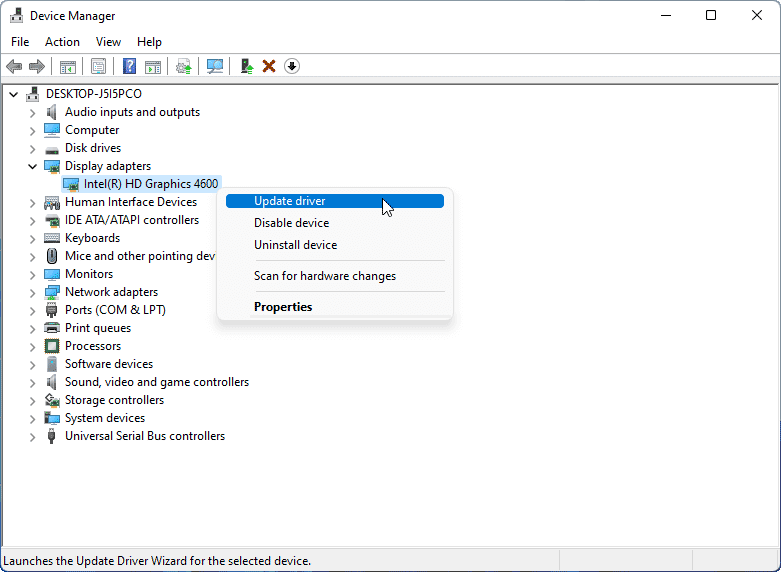
Here are the steps to update the driver:
- Press Win+ X and select Device Manager.
- Expand Display adapters.
- Right-click your graphics card and select Update driver.
If updating does not help:
- Open Device Manager again.
- Right-click the graphics card and select Uninstall device.
- Restart your PC.
Now, Windows will reinstall the driver automatically.
Fix 4. Modify Registry File
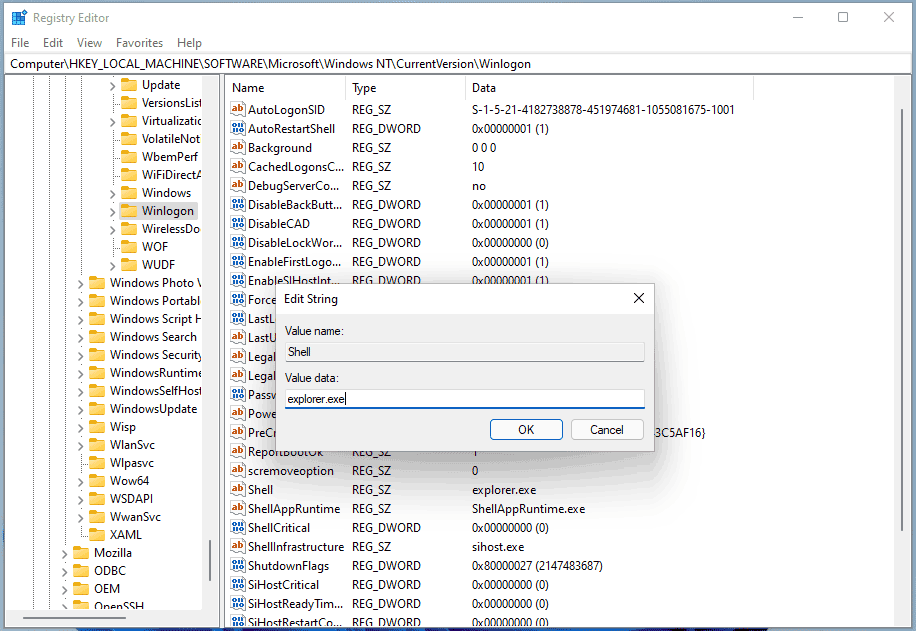
If registry files in Windows are modified, these types of issues like Windows 11 white screen could be triggered. There is a value called Shell that could cause the white screen after Windows logs in. You can try to modify that file by following the steps below:
Step 1: Launch Task Manager and go to File > Run new task.
Step 2: Type regedit, choose the box of Create this task with administrative privileges and click OK.
Step 3: Go to HKEY_LOCAL_MACHINE\SOFTWARE\Microsoft\Windows NT\CurrentVersion\Winlogon.
Step 4: Click the Winlogon folder, double-click on the Shell file, and make sure its value data is set to explorer.exe.
Step 5: Restart your PC to see if the white screen on computer is resolved.
When a white computer screen exists and you cannot open Task Manager, you can modify the registry key in Safe Mode. To know how to enter this mode, continue reading.
Fix 5. Run Windows Startup Repair
Startup Repair can help fix corrupted boot files, failed updates, and startup configuration problems. If Windows 11 displays a white screen before login or fails to boot properly, using Startup Repair may resolve startup-related issues. Here are the steps:
Step 1. Enter Windows Recovery Environment.
Step 2. Select Troubleshoot > Advanced options > Startup Repair.
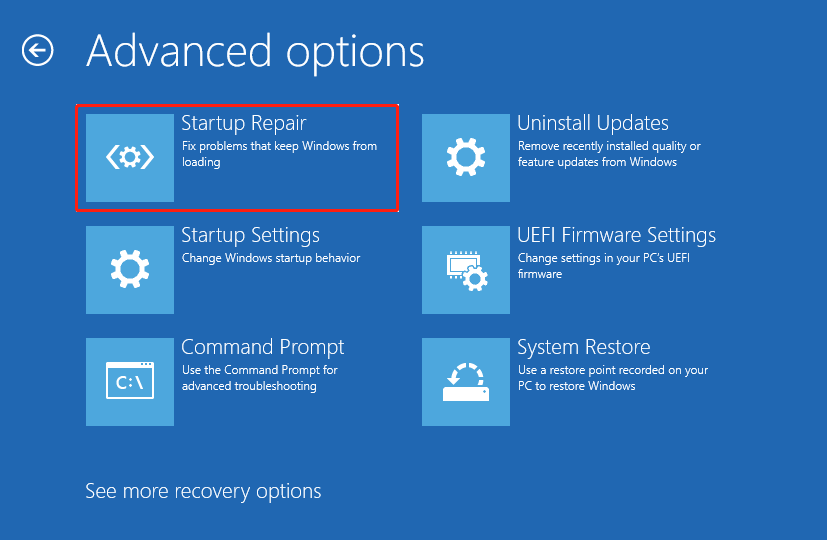
Step 3. Choose your account. Then, wait for Windows to complete the repair process.
Fix 6. Uninstall Recent Windows Updates
Recently installed Windows updates could be responsible for Windows 11 white screen of death (WSOD) if there are incompatible issues. So, it is necessary to remove these updates to get rid of trouble.
Step 1: Run your computer to WinRE by following the mentioned way.
Step 2: Go to Troubleshoot > Advanced options.
Step 3: Click Uninstall Updates and Uninstall latest quality update.
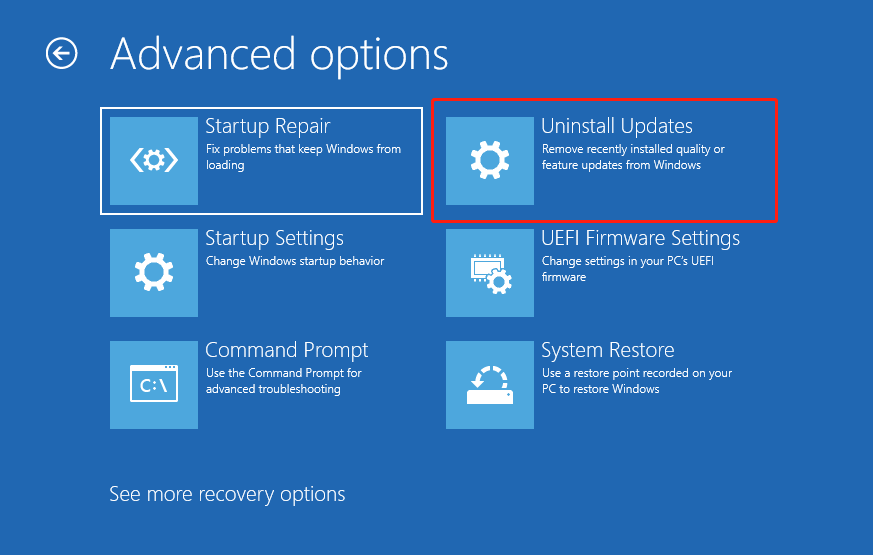
This could restart your system and then see if Windows 11 white screen flickering is fixed.
Fix 7. Run Some Commands in CMD
Damaged Windows system files, hard drive errors, and bad MBR can lead to display issues, like a white screen. You can run specific commands to address these issues, including SFC, DISM, and some related MBR commands.
Corrupted or missing system files on your computer could trigger white screen of death in Windows 11 and you can run an SFC scan and DISM scan to fix the corruption to fix this issue. Besides, sometimes hard drive errors and bad MBR could lead to some issues like a white computer screen. Here, you can run some commands to fix errors and damaged MBR.
Step 1: Click Command Prompt under the Advanced options page in WinRE.
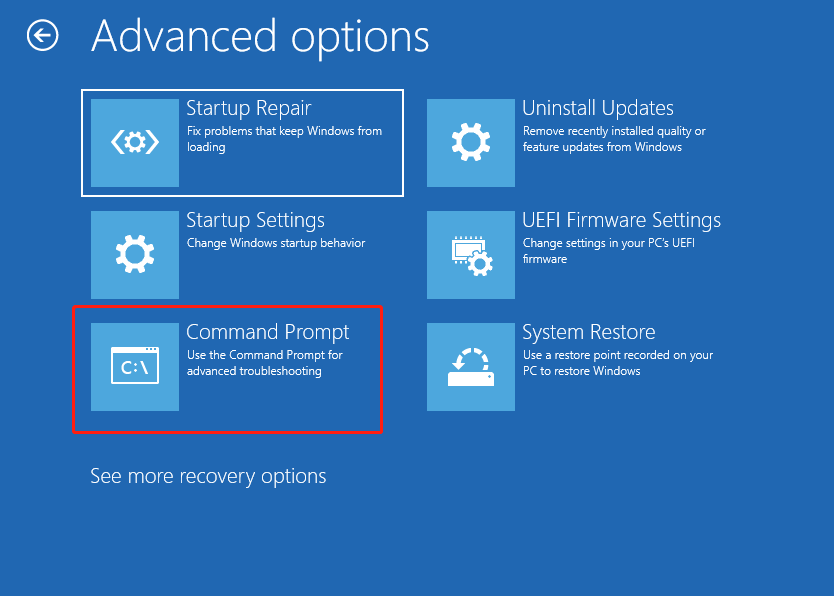
Step 2: Type sfc /scannow and press Enter to start scanning the entire system. Once it detects some damaged system files, this tool can repair the corruption.
Step 3: You can perform a DISM scan using the following commands:
dism /online /cleanup-image /checkhealth
dism /online /cleanup-image /scanhealth
dism /online /cleanup-image /restorehealth
To fix hard drive errors, run chkdsk /r /f in the Command Prompt window. You can also run these commands to rebuild possible bad MBR:
bootrec /scanos
bootrec /fixmbr
bootrec /fixboot
bootrec /rebuildbcd
Fix 8. Perform a System Restore
System Restore can revert recent system changes without affecting personal files. If the Windows 11 white screen appeared after installing software, drivers, or updates, performing a System Restore can restore Windows to a previously functional state.
- Open Windows Recovery Environment.
- Go to Troubleshoot > Advanced options > System Restore.
- Select a restore point.
- Follow the instructions.
Fix 9. Check Monitor, Cable, and Hardware Connections
Not every issue with a white screen is caused by Windows; hardware problems can also prevent proper display output. Therefore, check the following:
- Reconnect HDMI, DisplayPort, or other display cables.
- Test with a different cable.
- Try using another monitor.
- Ensure that the graphics card is properly connected.
Hardware issues are more likely if:
- The white screen appears before Windows starts.
- The PC runs but the monitor stays white.
- The problem occurs repeatedly.
Fix 10. Boot Windows 11 to Safe Mode
Safe Mode starts Windows with only essential drivers and services. It helps identify if a third-party driver or program is causing the issue. Here are the steps to start up Windows 11 in Safe Mode:
Step 1: Go to WinRE and navigate to Troubleshoot > Advanced options.
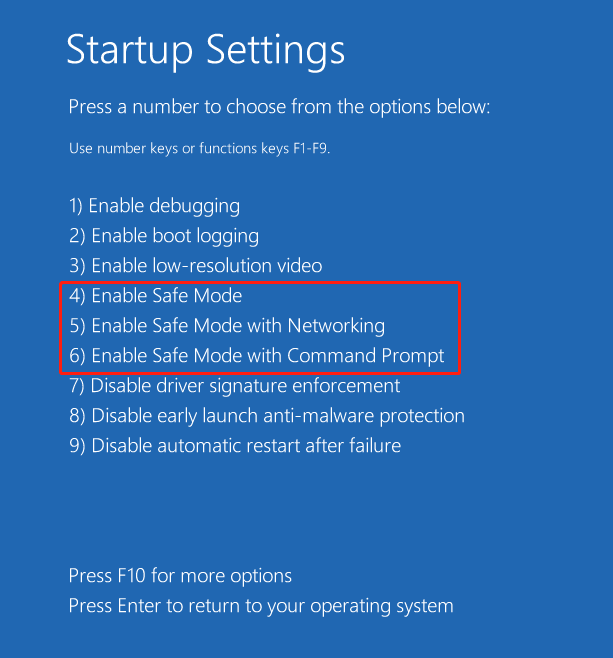
Step 2: Click Startup Settings > Restart.
Step 3: Press a key like F4, F5, or F6 to enter Safe Mode.

How to Prevent Windows 11 White Screen Issue
To avoid the Windows 11 white screen issue in the future:
- Keep Windows and drivers updated regularly
- Avoid force shutdowns during updates
- Use reliable security software
- Disable heavy startup apps
- Reduce USB power draw
- Run monthly system repairs
- Monitor system temperature and hardware health
- Turn on System Restore and create restore points before major updates
Useful Tip: Back up Windows 11 to Avoid Data Loss
We have listed many solutions that can fix Windows 11 white screen of death to some extent. But they may not be effective all the time based on your actual situation. To prevent similar issues from bringing system issues or leading to data loss, we strongly recommend creating a backup for your OS or important data as a recovery solution.
To do this task, the best free backup software – MiniTool ShadowMaker could be a good choice for you. It is compatible with Windows 11/10/8/7 and works well in backing up files, folders, systems, disks, and partitions to an external hard drive, USB flash drive, NAS, etc.
Besides, it supports backing up daily, weekly, monthly, and on event so you won’t forget. Incremental and differential backups are also supported so that you can create them for only changed or added data. See how to back up your Windows 11 PC after fixing Windows 11 white screen.
Step 1: Download MiniTool ShadowMaker from its official website or directly click the download button below.
MiniTool ShadowMaker TrialClick to Download100%Clean & Safe
Step 2: After installing it on your Windows 11 computer, launch this free backup software and click Keep Trial.
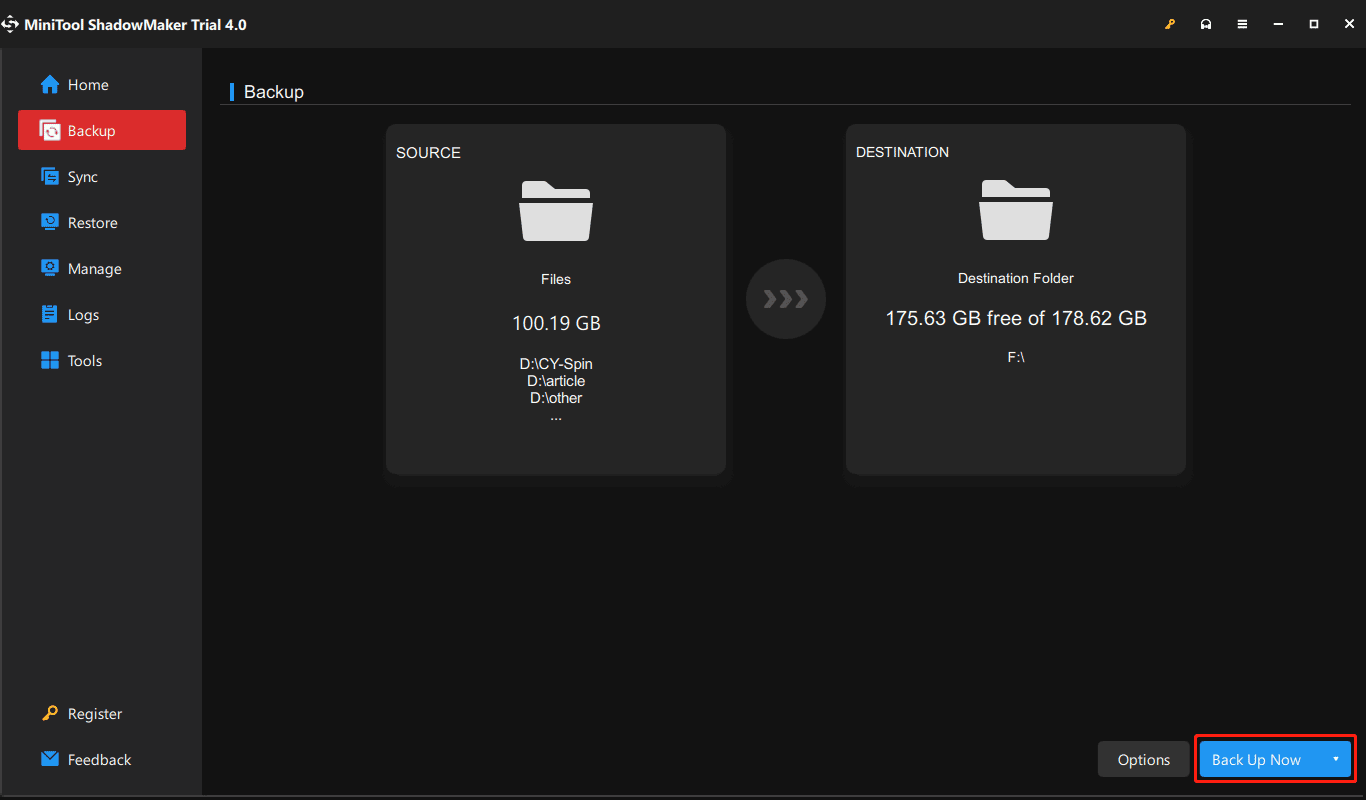
Step 3: Under the Backup page, you can find the backup source and destination are selected by default. To create a backup for the system, you can click Back Up Now to execute the task. Before you do, we recommend you to re-select an external hard drive or USB drive as the backup destination.
To back up files, you should click SOURCE > Folders and Files, select all the items you want to back up, and click OK. Next, start the file backup task.
Windows 11 White Screen FAQ
Sometimes, replacing the screen may be more economical than repairing internal components.
If unbootable, create a bootable USB with data recovery software like MiniTool Power Data Recovery, boot from it, and scan for files. Alternatively, remove the hard drive and connect it to another computer to retrieve data.
Final Thoughts
The Windows 11 white screen issue often relates to graphics drivers, corrupted files, Windows updates, or hardware problems. Common solutions include restarting Windows Explorer, updating drivers, repairing system files, or using Startup Repair and System Restore.
To protect your data, create regular backups with MiniTool ShadowMaker, which simplifies restoration during issues. For assistance with backups or questions about MiniTool software, contact [email protected].
About The Author

Position: Columnist
Charlotte is a technology columnist with a strong focus on the Windows operating system, specializing in disk management, backup, and data recovery. She is passionate about analyzing computer errors, identifying root causes, and delivering practical solutions. In her free time, she stays updated on the latest developments in computer systems and hardware while continuously learning new technologies to broaden her expertise. Her writing style is clear and easy to understand, making complex technical topics accessible even to users with limited computer knowledge.
User Comments :