
Causes of Windows Cannot Access the Specified Device Windows 11/10
When installing, updating, or opening a program or file, you may encounter an error that prevents the operation. Here is a detailed error message:
“Windows cannot access the specified device, path or file. You may not have the appropriate permissions to access the item.”
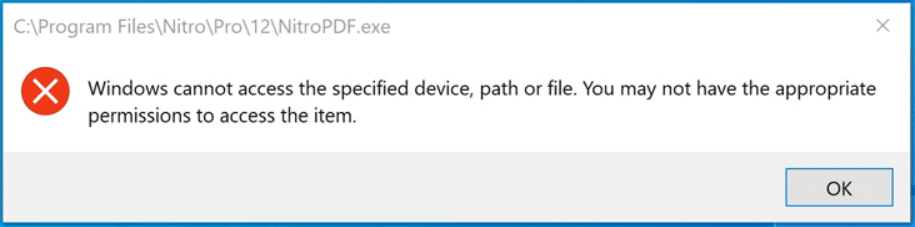
(image from Microsoft)
Why does the error occur in Windows 11/10? The potential reasons include:
- Permission issues: Your user account may lack the necessary permissions to access the file, folder, or app.
- Antivirus interference: The security software may mistakenly flag a file or program as a threat and block access to it.
- Unavailable location: The file may be on a network drive or a removable drive that isn’t connected.
- File moved or deleted: The file might have been moved or deleted, leaving behind an invalid shortcut. When you attempt to open it, Windows fails to locate the original file because the referenced path no longer exists.
- Corrupted user profile: An issue with the user profile may prevent access to files.
- Damaged system files: Corrupted system files can cause various issues, including this access error.
Don’t worry if Windows fails to access the specified device, path, or file. We will walk you through how to solve it via this comprehensive guide.
How to Fix Windows Cannot Access the Specified Device Windows 10/11
Here are several effective solutions you can try to address the issue, such as running your app as administrator, disabling antivirus software, checking permissions, unlocking the file, and using other workarounds.
Option 1: Run the File/App as Admin
If you encounter this issue when trying to run an executable file or other applications, running them as an administrator may resolve the problem. Many programs require admin permissions to function properly; therefore, try this method.
To do that: Right-click on the executable file or app and choose Run as administrator.
To always run it with admin privileges:
Step 1: Right-click on the target item and choose Properties.
Step 2: In the Compatibility tab, check Run this program as an administrator.
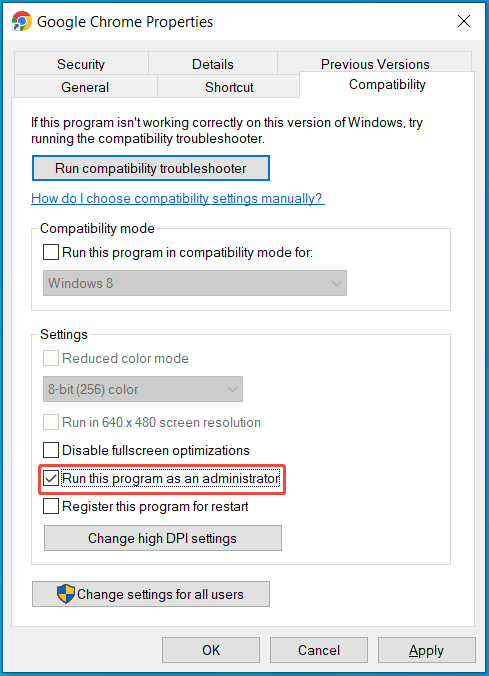
Step 3: Click OK to save the change.
Then, check if Windows can access the specified item.
Option 2: Check Permissions
Additionally, you should make sure your PC has the appropriate permissions for a file or folder.
Here are the steps:
Step 1: Right-click the file or folder you want to open and select Properties.
Step 2: Go to the Security tab and click the Edit button.
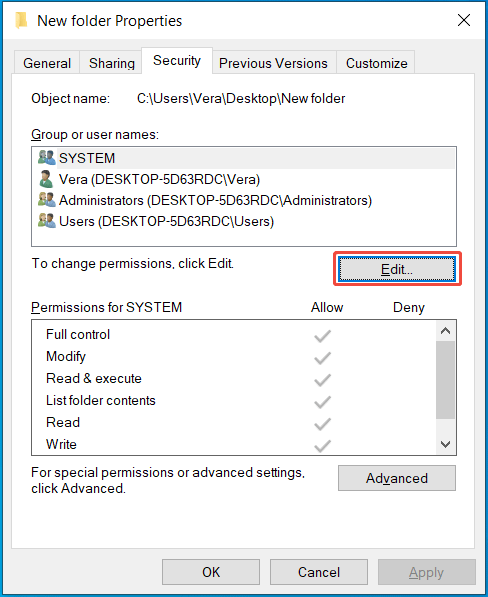
Step 3: Select your user account under Group or user names and check if the box next to Full control is selected.
If not, tick it and save the change.
Then, try to open that file or folder, and the error may not appear.
Option 3: Disable Windows Security
Antivirus software plays an important role in protecting the operating system against viruses, malware, and other threats. However, it can sometimes mistakenly confuse secure files or programs.
To fix “Windows cannot access the specified device”, temporarily disable your antivirus program.
Step 1: Open Windows Security via the Windows 11/10 Search.
Step 2: Click Virus & threat protection and choose Manage settings under Virus & threat protection settings.
Step 3: Disable Real-time protection. When prompted, click Yes.
After disabling, run your app or file, and no error will appear.
Option 4: Add a Security Exclusion
If Windows cannot access the specified device, path or file, adding an exclusion in Windows Security may help.
Here is the tutorial:
Step 1: Launch Windows Security and navigate to Virus & threat protection settings.
Step 2: Scroll down and locate the Exclusions section.
Step 3: Click Add or remove exclusions.
Step 4: Choose Add an exclusion, click File or Folder, and add the specified file.
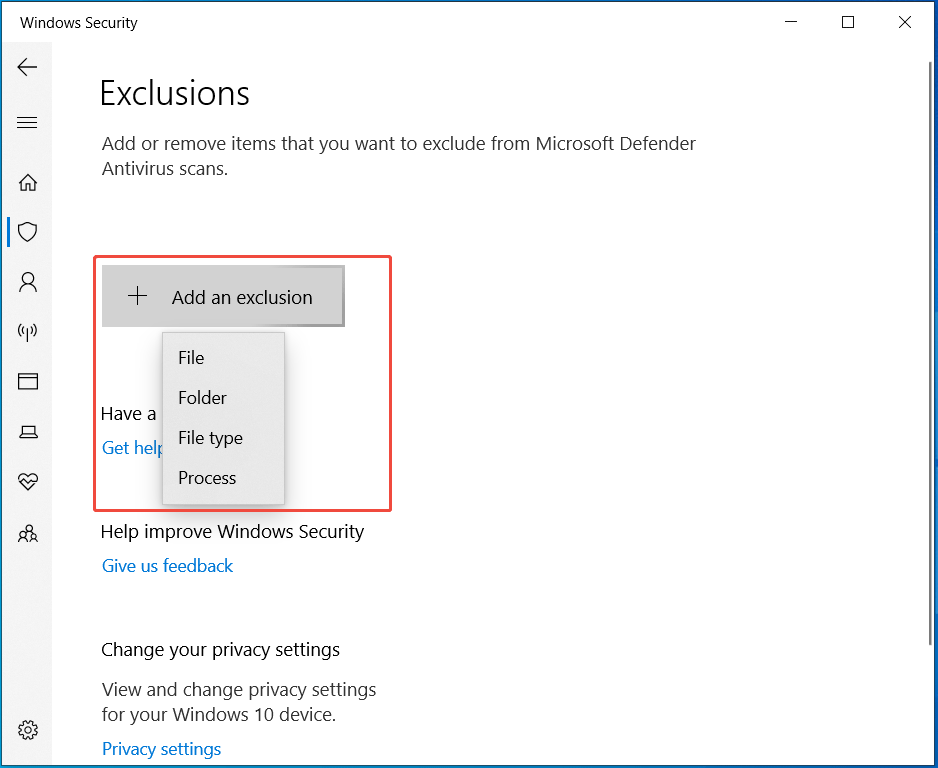
After adding the exclusion, restart your program or launch the file, and it may open properly without the error.
Option 5: Unlock the File
In some cases, the file that has the “Windows cannot access the specified device” error may be blocked by the operating system. Checking the properties of this file and unlocking it can help.
Follow these steps:
Step 1: Right-click on the blocked file and select Properties.
Step 2: In the General tab, check if there is a note saying “This file came from another computer and might be blocked to help protect this computer”.
Select Unlock if this option is available.
Step 3: Apply the change by clicking OK.
Option 6: Check the File Location
You may receive the error if the shortcut or installation is trying to access a networked location or a removable device. This location may not currently be available.
Check the path of the file and ensure its location is accessible.
Take these steps:
Step 1: Open the Properties window of the target file via the context menu.
Step 2: In the Shortcut tab, check the location under the Target field.
Option 7: Recover the Deleted File
Windows will not access the specified device, file, or path if the file has been deleted or moved. Go to browse the file location and make sure it is here.
If not, we strongly recommend that you recover the deleted file to solve this issue. For file recovery, run the third-party data recovery software like MiniTool Power Data Recovery. It can effectively scan your drive for deleted and lost files and perform a recovery.
MiniTool Power Data Recovery FreeClick to Download100%Clean & Safe
Step 1: Launch MiniTool Power Data Recovery to access its main interface.
Step 2: Select the drive that previously stored the target file and click Scan to begin scanning.
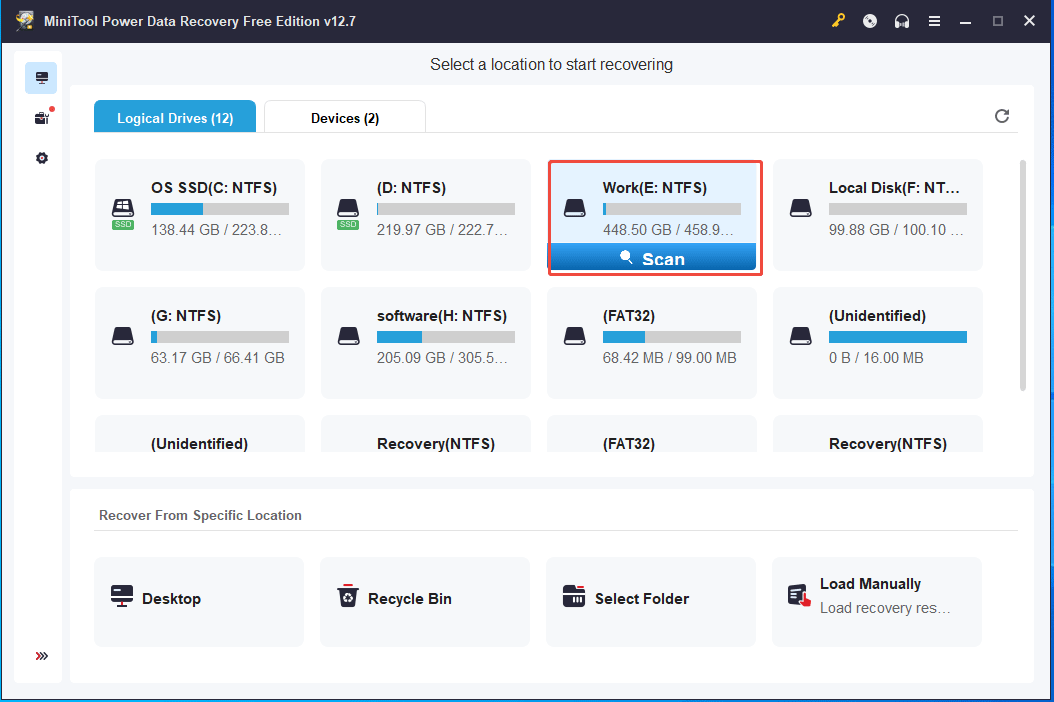
Step 3: Find the deleted file from the left side, choose it, and click Save.
Step 4: Select a path to store that file.
Then, you can open the file without encountering any errors.
Option 8: Recreate the Shortcut
If the shortcut of a program is corrupted, the “Windows cannot access the specified device, path, or file” error occurs. Try to recreate the shortcut to check for corruption.
Step 1: Right-click on space on the desktop and choose New > Shortcut.
Step 2: Click the Browse button, select the .exe file that has the error, and click OK.
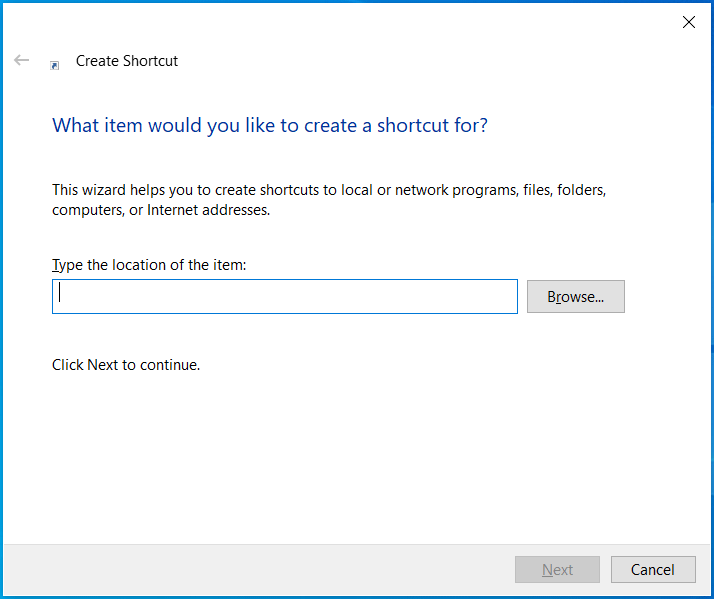
Step 3: Type a name for the shortcut and click Finish to add a new shortcut.
Try opening the program via the new shortcut.
Option 9: Repair or Reinstall the Program
If an app is corrupt, repair it to address the issue.
Follow the instructions:
Step 1: Type Control Panel in the Search box and press Enter to open this app.
Step 2: Choose Category from the View by menu.
Step 3: Under Programs, click Uninstall a program to access the Programs and Features window.
Step 4: Right-click on the target app and choose Uninstall/Change.
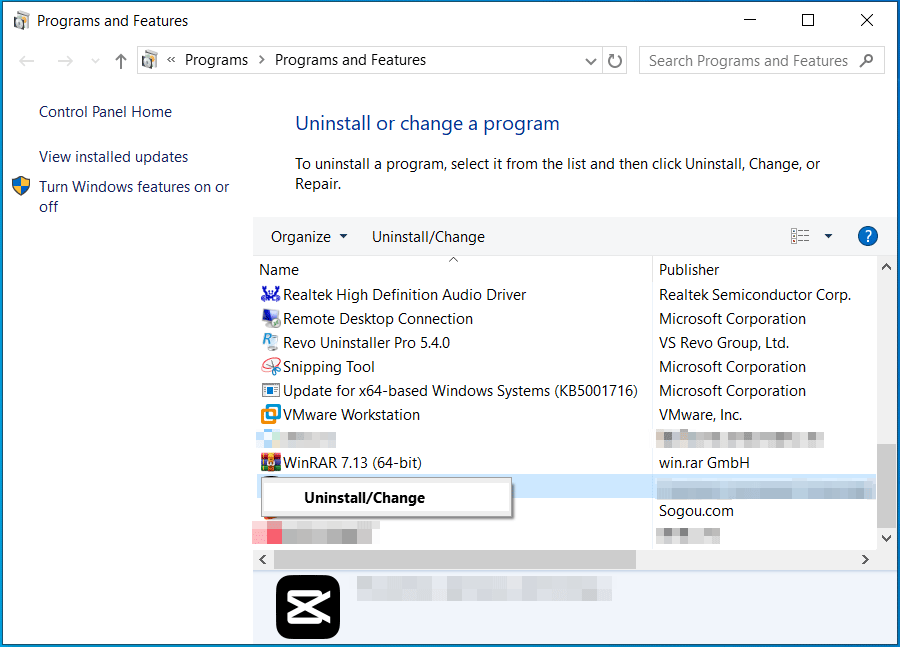
Step 5: Follow the on-screen prompts to repair it.
Alternatively, you can choose to uninstall that app. Then, run the installer to reinstall it to solve your issue.
Option 10: Run SFC and DISM
“Windows cannot access the specified device” can stem from corrupted system files, often triggered by power outages, improper shutdowns, malware infections, and other causes. In this case, programs and files may not open properly.
The Windows built-in repair tools, including SFC and DISM, make it easy to scan for and repair the corruption.
Step 1: Press Win + R to open the Run window, input cmd, and press Ctrl + Shift + Enter to open the elevated Command Prompt.
Step 2: Type sfc /scannow and press Enter to begin a scan.
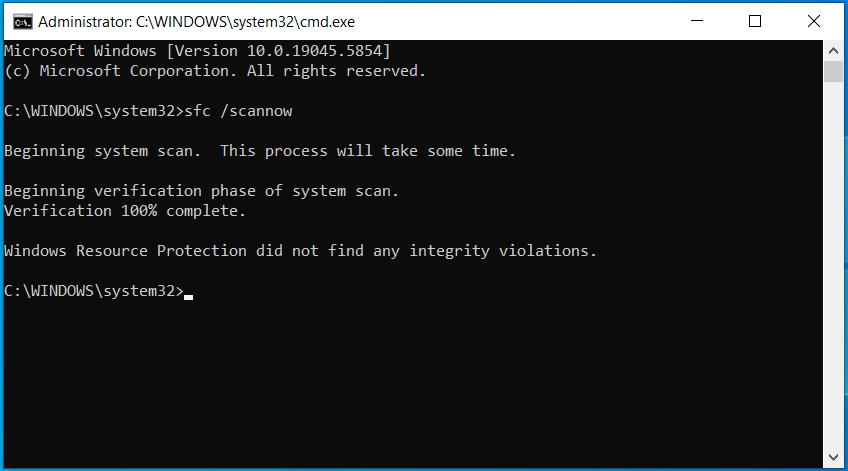
Step 3: Wait until the scan finishes and restart Windows 11/10.
Then, open your program or file to check if the error disappears.
If not, perform the DISM scan in Command Prompt.
Step 4: Type DISM /Online /Cleanup-Image /RestoreHealth and press Enter.
After performing the scan, the issue may be resolved.
Back up Files on PC
As stated above, if the file is deleted, the error may occur. To prevent data loss, it is recommended to back up files regularly.
MiniTool ShadowMaker is one of the best backup software for Windows 11/10/8/7. With it, disk/partition/system/folder/file backup can be done with ease.
Moreover, this software helps you set a schedule plan to regularly backup data, without worrying about forgetting to back up.
Additionally, you can back up only the changed data using the incremental or differential backup scheme, while deleting old backup versions to save space.
In addition, MiniTool ShadowMaker supports other features, such as cloning a hard drive, file sync, adding a description for a backup, creating bootable media, and others.
MiniTool ShadowMaker TrialClick to Download100%Clean & Safe
Learn how to backup files to a USB drive or external hard drive.
Step 1: Connect the USB or external drive to your computer and launch MiniTool ShadowMaker.
Step 2: In the Backup page, the program automatically selects system drives as the backup source. To back up files, go to SOURCE > Folders and Files > Computer, browse the PC, select what you want to back up, and click OK.
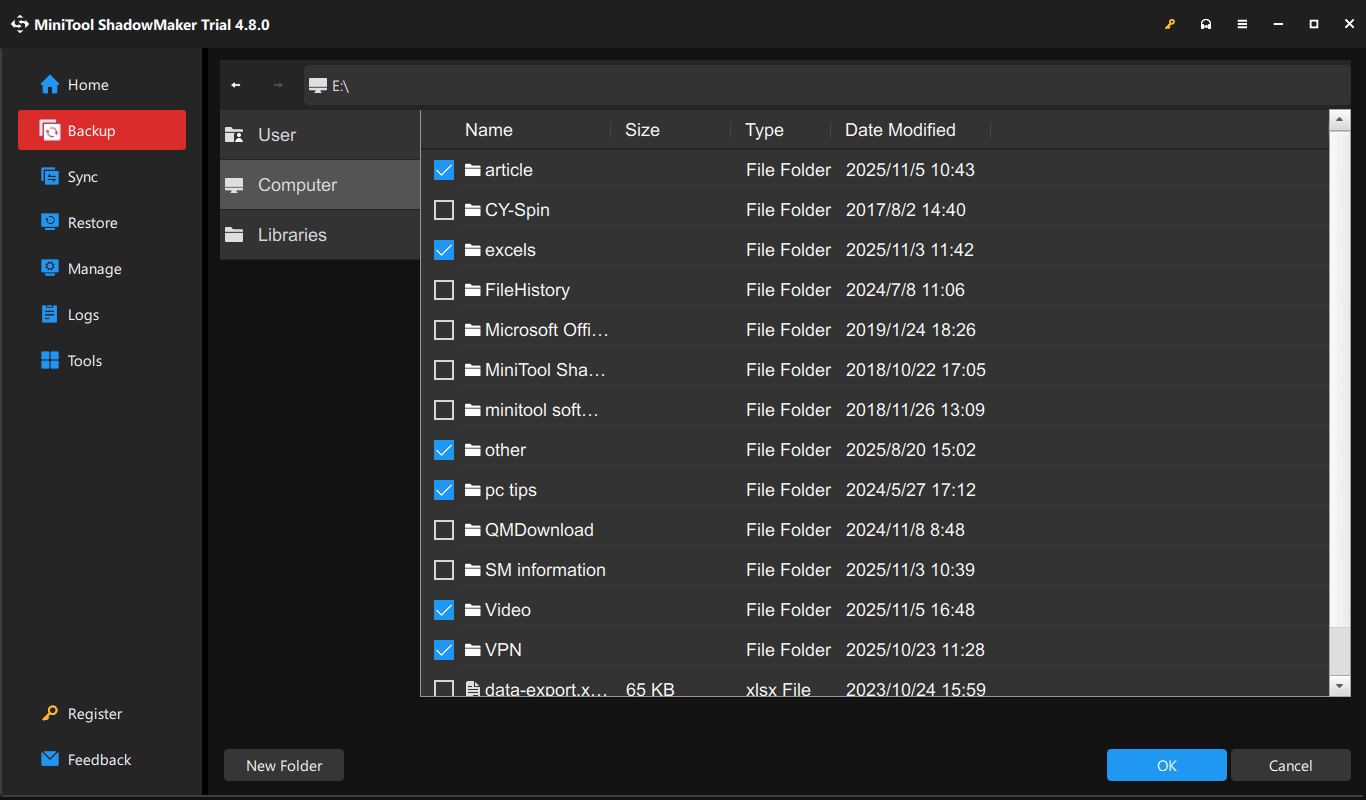
Step 3: Click DESTINATION, choose your USB drive or external drive, and click OK.
Step 4: Make some advanced settings as per your needs by choosing Options.
- Backup Options: MiniTool ShadowMaker supports selecting a compression level, enabling password protection, and other options.
- Backup Scheme: Enable this feature, choose Incremental or Differential as the backup scheme, specify the number of old backup versions you want to keep, and click OK.
- Schedule Settings: Enable this option, select an option, configure the time, and click OK.
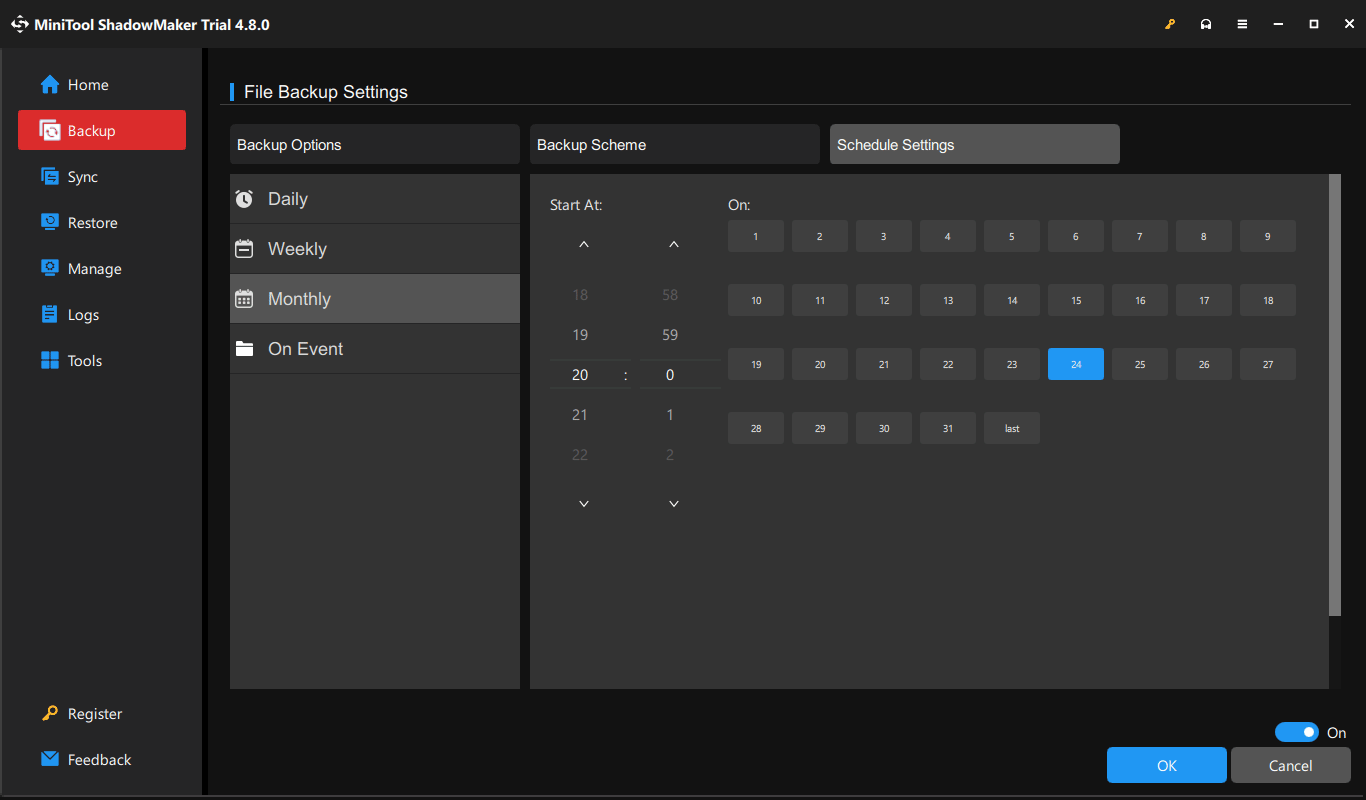
Step 5: When completing the selection and configurations, click Back Up Now to begin the backup. Check the backup result in the Manage page.
MiniTool ShadowMaker will then automatically create scheduled backups at the configured time.
Final Words
We demonstrate potential reasons for “Windows cannot access the specified device” and some tried-and-tested methods in this post. If you are experiencing such an annoying issue on Windows 11/10, follow these solutions to address it.
Additionally, this guide offers a reliable backup program, MiniTool ShadowMaker, to back up your data to avoid loss. When having an issue with this software, contact us via [email protected]. What’s more, if you have other useful workarounds, share them with us.
Windows Cannot Access the Specified Device FAQ
To fix it, you can close the conflicting process, disable antivirus software, check file permissions, add a file to Windows Security Exclusions, and try other options.
1. Verify the path
2. Check for invalid environment variables
3. Run SFC and DISM
4. Disable antivirus software
5. Check for Windows updates
6. Recreate the shortcut
About The Author

Position: Columnist
Vera has been working at the MiniTool Team for over 10 years as a technical editor and content writer. She mainly focuses on disk and partition management, data recovery, Windows backup and restore, and PC troubleshooting. Through in-depth software testing and hands-on experience, she has helped users solve a wide range of computer problems and better protect their data on Windows devices.
User Comments :