
This MiniTool guide explains how to format a USB using CMD. It also covers USB data recovery before formatting and introduces MiniTool Partition Wizard as an easier solution for formatting USB drives larger than 32 GB to FAT32.
Quick Guide: Format USB Drive Using DiskPart Format
If you want to quickly format a USB using CMD on Windows, here are the simplified steps:
Step 1. Open CMD as an administrator.
Step 2. Run DiskPart commands:
- diskpart
- list disk
- select disk X (replace X with your USB disk number)
- clean
- create partition primary
- format fs=ntfs quick (replace ntfs with fat32 or exfat as needed)
- assign letter J (replace J with desired drive letter)
Your USB drive is now formatted and ready to use.
Formatting a USB drive is straightforward, but it is important to know why you are doing it. This helps you decide whether to back up or recover data before proceeding.
Why Do You Need to Format a USB Drive?
There are some common situations in which you want to format your USB drive:
- To modify the file system.
- To quickly delete a large amount of data.
- To repair bad sectors and resolve flash drive corruption.
- When you want to make a bootable USB drive.
- When you need to eliminate viruses.
- Etc.
Before Formatting: Back up or Recover USB Data First
Before formatting, ensure your data is protected, as formatting deletes all files. You need to handle accessible and inaccessible USB drives differently:
1. If the USB Drive Is Accessible
If your USB is available, ensure that you back up important data from the USB to a different secure location beforehand.
You can manually transfer them to a secure location on your PC using Windows Explorer.
Besides, you can use free backup software like MiniTool ShadowMaker to back up files to an external hard drive or network location.
2. If the USB Drive Is Not Accessible
If the USB drive has a corrupted file system or logical errors and cannot be read in File Explorer, use data recovery software to retrieve files before formatting.
MiniTool Power Data Recovery is a free data recovery tool that allows you to recover data from USB drives and other storage media.
Key Features of MiniTool Power Data Recovery
- Compatible storage devices: USB drives, SD cards, hard disks, SSDs, CDs/DVDs.
- Compatible versions of Windows: Windows 11, 10, 8, and 8.1.
- Supported file formats: Photos, videos, audio files, documents, archives, etc.
- File deletion situations: Formatting, accidental deletion, virus attacks, file system damage, errors during file transfer, etc.
- File preview option: View documents, photos, videos, audio, and various other file types before recovery.
- Free recovery cap: Retrieve up to 1 GB of files without charge.
MiniTool Power Data Recovery FreeClick to Download100%Clean & Safe
Step-by-step guide to recover files from a USB drive:
Step 1. Run the file restore software and enter its home page. Then, select your USB drive under Logical Drives or Devices and click the Scan button to start scanning for files.
I selected the H: drive that shows a USB icon to scan for files.
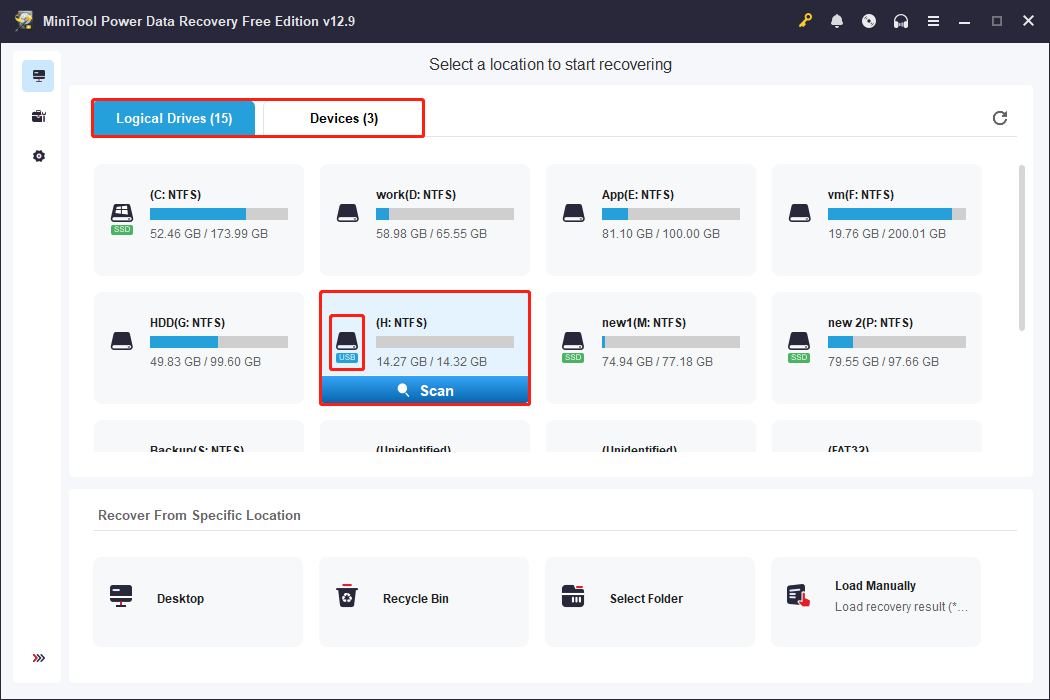
Scanning the 14 GB USB drive took approximately 10 minutes.
Step 2. Once the scanning is complete, start searching for the files you wish to restore.
By default, the software opens the Path view, showing Deleted Files, Lost Files, and Existing Files.
You can also use these features:
- Type: grouped files by type and format (photos, videos, audio, documents).
- Filter: narrowed results by file type, modification date, size, and category.
- Search: found specific files quickly using complete or partial file names.
- Preview: verified files before recovery.
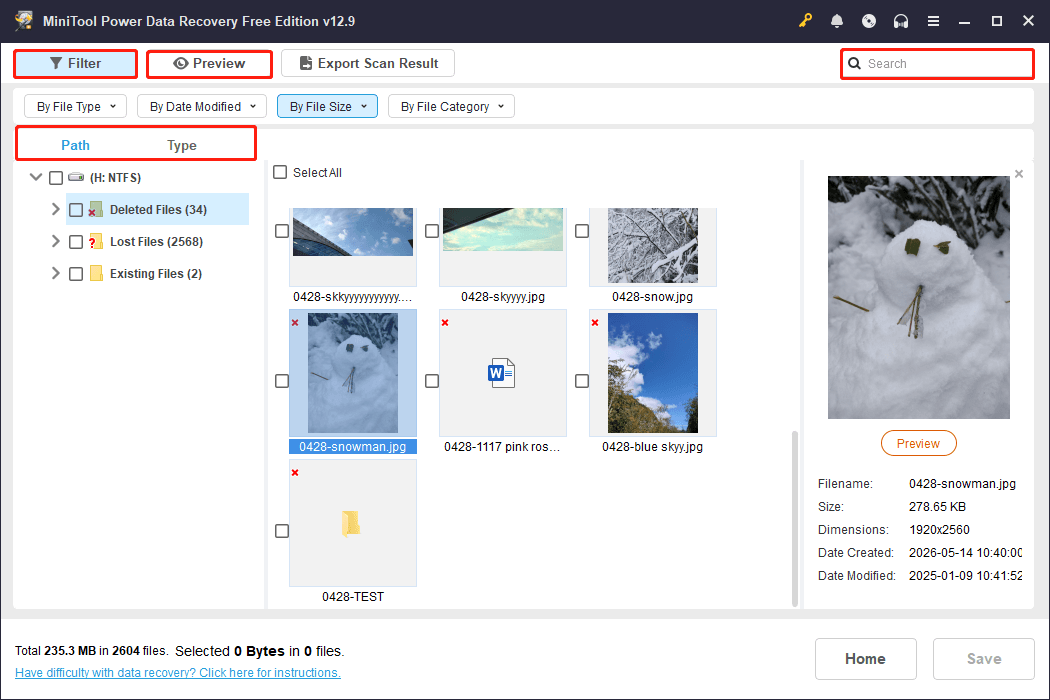
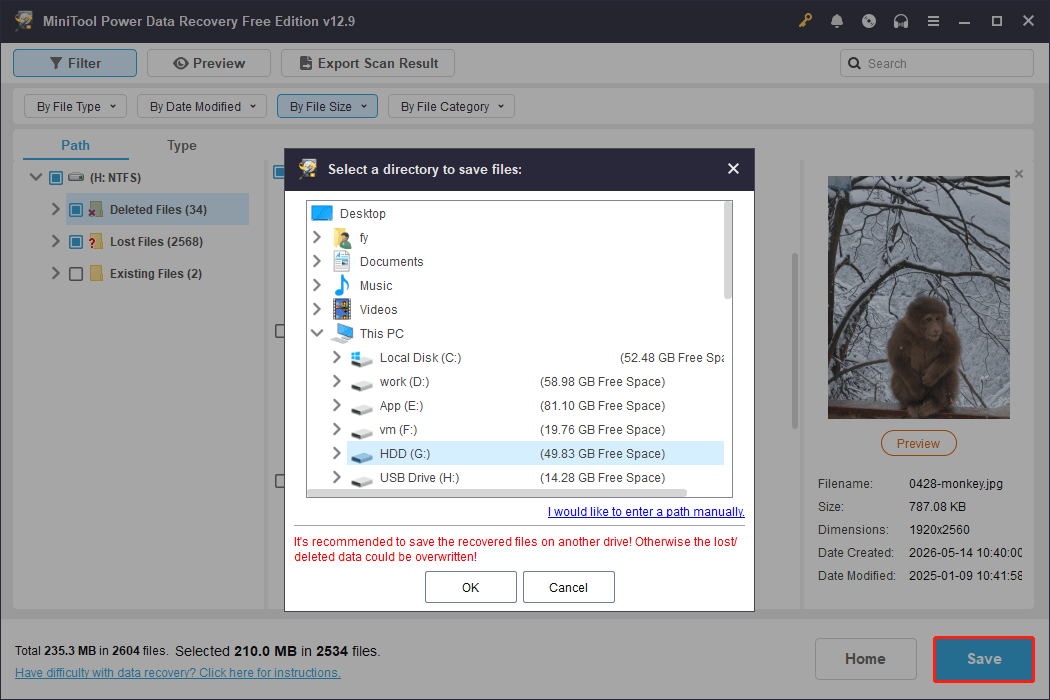
Step 3. Select all the files you want to recover, and then click the Save button. In the new window, choose a location to store the recovered files.
How to Format a USB Flash Drive Using CMD
For an intuitive guide, watch this video:
To format a USB using CMD, follow these instructions:
Step 1. Connect the USB drive to your computer and make sure it is recognized successfully.
Step 2. Type CMD in the Start menu, right-click on Command Prompt, and select Run as Administrator.
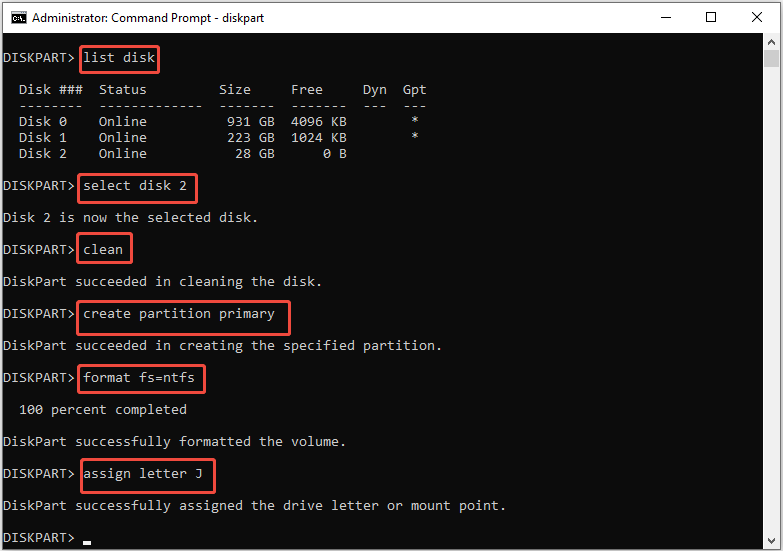
Step 3. In the Command Prompt window, type the diskpart command and press Enter to run the DiskPart tool.
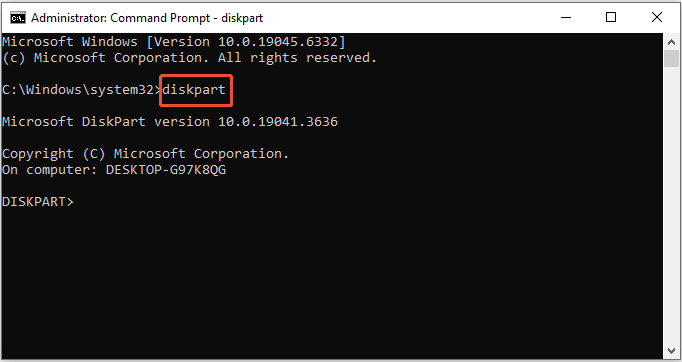
Step 4. Then, type the following commands and press Enter after each command.
- list disk: List all the disks in your system.
- select disk x: Replace x with your USB drive disk number. Ensure you select the correct disk number.
- clean: Delete all partitions on the USB drive.
- create partition primary: create a primary partition
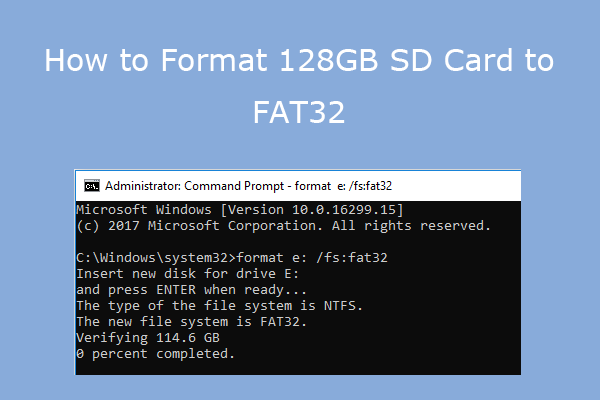
- format fs=ntfs quick: Format your USB drive to NTFS. Also, you can replace ntfs with fat32 or exfat to format it to FAT32 or exFAT.
- assign letter x: Replace x with an available letter to give the formatted partition a specific drive letter. Then you can access it from File Explorer.
The Best Alternative for USB Flash Drive Formatting
While DiskPart can format a USB drive effectively, it may not be beginner-friendly. If you prefer a simpler method, you can use MiniTool Partition Wizard Free, which provides a more intuitive interface.
More importantly, DiskPart cannot format drives larger than 32 GB to FAT32, while MiniTool Partition Wizard supports formatting large USB drives to FAT32 easily.
MiniTool Partition Wizard FreeClick to Download100%Clean & Safe
Step 1. Open this partition formatter to enter its main interface. Select the USB drive partition and then click the Format Partition option in the left panel.
Step 2. In the pop-up mini window, specify the partition label and the desired file system, and click the OK button.
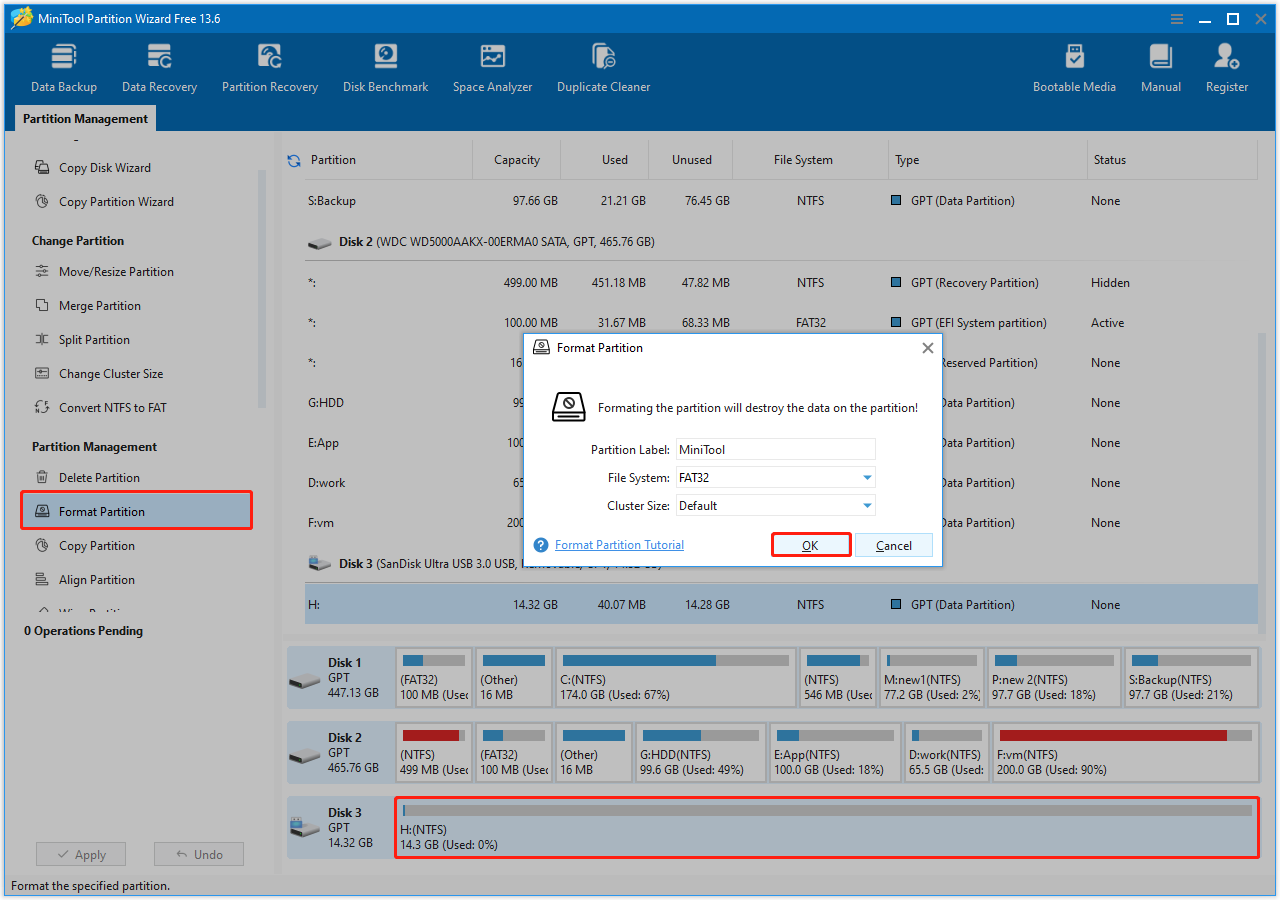
Step 3. Click Apply in the lower left corner to commit the pending operation.
This table compares MiniTool Partition Wizard and DiskPart format.
| Feature | MiniTool Partition Wizard | DiskPart format |
| User interface | Graphical | Command-line |
| Format large drive to FAT32 (> 32GB) | Supported | Not supported |
| Preview changes | Supported | Not supported |
| Risk of wrong operation | Lower | Higher |
| Suitable users | Beginners | Advanced users |
Final Thoughts
Now you should know how to format a USB drive using CMD. Carefully follow the instructions above to format your USB on Windows.
Additionally, you can use MiniTool Partition Wizard for a quicker and easier formatting process.
To prevent data loss, use MiniTool Power Data Recovery to recover your files.
Hope the information above can help you get everything back on track.
If you need any help with MiniTool’s products, please send an email to the support team via [email protected].
Format USB Using CMD FAQ
Open CMD as an administrator and execute the following commands one by one:
Diskpart
List disk
Select disk # (replace # with the number of your USB drive)
Clean all (this may take a long time)
Run CMD as an administrator and execute the following commands:
diskpart
list disk:
select disk x (replace x with the actual disk number)
clean
create partition primary
format fs=fat32 quick
assign letter x (replace x with an available drive letter)
FAT32 offers maximum compatibility with older devices, but it cannot store a single file larger than 4 GB.
NTFS is mainly used for Windows systems and supports large file storage.
exFAT is commonly used for cross-platform compatibility between Windows and macOS.
Right-click your USB drive and choose Format.
In the new window, uncheck the Quick Format option, and start the formatting process.
About The Author

Position: Columnist
Shirley holds a bachelor’s degree in English and has been an editor at the MiniTool Team for many years. She specializes in IT-related content, with a focus on data recovery, file backup, disk management, and other technical topics. She is committed to delivering clear, accurate, and practical solutions to help users resolve common computer issues.
User Comments :