
To completely and safely recover data from formatted Sony SD card, using professional Sony SD card recovery software is essential. In this MiniTool post, I have compiled several reliable format SD card data recovery software to help you restore your data easily and effectively.
Although Sony is not as focused on storage devices as SanDisk and Samsung, the SD cards it produces are still very popular and widely used in digital cameras, camcorders, smartphones, drones, and other electronic devices. However, like any other file storage media, Sony SD cards are not immune to accidental or intentional formatting, which can lead to photo or video loss.
In such cases, it’s crucial to know how to recover data from formatted Sony SD card. Before proceeding, here are some important tips to maximize your chances of successful data recovery.
How to Maximize SD Card Recovery Success Rate After Formatting
When you format an SD card on a Sony camera or computer, the process is typically a quick format, unless you specifically select options like full format or low-level format. A quick format only removes the file system index, while the actual data remains stored in the SD card, making data recovery possible. To maximize the chances of recovering files from a formatted Sony SD card, you need to keep the following key points in mind.
- Stop using the SD card: If you store new photos, videos, or other files on the SD card, the available space will be occupied, thus overwriting the deleted files. The overwritten files cannot be recovered by any file restore tool.
- Avoid formatting the memory card again: Secondary disk formatting may destroy the file structure, resulting in data recovery failure or incompleteness.
- Recover formatted SD card immediately: Using professional and secure data recovery services as soon as possible ensures that you can quickly recover photos from formatted Sony SD card to avoid any unexpected situations.
As long as you do these things, I believe you will be able to get your files back with a high probability. How to recover deleted files from Sony camera memory card? Follow the instructions below.
How to Recover Data From Formatted Sony SD Card
Way 1. Use Sony Memory Card File Rescue Software (Windows & Mac)
Sony provides a data recovery utility to help you recover accidentally deleted or formatted files from various Sony file storage devices, such as SD cards, memory sticks, USB drives, etc., namely Sony Memory Card File Rescue.
It offers versions for Windows and Mac and specializes in recovering JPEG, RAW photos, MPG, MPEG, MP4, MOV, MXF, and other types of data. Note that some products are not supported by this tool, such as Sony brand microSD memory cards for IP security cameras, Sony brand memory stick classic series, and more.
You can visit the Sony Memory Card File Rescue Software Download Page and click Next to download the exe file that matches your system. Note that you may need to enter the model name of the memory card you want to recover and the identification number or downloading code.
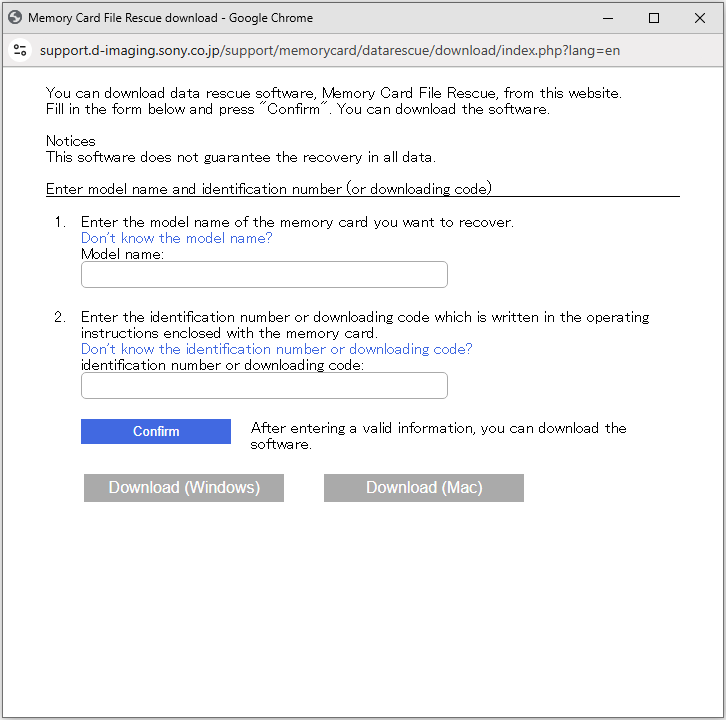
Once you get this tool, launch it and use it to recover your files.

Way 2. Utilize MiniTool Power Data Recovery (Windows)
If Memory Card File Rescue fails to recover data from formatted Sony SD card, you can use MiniTool Power Data Recovery. As a secure data restore tool with advanced scanning technology, it can deeply analyze the storage device and retrieve lost files, even from formatted SD cards.
It greatly works with SD, SDHC, and SDXC cards commonly used in Sony cameras, camcorders, and other devices and supports recovering various types of files, including photos, videos, documents, music, and more. By the way, in addition to Sony SD card data recovery, this comprehensive tool also supports Seagate data recovery, Samsung data recovery, and so on.
Are you concerned about the safety or cost? This tool has been trusted by millions of users around the world for more than 20 years. It features a 100% safe, read-only recovery process, ensuring your data remains intact without any risk of overwriting. Its free edition supports free file preview and 1 GB of free selective recovery.
Now, click the button below to download MiniTool Power Data Recovery Free on your computer, and follow the guide below to recover the formatted Sony SD card.
MiniTool Power Data Recovery FreeClick to Download100%Clean & Safe
Step 1. Connect the Sony SD card to your computer and scan it.
Remove your Sony SD card from the camera or other devices, insert it into a card reader, and then connect it to the computer. Then, launch MiniTool Power Data Recovery and check if the SD card is displayed under Logical Drives. If yes, move your cursor over the SD card and click Scan. If not, click the Refresh button to reload the disk information or reconnect the card.

Once the scan starts, the found files will be listed gradually, and the scan percentage and estimated remaining scan time will be displayed in the lower left corner. It is recommended that you wait patiently for this scan to end automatically to obtain the most complete scan results.
Step 2. Locate needed files from the scan results with Path, Type, Filter, and Search.
After scanning, all detected files will be displayed in the scan results window. You have multiple options to locate the files you need. One way is to expand each folder under the Path section, where files may retain their original folder structure. Alternatively, you can navigate to the Type section, where files are categorized by file type and file format, and this is ideal if you are looking for a specific file type such as photo or video.
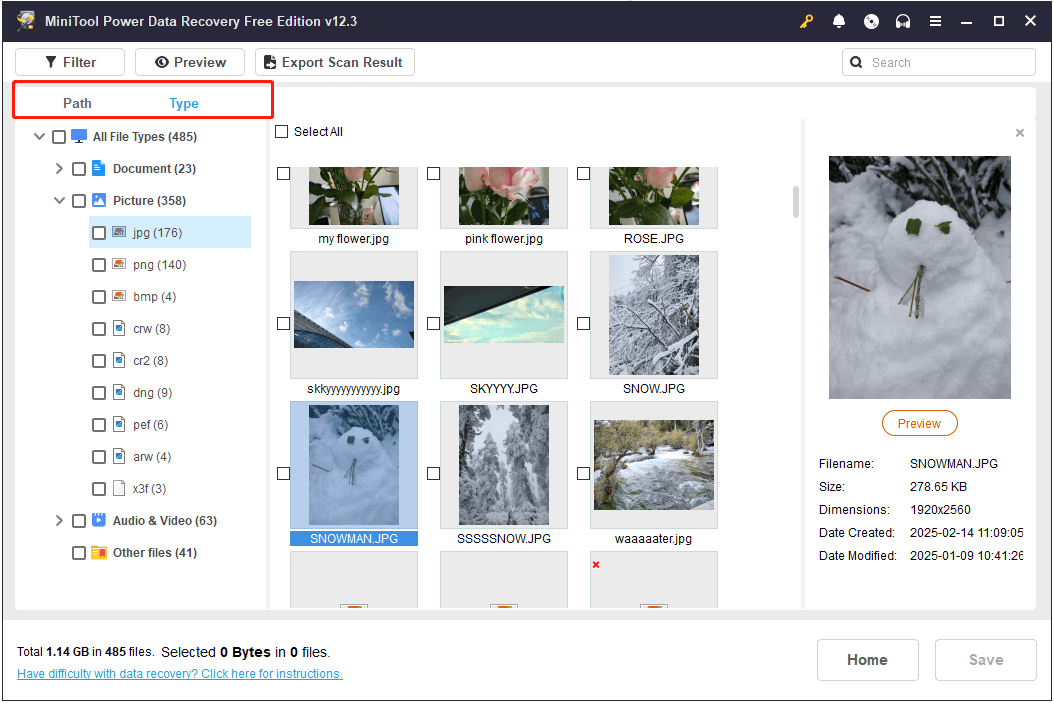
Additionally, the software offers other two built-in features to help you further refine the file list:
- Filter: This feature allows you to refine scan results based on specific criteria, including file type, file modification date, file size, and file category. It helps you locate smaller or larger photo or video files more easily.
- Search: This function enables you to find specific files by typing a keyword of the file name or the file extension in the search box and pressing Enter. If you remember the exact name or part of it, simply use it to instantly locate the file within the scan results.

Step 3. Preview the target files and save them.
Another feature that makes MiniTool Power Data Recovery stand out from other software is Preview. This feature allows you to check whether the file is usable before recovering it, ensuring the integrity of the data. In addition, since you can preview and selectively recover the files you really want to restore instead of recovering all of the files, you can save the 1 GB free recovery capacity and avoid financial expenses to the greatest extent.
Most types of data can be previewed without restrictions, while some files need to be no larger than 100 MB in size. Simply double-click a file to preview it.
Once all the required files are located and ticked, click the Save button. Then select a directory instead of the original Sony SD card to store the recovered files.

Way 3. Use Stellar Data Recovery for Mac (Mac)
If you are using a Mac device, you can use Stellar Data Recovery for Mac to recover data from formatted Sony SD card. It is fully compatible with macOS Sonoma 14, macOS Ventura 13, Monterey 12, Big Sur 11, etc., and can help you restore files lost due to disk formatting, virus infection, file system corruption, accidental deletion, and so on.
Also, it supports recovering almost all kinds of files, such as photos, videos, audio, documents, and more. Click the button below to get Stellar Data Recovery for Mac downloaded and installed, and then use it to start file recovery. Be aware that this tool supports free file scan and preview, but you need to upgrade it to save the scan results.
Data Recovery for MacClick to Download100%Clean & Safe
How to Reduce the Need for SD Card Formatting
Now that you know how to recover data from formatted Sony SD card, let me share some useful tips to help you minimize the need for SD card formatting in the future.
Intentional SD card formatting is usually done to clean up storage space, fix file system errors, or because the memory card cannot be accessed correctly. The following are some necessary and feasible measures:
- Avoid frequent plug and unplug: Frequent plugging and unplugging of the card may cause file system corruption and require formatting to repair the file system. Worse, it may directly lead to file loss or even physical damage to the memory card.
- Remove the SD card properly: When taking an SD card out of a computer, make sure to use the safe removal option instead of simply unplugging it. Also, make sure the device is turned off before removing the SD card from a camera, phone, or other device. This will prevent data corruption and file system errors.
- Prevent low battery: If the device shuts down due to low battery while taking photos or transferring files on the SD card, it can easily cause file system corruption or file loss.
- Protect the card from physical damage: If the SD card is not properly protected, dust and debris may enter the card slot, potentially causing disk malfunctions or even physical damage.
- Purchase a high-quality memory card with a large capacity: When buying an SD card, try to choose a high-quality one that is more durable and less prone to damage. In addition, choosing a card with a larger capacity can effectively avoid repeated capacity shortages and the need to clean up files.
Finally, if it is indeed necessary to format the SD card, remember to back up your data first. You can transfer the files to another file storage device, or use third-party green data backup software – MiniTool ShadowMaker.
MiniTool ShadowMaker TrialClick to Download100%Clean & Safe
To Sum Up
In a word, this article introduces how to recover formatted SD card Sony on Windows and Mac. For Windows, MiniTool Power Data Recovery is preferred. For Mac, Stellar Data Recovery for Mac is recommended. Hope you can effectively get your files back with the help of these reliable tools.
If you encounter any issues while using MiniTool Power Data Recovery or MiniTool ShadowMaker, please send an email to the support team via [email protected]. You will get professional and detailed assistance in a timely manner.
Formatted Sony SD Card Data Recovery FAQ
However, file erasure is a process of completely destroying and overwriting the original data, providing almost no chance of recovery. Therefore, unless you are certain that you no longer need the files, it is not recommended to erase the device.
About The Author

Position: Columnist
Shirley holds a bachelor’s degree in English and has been an editor at the MiniTool Team for many years. She specializes in IT-related content, with a focus on data recovery, file backup, disk management, and other technical topics. She is committed to delivering clear, accurate, and practical solutions to help users resolve common computer issues.
User Comments :