
Typically, a video file, particularly a movie file, is larger than most other file types and can take up significant disk space.
When you try to delete it to free up storage, the process may differ from a standard deletion. You may receive a message saying that the file is too big for the Recycle Bin.
Problem: This File Is Too Big to Recycle
“I have deleted files that are too big for the Recycle Bin. I have experimented with recovering such files, but have had no success. Does anyone know if it is possible to recover these files, and if so, what is the process?”techsupportforum.com
As the user mentioned above, when you delete a large video file, you’ll receive a message stating:
This file is too big to recycle
Do you want to permanently delete it?
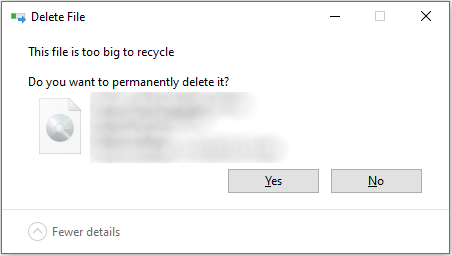
What does this error mean?
This indicates that the video file you are attempting to delete exceeds the maximum file size you have configured for sending files to the Recycle Bin.
In this situation, those video files will be deleted permanently.
Here comes a question: Is it possible to recover permanently deleted video files? Keep reading to get more details.
Can You Recover Deleted Large Video Files
Yes, recovering big video files is possible. Many tools are available to recover deleted large video files.
When you delete a large video file, it will bypass the Recycle Bin and be permanently deleted.
In such a case, the file’s entry is deleted from the file system, but the actual data remains on the drive until it is overwritten by new data.
This means that while the file seems missing, it still exists on the storage device.
Swift action is essential for successfully retrieving large video files that have been permanently deleted.
Once you notice a video file is missing, it’s important to cease using the affected drive to avoid new data overwriting the area previously occupied by the deleted file.
Now, read on to learn how to carry out a large video file recovery on Windows.
How to Recover Large Videos on Windows 11/10
Recovering large video files on Windows can be simplified by using the built-in backup tools. These tools include File History and the Previous Versions feature.
If you do not enable these functions on your Windows PC, we also provide a professional data recovery tool to help you recover deleted large video files.
Below, we explore each tool thoroughly and outline step-by-step guidance for utilizing it.
Method 1. Via File History
File History, a Windows feature, creates backups of your personal files in specific folders like Desktop, Favorites, and Libraries.
If you have enabled File History to back up your deleted large video file or folder, use it to rescue your data.
Follow these steps to recover deleted large video files using File History:
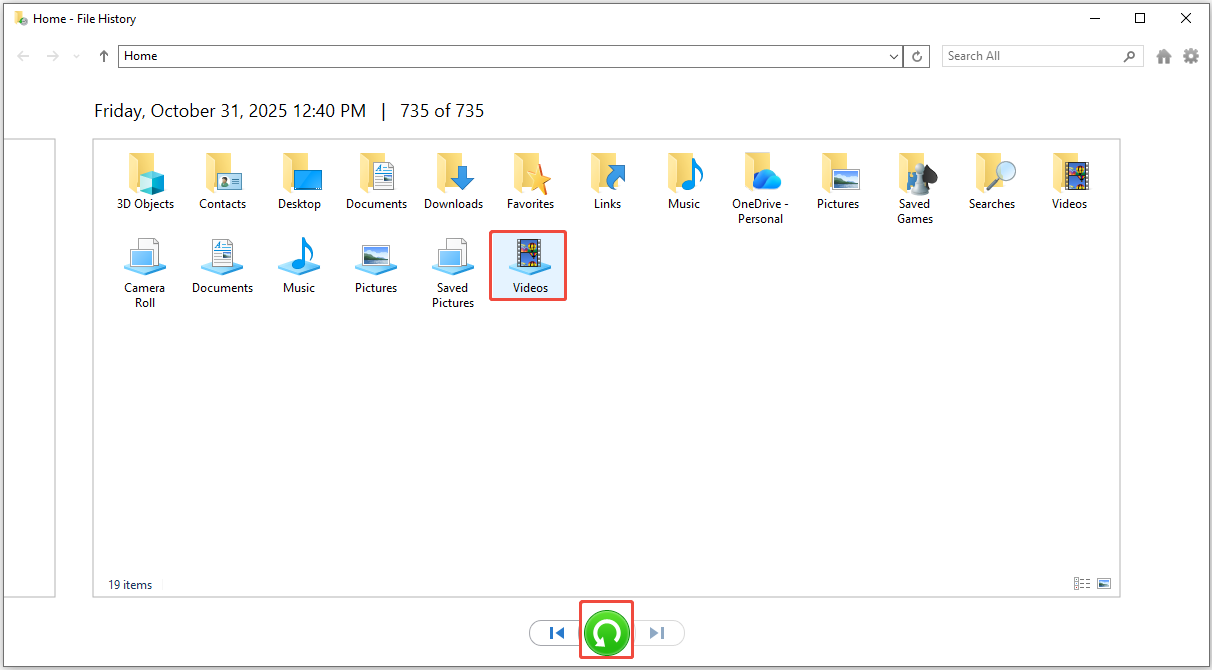
Step 1. Press Win + S to open the Windows search bar, type File History in the box, and press Enter.
Step 2. In the pop-up File History window, go to the location where your deleted video files are stored.
Step 3. Select the wanted video and click the green Restore button.
Another option is using the Previous Versions feature on Windows to recover the deleted video from the folder where it is stored.
Method 2. Restore the Previous Version
Enabling File History allows Windows to automatically create snapshots of your files and folders at specific intervals. These snapshots offer a method to recover files from previous versions.
Here’s the breakdown to restore the deleted video file or folder to a previous version:
Step 1. Press Win + E to open File Explorer and go to the deleted video file’s folder.
Step 2. Right-click the target folder and select Restore previous versions from the list.
Step 3. In the following window, choose the version that contains the deleted video, then click Restore. This operation will restore the folder to its previous state and retain the files that were added after the backup.

If you encounter the “There are no previous versions available” issue or have not enabled File History, opt for powerful video recovery software to get your deleted videos back.
Method 3. Use MiniTool Power Data Recovery
If you do not have a reliable data restore tool to recover deleted large video files, try MiniTool Power Data Recovery.
It allows you to recover files up to 1 GB for free. Meanwhile, it is 100% safe and robust, with the following features:
- Supported storage devices: It supports recovering files from HDDs, SSDs, SD cards, USB drives, etc.
- Supported file types: In addition to video recovery, it allows users to recover photos, documents, audio, archives, and more.
- Supported file systems: It supports FAT32, exFAT, NTFS, Ext2, Ext3, Ext4, etc.
- Supported data recovery scenarios: It can recover files lost due to accidental deletion, partition loss, drive corruption, virus infection, disk formatting, etc.
Download and install this free data recovery tool on Windows 11/10/8/8.1.
MiniTool Power Data Recovery FreeClick to Download100%Clean & Safe
Follow the instructions to recover deleted large videos using MiniTool Power Data Recovery:
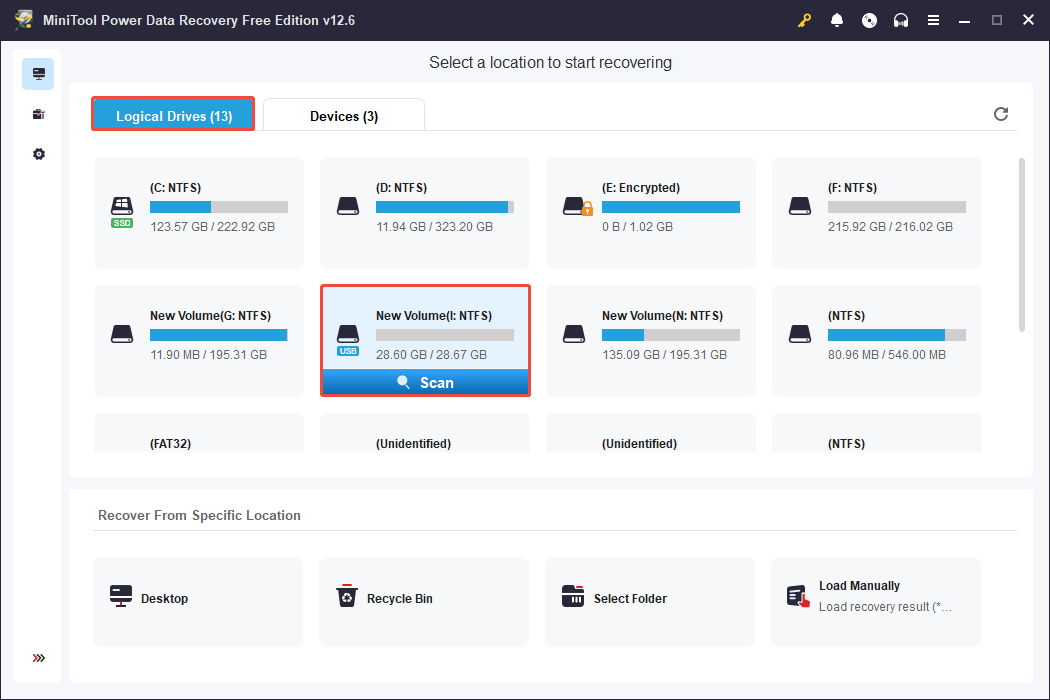
Step 1. Open this tool to enter its main interface. In the Logical Drives tab, select the target partition where your deleted videos are stored and click Scan.
Step 2. After the scanning process completes, go to the Type section and click the Audio & video option to see your deleted videos.
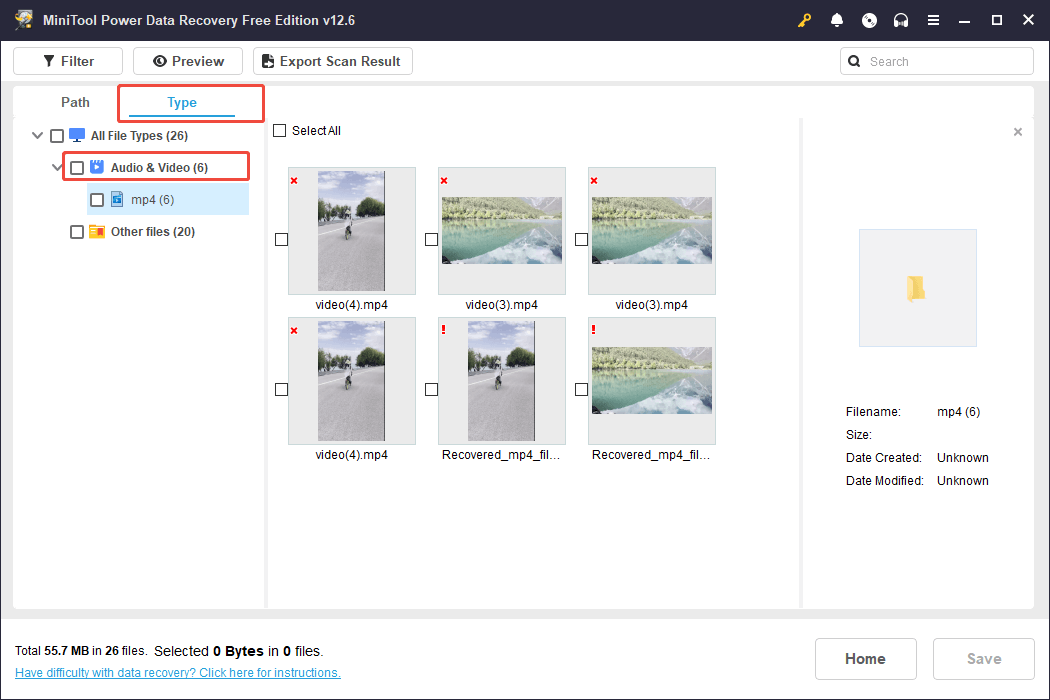
To ensure the selected videos are what you need, double-click each of them to preview.
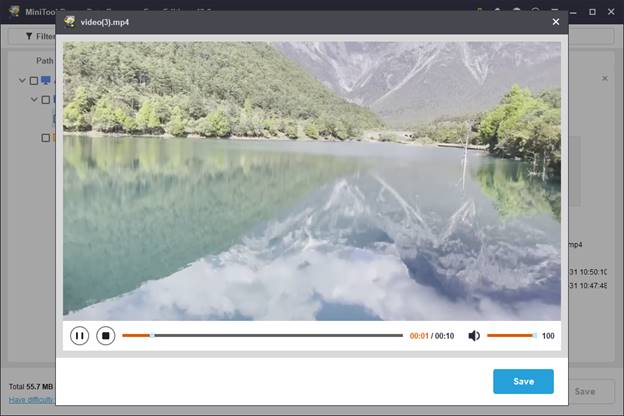
Step 3. Check the boxes for the wanted video files and click the Save button. In the pop-up interface, select a safe directory that is different from the original location to save recovered videos, and then click OK.

To recover large videos that are more than 1 GB, you need to upgrade this tool to the Personal edition.

Bottom Line
This post introduces how to recover deleted large video files on Windows by using File History, restoring the previous version, or utilizing a professional video recovery tool.
Try these solutions one by one until you get back your deleted videos.
Should you come across any issues or questions about MiniTool software, please do not hesitate to send an email to [email protected].
User Comments :