
Quick Answer: How to Create Bootable USB Windows 11/10 from ISO
To make bootable USB from ISO:
- Connect a USB flash drive (8GB or larger) to a PC.
- Download a Windows 11 or Windows 10 ISO file from Microsoft.
- Use a tool such as Media Creation Tool or Rufus.
- Burn ISO to USB.
Once completed, you can boot your computer from the USB drive and install or troubleshoot Windows.
What Is a Windows Bootable USB Drive
A bootable USB drive refers to a standard flash drive that can be used to boot a computer. Unlike a regular drive, it contains the files required to start a system, including executables, boot files, system images, and Dynamic Link Libraries.
It allows you to bypass the internal drive to install Windows, perform specific diagnostics, and run recovery tools.
With optical drives (CD/DVD) phased out of modern PCs, bootable USB drives have become the standard tool for system installation and recovery.
When Need to Create Bootable USB from ISO
In some cases, you may need to create Windows 11 bootable USB from an ISO file or make a Windows 10 bootable drive.
Common scenarios include:
- Installing Windows on a new PC
- Performing a clean installation of Windows 11/10
- Upgrading from Windows 10 to Windows 11
- Using diagnostic tools in WinRE, such as Startup Repair or Reset this PC, to fix an unbootable PC
Media Creation Tool vs Rufus
Both Media Creation Tool and Rufus are bootable USB creators, each designed for different users and use cases.
| Feature | Media Creation Tool | Rufus |
| Target Audience | Beginners, everyday Windows users | Advanced users and IT professionals |
| ISO support | Windows only | Virtually any ISO (Windows, Linux, Unix, etc.). |
| Source files | Automatically downloads the files | Uses a local ISO file, with optional ISO download support depending on version |
| Customization Options | Uses automatic configuration with limited user control | Provides manual control over partition scheme, file system, cluster size, and boot mode |
| Bypass Requirements | No options; enforces official Windows hardware checks | Allows bypassing or customizing system requirements (e.g., Secure Boot/TPM). |
| Setup speed | Slow (downloads Windows files and creates the USB drive) | Fast if ISO is already available locally |
| Offline Capabilities | Requires an active internet connection to download files | Works entirely offline if you have the local ISO file |
Recommended tips:
- Use Rufus if you already have a Windows ISO file or want advanced control over partition scheme and boot settings.
- Use Media Creation Tool if you want an easy and official way to create Windows installation USB.
How to Create Bootable USB from ISO Windows 11/10
With a clear understanding of Rufus and the Media Creation Tool, you can now proceed to create a bootable USB drive.
Method 1: Use Media Creation Tool (Easiest Way)
If you’re looking for a simple way to create a Windows bootable USB drive, Media Creation Tool is a practical choice. This official Microsoft utility can download Windows files and create the installation media automatically.
Step 1: Visit the Windows 10 or Windows 11 download page from Microsoft.
Here we will show you detailed steps to create Windows 11 bootable USB.
Step 2: Under the Create Windows 11 Installation Media section, click Download Now to download Media Creation Tool.
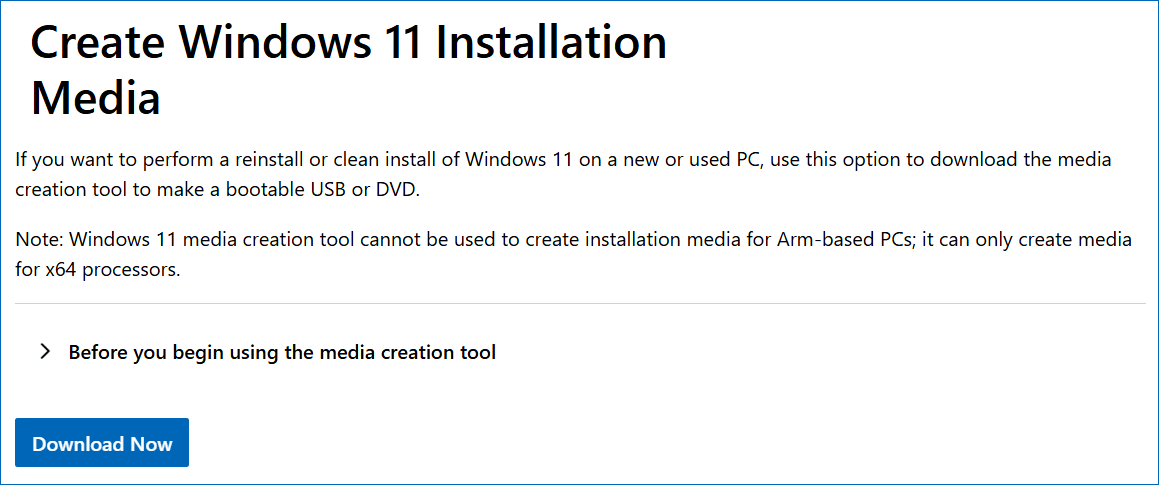
Step 3: Run this tool, and accept the applicable notices and license terms.
Step 4: Select a language and edition.
Step 5: Choose USB flash drive to proceed.
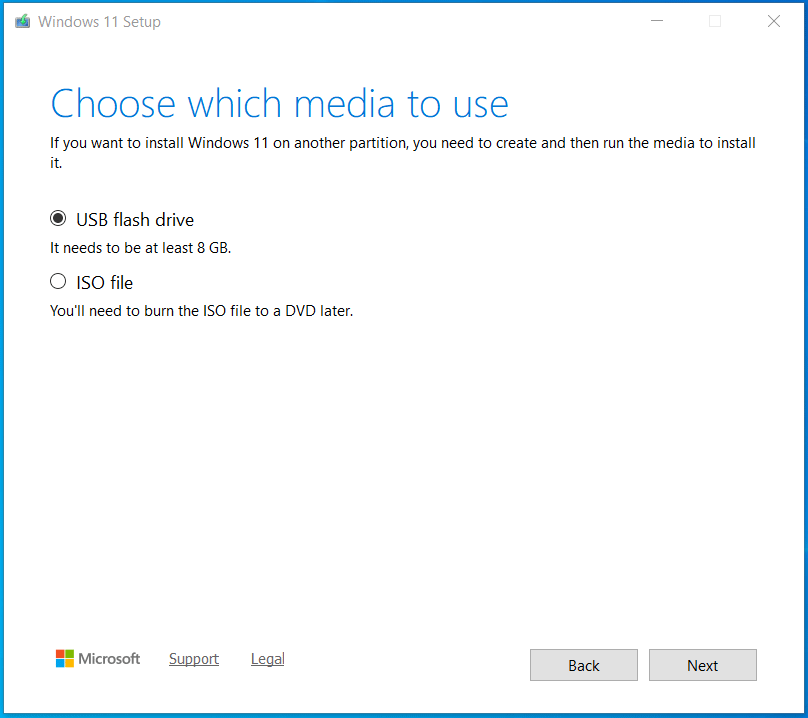
Step 6: Insert a USB flash drive, refresh the window, and choose this drive to continue.
Step 7: The tool begins downloading Windows files and creating a bootable drive.
Step 8: Wait for the process to complete. Then, click the Finish button.
Method 2: Use Rufus (More Flexible Option)
Rufus is a better choice to create bootable USB if you:
- Already have an ISO file
- Need advanced customization options
- Want to install Windows 11 on unsupported PCs
Why Use Rufus
Rufus offers several advantages:
- Delivers fast speed when you burn ISO to USB
- Supports bypassing Windows 11 requirements, such as RAM/Secure Boot/TPM 2.0
- Allows selection of GPT or MBR
- Is lightweight and portable
Follow the steps of Rufus bootable USB creation:
Step 1: Download and launch Rufus.
Step 2: Connect a USB flash drive to the PC.
Step 3: Select the Windows 11/10 ISO file, configure advanced options, and click START.
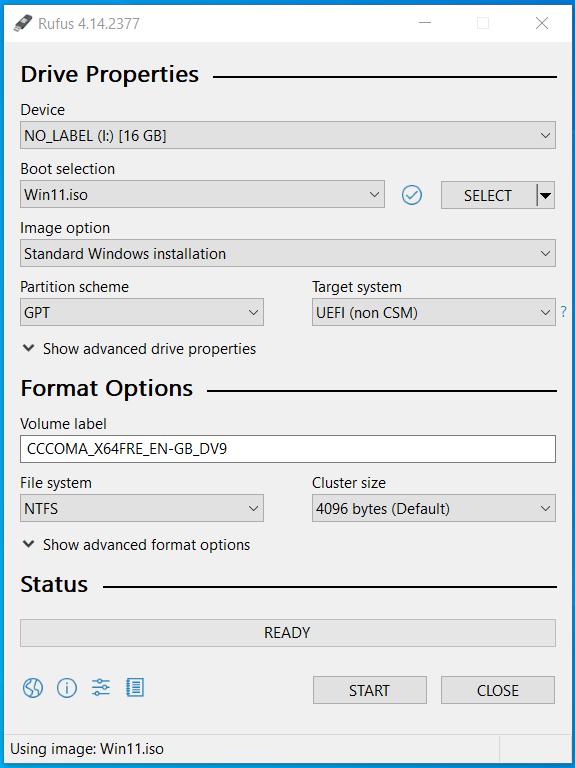
Step 4: Customize Windows installation and click OK to begin burning the ISO image file to USB.
Back Up Files Before Reinstalling/Resetting Windows
Now that the bootable USB drive is ready, it is a good idea to back up your important files before installing or reinstalling Windows to prevent data loss. Be sure to back up documents, photos, videos, desktop files, and other personal data.
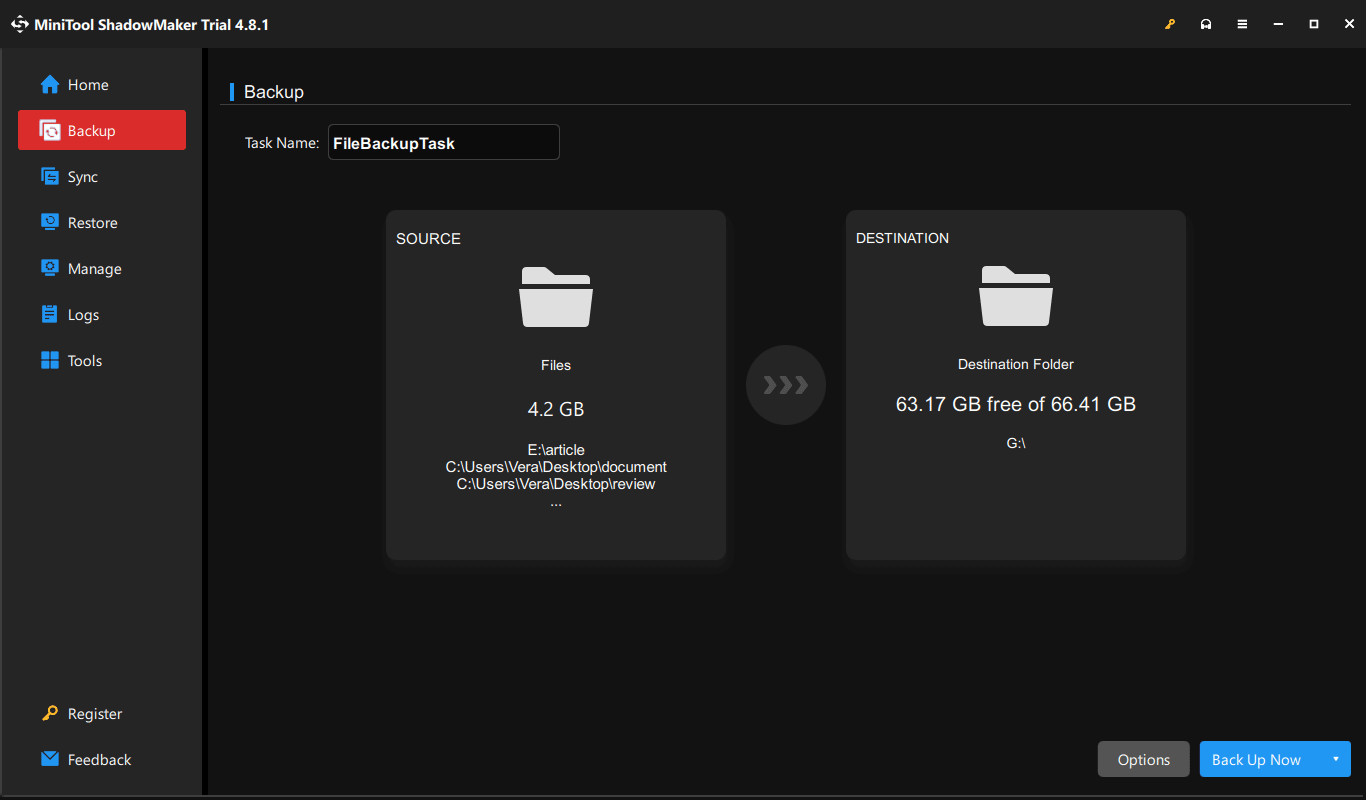
MiniTool ShadowMaker is a professional backup tool for backing up files, folders, disks, partitions, and operating systems. It also allows you to safeguard your data even if Windows becomes unbootable.
MiniTool ShadowMaker TrialClick to Download100%Clean & Safe
Step 1: Download, install, and launch MiniTool ShadowMaker.
Step 2: In Backup, click SOURCE > Folders and Files, and choose the source files.
Step 3: Click DESTINATION to select a target drive.
Step 4: Begin file backup by clicking Back Up Now.
How to Boot Windows from USB
After creating a Windows 11/10 bootable USB drive and backing up your files, you can use the drive to install Windows or access tools for system repair and recovery.
Step 1: Insert the bootable USB drive into the target computer.
Step 2: Restart the PC and press Del, Esc, F2, F10, or the key specified by the manufacturer to access the BIOS or UEFI Settings.
Step 3: In the boot menu, select the drive as the first boot device to run Windows from USB.
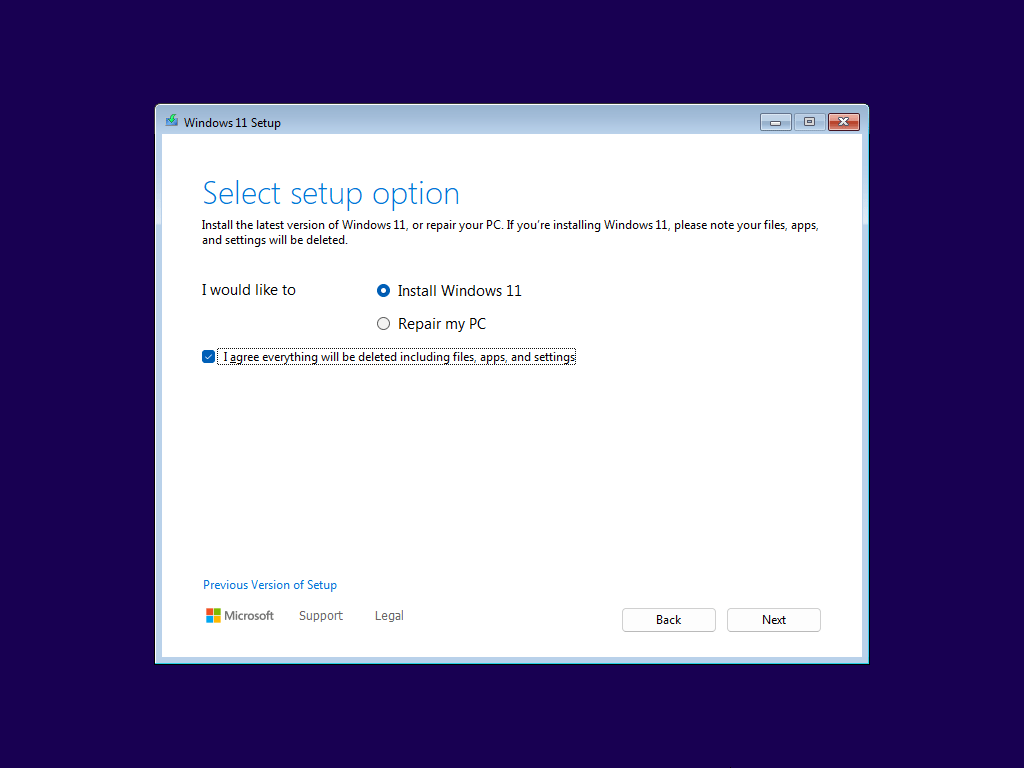
Step 4: On the Windows Setup interface, install or repair Windows.
- Configure the language and keyboard format
- Choose Install now or Install Windows 11.
- Follow the on-screen instructions to perform a clean installation.
Repair Windows:
- Click Repair your computer to access Windows Recovery Environment (WinRE).
- Choose Troubleshoot.
- Run Command Prompt, Startup Repair, or Reset this PC depending on scenarios.
Create Bootable USB from ISO FAQ
—Choose Rufus if you need advanced options during the bootable USB creation process or need to bypass Windows 11 hardware requirements.
—Use Etcher if you want to create bootable USB with minimal configuration on the simple interface.
Besides, you cannot simply copy and paste files to the drive; instead, you must use a tool to burn an ISO to a USB drive to make it bootable.
Bottom Line
Creating a bootable USB drive from an ISO file is a simple way to install, reinstall, or troubleshoot Windows 11/10. You can run Media Creation Tool or Rufus to make one in just a few steps.
Before installing the operating system, remember to back up important files to prevent data loss. If you encounter issues while using MiniTool ShadowMaker for data backup, contact us at [email protected].
About The Author

Position: Columnist
Vera has been working at the MiniTool Team for over 10 years as a technical editor and content writer. She mainly focuses on disk and partition management, data recovery, Windows backup and restore, and PC troubleshooting. Through in-depth software testing and hands-on experience, she has helped users solve a wide range of computer problems and better protect their data on Windows devices.
User Comments :