
Microsoft Store Error 0x00000000
The Microsoft Store error code 0x00000000 may occur when users attempt to download, install, or update applications in the Microsoft Store. The process will be stuck in the download queue and the warning will tell you that “Something unexpected happened” or “Try that again.”
The possible triggers are as follows:
- System file corruptions
- Incorrect system settings
- Poor Internet connection
- Microsoft Store glitches
First of all, to resolve the Microsoft Store error 0x00000000, you can create a new user account to see if that works. You read these two articles for the steps:
- How to Create Administrator Account in Windows 10
- How to Add or Remove a User/Microsoft Account on Windows 11?
Fix Microsoft Store Error Code 0x00000000
Fix 1: Run the SFC and DISM Scans
Run SFC and DISM scans to check and repair system file corruptions and then you can check if the error 0x00000000 persists.
Step 1: Type Command Prompt in Search and choose Run as administrator.
Step 2: Type sfc /scannow and press Enter to execute it. when the command finishes, you can perform this command for a further check – DISM /Online /Cleanup-Image /RestoreHealth.
![CHKDSK vs ScanDisk vs SFC vs DISM Windows 10 [Differences]](https://images.minitool.com/minitool.com/images/uploads/2020/03/chkdsk-vs-scandisk-vs-sfc-vs-dism-thumbnail.jpg)
Fix 2: Run the Windows Store Troubleshooter
Windows Store troubleshooter can repair some glitches in the Microsoft Store.
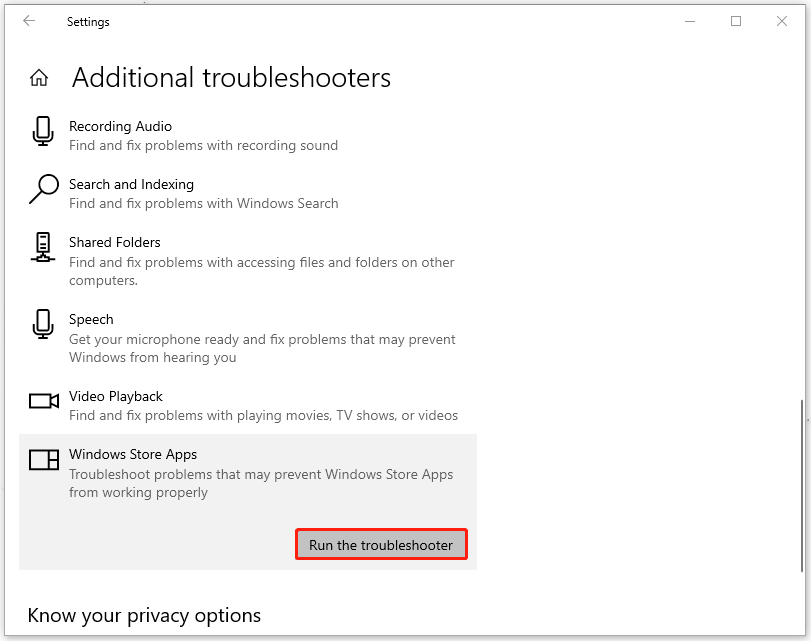
Step 1: Go to Start > Settings > Update & Security > Troubleshoot > Additional troubleshooters.
Step 2: Scroll down to click Windows Store Apps and choose Run the troubleshooter.
Fix 3: Reinstall the Microsoft Store Application
Alternatively, you can reinstall the Microsoft Store to fix the Microsoft Store error 0x00000000.
Step 1: Open a quick menu by pressing Win + X and choose Windows PowerShell (Admin).
Step 2: Copy and paste this command and press Enter to execute it.
Get-AppxPackage -allusers Microsoft.WindowsStore | Foreach {Add-AppxPackage -DisableDevelopmentMode -Register “$($_.InstallLocation)\\AppXManifest.xml”}
After that, restart your computer and check for the error.
Fix 4: Reset the Windows Store Cache
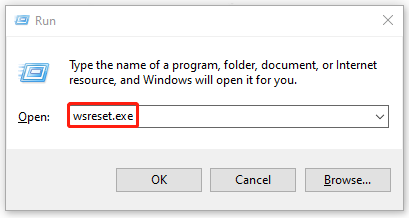
To fix 0x00000000, you can try to reset the Windows Store cache. The method is easy to use. You just need to open the Run dialog box by pressing Win + R and then type wsreset.exe to press Enter.
Fix 5: Restart the Microsoft Store Install Service
Another method to fix the Microsoft Store error 0x00000000 is to restart the Microsoft Store Install Service.
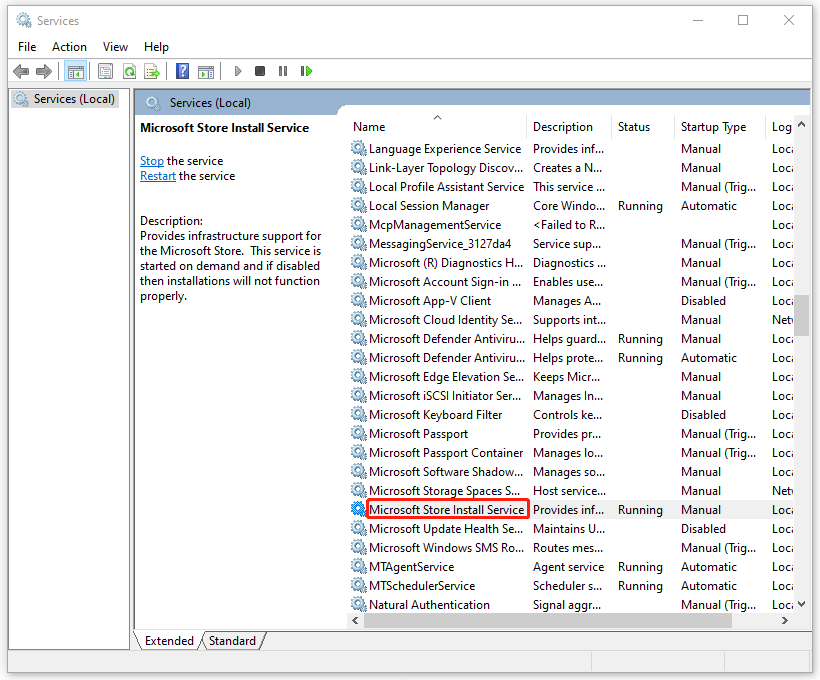
Step 1: Type services.msc in the Run dialog and enter Services.
Step 2: Scroll down to locate and right-click on Microsoft Store Install Service to choose Restart.
Fix 6: Perform System Restore
If all the above methods can’t resolve your issue, you can use the system restore point created before.
Step 1: Input rstrui.exe in the Run dialog box and enter System Restore.
Step 2: Click Next and choose a restore point that can bring you back to the normal state.
Then you can follow the on-screen instructions to restore your computer.
Fix 7: Reset Windows
If you haven’t created system restore points to restore your Windows, you may be forced to factory reset the computer to resolve the issue as a last resort.
Notice that before you start the reset, you can backup files that matter to prevent data loss. MiniTool ShadowMaker is what we recommended. It is a PC backup software used to perform data backup and recovery, including your system, files & folders, and partitions & disks.
Besides, you can perform regular backups with Schedule Settings and save your resources by configuring backup schemes. Download and install the program and you can get a 30-day free trial version.
MiniTool ShadowMaker TrialClick to Download100%Clean & Safe
To reset Windows:
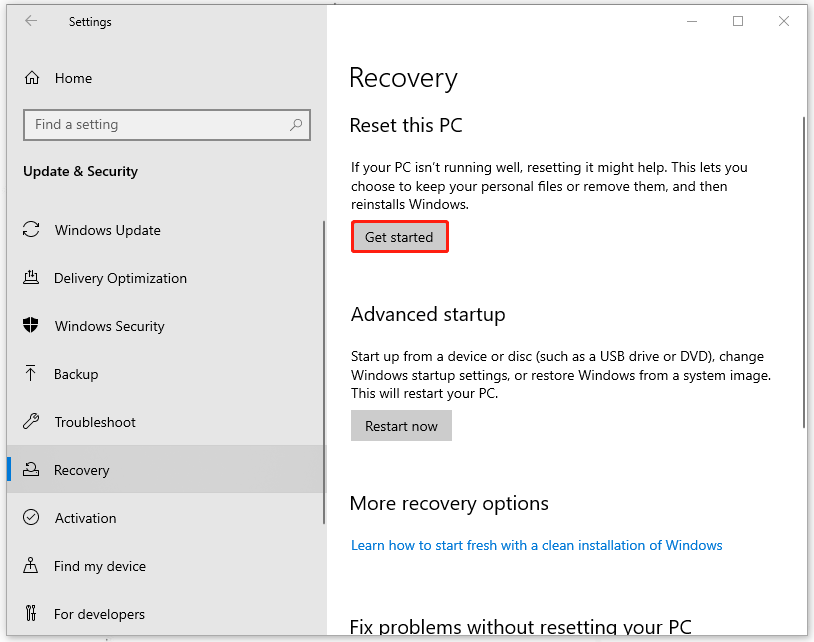
Step 1: Go to Update & Security > Recovery.
Step 2: Click Get started under Reset this PC and then choose the wanted option to go on with the task.
Bottom Line:
After reading this post, you may have an overall picture of 0x00000000. Please follow the steps to resolve your concerns. Besides, to protect your data, MiniTool ShadowMaker is a good choice.
User Comments :