
This app has been turned off and isn’t monitoring your computer is a common issue in Windows 10/11. How do you fix this Windows Defender error? From this post on the MiniTool website, you can find some useful fixes to help you get rid of the trouble.
Windows Defender This App Has Been Turned off and Isn’t Monitoring Windows 10/11
In Windows 11 and 10, Windows Defender, also called Windows Security, is the built-in professional and free antivirus program. With it, your PC is under protection, and is not easy to encounter virus and malware attacks.
However, this software sometimes goes wrong with an error like 0x8007139f, this setting is managed by your administrator, code 0x80004004, etc. Today, we will show you another common issue.
When trying to launch Windows Defender, Windows throws an error message saying This app has been turned off and isn’t monitoring your computer. This indicates that this antivirus program is not active, letting your PC vulnerable without protection.
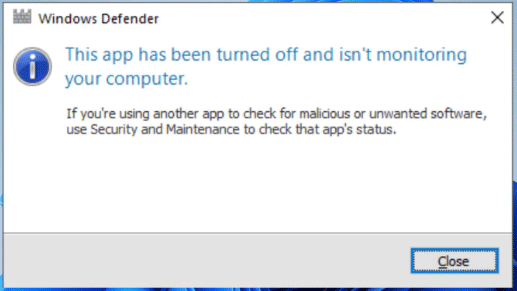
Usually, this error can happen because of a third-party antivirus program, corrupted registry, software conflict, and more. Now, the urgent thing is to fix Windows Defender this app has been turned off to let it run to keep your PC safe.
Fixes for This App Has Been Turned off and Isn’t Monitoring
Open Windows Defender Service
Sometimes Windows Defender service is disabled, the issue of Windows Defender this app has been turned off and isn’t monitoring your computer Windows 10/11 may appear. To fix this issue, make sure this service is enabled.
Step 1: Enter services into the search box and press Enter to open this app.
Step 2: Locate the Windows Defender service and double-click on it to open the Properties tab.
Step 3: If it is not running, click Start. Besides, set its Startup type to Automatic.
Uninstall Third-Party Antivirus Program
If you install a third-party antivirus program, especially McAfee on your Windows 11/10 PC, you may get this app has been turned off and isn’t monitoring more often than others. Once McAfee is installed, Windows Defender cannot perform tasks and protect your computer. Although you disable McAfee, it cannot enable Windows Defender. You need to completely uninstall this antivirus tool.
Step 1: Open Control Panel via the search box of Windows 11/10.
Step 2: View all the items by Category and click Uninstall a program under Programs.
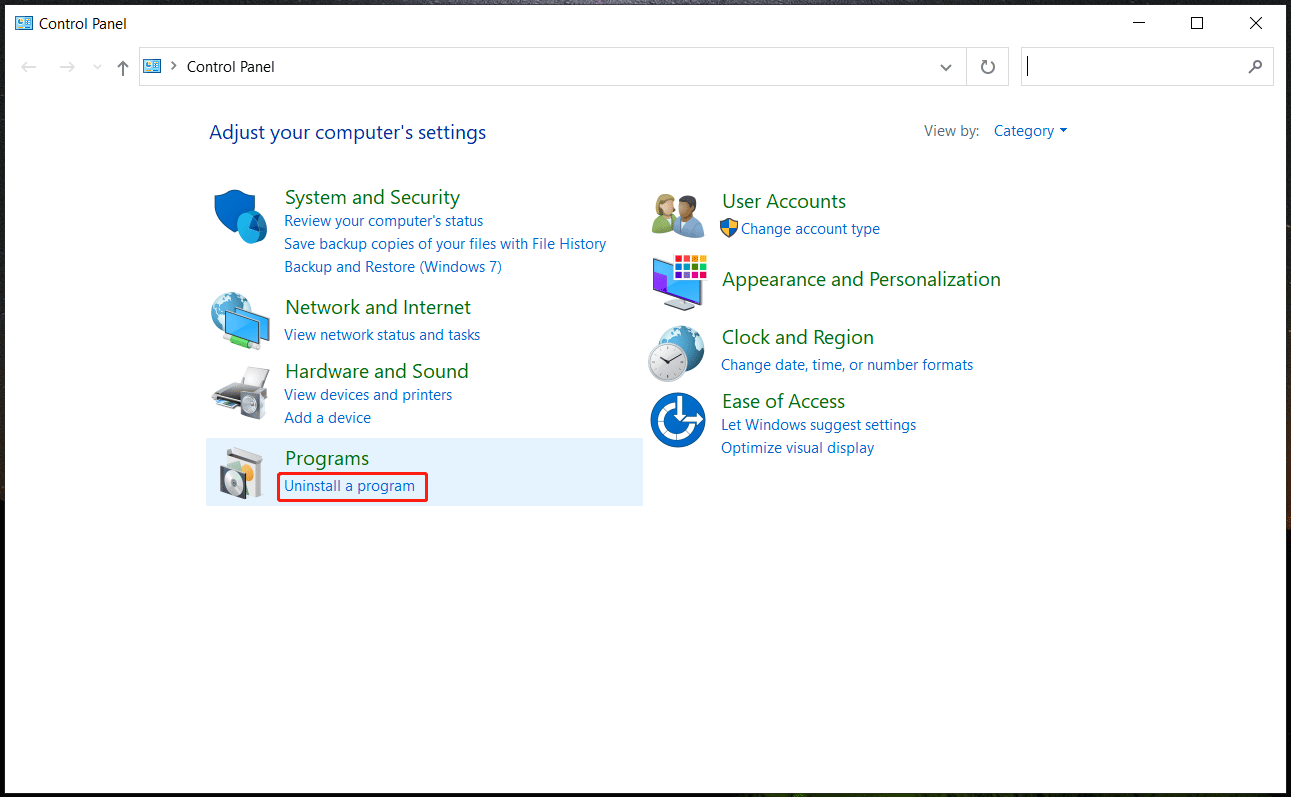
Step 3: Find McAfee and click Uninstall to remove this antivirus program from your PC.
After the uninstallation, remember to delete some leftover files from the machine. Don’t know how to do this task? Follow this guide – How to Remove Remnants of Uninstalled Software? Try These Ways.
Then, you can run Windows Defender without meeting this app has been turned off and isn’t monitoring.
Check Registry Settings
Some users recommend checking the Windows registry and editing the setting to fix Windows Defender this app has been turned off. Just go to have a try.
Step 1: Open Windows Registry by typing regedit into the search box and clicking Registry Editor.
Step 2: Go to HKEY_LOCAL_MACHINE\SOFTWARE\Microsoft\Windows Defender.
Step 3: Double-click on DisableAntiSpyware and DisableAntiVirus, then make sure the value data is set to 0. 0 means enabling Windows Defender.
In addition to these fixes, you can try to update your Windows operating system and perform a clean boot. If you still get this app has been turned off and isn’t monitoring, the only way you can do is to reset your Windows 10 PC or reinstall your machine.
Before performing PC resetting, remember to back up your important files in advance with the professional PC backup software – MiniTool ShadowMaker. Then, go to Settings > Update & Security > Recovery and click Get started under Reset this PC. Next, finish all the operations by following the on-screen instructions.

About The Author

Position: Columnist
Vera has been working at the MiniTool Team for over 10 years as a technical editor and content writer. She mainly focuses on disk and partition management, data recovery, Windows backup and restore, and PC troubleshooting. Through in-depth software testing and hands-on experience, she has helped users solve a wide range of computer problems and better protect their data on Windows devices.
User Comments :