
EVERSPACE 2 Crashes at Startup
The problem of EVERSPACE 2 crashing has always been a hot topic among players. Many players have reported different types of crashes, including crashes at startup, sudden exits during the game, and error messages related to the Unreal Engine. You can first understand the reason why this error occurs. There may be many reasons for EVERSPACE 2 crashing, including but not limited to the following possibilities:
- Graphics driver problem: If your graphics card driver is too old or incompatible, it may cause the game to crash. Try updating your graphics card driver.
- Cache problem: Cleaning the shader cache may help solve the crash problem.
- Game file corruption: You can try to repair the game files or reinstall the game.
- DirectX version problem: Try running the game in DirectX 11 mode.
- Hardware problem: If your graphics card is undersupplied, it may cause the game to crash.
- System settings problem: Some Windows updates or third-party software may interfere with the game.
After knowing the possible factors for EVERSPACE 2 not launching, you can keep reading to obtain more methods to get rid of this problem.

How to Fix EVERSPACE 2 Crashing
Method 1: Close All GOG Processes in Task Manager
Sometimes, GOG Galaxy may be running in the background, preventing the game from launching or installing new content. You can try closing all GOG related processes in Task Manager and restarting the game.
Step 1: Right-click on the Windows icon and choose Task Manager.
Step 2: Scroll the list to find GameInput Host Service.
Step 3: Right-click on this process and select End task.
Method 2: Run the Game as an Administrator From the Installation Folder
If the game encounters permission issues when launching, it may cause crashes or fail to load certain features. Running the game from the installation folder as an administrator ensures that the game can obtain the necessary permissions to avoid certain system limitations or compatibility issues.
Step 1: Type EVERSPACE 2 in the Windows search box, right-click on the best match, and choose Open file location.
Step 2: Right-click on the installation folder and choose Properties.
Step 3: Switch to the Compatibility tab and tick the box for Run this program as an administrator.
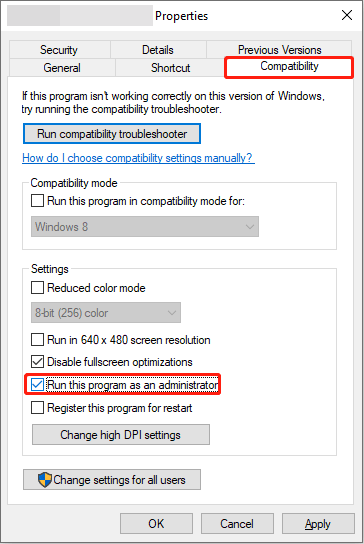
Step 4: Finally, click on Apply and OK to confirm the change.
Method 3: Delete the Save Game Files
If the save file is corrupted, it may cause the game to crash or fail to load progress. Deleting the save file will allow the game to regenerate a new save file.
Step 1: Find the EVERSPACE 2 save game files.
Step 2: Select the save files, right-click on the selected area, and choose Delete.
Method 4: Allow the Game exe File to Your Firewall
If your antivirus software or Firewall blocks a critical game file, it may cause the game to not launch or crash. To troubleshoot this issue, you can try adding the game’s .exe file to the Firewall.
Step 1: Type Control Panel in the Windows search box and press Enter.
Step 2: Click on the View by box and choose Large icons or Small icons.
Step 3: Choose Windows Defender Firewall and click on Allow an app or feature through Windows Defender Firewall.
Step 4: Click on Change settings > Allow another app to add EVERSPACE 2 to the list.
Step 5: Tick the boxes for the game under the Public and Private columns.

Method 5: Verify Integrity of Game Files
If some game files are corrupted or missing, the game may crash, freeze, or not launch. Verify Integrity can automatically fix these problems.
Step 1: Open Steam and go to the Library tab.
Step 2: Find and right-click on EVERSPACE 2 to choose Properties.
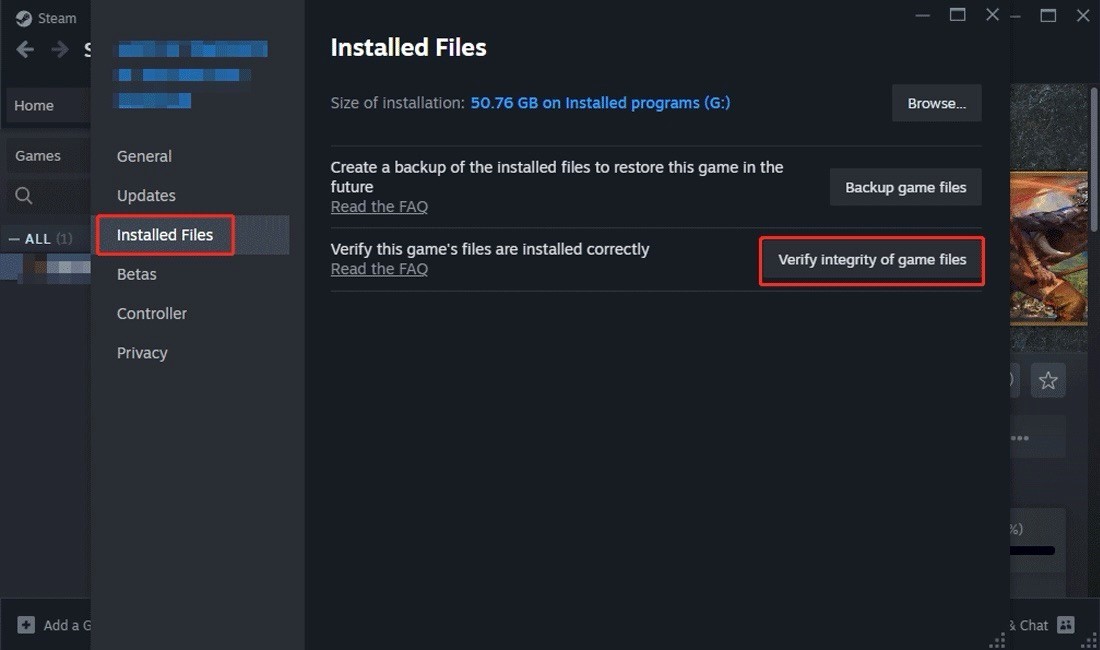
Step 3: Switch to the Installed Files tab and click on Verify integrity of game files.

MiniTool Power Data Recovery FreeClick to Download100%Clean & Safe
Wrapping Things Up
Game crashes are still very common, which not only prevents you from playing the game but may also cause data loss. When you encounter EVERSPACE 2 crashes, use the methods given in this article to solve it.
User Comments :