
You can choose to let an app start up automatically or not when you boot your computer. The automatic startup could be beneficial to someone. But to other people, it’s very annoying; they don’t want the app to start every time when they turn on the computer. Besides, the boot process will be slowed down greatly with the app automatic startup turned on.
It’s never difficult to install new software on your computer whether you’re running Windows or Mac. You may find some apps you have installed on the computer will be started automatically every time when you turn it on (they will add themselves to your boot process due to different reasons). Some users are happy about it since they don’t need to run the app manually after booting the computer. However, many others don’t like it since they only want these apps to open when needed.
MiniTool Power Data Recovery TrialClick to Download100%Clean & Safe
How to Stop Spotify from Opening on Startup Mac
Spotify is one of these apps that will be opening automatically when the computer boots up. If you don’t like the automatic startup, you should go to disable it manually. But how to stop Spotify from opening on startup on Mac (or Windows)? Please follow the steps mentioned below.
Related reading: fix common Spotify errors.
#1. Stop Spotify from Opening on Startup from the App
If your Spotify opens on startup on your Mac but you don’t want it to, please go to adjust its settings first.
- First, you need to open the Spotify app. Please use Spotlight to search for it or find it from Finder -> Applications.
- Navigate to the top right corner of the opening Spotify app window to click on the down arrow.
- Select Settings from the drop-down menu. (You can also click Spotify from the top menu bar and select Preferences.)
- Scroll down to the bottom to find the SHOW ADVANCED SETTINGS button and click on it.
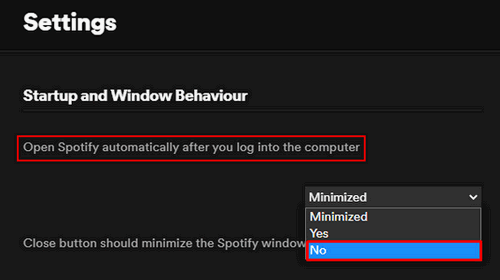
- Look for the Startup and Window Behaviour section.
- Click the menu next to Open Spotify automatically after you log into the computer and select No.
#2. Stop Spotify from Opening on Startup Mac via System Preferences
How to make Spotify not open on startup by adjusting the system settings?
- Click on the Apple logo menu from the top left corner of your Mac.
- Choose System Preferences from the drop-down menu you see.
- Look for the Users & Groups item and click on it.
- Shift to the Login Items tab at the top.
- Select Spotify from the list to make it highlighted.
- Click on the small minus icon below to remove Spotify.
You can also select the checkbox of Spotify under the Hide column to hide it when you log in.

Please read this page in case of Mac file loss.
How to Stop Spotify from Opening on Startup Windows
Windows users also complained that the Spotify keeps opening on startup on their computers. They want to know how to disable Spotify on startup on Windows.
#1. Stop Spotify from Opening on Startup from the App
- Run Spotify on the Windows computer.
- Navigate to the top-left corner of the Spotify window to click on the three horizontal dots button.
- Select Edit from the pop-up menu.
- Select Preferences from the submenu.
- Click SHOW ADVANCED SETTINGS.
- Look for the Startup and Window Behavior section.
- Choose No for Open Spotify automatically after you log into the computer.
#2. Stop Spotify from Opening on Startup Windows 10 via Task Manager
- Right click on the blank area in taskbar.
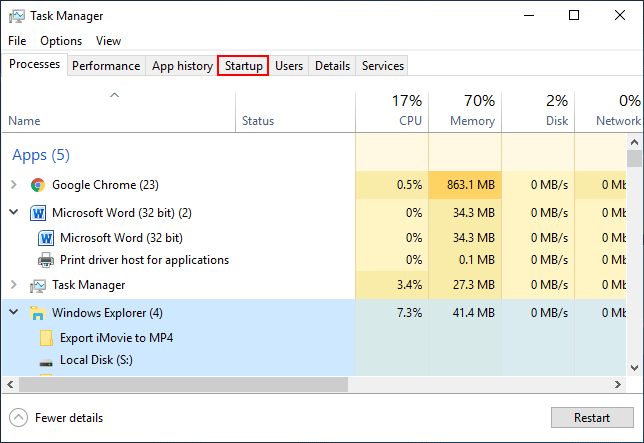
- Select Task Manager from the menu. You can also press Ctrl + Shift + Esc to open it directly.
- Shift to the Startup tab at the top.
- Look for Spotify and select it.
- Click on the Disable button at the bottom right.
#3. Rename the Spotify Executable File
- Look for the Spotify icon on the desktop.
- Right click on it and select Open file location.
- Locate the Spotify.exe file. Right click on it and choose Rename.
- Give it a new name.
- Also, you need to rename spotifylauncher.exe.
#4. Disable Inheritance
- Go to this path in your File Explorer: C:\Users\username\AppData\Roaming\Spotify.
- Look for SpotifyStartupTask.exe and right click on it.
- Select Properties.
- Shift to the Security tab.
- Click on the Advanced button at the bottom right.
- Select Disable inheritance.
- Click Remove All inherited permissions from this object to confirm.
- Repeat the same process to SpotifyWebHelper.exe.
That’s all about how to stop Spotify from starting automatically on both Mac and Windows computer.
User Comments :