
What should you do when the Hybrid Sleep missing issue happens on your PC? Some people report that the option is missing after the update and mainly occurs on Windows 11. If you have the same trouble, you may read this post on the MiniTool Website for reference.
Hybrid Sleep Missing Windows 11/10
Many Windows users are curious about the differences between Hybrid Sleep, Sleep, and Hibernation. These three functions are designed as various power-saving modes while Hybrid Sleep is primarily for desktop computers and is a combination of sleep and hibernate. However, some users find Hybrid Sleep missing from their computer. The post will resolve this issue.
Want to know more about the Hybrid Sleep feature? Read this post please: What Is Hybrid Sleep on Windows and When Should You Use It.
Fix: Hybrid Sleep Missing
Fix 1: Update Windows and Drivers
Outdated Windows and driver devices can make some settings misconfigured and that may be the reason causing the “Hybrid Sleep option missing Windows 11/10” issue. Some users face Hybrid Sleep missing after update and you may check for the driver updates.
Update Windows
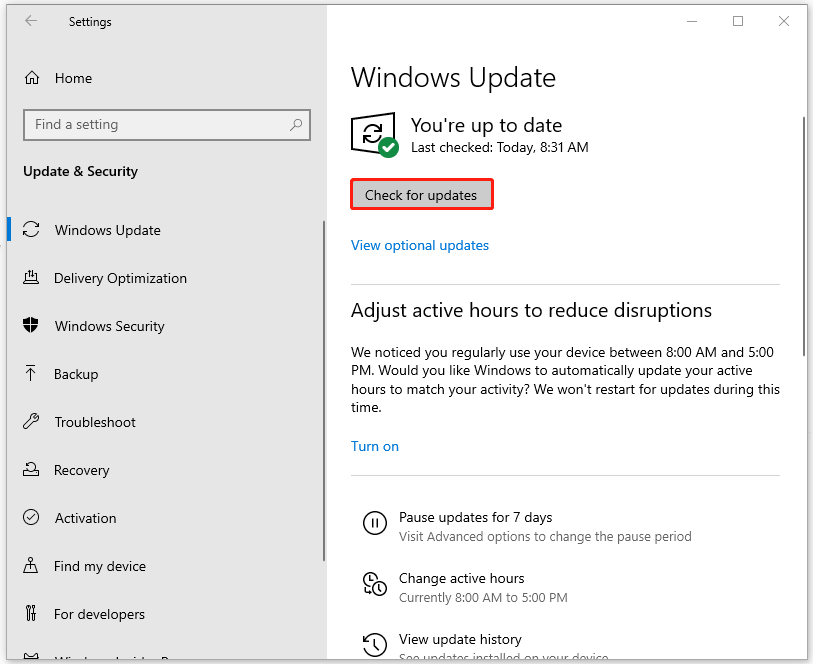
Step 1: Go to Start > Settings > Update & Security > Windows Update.
Step 2: Click Check for updates to download and install pending updates.
Update Drivers
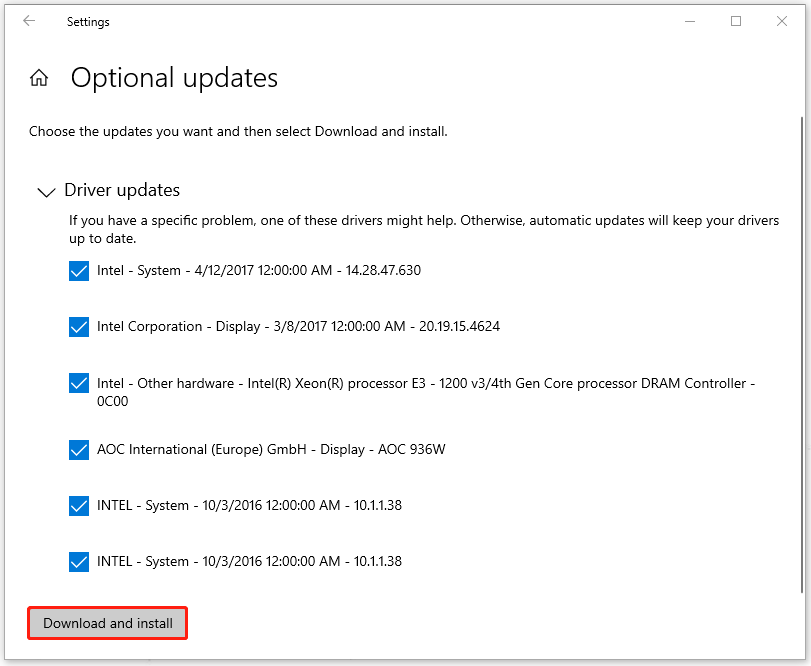
Step 1: Click View optional updates in Windows Update and expand Driver updates.
Step 2: Check the pending driver updates and click Download and install.
Fix 2: Run Power Troubleshooter
You can try to run the Power troubleshooter to see if the Hybrid Sleep missing issue can be fixed.
Step 1: Go to Update & Security > Troubleshoot and click Additional troubleshooters.
Step 2: Scroll down to click Power > Run the troubleshooter.
Fix 3: Restore Default Settings in Power Plan
Some default settings may be changed by some misconducts and you can try to restore the settings via the following steps.
Step 1: Open Control Panel and go to Hardware and Sound > Power Options.
Step 2: Click Change plan settings next to the chosen power plan and click Restore default settings for this plan. Confirm your choice.
Then you can re-enable the Hybrid Sleep option and check if the option appears.
Fix 4: Edit Group Policy
If the above methods can’t help you resolve the Hybrid Sleep missing issue, you may try this way by editing the Group Policy.
Step 1: Type Group Policy in Search and open Edit group policy.
Step 2: Go to Computer Configuration > Administrative Templates > System > Power Management > Sleep Settings.
Step 3: Double-click on Turn off hybrid sleep (on battery) and make sure it is either Disabled or Not Configured.
Fix 5: Reset This PC
The last one is to reset your PC. Since in some ways, it is hard to certain which trigger is the culprit and the possibility is that Hybrid Sleep is missing because of misconfigured stings. PC rest can restore everything to default but before you do that, you’d better backup data first.
MiniTool ShadowMaker TrialClick to Download100%Clean & Safe
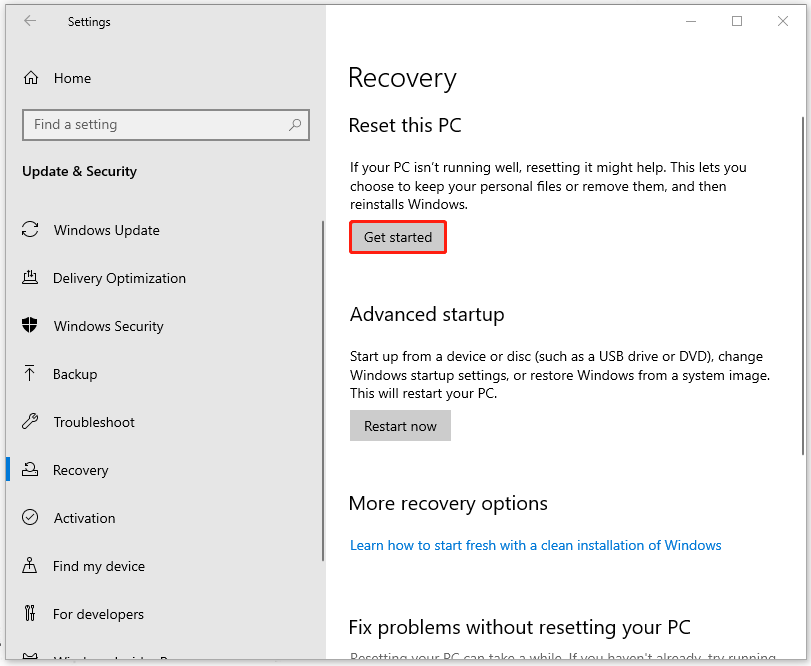
Step 1: Open Update & Security and click Recovery.
Step 2: Click Get started under Reset this PC and follow the next instruction prompts to finish the reset.
Bottom Line:
This post can help you resolve the Hybrid Sleep missing issue and no matter for what reasons, it is worth trying! Hope this article is useful for you.
User Comments :