
Is Microsoft Store missing in Windows 11 LTSC 24H2? How can you install Microsoft Store on Windows 11 LTSC? Here are three simple methods for you to add the missing Store to your PC. Continue reading the comprehensive guide from MiniTool.
Does Windows 11 LTSC Support Microsoft Store?
Windows 11 IoT Enterprise LTSC and Windows 11 Enterprise LTSC 2024, built on the popular Windows operating system, are used for fixed-function and special-purpose devices. These two Windows 11 LTSC releases have similar features to Windows 11 24H2.
However, support for LTSC by apps and tools designed for Windows general availability channel release, such as Microsoft Store, may be finite. That is, you have the issue of missing Microsoft Store on Windows 11 LTSC.
Although this app seems underwhelming to some of you, it enables you to easily install automatic updates for some apps. Besides, you can exclusively install certain apps through Microsoft Store. This is why you are looking for ways to install Microsoft Store on Windows 11 LTSC.
Way 1: Run PowerShell
This is the easiest way to add Microsoft Store to Windows 11 LTSC. So, take the following steps.
Step 1: Type PowerShell into Windows Search and click Run as Administrator from the right side.
Step 2: Execute the wsreset -i command in the Windows PowerShell window. Wait for the installation to be accomplished.
For some users, they receive the 0x80070520 error code. If you also meet such a case, skip to other methods below to install Microsoft Store on Windows 11 LTSC.
Way 2: Install Xbox App for Windows
Aside from the first way, there is an indirect way mentioned by some users in a forum such as Reddit, which is downloading & installing the Xbox app for Windows and then installing missing Microsoft Store.
See the instructions here:
Step 1: In a web browser, open the official website of Xbox App on Windows PC, and then click the link of DOWNLOAD THE APP to get the XboxInstaller.exe file.
Step 2: Double-click on this file and accept Microsoft Software License Terms, then click INSTALL to initialize the installation.
Step 3: After installing the Xbox app, click LET’S GO to launch it.
Step 4: In the new window, proceed by hitting BROWSE THE CATALOG and you should see a banner on the top saying Missing components for the Xbox app. Click Review now to go ahead.
Step 5: Under General, click INSTALL next to Microsoft Store to begin installing this missing component.
Way 3: Download and Install LTSC-Add-MicrosoftStore
Besides these two ways, you can install Microsoft Store on Windows 11 LTSC by using an open-source project on GitHub, LTSC-Add-MicrosoftStore, recommended by some forum users.
Here is how to do this task:
Step 1: Open the GitHub website and click Code > Download ZIP to get the toolkit.
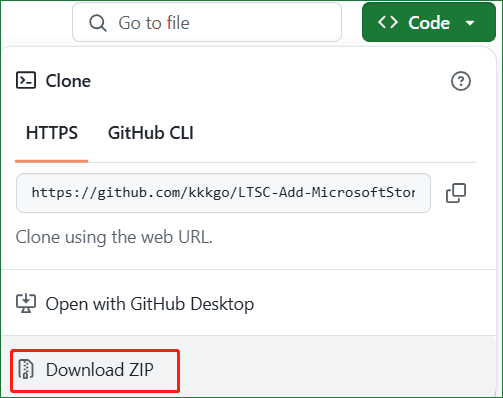
Sep 2: Next, fully extract all the contents in this ZIP file and run Add-Store.cmd as an administrator. The script will proceed with the deployment process to install missing Microsoft Store on Windows 11 LTSC 24H2.
Further Reading: Install Regular Windows 11 24H2
In Windows 11 LTSC, some apps are missing, including Microsoft Store, Game Bar, Feedback Hub, etc. If needed, installing them one by one wastes time and energy. So, consider installing the regular version like Windows 11 24H2.
A clean installation erases your data, thus, remember to run the PC backup software, MiniTool ShadowMaker to back up your vital files and folders. This tool works well in Windows 11/10/8/7.
MiniTool ShadowMaker TrialClick to Download100%Clean & Safe
Later, download Windows 11 24H2 ISO, burn it to a USB drive, and perform an installation using the USB. For details, refer to this guide on Clean Install Windows 11 24H2.
Bottom Line
Missing Microsoft Store in Windows 11 LTSC? It’s nothing. With these three methods, you can install Microsoft Store on Windows 11 LTSC with ease. Take action!
About The Author

Position: Columnist
Vera has been working at the MiniTool Team for over 10 years as a technical editor and content writer. She mainly focuses on disk and partition management, data recovery, Windows backup and restore, and PC troubleshooting. Through in-depth software testing and hands-on experience, she has helped users solve a wide range of computer problems and better protect their data on Windows devices.
User Comments :