
As Windows 11’s market share continues to grow and the support for Windows 10 has ended, discussions such as “Is Windows 11 better than Windows 10?” have arisen.
Before diving into whether you should upgrade or stick with your current version, you need to first determine which version of Windows you are using.
Part 1. How to Check Whether You Have Windows 10 or 11 Installed
Follow these steps to check if you are running Windows 10 or Windows 11:
Step 1. Press the Windows + R key combination to open Run.
Step 2. Type winver and press Enter. The current system version you are using will be displayed.
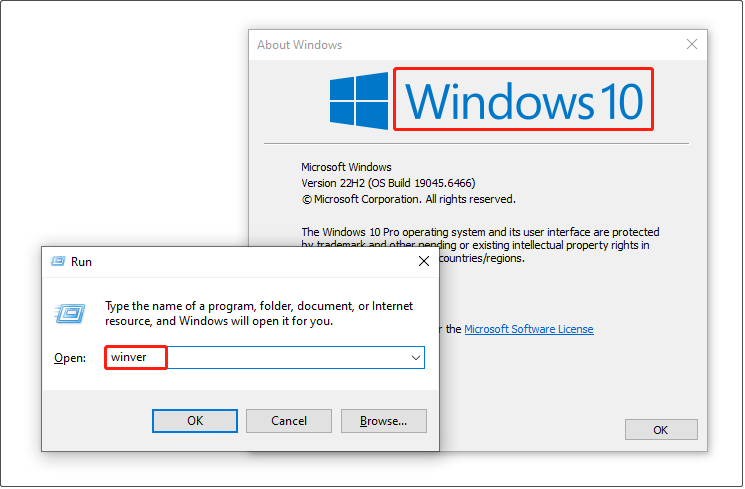
Now you should know which version of Windows you are using. The next step is to evaluate whether upgrading to Windows 11 is suitable for you or if continuing with Windows 10 is a better option.
Part 2. Why You May Consider Upgrading to Windows 11
First, we will explore the most important reasons to upgrade to Windows 11. These include a more modern user interface, smoother system performance, and enhanced features.
Modern Interface
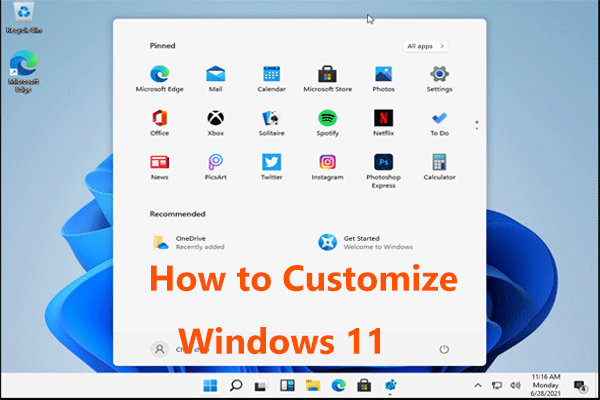
Compared to Windows 10, Windows 11 has a cleaner and more streamlined interface. The taskbar icons are centered, and the windows are designed with rounded corners, giving the system a softer and more modern look.
Better Performance
Windows 11 enhances system performance, particularly improving responsiveness in sleep mode and web browsing. According to Microsoft’s official blog, Windows 11 PCs are up to 2.3x faster than computers running Windows 10.
Advanced Gaming Features
“Windows 10 vs Windows 11 gaming” is also a popular question. Generally, Windows 11 offers superior gaming performance due to advanced features like DirectStorage, Auto HDR, and integration with Xbox Game Pass.
Furthermore, CPU and memory resource allocation have been optimized, offering a smoother gaming experience.
AI Integration
Windows 11 integrates Copilot more effectively, especially with advanced voice recognition features. This helps you open apps, edit documents, and send emails more quickly and easily.
Microsoft states that it is committed to making every PC powered by AI.
Longer Security Update and Support Lifecycle
Support for Windows 10 has ended on October 14, 2025, while Windows 11 will continue to receive security updates throughout its lifecycle. This can effectively prevent the operating system from being attacked from potential threats.
Overall, these are some of the most popular reasons to consider upgrading to Windows 11. However, many users in forums have stated that they will continue using Windows 10.
Part 3. When You Might Want to Stick With Windows 10
For some users, Windows 10 remains an attractive option, often due to its familiar user interface, lower hardware requirements, and long-term stability.
Familiar User Experience
Windows 10 has been popular for several years. Many users are already very familiar with its interface, such as the Start menu, taskbar, and File Explorer.
Lower Hardware Requirements
Although Windows 11 introduces many new features, it also has higher hardware requirements, including TPM 2.0.
In contrast, Windows 10 is compatible with a wider range of hardware, including lower-end processors and RAM modules.
Better Stability
Windows 10 has undergone years of continuous maintenance, including security updates and feature improvements. As a result, it is more stable and has fewer system problems or software compatibility issues.
Part 4. Should You Upgrade to Windows 11
As discussed above, Windows 11 and Windows 10 both have their advantages in terms of interface, functionality, and gaming experience.
Whether you should upgrade to Windows 11 depends on your specific needs. Next, we will analyze when upgrading to Windows 11 is more appropriate and when continuing to use Windows 10 may be better.
When Should You Upgrade to Windows 11
Consider upgrading to Windows 11 if you have the following needs:
1. If you want to experience new features
Windows 11 introduces many new features that simplify file management, enhance the gaming experience, and improve system performance.
These features will continue to be offered throughout the system’s lifecycle. Therefore, upgrading to Windows 11 is a great choice if you want to experience the latest advancements first.
2. If you play games frequently
As mentioned above, Windows 11 provides more useful features to improve the gaming experience. If you are a gaming enthusiast, upgrading to Windows 11 will be a significant improvement.
3. If you are a heavy AI user
Windows 11 integrates better with Copilot, making work and entertainment more efficient. If you rely on AI heavily, installing Windows 11 will be highly beneficial.
4. If you are concerned about system security
Windows 11 is currently maintained with regular security updates and bug fixes, ensuring your computer is always running optimally.
In addition, features like TPM 2.0 and virtualization-based security are enabled by default to secure your system to the greatest extent.
Microsoft reports that security incidents have decreased by 62% on Windows 11.
5. If you do not mind adapting to a new design
While Windows 11 retains the main visual style of Windows 10, it also features some interface changes. If you can accept the new design, upgrading to Windows 11 will be a good choice.
When Should You Stay on Windows 10
On the other hand, you may want to delay upgrading to Windows 11 if you are in the following situations:
1. If your hardware is not compatible with Windows 11
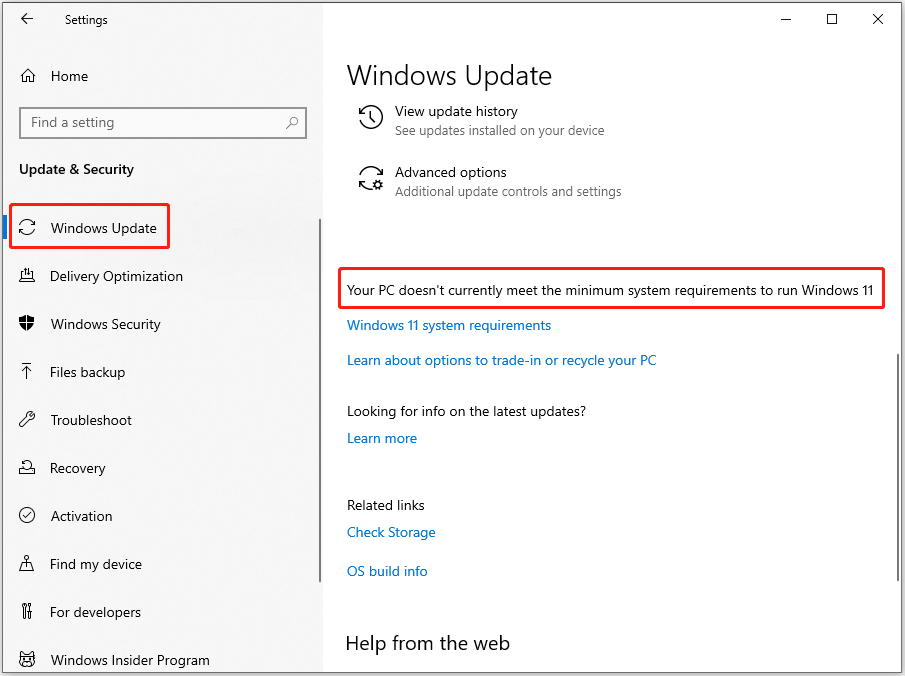
Windows 11 has higher hardware requirements than Windows 10. If your hardware does not meet these requirements and you are not planning to upgrade, staying with Windows 10 may be the best option.
To check if your computer supports Windows 11, go to Settings > Update & Security > Windows Update.
2. If you prefer a familiar interface
If you prefer the traditional user interface, there is no need to upgrade to Windows 11.
For example, some file editing functions in File Explorer in Windows 11 are now integrated into the context menu. Such changes have caused much confusion and complaints in forum discussions.
3. If you don’t need many new features
The features offered by Windows 10 are sufficient for most work and entertainment tasks. If you do not require additional features, Windows 10 will still meet your requirements.
4. If you have other preferred antivirus software
Since Windows 10 no longer receives security updates after October 2025, the risk of virus attacks increases. While Windows Defender can still provide basic protection, it may not be able to detect and defend against updated threats.
However, if you already have a reliable third-party antivirus solution, there is no need to upgrade to Windows 11 immediately for security reasons.
Robust Windows antivirus tools include Bitdefender, McAfee, Avast, and Norton.
Part 5. Windows 10 or 11: Which Should You Install on a New PC
This section explains which operating system you should install when setting up a new computer.
Overall, Windows 11 is the best option for most users, as it can maximize the function of new hardware, including the GPU and RAM.
Windows 11 has better support for new graphics cards, significantly improving game loading speeds and visual effects. It also optimizes memory management, allowing it to better utilize large amounts of RAM, particularly when multitasking.
Additionally, Windows 11 optimizes support for high-resolution displays. If you have a high-resolution monitor, it provides better scaling and clearer visuals.
Since its release in 2021, Windows 11 has received many updates to fix bugs and improve performance. Therefore, most issues have already been addressed, and Microsoft will keep updating Windows 11, making it more stable in the future.
Part 6. Recommended: Back up Windows 10/11
Whether you have Windows 10 or Windows 11 installed, regularly backing up your system and personal files is essential to protect against data loss or system failure.
Here are two recommended methods for backing up the system and files, either using built-in tools or third-party backup software.
Method 1. Use Windows Built-in Backup Options
Microsoft offers a variety of built-in backup solutions for Windows 10 and 11 to help you protect your data and system.
Option 1. File History (file backup)
This feature automatically backs up your personal library files, including Documents, Pictures, and Videos, and allows you to restore previous versions of these files.
Additionally, you can add specific files and folders to the backup sources to ensure they are included in the backup.
Follow the steps below to configure File History:
Step 1. Open the Control Panel and click Save backup copies of your files with File History under System and Security.
Step 2. Click Turn on to enable File History. If no backup drive is selected by default, click Select drive to choose an available one.
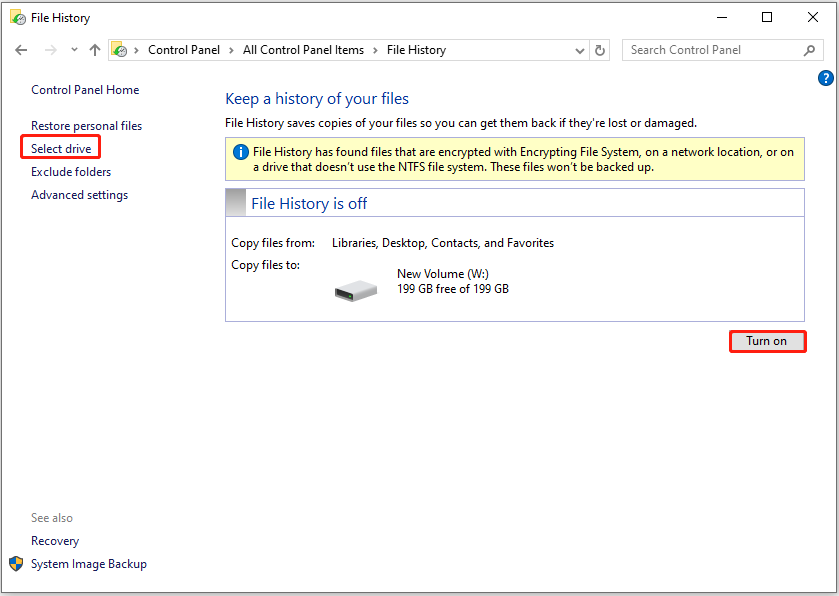
File History only backs up files in the library by default. To back up other folders, right-click each of them and choose Include in library (Windows 10) or Show more options > Include in library (Windows 11).
Option 2. Windows Backup and Restore (system & file backup)
This tool allows you to create a full system image to an external hard drive or network drive, enabling you to restore your PC when it stops working. Additionally, it also provides the option to back up and restore personal files.
Refer to the Windows Backup and Restore User Guide for detailed backup steps.
Option 3. System Restore (system backup)
System Restore allows you to manually create restore points after making system changes, such as modifying the registry.
Additionally, restore points can be automatically created by the system during significant events, such as software installations or system updates.
If the system encounters issues, you can use these restore points to revert your computer to a previous functional state.
Note that System Restore does not back up personal files.
Search for “Create a restore point” in the Windows search box, and then follow the on-screen instructions to back up the system.
Method 2. Use MiniTool ShadowMaker
If you need a more flexible backup solution, MiniTool ShadowMaker is a reliable tool that gives you greater control over the backup process.
It enables you to create full, incremental, and differential backups, which help save disk space or backup time.
It also allows you to set up automatic backups daily, weekly, monthly, or when an event occurs, ensuring your data is fully protected without manual intervention.
Download the trial edition of this Windows backup tool to experience its features for free for 30 days.
MiniTool ShadowMaker TrialClick to Download100%Clean & Safe
Step 1. Run MiniTool ShadowMaker, and click Keep Trial to enter its main interface.
Step 2. Switch to the Backup tab from the left action panel.
Step 3. In the SOURCE section, all system-related partitions are selected by default, allowing you to create a system image easily. If you want to back up personal files, click Folders and Files to select the target items.
Step 4. Click DESTINATION to specify a safe location to store the backup files.
Step 5 (optional). Click Options to configure backup schemes and schedule settings.
Step 6. Click Back Up Now to start the backup process.
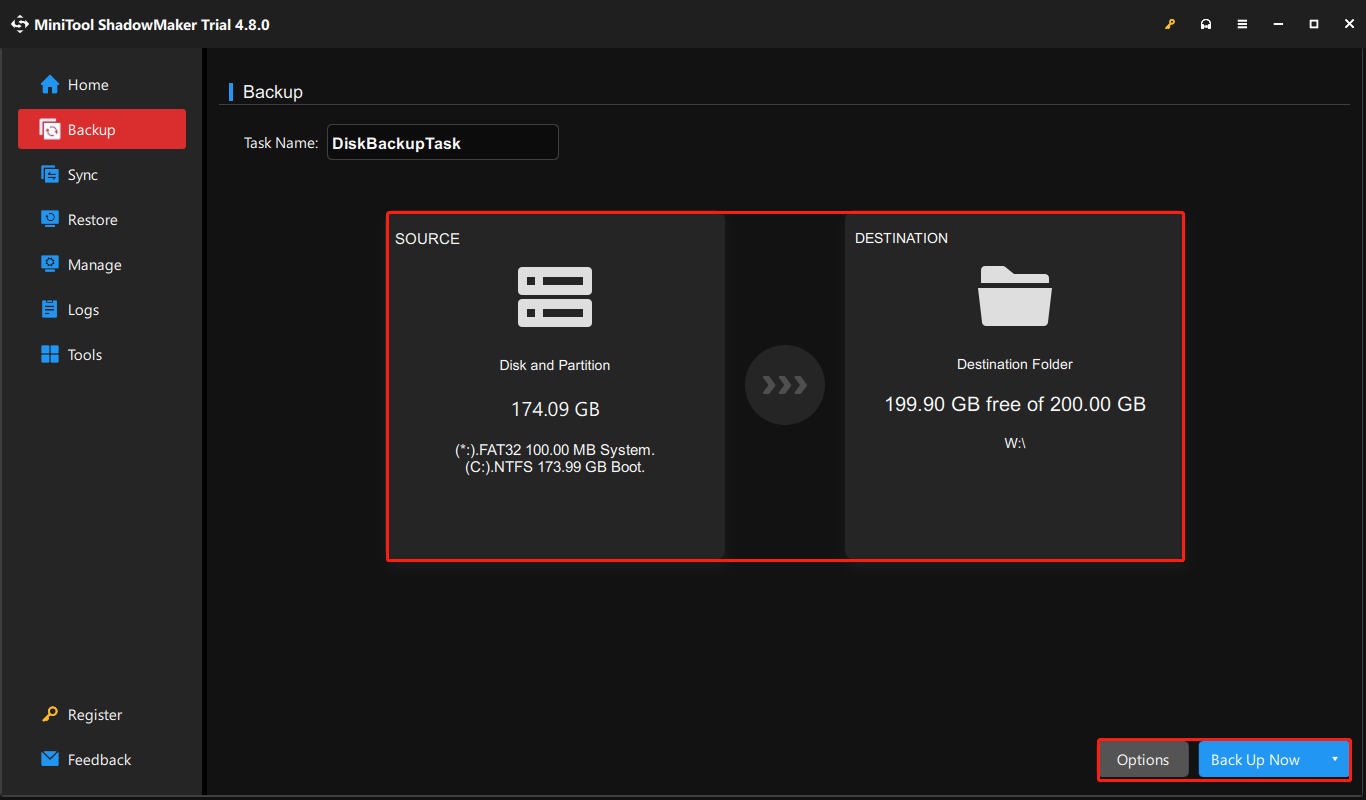
If your computer fails to boot, you can launch MiniTool ShadowMaker to create a bootable disk and use it to restore the system backup image.
Part 7. Closing Words
To sum up, both Windows 10 and Windows 11 are mature operating systems that perform well in most cases.
However, Windows 11 is generally the recommended choice, especially for new computers, as it offers better performance with the latest hardware components.
On the other hand, if you are dissatisfied with the new interface or if your hardware does not meet the requirements for Windows 11, staying with Windows 10 is also a good option.
In this case, it is important to be cautious during daily use and to use reliable antivirus software to protect against viruses or malware.
Additionally, backing up your Windows system or personal files is crucial for daily computer use. Both the built-in tools in Windows and MiniTool ShadowMaker can help you create reliable backups.
If you encounter any issues while using MiniTool ShadowMaker, please contact the support team at [email protected].
About The Author

Position: Columnist
Shirley holds a bachelor’s degree in English and has been an editor at the MiniTool Team for many years. She specializes in IT-related content, with a focus on data recovery, file backup, disk management, and other technical topics. She is committed to delivering clear, accurate, and practical solutions to help users resolve common computer issues.
User Comments :