
Last Epoch Unity Error
Recently, plenty of game players have reported that the Last Epoch Unity error prevents them from logging into the game. Struggling with this error could destroy the game experience for all gamers. Let’s go on to find useful fixes.
I've been playing since launch and haven't had a single error. I've reinstalled several times, checked file integrity, updated drivers, and every time I change maps, the Unity 2021.3.42f1_f1197811e8ce error appears. Any solution for this?reddit.com
Ways to Fix Last Epoch Unity Crashing
Here are some proven ways that can be utilized to resolve the constant Unity crashing in Last Epoch. Due to the different root causes of the Unity crashing issue, it is necessary to try different solutions. Before heading to the complex solutions, you may attempt several simple ones to see if they can make an effect:
- Restart the computer
- Verify game files
- Try an offline startup
If the Unity error is still here after the above tries, continue with the following solutions.
Way 1. Roll Back/Update the Graphics Driver
Updating the graphics driver is also a common fix for various game issues, such as Unity crash error in Last Epoch, but in some cases, you need to roll back the graphics driver to resolve the issue because the new version of the graphics driver is not stable enough to run the game. Depending on your situation, you can opt for the appropriate option to modify the graphics driver.
Step 1. Right-click on the Windows icon and choose Driver Manager.
Step 2. Expand the Display adapters option and double-click on your graphics driver.
Step 3. Change to the Driver tab and choose Update Driver or Roll Back Driver. You should work with the instructions to complete the reset operations.

Way 2. Turn off Hardware Acceleration
Enabling Hardware Acceleration can improve the performance of applications. However, this setting can cause more trouble than its benefits. Some people also tackle the Last Epoch Unity error by turning off Hardware Acceleration on their computers. Here is how to do it.
Step 1. Press Win + R to open the Run window.
Step 2. Type regedit into the dialog and press Enter to open Windows Registry Editor.
Step 3. Copy and paste the following path into the address bar and hit Enter to locate the target registry:
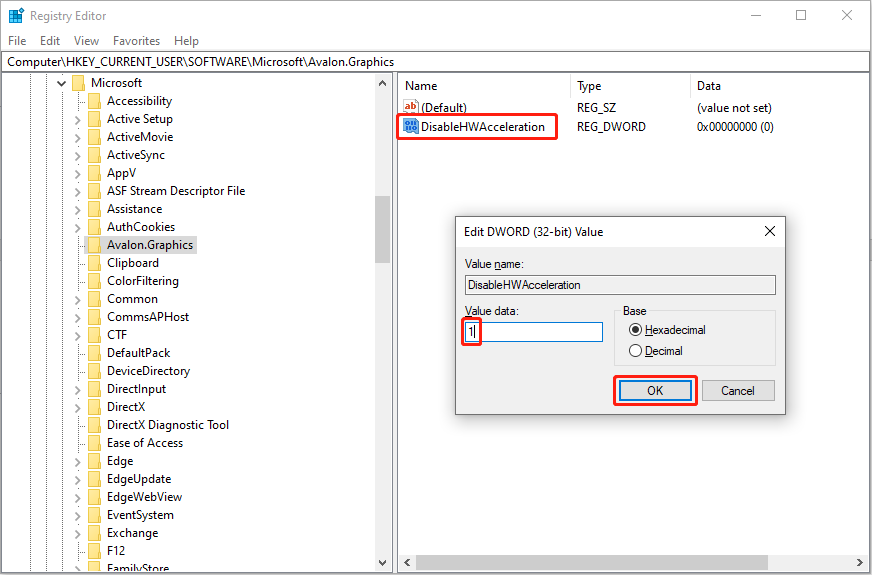
Computer\HKEY_CURRENT_USER\SOFTWARE\Microsoft\Avalon.Graphics
Step 4. Find and double-click on the DisableHWAcceleration registry. In the prompt window, change the Value data to 1 and click OK to save the change.
Way 3. Update BIOS
Apart from the above two methods, updating the BIOS also makes sense, but keep in mind that updating the BIOS is a risky operation. You should first check whether your BIOS requires an update and then back up crucial files on your computer before starting the upgrade process. BIOS matters a lot for the proper performance of your computer; thus, mistaken operations can even worsen your computer situation.
You can run MiniTool ShadowMaker to back up your computer easily. This file backup service supports backing up files, folders, partitions, and disks within a few clicks. You can run it and back up files with diverse excellent features for free within 30 days. Why not have a try?
MiniTool ShadowMaker TrialClick to Download100%Clean & Safe
Step 1. Check the BIOS version by opening the System Information utility.
Step 2. Head to the official website of your computer manufacturer and head to the Support or Download page to check if there is a newer version of your BIOS.
Step 3. If any new version is available, download it and extract the BIOS version to a blank USB drive.
Step 4. Restart your computer and enter the BIOS. You should find the BIOS update tool and run it with the update file on the USB to start the upgrade process.
You can read this guide to obtain detailed information about how to upgrade BIOS with USB.
Closing
Hope you can get useful methods for the Last Epoch Unity error after reading those methods. Additionally, you can contact the game development team to dig out other practical ways. Anyway, wish you enjoy your game!
User Comments :