
Monster Hunter Wilds Content File Locked Error
Monster Hunter Wilds is the latest work in the Monster Hunter series. The game was released on February 28, 2025, and the landing platforms include PS5, Xbox Series X/S and PC (Steam). It continues the core gameplay of the series, while bringing a new open world experience and a richer ecosystem. It is loved by players for its unique gameplay and multiplayer cooperation mode.
When playing Monster Hunter Wilds, you may sometimes encounter a “Content File Locked” error message, which prevents you from accessing your game content. This is usually related to conflicts with file permissions, game updates, or third-party software. Here are some common solutions.
How to Fix Content File Locked Error in Monster Hunter Wilds
Method 1. Check File Permissions
Improper file permissions can cause Monster Hunter Wilds Content File Locked error on Steam. File permissions are crucial in determining who can read, write, or execute files and directories. They enforce access restrictions, ensuring that only authorized people have access. Correctly setting file permissions protects data from unauthorized access, modification, or deletion.
Step 1: Find the installation directory of Monster Hunter Wilds (usually in your Steam library or the installation folder of your game platform).
Step 2: Right-click the game folder and select Properties.
Step 3: In the Security tab, make sure the current user has full control permissions to the folder.
Step 4: If you don’t have permissions, click Edit and check Full control, then click on Apply.
Method 2. Run the Steam as Administrator
Running Steam as an administrator is usually done to fix certain permission issues or to ensure that Steam and its games can run properly. Issues that can be fixed include permission issues, compatibility issues, antivirus software interference, crashing or launch issues. Here are some steps to complete this process.
Step 1: Type Steam in the Windows search box and right-click on it to choose Open file location.
Step 2: Right-click on the executable file and choose Properties.
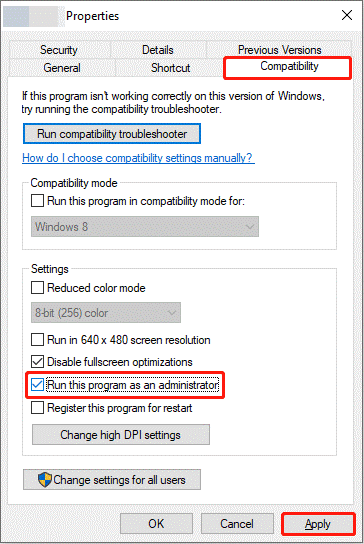
Step 3: Go to the Compatibility tab and check the Run this program as an administrator option under Settings.
Step 4: Click on the Apply button to make the change take effect.
Method 3: Verify Integrity of Game Files
Verify Integrity of Game Files is a feature provided by Steam that checks that the game files are intact, unmodified, or corrupted. It can resolve issues that occur after an update. Game updates may cause some files to not install correctly or become corrupted, and verifying integrity can repair these files. here is a way.
Step 1: Open Steam and go to the Library tab.
Step 2: Right-click on Monster Hunter Wilds and choose Properties.
Step 3: Go to the Installed Files tab, click on the Verify integrity of game files button.
Wait patiently for it to complete. By verifying the integrity of game files, you can quickly resolve many issues related to game files and ensure that the game runs properly. However, if the problem persists, you may need to reinstall the game or check system compatibility.
Read Also: Windows 10 Compatibility Mode – How to Set and Change It
Method 4: Reinstall the Monster Hunter Wilds Game
Reinstalling the game is a common way to fix some game issues. It can fix many problems such as corrupted or missing game files, problems caused by failed updates, and compatibility issues with the game on new operating systems or hardware.
Step 1: Type Monster Hunter Wilds in the Windows search box and right-click on it to choose Uninstall.
Step 2: In the Control Panel, find and right-click on the game to choose Uninstall.
Step 3: When prompted by the UAC windows, click on Yes to continue.
Reinstalling the game is an effective way to fix many problems, but it is recommended only after trying other solutions (such as verifying file integrity) to no avail.
MiniTool Power Data Recovery FreeClick to Download100%Clean & Safe
Final Thoughts
All the information about how to fix Monster Hunter Wilds Content File Locked error is here. Take action to fix this error. Hope these methods can work for you.
User Comments :