
Experiencing Monster Hunter Wilds controller not working? In this guide from MiniTool, you will learn why the controller fails to work in Monster Hunter Wilds and how to fix the issue effectively.
Monster Hunter Wilds Controller Not Working
A successor to Monster Hunter. World, Monster Hunter Wilds has quickly captured the attention of thousands of Steam players and taken Steam by storm, featuring a story of monsters and humans co-existing in the Forbidden Lands. Obviously, with hundreds of popular streamers already on board, this new game appears ready to achieve the same viral success as Monster Hunter. World. What’s about the issue Monster Hunter Wilds controller not working?
This role-playing game supports a controller or gamepad, but since its release, some players report that the game is not working with their controller and gamepad in-game. In terms of this Monster Hunter Wilds controller not working issue, we’d like to share a couple of solutions we gathered with you. Without further ado, let’s get started.
How to Fix Monster Hunter Wilds Controller Not Working
Solution 1. Switch to Official MHWilds Controller Layout
To fix gamepad not working in Monster Hunter Wilds, one of the most recommended is switching to the official layout of this game. Here’s how to change it:
Step 1. Add Monster Hunter Official Controller
1. Open Steam and click on the computer icon in the top-right corner to enter Big Picture Mode.
2. Go to Menu > Controller in the left pane to ensure your controller is connected there.
3. Open Monster Hunter Wilds > click on the gamepad icon > select Official Layout for Monster Hunter Wilds or For those you Don’t have official option of capcom MHW as your layout, according to your specific situation.
If this step doesn’t fix the issue, continue to the next one.
Step 2. Enable Steam Input
1. Navigate to Steam Library > right-click on Monster Hunter Wilds > choose Properties.
2. Go to Controller > click on the down icon beside Override for Monster Hunter Wilds > select Enable Steam Input.
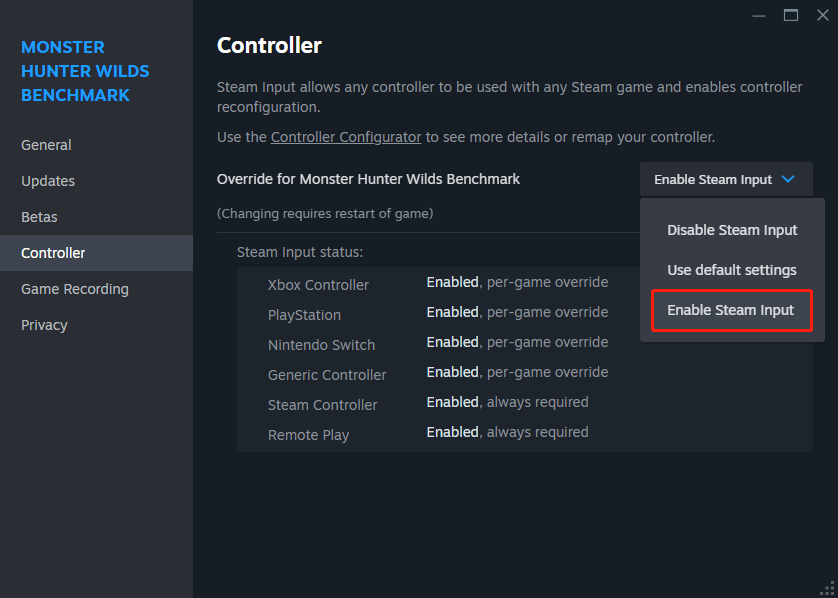
Now, check if it fixes Monster Hunter Wilds controller not working or not.

Solution 2. Swap to Wireless Controller
If you are using a wired controller, make sure it is connected correctly. It might also be that your controller is too obsolete to support the game so contact support for confirmation.
Alternatively, try a wireless controller and pair it to your Bluetooth if possible. Or vice versa.
Solution 3. Remove Other Controllers
Sometimes, Monster Hunter Wilds controller not working will arise from multiple controllers connecting on your PC at the same time, causing Steam to register them as a controller.
In this way, remove surplus external controllers from your PC and make sure there is only one controller connected or plugged. After that, check if your controller now works flawlessly.
Related article: How to Fix Gamepad or Controller Not Working in Avowed
Solution 4. Delete Controller Files
For some reason, something in the config files of Monster Hunter Wilds could be damaged when moving or in other circumstances. Deleting the corrupted controller files seems to fix the not working error. Follow the steps:
Step 1. Launch Steam and go to Library.
Step 2. Right-click on Monster Hunter Wilds and select Manage > Browse local files.
Step 3. Then you can look for the config controller file related to your controller and then delete it.
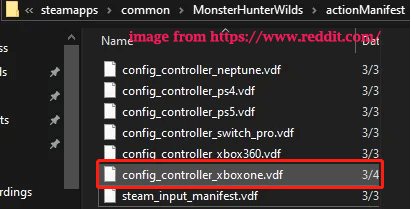
Step 4. Upon the deletion, go to Steam and right-click on the game again to access Properties.
Step 5. In the Installed Files tab, click on Verify integrity of game files and then it will automatically recover a proper file for the controller.
When everything is done, check if the controller works fine.
MiniTool ShadowMaker TrialClick to Download100%Clean & Safe
Final Words
This guide explains several proven fixes for Monster Hunter Wilds controller not working in detail. Hope you can solve the issue with the methods and appreciate your support.
User Comments :