
MpGear.dll Was Not Found
MpGear.dll is known as Microsoft Antimalware Utility Library, belonging to Microsoft’s malware protection. This DLL file is a crucial component in protecting the system, working silently in the background to provide real-time protection. MpGear.dll not found error can happen when the related file gets deleted or corrupted for some unknown reason.
I booted up my laptop and there's a system error saying "The code execution cannot proceed because MpGear.dll was not found. Reinstalling the program may fix this problem."
I checked my recycle bin to see if I accidentally deleted it but I searched for it and it's not there. I searched for it on my OS and I found it, so it's not..missing?
I rebooted it and it still says the same system error.https://answers.microsoft.com/en-us/windows/forum/all/mpgeardll-was-not-found/fca53a62-e89f-47e9-8829-f14a8abfb1b9
MiniTool ShadowMaker for Your Data Security
Since this MpGear.dll missing error is closely related to the system and stopped from some specific operations, you may worry that your system will crash or data will get lost. We highly recommend that you backup files that matter or system to prevent any accidents.
Especially, MpGear.dll not found error can make Windows Defender fail to work. In this way, data backup becomes more necessary. MiniTool ShadowMaker free allows you to back up different sources, such as your system, files & folders, partitions & disks.
You can prepare a backup to an external hard drive to prevent system crashes. With the help of backup features, the whole experience gets optimized. It is worth trying!
MiniTool ShadowMaker TrialClick to Download100%Clean & Safe
Besides, MpGear.dll may get mistakenly deleted. If you want to recover the file, you may try MiniTool Power Data Recovery, which can handle various data loss situations due to deletions, formatting errors, OS crashes, virus attacks, etc.
MiniTool Power Data Recovery TrialClick to Download100%Clean & Safe
Fix: MpGear.dll Was Not Found
Fix 1: Run SFC and DISM
You can run SFC and DISM scans to fix file system corruptions, which may resolve MpGear.dll not found on Windows.
Step 1: Type Command Prompt in Search and choose Run as administrator.
Step 2: Type sfc /scannow and press Enter to execute the SFC scan.
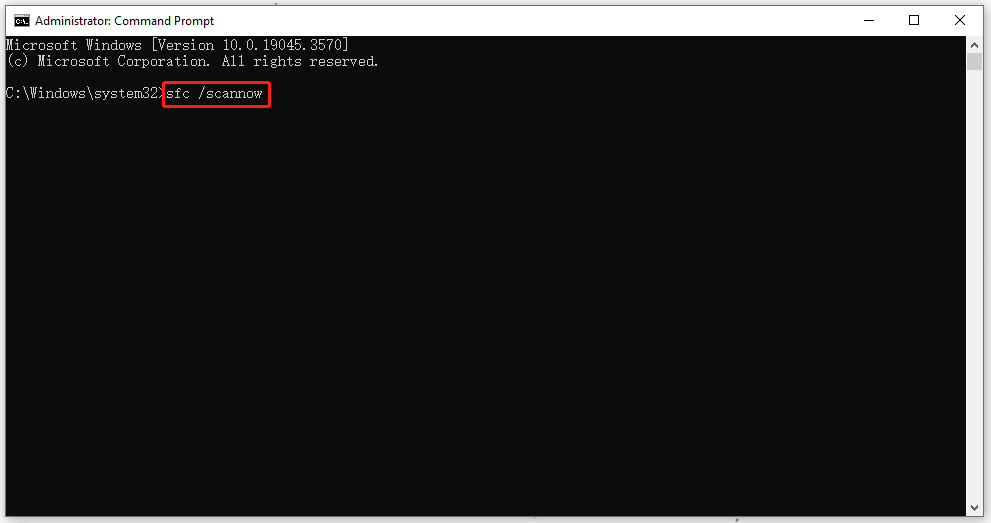
Step 3: When the verification finishes, you can execute this DISM scan for a further check – DISM /Online /Cleanup-Image /RestoreHealth.
Fix 2: Update Windows
It is necessary to keep your Windows up to date so that some glitches can be fixed.
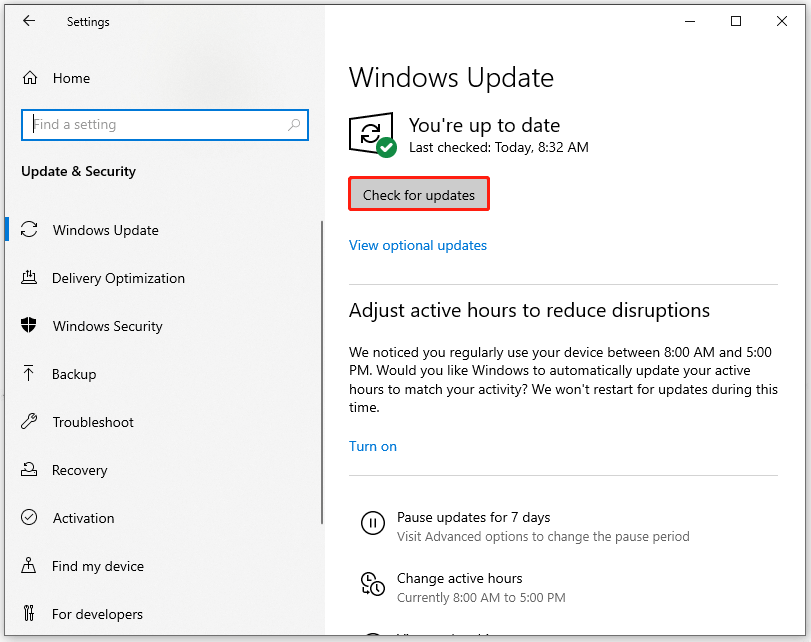
Step 1: Click Win + I to open Settings and click Update & Security > Windows Update.
Step 2: Click Check for updates and then download and install the pending update.
Fix 3: Perform Clean Boot
To prevent the interference of some third-party software, you can perform a clean boot.
Step 1: Open Run by pressing Win + R and type msconfig to enter System Configuration.
Step 2: In the Services tab, check Hide all Microsoft services and click Disable all.
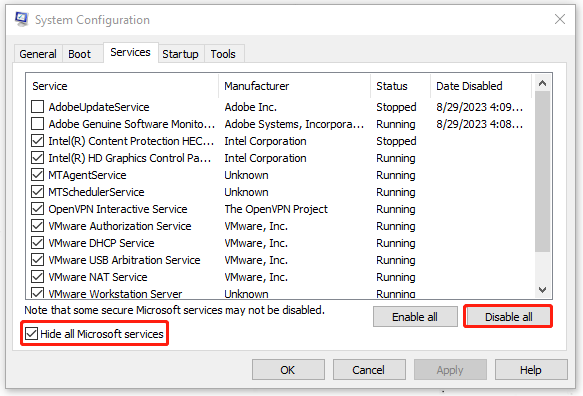
Step 3: In the Startup tab, click Open Task Manager and choose disable those enabled startup programs.
Step 4: Go back to the System Configuration window and click on Apply and OK.
Then you can restart the system to see if the error persists, if it disappears, you can enable services and startup items one by one to identify the culprit.
Fix 4: Manually Replace MpGear.dll
You can try to download the MpGear.dll from a trustworthy website; or manually replace the DLL file. You need to copy and paste the file from another PC that has the MpGear.dll file. Here are specific steps.
Step 1: Use another functioning PC and locate C:\Program Files\Windows Defender Advanced Threat Protection\Classification in File Explorer.
Step 2: Insert your USB device and copy and paste the file into it. Then connect the device to your problematic computer and paste the file to the same place.
Step 3: Run Command Prompt as an administrator and copy and paste the following commands to execute them one by one.
- CD C:\Program Files\Windows Defender Advanced Threat Protection\Classification
- regsvr32 /u MpGear.dll
- regsvr32 /i MpGear.dll
Now close the window and restart your computer.
Fix 5: Perform System Restore
If you have created a system restore point before, you can directly restore your system to its normal state.
Step 1: Type rstrui in Run and press Enter to open the System Restore window.
Step 2: Click Next to choose the restore point you want to perform and then follow the prompts for the next moves.
If you haven’t prepared a system restore point before, you may try to repair Windows installation. For detailed steps, you can refer to these articles:
- How to Repair Your Windows 10/11 Computer from USB?
- How to Repair Windows 10 for Free Without Losing Data (6 Ways)
Bottom Line:
The MpGear.dll not found error can cause some system issues so you’d better resolve that as soon as possible. This post has given you some methods and hope your concerns have been resolved.
User Comments :