
People easily run into the DLL errors when they attempt to access some applications. DDL files play much important role in operations so it is necessary to learn how to get rid of this kind of errors. This post on MiniTool will teach you the ways to fix the NotificationController.dll error.
What Is NotificationController.dll Error?
NotificationController.dll is an essential part for the normal operation of system and applications. It is a Windows operating system file located in the System32 folder. When this file gets loaded, some other related files will ensue after it.
So the NotificationController.dll error can happen, provided one of these files get corrupted or missing. There are many reasons for this happening and your Windows may go crashed. Therefore, we highly recommended that you should back up your important data regularly in case of unrecoverable loss.
As free backup software, MiniTool ShadowMaker can do its best for your data backup. It can perform a one-click system backup solution and some other backup choices are available, such as files & folders and partitions & disks.
People can perform full, incremental, and differential backups and every backup task can be set as scheduled. It is worth trying!
MiniTool ShadowMaker TrialClick to Download100%Clean & Safe
How to Fix the NotificationController.dll Error?
Solution 1: Reinstall the Faulty Program
If you encountered the NotificationController.dll not found issue when you are prepared to access some dedicated program, you can try to reinstall the program.
Step 1: Go to Start > Settings > Apps > Apps & features.
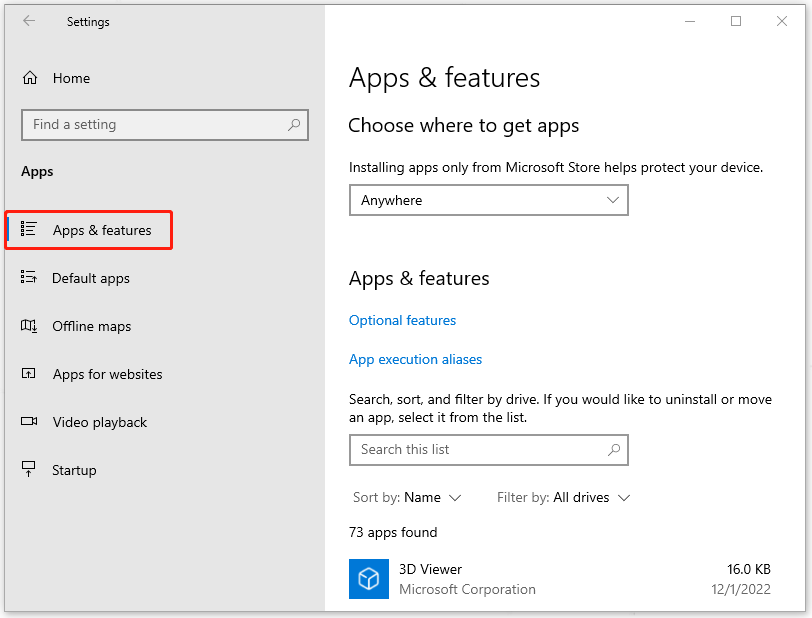
Step 2: Scroll down from the right panel to locate and click on the app and choose Uninstall.
Step 3: Click Uninstall again to affirm the choice.
After that, you can go to the official source to reinstall the app and check if the NotificationController.dll missing error has been fixed.
Solution 2: Run SFC and DISM Scans
System file corruptions can lead to the NotificationController.dll error, so you can use SFC and DISM utilities to repair the corruptions.
Step 1: Input Command Prompt in Search and choose Run as administrator.
Step 2: When the window comes up, type sfc /scannow and press Enter to execute the command.
Step 3: You need to wait for a while until the verification finishes, then you can perform the next command – DISM /Online /Cleanup-Image /RestoreHealth.
After all the commands end, you can close the window and restart the computer to check if you have fixed the NotificationController.dll error.
Solution 3: Update Windows
You need to keep your Windows up to date to fix the NotificationController.dll error.
Step 1: Go to Start > Settings > Update & Security > Windows Update.
Step 2: Click Check for updates from the right panel and the system will start downloading and installing available updates.
You need to wait for a while and when it finishes, you can restart your computer.
Solution 4: Re-Register the NotificationController.dll File
Another method to get rid of the NotificationController.dll error is to re-register the NotificationController.dll file. For detailed steps, you can do as follow.
Open Command Prompt with admin right and execute the following command – regsvr32 notificationcontroller.dll.
Then the file can get re-registered and you can close the window to check if the error has been fixed.
Solution 5: Use System Restore
If all the above methods can’t resolve your issue, you may try to use system restore. But note that this method is only available for those who have created a system restore point before.
Step 1: Type Control Panel in Search and open it.
Step 2: Change View by: to Small icons and click Recovery > Open System Restore.
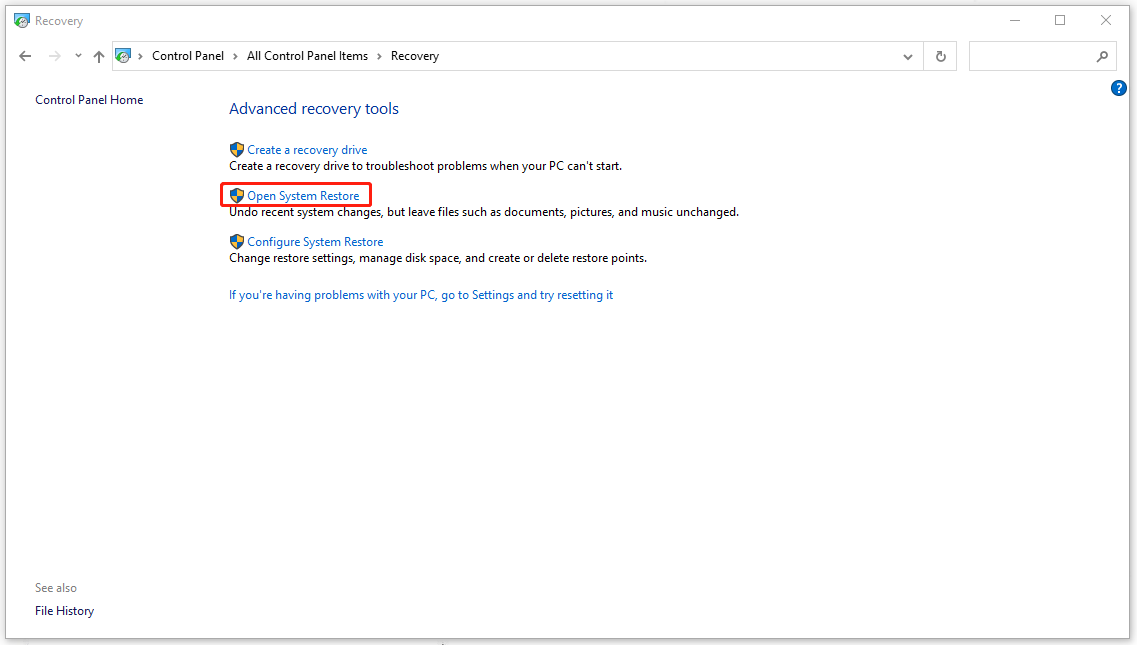
Step 3: Then click Next to choose a restore point you want to choose and follow the next on-screen instructions to finish the work.
Bottom Line:
This article has given you some available fixes for the NotificationController.dll error. These fixes are easy to go and you can get rid of the NotificationController.dll error easily.
User Comments :