
Krita is a free digital painting tool used for painting, creating illustrations, and making 2D animations. Like any other software, it is not immune to data loss. In most cases, this happens when the program crashes unexpectedly, you close the app without saving, or you accidentally delete the exported files.
In such situations, many users wonder whether Krita has an autosave feature and how they can recover their lost files.
I didn’t save a piece and the Krita file disappeared forever. I’m literally going to cry, this sucks, it’s gone I spent so much time on it I usually hate almost all my art and I loved that piece I spent so much time. I’m going to remake it but I’m so sad I don’t even want to right now. How do I recover unsaved files and keep this from happening again?reddit.com
Are you one of those users who lost work in Krita? Keep reading to find out how to recover both unsaved and deleted files.

How to Recover Unsaved Krita Files on Windows
Case 1. Krita Crashed Unexpectedly
Sometimes, Krita may crash due to software bugs or system issues, leaving your work unsaved. Fortunately, Krita has an autosave feature that can help you recover unsaved files.
If the current file was not saved before the crash, Krita will automatically create a temporary autosave file and store it in: C:\Users\YourUsername\AppData\Local\Temp.
These files are hidden by default and typically follow a format like .krita-5124-document_1-autosave.kra. To locate the autosave file:
- Open File Explorer.
- Go to the View tab and check the Hidden items box to make hidden files visible.
- Type autosave.kra in the search box to find the autosave file.
You can also manage the Krita autosave behavior by navigating to Settings > Configure Krita > File Handling. Here, you can adjust the autosave interval and choose to unhide autosave files by default.
Even if you cannot manually find the autosave file, do not worry. Krita will usually prompt you to restore or discard the autosave file when you next launch the program.
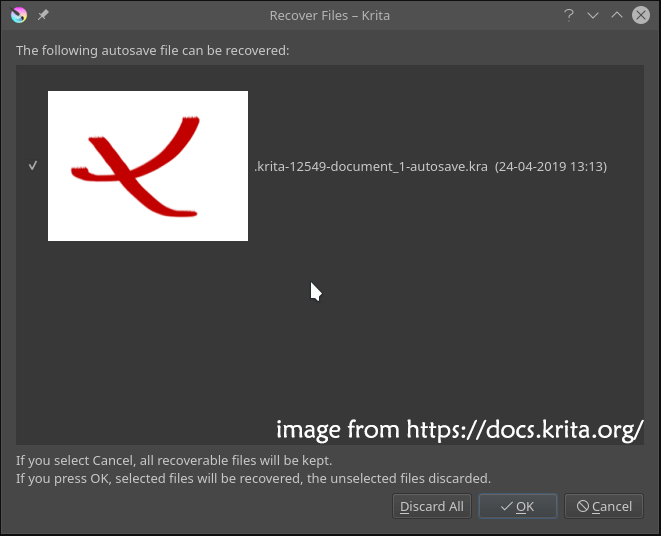
Case 2. You Exited Krita Without Saving
Unfortunately, if you close Krita manually without saving your work rather than the program crashing, the autosave file will be deleted automatically. In this case, you are unable to recover your unsaved data.
To prevent this kind of data loss in the future, it is important to develop the habit of pressing Ctrl + S regularly to save your progress.

How to Restore Deleted Krita Files on Windows
What if you exported your Krita file to your computer but accidentally deleted it later? Fortunately, there are still ways to recover it. Read on for detailed solutions.
Check the Recycle Bin
When a file is deleted from a local internal hard drive, it is typically moved to the Recycle Bin temporarily. So, if your Krita file is missing, the first step is to open the Recycle Bin and check if it is there.
If you find the file, simply right-click on it and select Restore to return it to its original location.
Use MiniTool Power Data Recovery
If the deleted file is not in the Recycle Bin, you need to use a free data recovery tool to recover Krita files.
MiniTool Power Data Recovery is a highly recommended option for Windows users. It supports the recovery of image files in various formats, including .kra, .png, .jpg, .gif, .psd, and more. With its intuitive interface and powerful scanning capabilities, it helps recover Krita files efficiently and easily.
Download its free edition and use it to recover 1 GB of files for free.
MiniTool Power Data Recovery FreeClick to Download100%Clean & Safe
Step 1. On the main interface of this file recovery tool, select the partition or location where the Krita files should exist and click the Scan button to scan for them.
Step 2. Once the scan is completed, type the file extension kra or the keyword of the file name in the search box and press Enter to search for it.
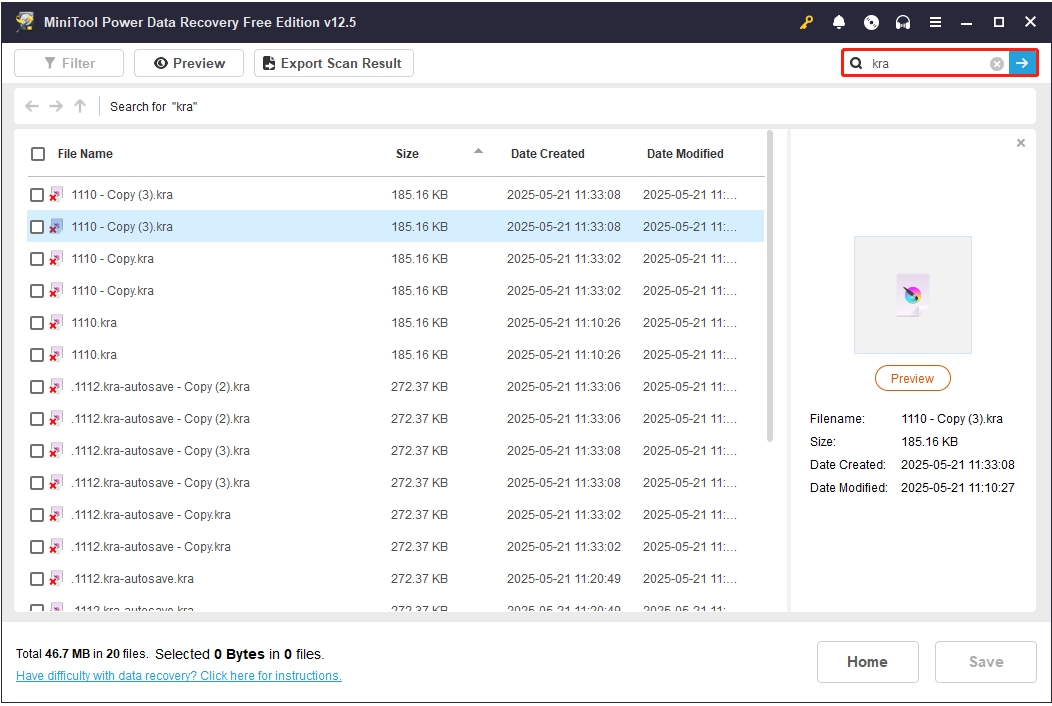
Step 3. Find the Krita files you want to recover, tick them, and click the Save button in the lower right corner. In the new window, choose a safe location to store them.
MiniTool ShadowMaker TrialClick to Download100%Clean & Safe

Closing
Now you should know where is the Krita autosave file location and how to recover Krita files on Windows. To prevent data loss, it is crucial to save your work promptly and store exported files in a safe location.
If you encounter any issues while using MiniTool Power Data Recovery, please contact the support team via [email protected].
About The Author

Position: Columnist
Shirley holds a bachelor’s degree in English and has been an editor at the MiniTool Team for many years. She specializes in IT-related content, with a focus on data recovery, file backup, disk management, and other technical topics. She is committed to delivering clear, accurate, and practical solutions to help users resolve common computer issues.
User Comments :