
Recovery Drive Stuck on Please Wait Windows 10/11
Although the Windows system has become more stable and mature over time, it may still fail to function properly or completely crash due to various reasons. Therefore, Windows allows you to create a recovery drive, usually a USB drive. If your computer encounters major problems such as a black screen, blue screen, failure to boot, etc., you will be able to use a recovery drive to reset the system to fix the problem. Or you can use the recovery drive to reinstall Windows.
However, many users face problems during the process of creating a recovery drive, such as “creating recovery drive taking forever”, “recovery drive stuck on please wait”, etc. Today we are going to talk about how to fix if the recovery drive stuck on please wait Windows 10/11.
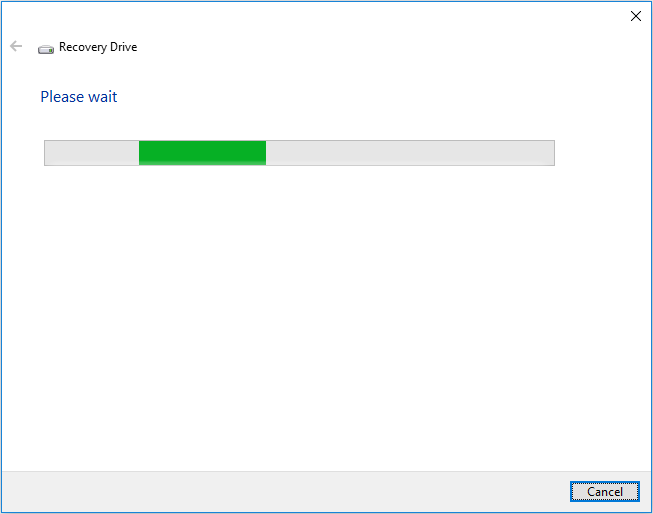

Solutions to Windows Recovery Stuck on Please Wait
Solution 1. Change a Larger USB Drive
According to user experience, the failure to create a recovery drive is largely due to the use of a small memory disk such as an 8 GB USB drive. Changing to a 16 GB or 32 GB USB drive may solve the problem. Additionally, it is advisable to format the USB drive before proceeding with recovery drive creation.
Solution 2. Run DISM and SFC to Repair Corrupted System Files
Missing or corrupted system files can also be the culprit of the “recovery drive stuck on please wait” problem. To rule out this cause, you can run DISM and SFC to detect and repair damaged system files.
Step 1. Open an elevated Command Prompt.
Step 2. In the new window, type DISM.exe /Online /Cleanup-image /Restorehealth and press Enter.
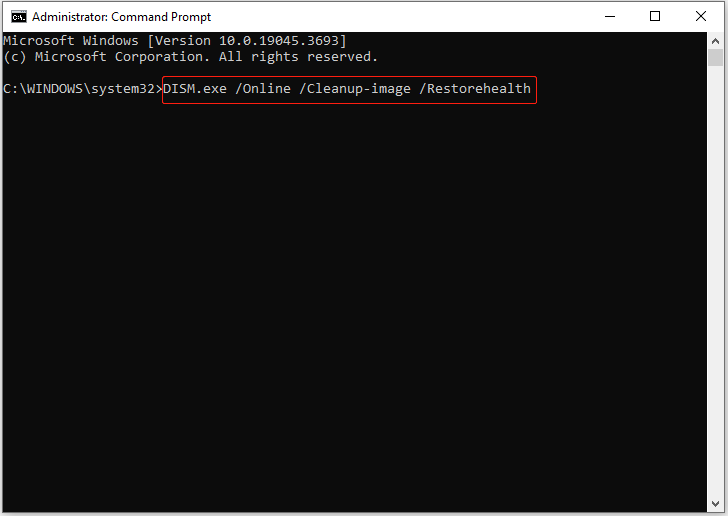
Step 3. Once this command line is executed, type sfc /scannow and press Enter.
Step 4. Wait until the whole process ends, then try to create a recovery drive and check if it works.
Solution 3. Disable Antivirus Software
Although antivirus software helps to safeguard your computer from virus infection, sometimes it prevents specific operations on your computer. You can disable Windows Defender or other antiviruses temporarily and check if the problem of creating a recovery disk stuck has been resolved.
Solution 4. Enable Windows Recovery Environment
If the Windows recovery environment is disabled, recovery drive creation may get stuck on the please wait screen as well. So, you can follow the steps below to enable the WinRE.
Step 1. Run Command Prompt as administrator.
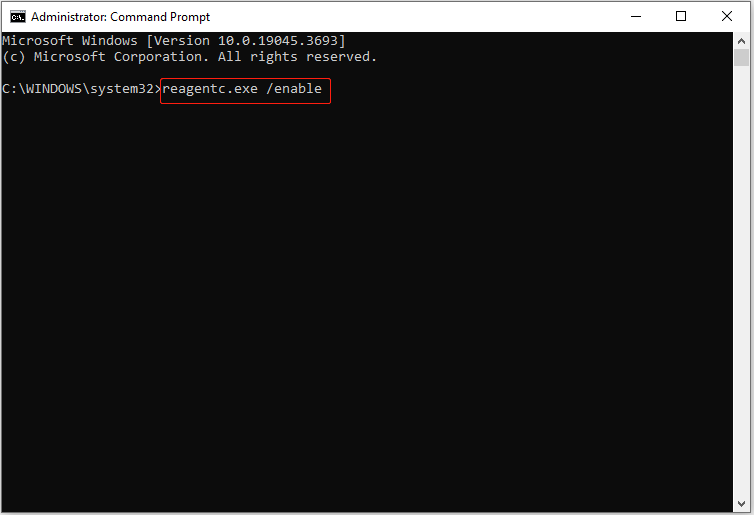
Step 2. In the command line window, type reagentc.exe /enable and press Enter.
Solution 5. Create a Windows Installation Media
If you want to use a recovery drive to reinstall Windows when the system crashes, you can create a Windows installation media instead. With an installation media, you will have the option to reinstall Windows with your personal data, apps, and settings preserved.
You can use the Windows Media Creation Tool to create a Windows installation drive by referring to this article: A Complete Guide to Use Windows 10 Media Creation Tool.
Further Reading:
Tip 1: Data Recovery
Windows recovery drive is only a system backup solution. Personal files and any apps that did not come with your PC will not be backed up. If you choose to reinstall Windows from a recovery USB drive, your personal files, apps and drivers you installed, and changes you made to settings will be removed.
If you need to recover deleted files after reinstalling Windows, you can use MiniTool Power Data Recovery, the best data recovery software. It can effectively recover assortments of files, including documents, pictures, videos, audio files, emails, etc. You can use the free edition to scan for data, preview them, and recover 1 GB of files for free.
MiniTool Power Data Recovery FreeClick to Download100%Clean & Safe
Besides, MiniTool Power Data Recovery Personal Editions support creating a bootable data recovery disk and recovering files when the PC won’t boot.
Tip 2: System and Data Backup
As mentioned before, a recovery drive does not back up personal files but only system files. To keep your files safe, you can develop the habit of daily data backup. For file backup, you can use professional data backup software, MiniTool ShadowMaker. It helps to back up files, folders, partitions, disks, as well as systems.
You can download the Trial edition to enjoy most of its features for free within 30 days.
MiniTool ShadowMaker TrialClick to Download100%Clean & Safe
Final Words
This article explains what should you do when creating a recovery drive get stuck on please wait. Hope this tutorial is beneficial to you.
Should you have any questions when using MiniTool software, please do not hesitate to send an email to [email protected].
About The Author

Position: Columnist
Shirley holds a bachelor’s degree in English and has been an editor at the MiniTool Team for many years. She specializes in IT-related content, with a focus on data recovery, file backup, disk management, and other technical topics. She is committed to delivering clear, accurate, and practical solutions to help users resolve common computer issues.
User Comments :