
Rpcrt4.dll Was Not Found
Rpcrt4.dll is a Dynamic Link Library file associated with the Remote Procedure Call program. It is part of the Windows operating system and is located in the System32 folder. It is very important for the smooth running of web-based applications that rely on it as well as the Windows operating system.
However, many users encountered an error message saying rpcrt4.dll is missing or not found when opening specific applications or performing other operations. Let’s take a look at how to solve this problem.
How to Fix Rpcrt4.dll Not Found Windows 11
Solution 1. Recover the Missing Rpcrt4.dll File
The rpcrt4.dll not found error may be caused by the rpcrt4.dll file being accidentally deleted or lost. You can open the Recycle Bin to check if this .dll file is stored here. If so, try copying and pasting it to C:\Windows\System32.
If not, you can use MiniTool Power Data Recovery to scan your C drive and recover the deleted rpcrt4.dll file. This green file recovery tool can help to recover assortments of files including .dll files. It supports 1 GB of free data recovery.
MiniTool Power Data Recovery FreeClick to Download100%Clean & Safe
For detailed steps, you can refer to this post: How to Fix DLL Files Automatically Deleted and Recover DLLs.
After recovering the rpcrt4.dll file, move it to the System32 folder, then restart your computer and check if the issue has been resolved.
Solution 2. Fix Corrupted System Files
If you keep receiving the rpcrt4.dll was not found error, there may be some corrupted system files. In this case, you need to run DISM and SFC to repair corrupted or missing system files.
Step 1. In the Windows search box, type cmd and right-click Command Prompt from the best match result. Then select Run as administrator from the context menu.
Step 2. Select Yes in the User Account Control window.
Step 3. In the command line window, type this command and press Enter: DISM.exe /Online /Cleanup-image /Restorehealth.
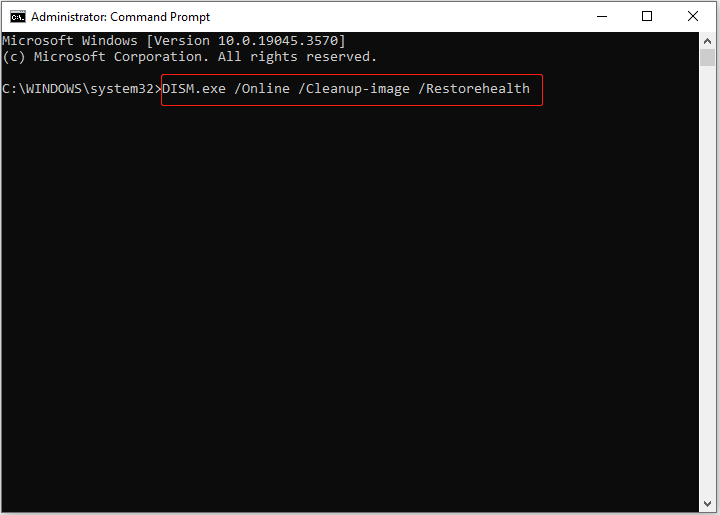
Step 4. Once the command is executed, type sfc /scannow and press Enter.
Solution 4. Reinstall the Program
Most of the time, the error rpcrt4.dll was not found only occurs when you try to run a particular application. In this case, you can uninstall the program, then re-download and re-install it to remove the error.
Solution 3. Install Windows Updates
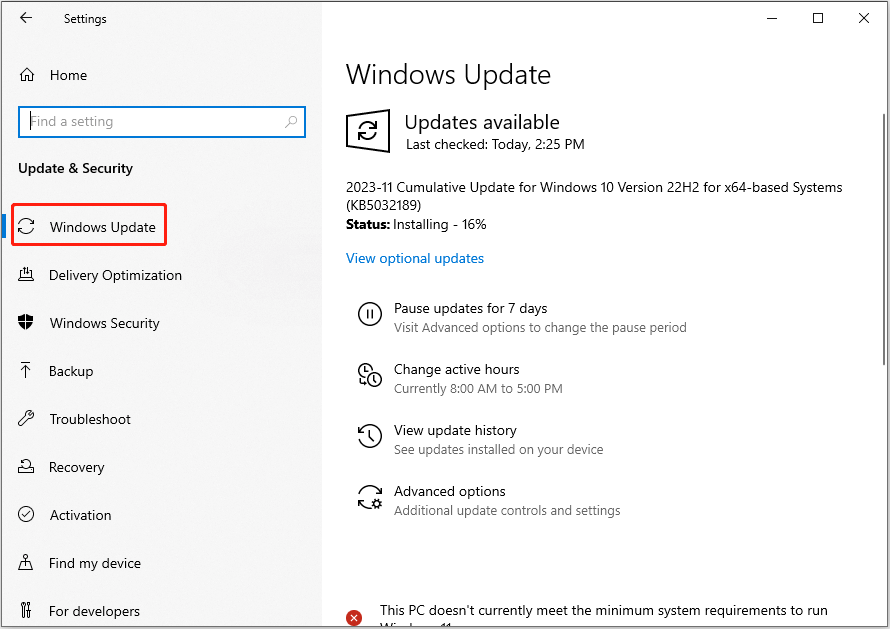
New Windows versions contain many service packs and other patches that may facilitate changing or replacing .dll files. So, you can open Windows Settings and click Update & Security > Windows Update to check whether there are Windows updates available. If yes, download and install them.
Solution 5. Perform System Restore
System restore is a tool designed to protect and repair computer software. So, if the problem persists, you can try to perform a system restore to return the OS to working condition without having to reinstall the operating system.
2. Performing a system restore will not affect your personal files. But just in case, it is recommended that you back up data in advance by using MiniTool ShadowMaker, a professional and reliable file backup tool.
MiniTool ShadowMaker TrialClick to Download100%Clean & Safe
How to perform a system restore?
First, in the Windows search box, type create a restore point and click on it from the best match result.
Second, in the new window, click System Restore.
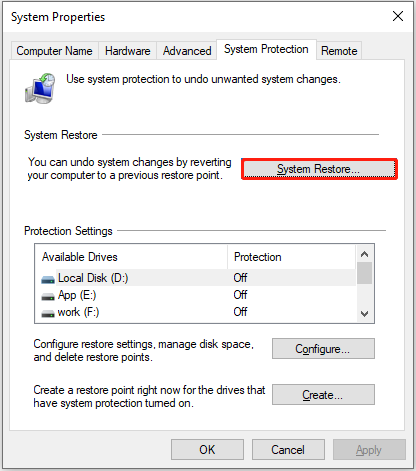
Third, follow the on-screen instructions to choose the recommended restore point or another one and complete the necessary actions.
Wrapping Things Up
Reading here, you should know how to address the matter of “rpcrt4.dll was not found”. Just try the approaches listed above one by one until the issue has been resolved.
Should you have any concerns about MiniTool software, please do not hesitate to contact us via [email protected].
About The Author

Position: Columnist
Shirley holds a bachelor’s degree in English and has been an editor at the MiniTool Team for many years. She specializes in IT-related content, with a focus on data recovery, file backup, disk management, and other technical topics. She is committed to delivering clear, accurate, and practical solutions to help users resolve common computer issues.
User Comments :