
SCEP is short for Simple Certificate Enrollment Protocol, which is used to manage many devices. Some people run into this SCEP Certificate enrollment initialization failed error and don’t know what to do. Don’t worry, now, this article on the MiniTool Website will guide you to get rid of it.
SCEP Certificate Enrollment Initialization Failed Error
Simple Certificate Enrollment Protocol (SCEP) plays a role in managing digital certificates of various applications. This open-source certificate management protocol enables easier, scalable, and secure certificate issuance.
However, in some cases, users get stuck in the SCEP Certificate enrollment initialization failed error, affecting your system operations. Besides, although this issue often arises in gaming or other situations using AMD GPUs, it can affect the overall system security, possibly leading to computer shutdown.
In this way, it is necessary to resolve this issue as soon as possible and you may consider data backup to prevent data loss because of some accidents triggered by the error. Besides, one of the troubleshooting methods – updating BIOS requires users to back up data first. When you start with this move, data backup is necessary.
To backup data, you can use MiniTool ShadowMaker, this free backup software, which allows users to backup files & folders and partitions & disks as well as your system. The tool can automatically start backup as per your scheduled settings and provides different backup schemes. It is worth trying!
MiniTool ShadowMaker TrialClick to Download100%Clean & Safe
Fix: SCEP Certificate Enrollment Initialization Failed Error
Fix 1: Update Your Device Driver
Since this SCEP Certificate enrollment error may be related to the GPU’s unique requirements for driver and firmware updates, you can update the device driver first.
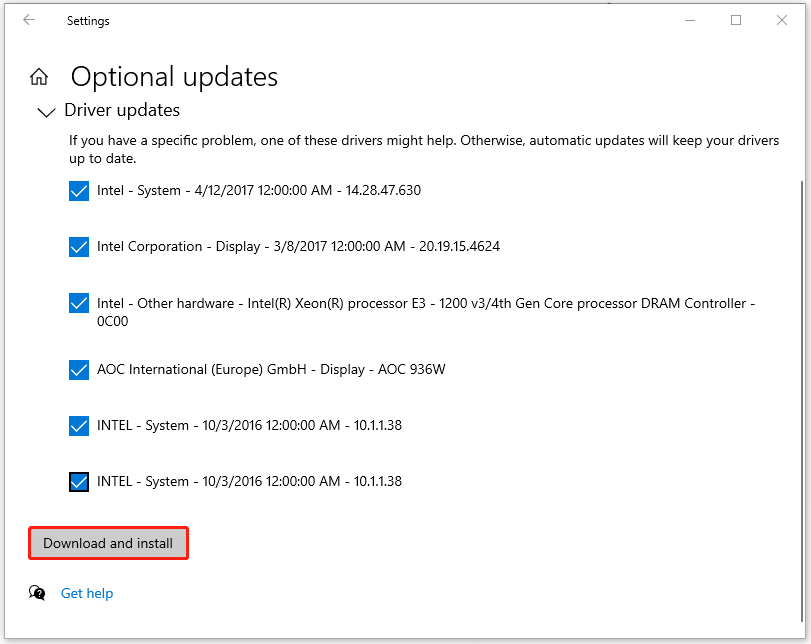
Step 1: Open Settings by pressing Win + I and click Update & Security > Windows Update > View optional updates.
Step 2: Expand Driver updates and check the pending driver updates to click Download and install.
Fix 2: Reinstall the Device Driver
Another method to resolve “SCEP Certificate enrollment initialization for local system” is to reinstall the device driver.
Step 1: Right-click on the Windows icon and choose Device Manager.
Step 2: Expand Display adapters and right-click on the device, such as AMD, to choose Uninstall device.
Then you can follow the on-screen instructions to finish the uninstallation and restart your computer to re-download and install the driver from the official website.
Fix 3: Run SFC and DISM Scans
You can make sure your system files work well by running SFC and DISM scans. Here is the way.
Step 1: Type cmd in Search and run Command Prompt as an administrator.
Step 2: Type sfc /scannow and press Enter to execute the command.
If this command fails to repair the system file corruption, you can execute this DISM command – DISM /Online /Cleanup-Image /RestoreHealth.
When it finishes, you can close the window and restart your PC to check if the SCEP Certificate enrollment error has been gone.
Fix 4: Run the Windows Memory Diagnostic Tool
You can check if the hardware issues, such as failing RAM, lead to the SCEP Certificate enrollment initialization failed error.
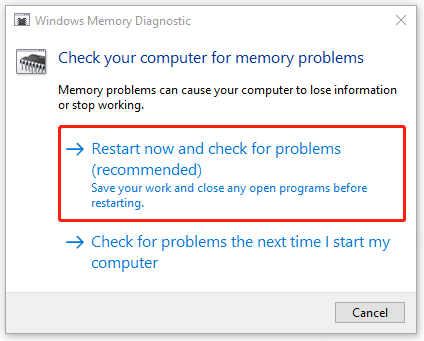
Step 1: Search for Windows Memory Diagnostic and open it.
Step 2: Click Restart now and check for problems (recommended) and then your Windows will restart to start the check.
Step 3: After you log into the operating system, the tool will show you an error report and you may contact your PC manufacturer for info about fixing them.
Fix 5: Update BIOS
Outdated BIOS can also cause the SCEP Certificate enrollment initialization failed error. Therefore, you can try the following steps to update BIOS. But before that, it is highly recommended that you back up system or important data because updating BIOS is a risky task, which may cause your computer unable to boot or run abnormally.
MiniTool ShadowMaker TrialClick to Download100%Clean & Safe
Then you can start updating BIOS.
1. Check your computer’s model name.
2. Find the latest BIOS update from the manufacturer’s website.
3. Download and unzip the BIOS file.
4. Copy the BIOS file to a USB flash drive.
5. Restart your computer to boot into the BIOS screen.
6. Back up your computer’s current BIOS file.
7. Select the new BIOS update file you copied to the USB flash drive to start the BIOS update process.
If some of the above steps confuse you, you can refer to this article which will have a detailed explanation: How to Update BIOS Windows 10 | How to Check BIOS Version.
Bottom Line:
This post can help you troubleshoot the SCEP Certificate enrollment initialization failed error. Hope this article can resolve your concerns.
User Comments :