
The Midnight Walk Crashing/Not Launching
The Midnight Walk is an adventure game developed by MoonHood and published by Fast Travel Games. It was released on PlayStation 5 and Windows platforms on May 8, 2025, and supports virtual reality devices.
Although this game was well received, some players have reported random crashes in this game. If you are one of them, you can learn some causes for this problem. There may be multiple reasons for its crashes, especially in VR mode. The following are possible reasons:
- Hardware compatibility issues: Some graphics card drivers (such as the latest NVIDIA or AMD drivers) may not be fully optimized, causing the game to crash under specific hardware configurations.
- VR mode issues: Some players have experienced frequent crashes when using Quest 3’s Meta Link mode, which may be improved by using Steam VR.
- Game optimization issues: Because the game uses Unreal Engine 5, some settings may cause instability, such as high dynamic range (HDR) or ray tracing (RT).
- Software conflicts: Other applications running in the background may affect the stability of the game. It is recommended to close unnecessary programs and try to run the game in administrator mode.
Fixes for The Midnight Walk Crashing/Not Launching
After knowing the possible causes for this problem, you can learn some methods to get rid of it in the following part. Keep reading!
Fix 1: Verify Integrity of Game Files
If the game crashes, freezes, or experiences unusual errors while running, some files may be damaged. Verify Game File Integrity is a feature provided by Steam and other gaming platforms that can be used to check if game files are damaged or missing and automatically fix the problem.
Step 1: Open Steam and go to the Library tab.
Step 2: Find The Midnight Walk from the list and right-click it to choose Properties.
Step 3: Switch to the Installed Files tab and click Verify integrity of game files.
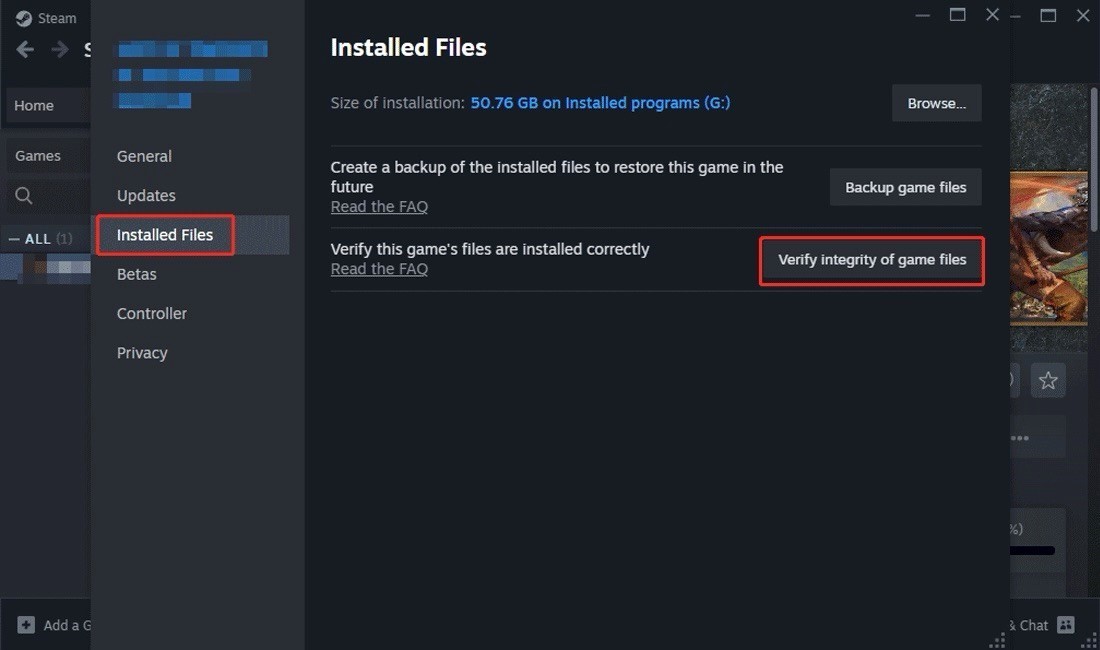
When the process ends, run the game to see if it can be running properly.
Fix 2: Run the Game as Administrator
If the problem of The Midnight Walk crashing occurs, running as an administrator may bypass certain permission restrictions, allowing the game to launch normally and optimizing game performance.
Step 1: Type The Midnight Walk in the Windows search box.
Step 2: Right-click the best match and choose Open file location.
Step 3: Right-click the exe file and choose Properties.
Step 4: Go to the Compatibility tab and tick the box for Run this program as administrator.
Step 5: Finally, Click OK to make the change take effect.
After that, check if this crash problem persists.
Fix 3: Update Graphics Card Driver
Outdated drivers can also affect the launch of the game. At this time, you can choose to update the driver. This update contains fixes for known issues and reduces crash errors. Here are the steps.
Step 1: Press the Win + X keys and choose Device Manager.
Step 2: Click the small arrow in front of Display adapters to expand it.
Step 3: Right-click your card and choose Update driver.
Step 4: In the new window, select Search automatically for drivers.
Step 5: Follow the on-screen instructions to complete the whole process.
Once you complete these operations, check if this method works.
Fix 4: Download Visual C++ Redistributable
Many applications rely on standard libraries provided by Microsoft, which are included in the redistributable. If they are missing, problems may occur. Here is a way to download Visual C++ Redistributable file.
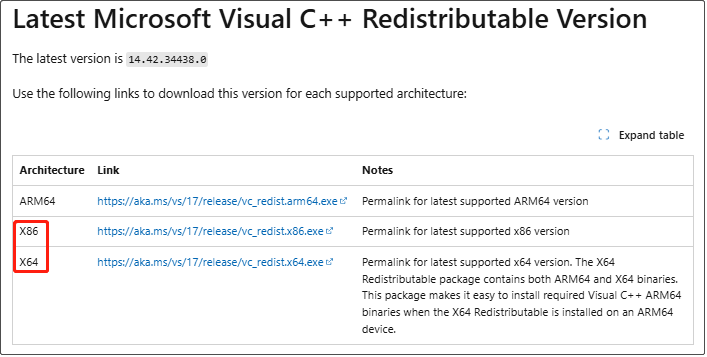
Step 1: Visit Microsoft Visual C++ Redistributables page and scroll down the list to find the Latest Microsoft Visual C++ Redistributable Version section.
Step 2: Click the links to download both the vc_redist.x64.exe and vc_redist.x86.exe versions.
Step 3: Wait patiently for the process to complete and run the installer and click Install.
MiniTool Power Data Recovery FreeClick to Download100%Clean & Safe
Bottom Line
Game crashes are frustrating, but in most cases, they can be fixed by adjusting settings, updating drivers, or optimizing system resources. Try these methods one by one!
User Comments :