
Now you can troubleshoot TPM issues in Windows 11 with its Windows Security app since Microsoft adds a tool called TPM troubleshooter to this antivirus tool. See this post and MiniTool will guide you through much information about this troubleshooter including how to use it to fix TPM problems.
TPM, short for Trusted Platform Module, is designed to improve the PC’s security. To install Windows 11, enabled TPM 2.0 is required to keep the OS safe. If the PC doesn’t have a TPM chip, Windows 11 cannot be installed. Some of you may choose to bypass the TPM requirement.
Windows Security TPM Troubleshooter
However, sometimes you run into some TPM issues in Windows 11, for example, the TPM could not be initialized, the TPM device is not detected, there is an issue with trusted platform module data, your computer’s trusted platform module has malfunctioned, etc.
Although you bypass TPM to install Windows 11, you may meet difficulty later, particularly when upgrading to a new version of the operating system.
To solve some related problems with TPM, Microsoft develops a new tool called TPM troubleshooter. In addition, this tool can help reset TPM. By default, this new feature is enabled.
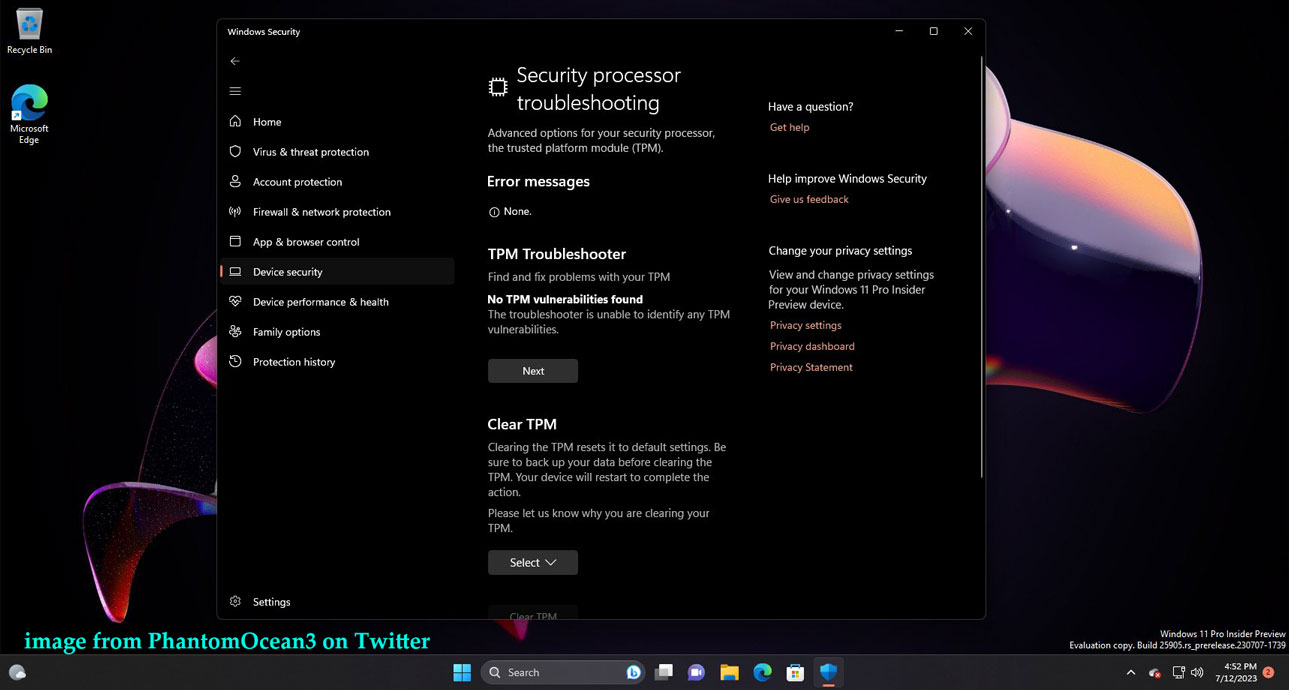
The TPM troubleshooter is added to Windows Security. In this antivirus app, there is a page called Security processor troubleshooting. At the top of this page, it lists the error messages logged by the OS. Below that is the TPM troubleshooter section – including a run button for this tool and some information about detected TPM vulnerabilities. Besides, the Clear TPM option is offered. You can use it to reset the TPM settings to the default values.
How to Run TPM Troubleshooter Windows 11
Currently, the TPM troubleshooter is in a stage of testing and it is not clear when it will roll out to everyone. Now, this new feature is available in Windows 11 Build 25905 through the Canary Channel. To use the TPM troubleshooter, make sure your PC is using build 25905. If not, install it in these steps.
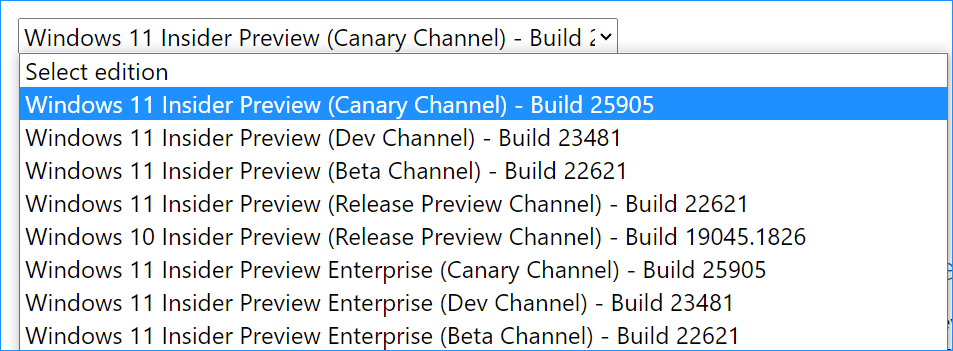
Step 1: Go to this link, choose Windows 11 Insider Preview (Canary Channel) – Build 25905, tap Confirm, choose a language, and click 64-bit Download to download the ISO of Windows 11 Build 25905.
Step 2: Get Rufus to burn the ISO to a USB flash drive.
Before the clean installation of this Windows 11 build, remember to back up your important files, especially files saved on the desktop since the installation process can erase your data. MiniTool ShadowMaker is a professional and free PC backup software that enables you to easily create a backup for files, folders, disks, partitions, and Windows.
MiniTool ShadowMaker TrialClick to Download100%Clean & Safe
Step 3: Boot the PC from the bootable USB drive and then enter the Windows Setup interface.
Step 4: Follow the on-screen instructions to install Windows 11 Build 25905 from a USB drive.
After getting Build 25905, you can run the TPM troubleshooter to fix issues with TPM when you encounter one. Go to Start > Settings > Privacy & security > Windows Security. Then, go to Device Security > Security processor details and click Security processor troubleshooting. Click the Run button to run Windows 11 TPM troubleshooter.
Final Words
That’s all the information about Windows 11 TPM troubleshooter. If you need to troubleshoot TPM issues, follow the given guide to run this tool. If needed, you can clear TPM to reset it to the default settings. Note that before clearing TPM, run MiniTool ShadowMaker to back up your data.
About The Author

Position: Columnist
Vera has been working at the MiniTool Team for over 10 years as a technical editor and content writer. She mainly focuses on disk and partition management, data recovery, Windows backup and restore, and PC troubleshooting. Through in-depth software testing and hands-on experience, she has helped users solve a wide range of computer problems and better protect their data on Windows devices.
User Comments :