
VolSnap 25 Error
Some users encountered the VolSnap 25 error and don’t know what that means. VolSnap stands for the Volume Snapshot, which is associated with the Volume Shadow Copy service and it can create shadow copies that are used for restoring files or system backups.
In this way, it is a very important component for various backup software. You may run into this VolSnap Event ID 25 when you attempt to perform some related moves in backup software, such as backing up certain drives.
Don’t worry, want to address this VolSnap Event ID 25 error? The following methods can be helpful.
Fix: VolSnap 25 Error
Fix 1: Increase the Paging Size
A small paging size can sometimes lead to this error and you can adjust the paging size to fix VolSnap 25 error.
Step 1: Open Search by pressing Win + S and type advanced to open View advanced system settings.
Step 2: In the Advanced tab, click Settings… in the Performance section.
Step 3: In the next window, go to the Advanced tab and click Change… in the Virtual memory section.
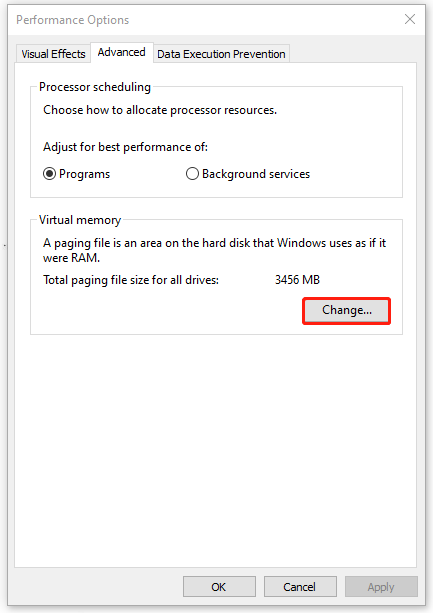
Step 4: Uncheck the option of Automatically manage paging file size for all drives and choose the drive that has shadow volume.
Step 5: Check the option of Custom size and set the Maximum size to 1.5 times your current amount of RAM in MB. Then click Set and OK to save the changes.
Fix 2: Move Your Shadow Volume
Alternatively, you can directly place a shadow copy on another disk because it is possible that the shadow drive has issues.
Step 1: Type Command Prompt in Search and choose Run as administrator.
Step 2: When the window opens, please input the following commands and press Enter after each of them.
- vssadmin add shadowstorage /For=<driveletter> /On=<destinationdriveletter> /MaxSize=UNBOUNDED
- vssadmin resize shadowstorage /For=<driveletter> /On=<destinationdriveletter> /MaxSize=UNBOUNDED
Remember to replace the <driveletter> and <destinationdriveletter> with the drive letters accordingly.
Additional Tips
Normally, the VolSnap 25 error can be fixed by the above methods but if you are still stuck with that, there are some additional tips for you.
1. If your PC is cluttered with VSS shadows, you need to delete those shadow copies.
2. Your related drive has run out of storage space and you need to clear the space to give more free disk space needed.
Another Choice for Backup – MiniTool ShadowMaker
Here, we would like to introduce another wonderful backup software – MiniTool ShadowMaker. This tool allows users to backup files & folders, systems, and partitions & disks. Apart from that, it provides you with reliable system backup solutions, quick system restores, automatic file sync, safe disk cloning, etc.
To optimize the user experience, it has a flexible backup schedule and smart backup management as well. Come to try this excellent software and you can get a 30-day free trial version.
MiniTool ShadowMaker TrialClick to Download100%Clean & Safe
Bottom Line:
Now, this post can resolve your issues with the VolSnap 25 error. Besides, you may try this recommended backup tool – MiniTool ShadowMaker to make your data better protected.
User Comments :