
Dell Alienware laptop stuck on boot screen is not a new thing that you might meet when booting up your computer. Do you know how to boot your Alienware laptop without such issues? If you are looking for some solutions at the moment, you can scroll down this post from MiniTool Website to get more information.
Alienware Laptop Stuck on Boot Screen
Alienware laptops are known for their gaming performance. However, like any Windows computer, they can occasionally face startup issues, often freezing on the boot screen.
Users may experience a freeze at the Dell logo, a hang on the Windows loading screen, or continuous restarts without reaching the sign-in screen.
This problem typically arises from software corruption, startup configuration errors, BIOS settings, storage device issues, or hardware malfunctions. The following sections will outline the possible causes and offer solutions.
Quick Answer: Why Is My Alienware Laptop Stuck on the Boot Screen
An Alienware laptop may get stuck on the boot screen due to:
- Failed or interrupted Windows updates
- Corrupted Windows system files
- Damaged Boot Configuration Data (BCD)
- External device conflicts
- Hardware-related failures
- Incorrect BIOS settings
- Faulty RAM modules
- SSD or HDD errors
In many cases, this issue can be fixed by disconnecting external devices, running Startup Repair, rebuilding boot files, checking disk health, resetting BIOS settings, or reinstalling Windows.
Common Symptoms of Alienware Stuck on Boot Screen
If your Alienware laptop is experiencing issues during the boot process, you might notice one or more of the following symptoms:
- Alienware stuck on startup screen
- Alienware frozen on boot screen
- Alienware won’t get past boot screen
- Alienware logo screen freezes
- The spinning loading circle stops moving
- Windows fails to reach the login screen
- The laptop gets stuck on the startup screen
- Alienware shows a black screen after the logo
- Alienware repeatedly restarts during boot
- Automatic Repair launches unexpectedly
- Startup takes an unusually long time
- Alienware gets stuck after a BIOS update
- F2 or F12 keys do not respond during boot
Identifying the specific symptom can help you determine the most effective troubleshooting method.
What Causes Alienware to Get Stuck on the Boot Screen
Before attempting repairs, it is helpful to understand what may be causing the problem.
| Cause | Description |
| Corrupted system files | Critical system components are damaged, which causes Windows to not start. |
| Failed Windows update | The startup process is interrupted. |
| Damaged BCD | Boot configuration is unreadable. |
| BIOS misconfiguration | Incorrect firmware settings halt the initial hardware check. |
| SSD/HDD failure | Windows files on the hard drive cannot be accessed by the motherboard. |
| RAM issues | Faulty memory causes startup freezes or random restarts. |
| External devices conflicts | Plugged-in USBs or external hard drives interfere with the boot order. |
| Malware or virus infection | Malicious software corrupted master boot records or boot sectors. |
How to Fix Alienware Laptop Stuck on Boot Screen?
Fix 1. Disconnect All External Devices
External devices can sometimes interfere with the proper loading of Windows. To rule out the external device conflicts:
Step 1. Turn off your Alienware laptop.
Step 2. Disconnect all external devices, including:
- USB flash drives
- USB hubs
- External hard drives
- Printers
- Docking stations
- Game controllers
- External monitors
Step 3. Turn on the laptop again.
If Windows boots successfully, reconnect the devices one at a time to identify the problematic device.
Fix 2. Run a Hard Reset
Some issues like Windows not loading, software freezing, a blank display, keyboard not responding and more can be fixed by performing a hard reset to your Windows machine. A hard reset, also known as a power reset, can clear all the information from the computer’s memory. This method is easy and safe to try because it only removes the memory data and keeps your personal data intact. To do so:
Step 1. Power off your computer and remove all attached peripherals like USB flash drives, printers, scanners, digital cameras, phones, optical drives, SD cards, and more.
Step 2. Remove the battery from the battery compartment and then press & hold the Power button for at least 15 seconds.
Step 3. Put the battery back and press the Power button again to boot your Alienware laptop without these external storage devices.
Fix 3. Run ePSA Pre-boot System Assessment
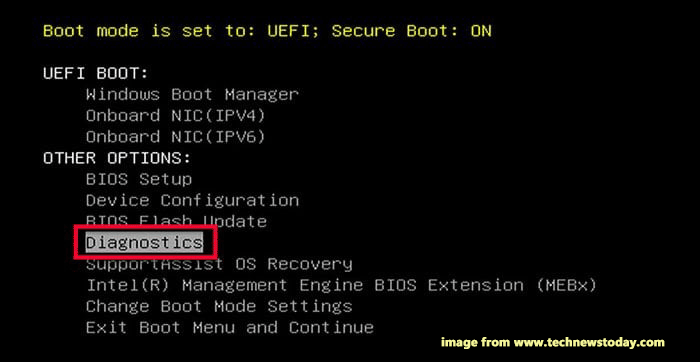
Luckily, Dell comes with a hardware diagnostic feature in BIOS called ePSA Pre-boot System Assessment. You can use this tool to check if the hardware components have any severe issues. To do so:
Step 1. Shut down your computer.
Step 2. After a while, press the Power button to reboot it. As soon as the logo screen appears, press the F2 key repeatedly to enter BIOS.
Step 3. Highlight Diagnostics and hit Enter to run ePSA Pre-boot System Assessment. After the process is done, you can replace the faulty hardware according to the test result.
Fix 4. Perform Automatic Repair
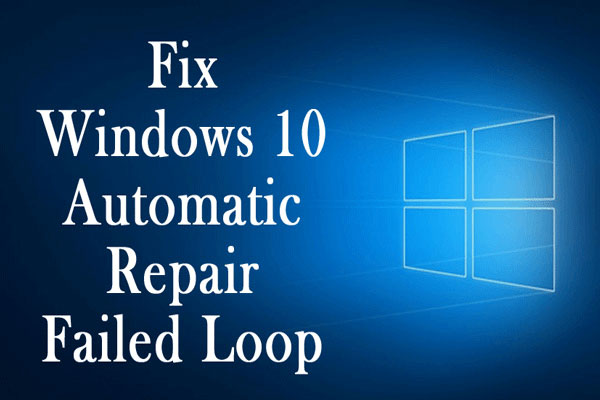
When your Alienware laptop gets stuck on the loading screen and cannot boot normally, you can make use of the inbuilt Windows repair tool – Automatic Repair or Startup Repair to fix this issue. Here’s the detailed tutorial:
Step 1. Press the Power button to switch off your Alienware laptop. After a while, power it on and press & hold the Power button to shut it down when you see the Windows logo. Repeat the process several times until you see the Automatic Repair screen.
Step 2. Click on Advanced options to enter Windows Recovery Environment (WinRE).
Step 3. Go to Troubleshoot > Advanced options > Automatic/Startup Repair to start the repairing process.
Fix 5. Boot into Safe Mode
Safe Mode only allows basic system programs and services to run at startup so that you can easily detect and repair some computer system issues including Alienware laptop stuck on boot screen. Here’s how to boot into Safe Mode:
Step 1. Repeat the first 2 steps in Fix 3 to enter Windows Recovery Environment.
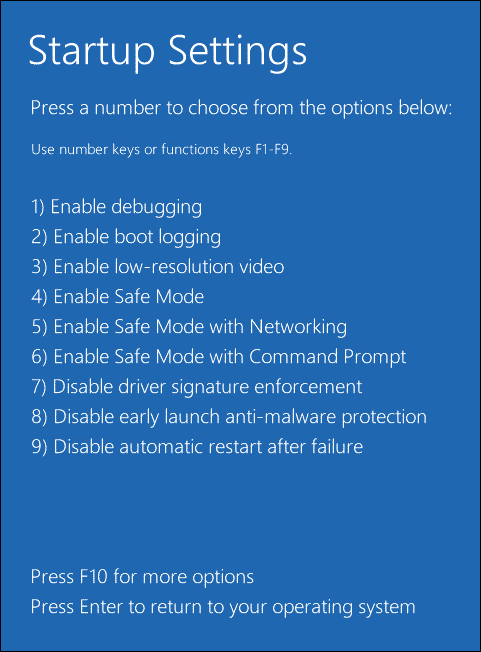
Step 2. Click on Troubleshoot > Advanced options > Startup Settings > Restart.
Step 3. Wait for your computer to restart automatically and press F4, F5, or F6 to enable Safe Mode in the Startup Settings screen. There are three Safe Mode options available for you:
- Enable Safe Mode – only starts Windows with the most basic components of your computer and extra programs or drives will not start.
- Enable Safe Mode with Networking – starts other components that are required for network services to run besides the basic system components.
- Enable Safe Mode with Command Prompt – is very useful for computer experts or maintenance personnel.
Once you are in Safe Mode, you can rely on some third-party antivirus software to scan, detect, and remove any virus or malware infection.
Fix 6. Rebuild Boot Configuration Data (BCD)
A damaged Boot Configuration Data (BCD) file stops Windows from starting. If the Alienware won’t get past boot screen issue caused by this, rebuilding it may restore normal startup.
Step 1. Boot into WinRE and open Command Prompt from Advanced options.
Step 2. Execute the following commands one by one:
- bootrec /fixmbr
- bootrec /fixboot
- bootrec /scanos
- bootrec /rebuildbcd
Step 3. Restart the laptop after all commands complete successfully.
Fix 7. Check the SSD or HDD for Errors
Storage-related issues are one of the most common causes of boot freezes. To troubleshoot it, open Command Prompt in WinRE and run:
chkdsk C: /f /r
The command scans the drive for file system errors and bad sectors.
Check File System to detect and repair logical errors
Surface Test to identify bad sectors
Rebuild MBR to repair damaged boot records
MiniTool Partition Wizard FreeClick to Download100%Clean & Safe
Fix 8. Uninstall Recent Windows Updates
If the issue started immediately after a Windows update, removing the update may resolve it.
Step 1. Enter Windows Recovery Environment.
Step 2. Select Advanced Options and click Uninstall Updates.
Step 3. Choose:
- Uninstall latest quality update
- Uninstall latest feature update
Step 4. Restart the laptop.
Check whether the startup problem is resolved.
Fix 9. Change Boot Priority
If the default boot device is not your system hard drive, computer boot issues like Alienware laptop stuck on boot screen will also crop up. To fix it, you need to change the primary boot order to the system volume from the BIOS menu. Here’s how to do it:
Step 1. Restart your computer.
Step 2. Press the F2 key repeatedly at the Alienware logo screen to enter BIOS.
Step 3. Use the arrow keys to navigate to the Boot menu.
Step 4. In the Boot Option Priority section, select your system drive as the first boot device and hit Enter.
Fix 10. Reset BIOS Settings
A failed update or malware attack might lead to a damaged BIOS, causing issues like Alienware laptop black screen with logo. In this case, resetting BIOS to default settings might be a good solution. To do so:
Step 1. Enter the BIOS menu of your Alienware laptop.
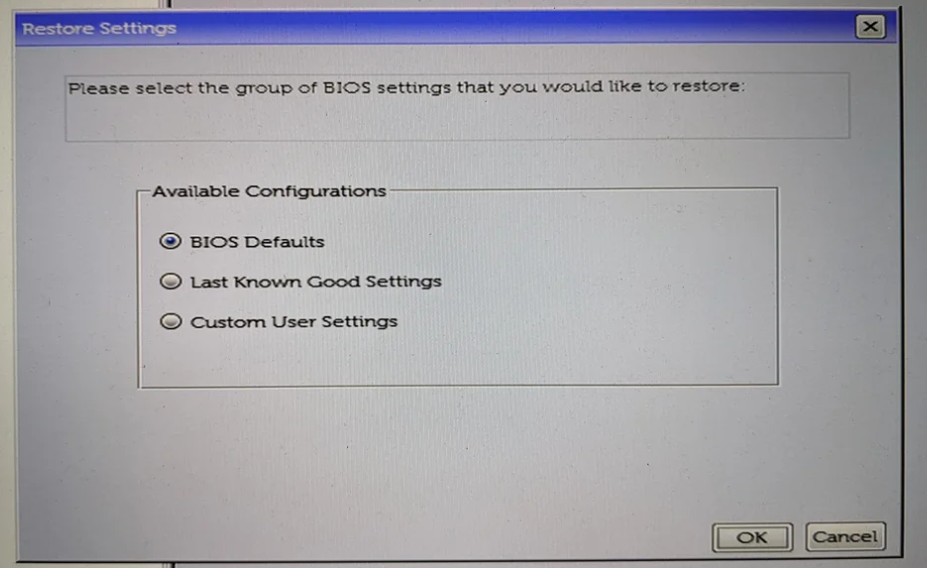
Step 3. Use the arrow keys to locate Restore Settings, tick BIOS Defaults, and hit OK.
Fix 11. Reset Your Alienware Laptop
When your computer has some severe system problems or runs too slow, factory reset might be a suitable way for you. This operation will wipe all your installed programs & drivers and return them to their defaults.
MiniTool ShadowMaker TrialClick to Download100%Clean & Safe
After making a backup of your data, it’s time to factory reset your Alienware laptop:
Step 1. Enter into WinRE.
Step 2. Navigate to Troubleshoot > Reset this PC > Keep my files > choose Could Download or Local Reinstall.
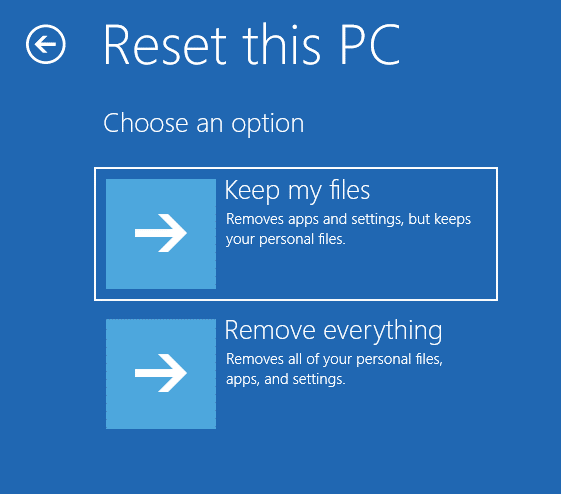
Step 3. Choose an account > enter your password > click on Reset to perform the factory reset operation.
Fix 12. Clean Install Windows
In addition to Reset this PC, you can also choose to perform a clean install of your Windows. Follow these instructions:
Move 1: Create an Installation Media
Step 1. Prepare a computer that can work normally and a USB flash drive with at least 8GB capacity. Go to the Windows Software Download page, select your Windows edition, and click on Download Now to get Media Creation Tool.
Step 2. Run Media Creation Tool and then accept the license terms.
Step 3. Tick Create installation media (USB flash drive, DVD, or ISO file) for another PC and hit Next.
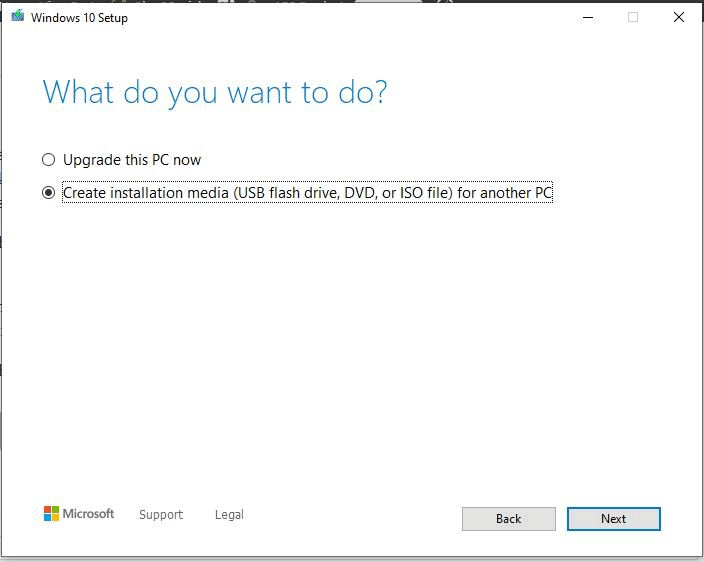
Step 4. Untick the Use the recommended option for this PC option and enter your language, edition, and architecture.
Step 5. Insert a USB drive into this computer, tick USB flash drive and select your USB drive.
Step 6. After the process completes, hit Finish to exit the tool.
Move 2: Reinstall Windows
Step 1. Insert the USB drive into your problematic Alienware laptop.
Step 2. Enter BIOS to change the USB drive as the default boot device.
Step 3. Boot your computer from this USB drive, pick your language preferences, and hit Next.
Step 4. Click on Install now> hit I don’t have a product key > select your Windows edition > hit Next.
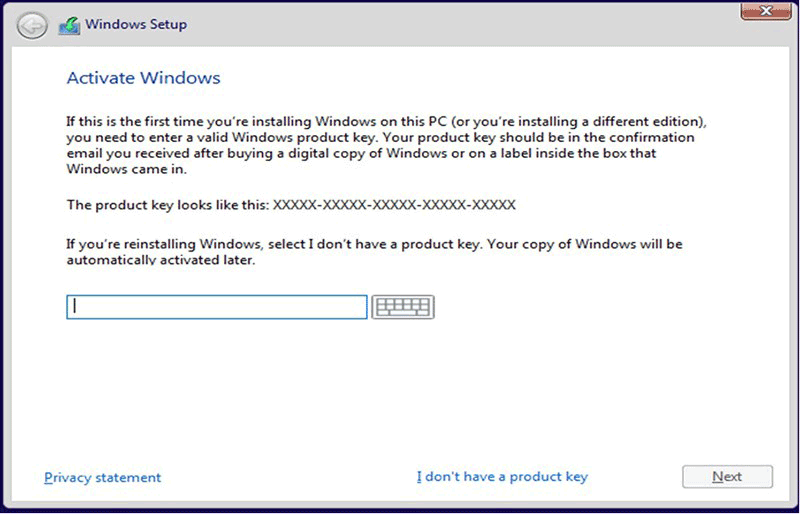
Step 5. Press Custom: Install Windows only (advanced) > select the partition with the operating system > hit Next > follow the on-screen instructions to complete the installation.
How to Prevent Alienware Boot Screen Problems
While it may not be possible to avoid all startup issues, you can reduce the risk by following these best practices:
- Properly install Windows updates.
- Avoid sudden power interruptions.
- Shut down Windows correctly.
- Regularly monitor the health of your SSD.
- Periodically scan for malware.
- Update your BIOS firmware when necessary.
- Create regular system backups.
Create a System Backup in Advance
One of the best ways to prepare for unexpected boot failures is to maintain a recent system image backup. MiniTool ShadowMaker is a reliable option for this purpose, as it allows you to:
- Back up the operating system
- Create system images
- Back up files and folders automatically
- Restore the computer after startup failures
With a recent backup available, recovering from serious boot problems becomes much easier. Here’s how to create a system image with this tool:
Step 1. Launch MiniTool ShadowMaker and hit Keep Trial.
MiniTool ShadowMaker TrialClick to Download100%Clean & Safe
Step 2. In the Backup page, you can see your system is selected as the backup source by default, so you only need to choose a storage path for your system image in DESTINATION. Here, choosing an external hard drive or USB flash drive is more recommended.
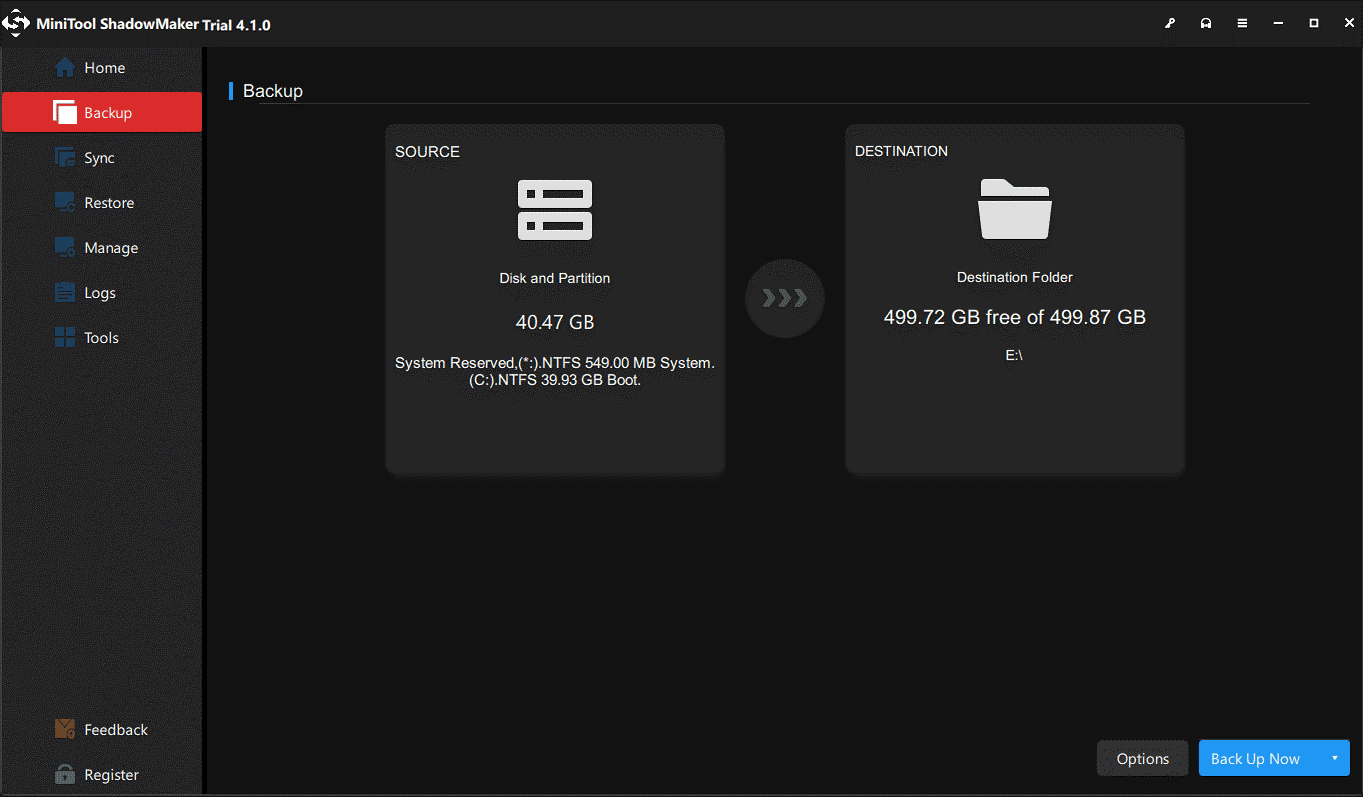
Step 3. Either click on Back Up Now to start the task immediately or delay the task by hitting Back Up Later. You can find the delayed task in the Manage page.
# Create a Bootable USB Flash Drive
After backing up your system, it’s time to create a bootable USB flash drive.
Step 1. Connect your USB drive into your computer.
Step 2. Launch MiniTool ShadowMaker and go to the main interface.
Step 3. In the Tools page, click on Media Builder > select WinPE-based media with MiniTool Plug-in > choose your USB flash drive as a media destination.
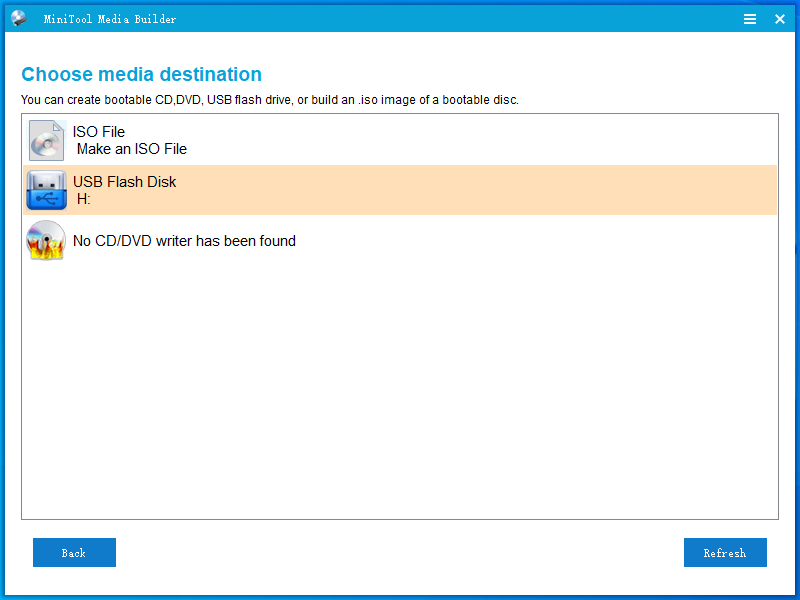
Step 4. Click on Yes in the warning message to confirm this action and wait for the process to complete. If your Alienware won’t boot to Windows in the future, you can boot your computer from this drive and perform system recovery with it.
Alienware Boot Screen Issues at a Glance
| Problem | Possible Cause | Recommended Fix |
| Stuck on Dell logo | BIOS issue | Reset BIOS |
| Startup freeze | Corrupted system files | Startup Repair |
| Boot loop | Damaged BCD | Rebuild BCD |
| Windows won’t load | Disk errors | Check SSD/HDD |
| Freeze after update | Update failure | Uninstall updates |
Bottom Line
An Alienware laptop stuck on the boot screen may be due to startup file corruption, boot configuration issues, or hardware faults. Start by disconnecting external devices and performing a force restart.
If the issue persists, use Windows recovery tools like Startup Repair, rebuild the BCD, or check the drive for errors. For disk corruption, MiniTool Partition Wizard can help, and remember to back up your data regularly with MiniTool ShadowMaker.
Additionally, if you encounter any issues or have any suggestions while using the MiniTool software, contact us by sending an email to [email protected].
Alienware Laptop Stuck on Boot Screen FAQ
You might recover your data by using recovery media, another computer, or dedicated recovery software (such as MiniTool Power Data Recovery) before fixing Windows.
2 Amber, 1 Blue: Motherboard failure.
2 Amber, 2 Blue: BIOS/ROM failure.
2 Amber, 3 Blue: No Memory (RAM) detected.
2 Amber, 4 Blue: Memory failure.
2 Amber, 7 Blue: LCD failure.
3 Amber, X Blue: Usually points to an Embedded Controller (EC) or Power Rail failure.
About The Author

Position: Columnist
Charlotte is a technology columnist with a strong focus on the Windows operating system, specializing in disk management, backup, and data recovery. She is passionate about analyzing computer errors, identifying root causes, and delivering practical solutions. In her free time, she stays updated on the latest developments in computer systems and hardware while continuously learning new technologies to broaden her expertise. Her writing style is clear and easy to understand, making complex technical topics accessible even to users with limited computer knowledge.
User Comments :