
From videos to project files, comprehensive backup for content creators is essential. Here, MiniTool explores practical strategies and tools to secure your data and ensure a seamless workflow.
Creating content takes time, effort, and creativity. Whether you edit videos, photos, or podcasts, losing files means losing months of work. A reliable backup for content creators protects assets from hardware failures, accidental deletion, and malware.
Here, we explore practical strategies for effectively backing up your work and automating the process with MiniTool ShadowMaker.
What Is Backup for Content Creators
Backup for content creators involves creating additional copies of creative assets and storing them in multiple locations to prevent data loss. These assets may include:
- Raw video footage and final edits
- Photos, graphics, and project files
- Audio recordings, scripts, and documents
- Final client deliverables
Content creation often involves large files and lengthy production workflows. Without backups, a single drive failure or accidental deletion can permanently destroy your work. A proper backup strategy ensures you can:
- Prevent data loss from hardware failures or malware
- Recover deleted files and protect ongoing projects
- Reduce downtime and maintain business continuity
- Preserve completed work to build a historical archive and asset repositories
For freelancers, influencers, photographers, video editors, and creative agencies, a robust creator backup workflow is an absolute necessity.
What Files Should Content Creators Back Up
To build a robust creator backup workflow, not all files have the same value. Give priority to files that would be difficult or impossible to recreate in the event of data loss.
| Source Files | RAW photos Video footage Audio recordings Screen recordings |
| Project Files | Video editing projects Photoshop files Design files Audio editing projects |
| Finished Content | Exported videos Edited photos Podcasts PDFs and other published content |
| Creative Assets and Resources | Music and sound effects Fonts Templates Graphics and logos Presets and plugins |
| Business Files | Contracts Invoices Content plans Client communications |
| Notes and Research | Scripts Research notes Content ideas AI-generated drafts |
In general, any file that requires significant time, effort, or money to recreate must be included in your backup plan. Additionally, backing up critical files along with your creative assets ensures a rapid, seamless recovery from unexpected system failures.
- Operating system settings
- Application configurations
- Workstation images
What Is the Best Backup Strategy for Content Creators
The best backup strategy for content creators is the 3-2-1 backup rule. This rule suggests:
- Keep 3 copies of data (original + 2 backups)
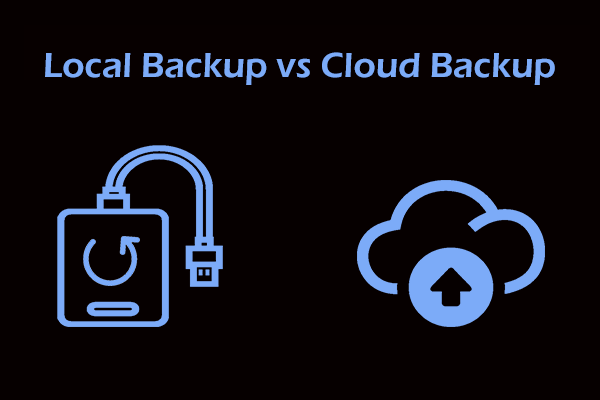
- Use 2 different storage types (e.g., local drive and external drive or cloud storage)
- Store 1 copy offsite (such as cloud storage or a remote location)
For example:
| Copy | Storage Location |
| Original files | Source device (like your computer) |
| Backup #1 | External hard drive |
| Backup #2 | NAS or network storage |
This creator backup workflow minimizes the risk of losing all copies of important content from physical disasters, theft, or ransomware.
How to Automate Backups with MiniTool ShadowMaker
Manually backing up creative files is time-consuming and easy to forget when managing multiple videos, photos, and client projects. Automating this process ensures your work is consistently protected without interrupting your creative workflow.
With MiniTool ShadowMaker, content creators can easily schedule automatic backups, maintain multiple versions of files, and store copies across devices to implement a reliable backup strategy.
After downloading and installing MiniTool ShadowMaker on your computer, you can follow these steps to experience the whole process of data backup and recovery.
MiniTool ShadowMaker TrialClick to Download100%Clean & Safe
Step 1. Choose the Files and Folders
Start by selecting the folders that contain your most valuable content and project data. These may include raw footage, edited videos, photos, audio files, project files, content plans, and client documents.
Backing up entire project folders is often easier than selecting individual files, especially as projects become larger over time.
- Launch MiniTool ShadowMaker.
- Navigate to the Backup tab.
- Click SOURCE.
- Select the folders and files you want to protect.
- Click OK to continue.
Step 2. Select a Backup Destination
The next step is choosing where backup files will be stored.
MiniTool ShadowMaker supports multiple destinations, including:
- External hard drives
- USB flash drives
- NAS devices
- Shared network locations
- Go to DESTINATION.
- Select the location that you want to back up to.
- Click OK to confirm.
Step 3. Set Up an Automatic Backup Schedule
Automatic backups ensure that new content is protected automatically.
To configure a schedule:
Step 1. Click Options.
Step 2. Enable Schedule Settings.
Step 3. Choose a backup frequency:
- Daily
- Weekly
- Monthly
- On Event
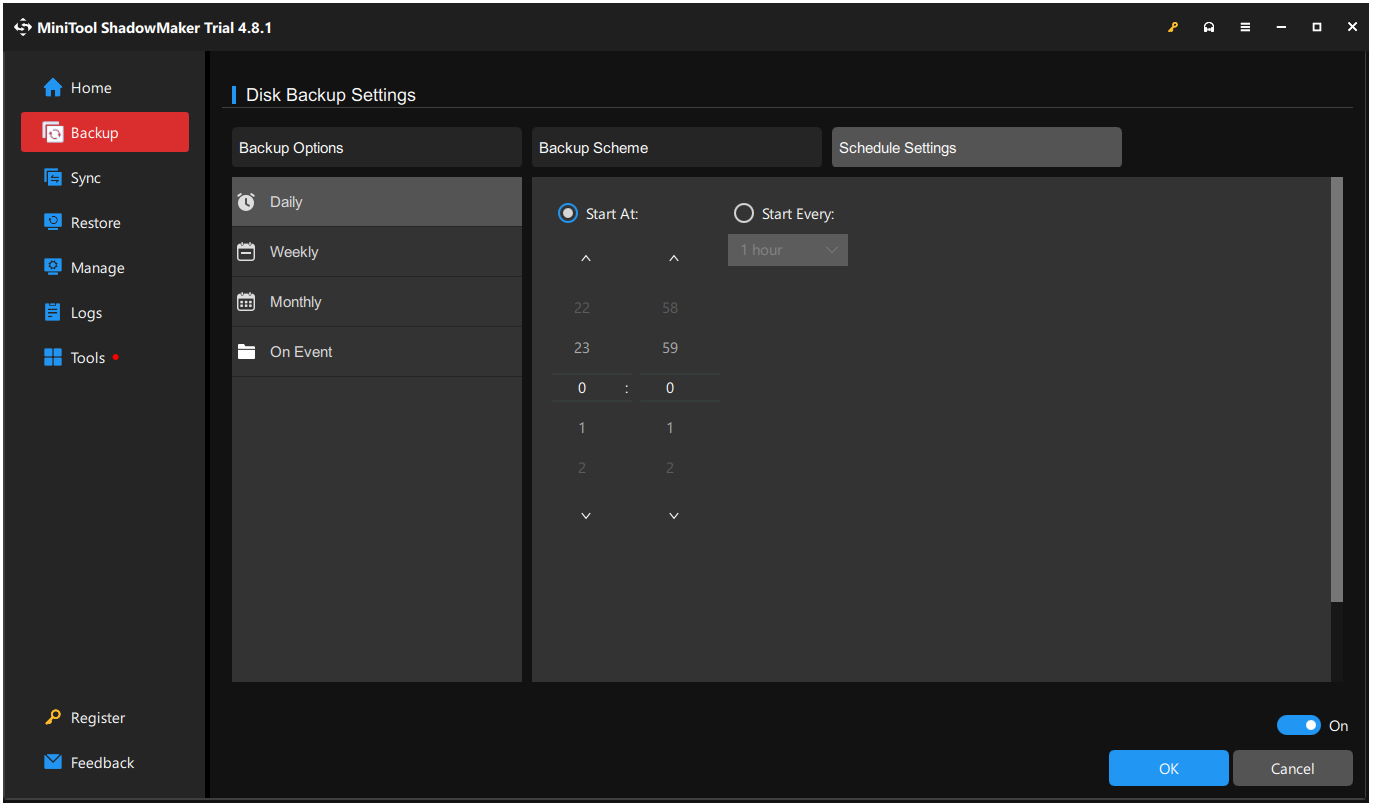
For active content creation projects, daily backups are often the most practical option.
Step 4. Enable Incremental or Differential Backups
Creative projects often contain large media files that change frequently.
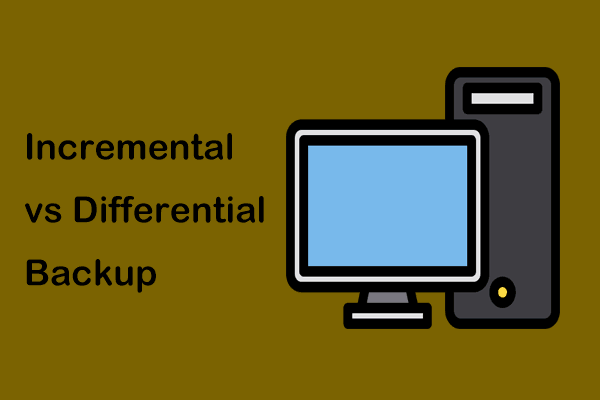
Instead of creating a full backup every time, MiniTool ShadowMaker allows creators to use:
Incremental Backup
Backs up only the files changed since the previous backup.
Benefits:
- Faster backup speed
- Lower storage consumption
Differential Backup
Backs up all changes since the last full backup.
Benefits:
- Faster recovery
- Simpler backup chain
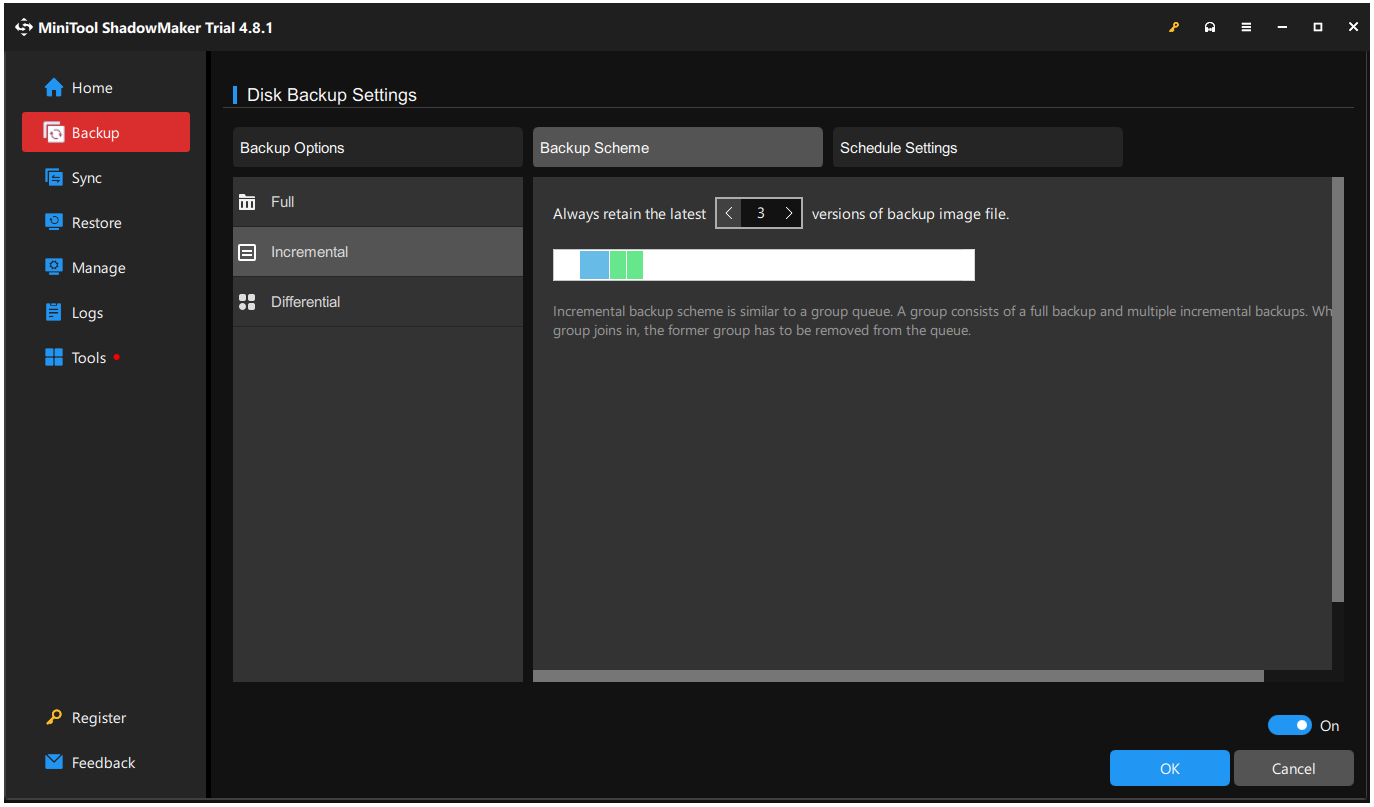
These backup methods help manage storage space while maintaining multiple recovery points.
Step 5. Run the Backup Task
After configuring the settings:
- Click Back Up Now.
- Wait for the initial backup to complete.
- Verify that the backup image has been created successfully.
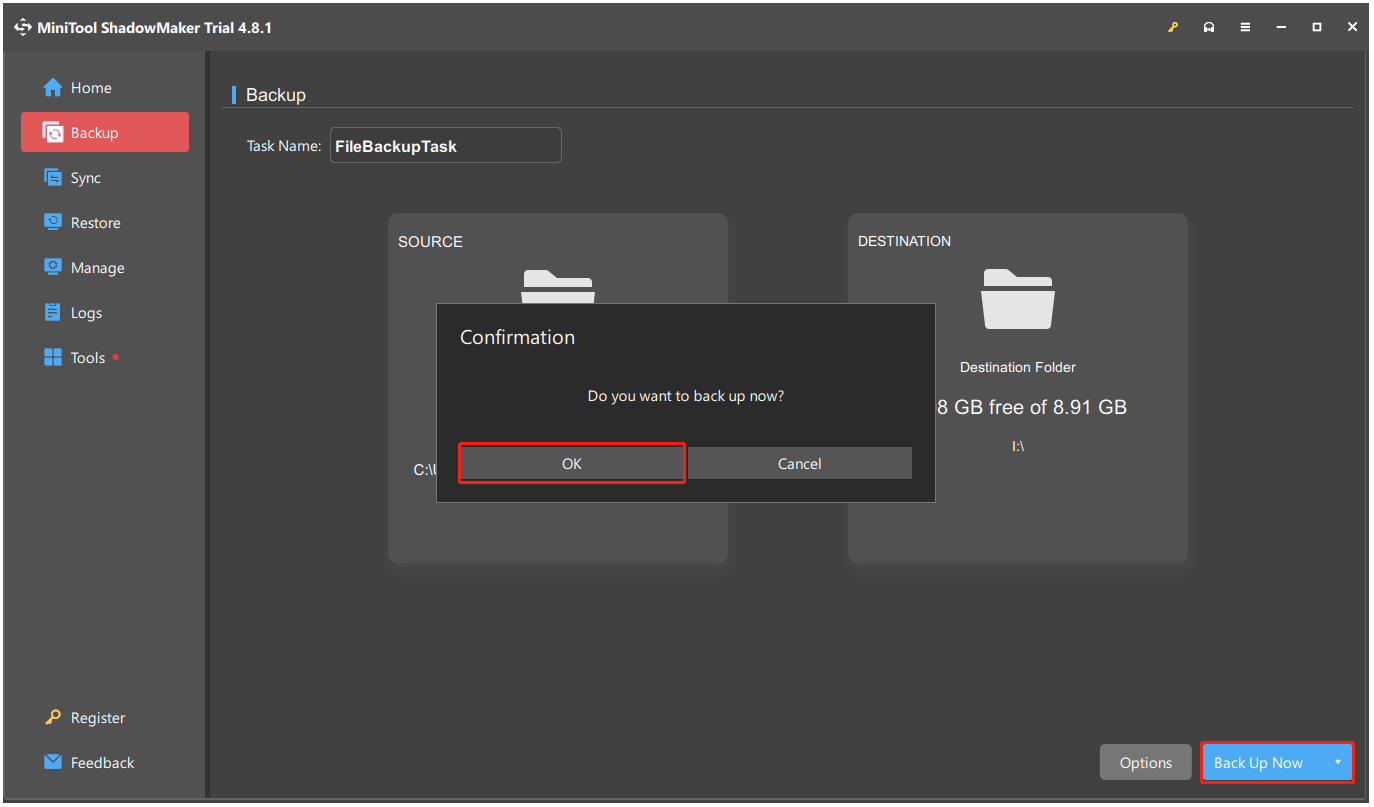
Once configured, future backups can run automatically according to the selected schedule.
Step 6. Test File Recovery
A backup is only useful if files can be restored successfully.
To verify backup integrity:
- Open the Restore tab.
- Select a backup version.
- Recover several files to a test location.
- Confirm that the files open correctly.
Regular recovery testing helps ensure backups remain reliable when needed.
Best Practices for Content Creator Backups
1. Follow the 3-2-1 Rule
Keep three copies of data, store them on two different devices, and keep one copy offsite.
2. Enable Automatic Backups
Use scheduled backups to protect new files without manual work.
3. Back Up Important Files Regularly
Include videos, photos, project files, documents, and exported content.
4. Use Multiple Storage Locations
Combine local storage, external drives, and cloud services for better protection.
5. Keep Backup Versions
Save multiple file versions so older copies can be restored if needed.
6. Protect Backup Data
Use passwords and encryption to secure sensitive files.
7. Test Restores Periodically
Check that backup files can be recovered successfully when needed.
Following these practices can help content creators protect their work and recover quickly from data loss.
![[Comrehensive Guide] – 4 Steps of Creating the Backup Plan](https://images.minitool.com/minitool.com/images/uploads/2022/01/the-backup-plan-thumbnail.jpg)
Common Backup Mistakes Content Creators Should Avoid
Even the most robust backup software is useless against a flawed strategy. To safeguard your digital assets, here are the most critical backup mistakes content creators must avoid:
1. Relying on a Single Backup Copy
Relying on just a single copy of important files is risky. Hardware failures, accidental deletions, or malware can lead to permanent data loss. Always keep multiple backup copies.
2. Ignoring Automatic Backups
Backups can easily be forgotten during busy projects. Scheduled backups ensure that new content is protected without needing constant attention.
3. Storing Backups in One Location
Saving both original files and backups on the same device offers minimal protection. Instead, use external drives, network storage, or cloud services to ensure redundancy.
4. Not Testing Backup Files
A backup is ineffective if it cannot be restored. Periodically verify the integrity of backups and conduct test restores to ensure that files remain accessible.
5. Overlooking Version History
Creators often mistakenly overwrite files. Backup solutions with versioning allow recovery of earlier file versions, helping prevent the loss of valuable work.
6. Failing to Protect Backups
Unencrypted backups can reveal sensitive projects and client data. Always use password protection and encryption, particularly for portable or cloud-stored backups.
7. Waiting Until Data Loss Occurs
Many users only back up their files after experiencing data loss. To effectively safeguard your important information, establish a proactive backup routine before issues arise.
By avoiding these mistakes and implementing a regular backup strategy, content creators can better safeguard their projects, save time, and minimize the effects of hardware failures or human errors.
Backup For Content Creators FAQ
Therefore, choose a backup solution that offers automated scheduling, incremental backups, cloud support, encryption, file versioning, and streamlined recovery tools.
Most solutions also support external drives, NAS devices, and cloud storage, ensuring video files are securely stored and can be easily restored if lost or corrupted.
Features like incremental backups, versioning, and fast restore help ensure work is continuously saved and can be quickly recovered, minimizing downtime during creative projects.
Conclusion
A reliable backup strategy helps content creators protect valuable files and avoid data loss. By following the 3-2-1 rule and automating backups, creators can keep projects safe and accessible.
MiniTool ShadowMaker makes this easier with scheduled backups, flexible storage options, and dependable recovery tools. Additionally, if you encounter issues while using MiniTool software, send an email to [email protected].
About The Author

Position: Columnist
Charlotte is a technology columnist with a strong focus on the Windows operating system, specializing in disk management, backup, and data recovery. She is passionate about analyzing computer errors, identifying root causes, and delivering practical solutions. In her free time, she stays updated on the latest developments in computer systems and hardware while continuously learning new technologies to broaden her expertise. Her writing style is clear and easy to understand, making complex technical topics accessible even to users with limited computer knowledge.
User Comments :