
Backing up your laptop before replacing the battery is crucial to ensure your data remains safe. This post from MiniTool explains why backup laptop before battery replacement and outlines effective methods to protect data.
Quick Answer
Should I backup my laptop before replacing the battery?
Yes, backing up a laptop before battery replacement is recommended. Although replacing a battery usually does not erase data, unexpected issues during repair may cause data loss. Creating a system backup or copying important files to an external drive helps protect Windows settings, personal files, and applications.
Why Do You Need to Backup Your Laptop Before Replacing the Battery
Replacing a battery is usually safe, but unexpected hardware glitches, static discharge, or system resets during repair can happen. Backing up your laptop is quick insurance against losing your digital life if anything goes wrong.
Here’s the real value of backing up your laptop before battery replacement:
- Protect What Can’t Be Replaced: Hardware is easily replaced, but your memories, work files, and critical documents are irreplaceable. A backup guarantees they stay safe.
- Prevent Accidental Data Loss: Technicians often need to disconnect components or reset settings—having a backup ensures your data survives unexpected wipes.
- Restore Your System Fast: If anything goes wrong, a full backup lets you restore your OS, apps, and settings in minutes with zero hassle.
Swapping a battery usually takes several minutes, but data recovery feels endless. Spending a few minutes to backup before laptop repair is always worth it.

What Should You Backup Before Replacing Laptop Battery
Before replacing your laptop battery, focus on backing up the data that would be difficult or impossible to recover if something goes wrong. The table below shows what you should back up and why each item is important.
| Data | Backup Needed? | Reason |
| Personal files | Yes | Prevent permanent loss of important files |
| Browser passwords & bookmarks | Recommended | Avoid losing saved credentials and browsing data |
| Email data | Recommended | Protect local emails and account settings |
| Installed programs & settings | Optional | Reduce the time needed to reinstall software |
| Windows system | Yes (Recommended) | Save time by avoiding Windows reinstallation, driver setup, and system configuration after repair |
If you only have time for one backup, creating a full system image is usually the safest choice.
Unlike manually copying files, a system image saves your entire system, including Windows, applications, settings, and personal data. You can use it to quickly restore your laptop after battery replacement if problems occur.

How to Backup Laptop Before Battery Replacement
Before replacing a laptop battery, back up important files to prevent data loss and create a system image to perform a quick disaster recovery.
Method 1: Use Backup Software
Best for: Users who need full Windows recovery after battery replacement.
Combining system backup with file backup provides more complete protection before battery replacement.
A system image saves Windows, programs, and settings, while file backup protects your important personal files. This helps you quickly restore your laptop and recover data if problems occur after repair.
MiniTool ShadowMaker is a simple backup tool that helps create system, disk, partition, and file backups. This makes it suitable for users who want to protect the entire Windows environment.
Here’s how to back up files via MiniTool ShadowMaker:
Step 1. Download and install MiniTool ShadowMaker on your PC.
MiniTool ShadowMaker TrialClick to Download100%Clean & Safe
Step 2. Launch this software and select Backup from the left menu.
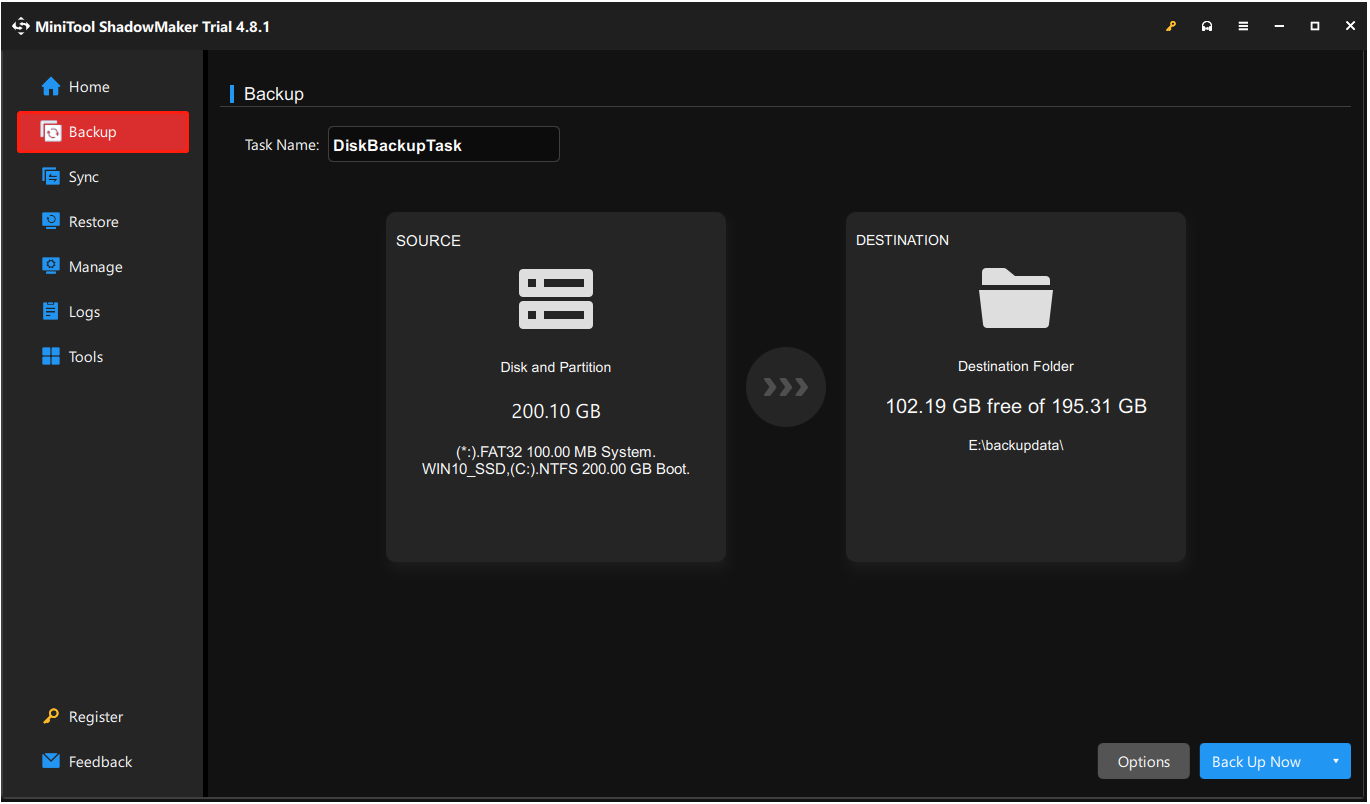
Step 3. Enter the SOURCE section and choose Folders and Files. Then, select the files and folders that you want to back up, and click Next.
Step 4. Go to the DESTINATION section and choose an external hard drive, USB drive, or another storage location to save the backup image.
Step 5. Adjust backup settings if needed, such as compression, schedule, or backup scheme options.
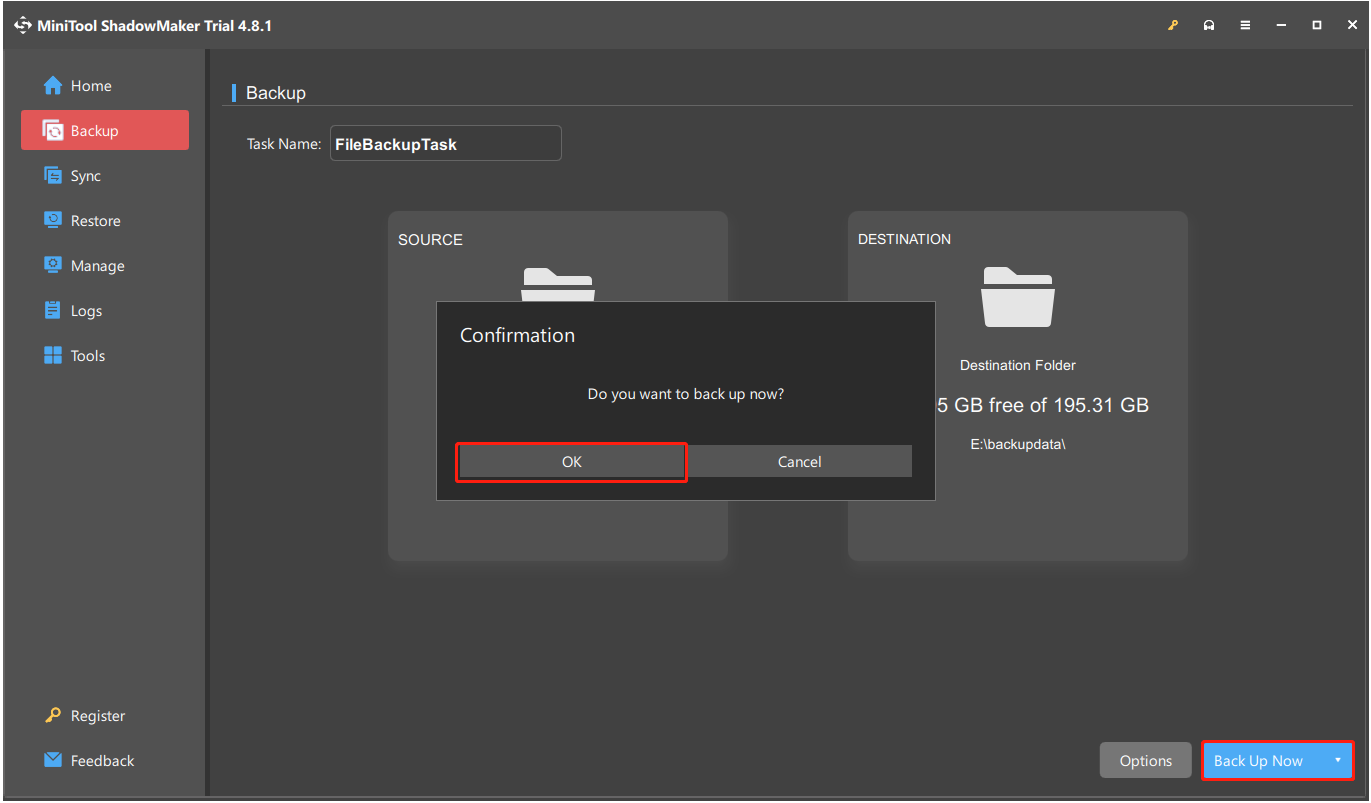
Step 6. Click Back Up Now to start creating the system image. Wait until the process is complete.
Method 2: Manually Copy Files to External Drive
Best for: Users who only need to protect personal files before laptop repair.
If you only need to back up personal documents, photos, videos, and other important files, and you only have a small amount of data, manually copying them to an external drive is the simplest backup method. It is completely free and does not require any backup software.
However, this method only protects your personal data—it does not back up Windows, installed applications, or system settings. Here’s how to do that:
- Connect an external hard drive or USB storage device to your laptop.
- Press Win + E to open File Explorer.
- Select important folders, such as Documents, Pictures, Videos, and Downloads.
- Copy the selected files to the external storage device.
- Open several files to confirm the backup is complete.
Although this method is quick and easy, it relies on manually selecting every important file. Data stored in other folders or application-specific locations may be overlooked, and you cannot use this backup to restore your Windows system or installed programs after the repair.
Method 3: Cloud Backup
Best for: Users who need convenient access to important files from multiple devices.
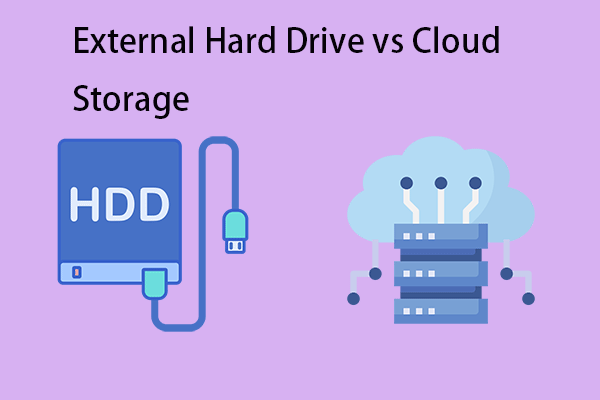
Cloud backup provides another way to protect data before laptop repair. Since files are stored online, they remain accessible even if the laptop has hardware problems.
Common cloud backup options include:
- OneDrive
- Google Drive
- Dropbox
Cloud storage works well for personal files but cannot create a full system image for restoring Windows, apps, and settings.
Final Checks Before Replacing Your Laptop Battery
Once you’ve backed up your laptop, the next steps depend on how the battery will be replaced.
- If you’re taking your laptop to a professional repair shop or an authorized service center, your preparation is essentially complete. After verifying that your backup has finished successfully, shut down the laptop, unplug the charger, and take it to the technician for the battery replacement.
- If you’re replacing the battery yourself, follow the checklist below to prepare your laptop and reduce the risk of hardware damage or startup issues during the replacement.
Before opening your laptop, complete the following checks:
1. Shut Down Your Laptop Completely
Turn off your laptop completely instead of putting it into Sleep or Hibernate mode. Wait until all indicator lights are off before starting the battery replacement.
2. Disconnect the Power Adapter
Unplug the charger and disconnect any power source from the laptop. This helps prevent electrical damage to the internal components.
3. Remove External Devices
Disconnect USB drives, external hard disks, SD cards, docking stations, and other accessories. Removing peripherals reduces the risk of accidental damage and makes the replacement process easier.
4. Save Your BitLocker Recovery Key (If Enabled)
If BitLocker is enabled on your Windows laptop, save the recovery key before replacing the battery. While a battery replacement doesn’t usually trigger BitLocker Recovery, certain hardware or firmware changes may require the key the next time Windows starts.
5. Verify the Replacement Battery
Check that the new battery is compatible with your laptop model and comes from a trusted manufacturer or supplier. An incompatible battery may cause charging problems or prevent the laptop from recognizing the battery correctly.
6. Prepare a Safe Workspace
If you’re replacing the battery yourself, work on a clean, dry, and static-free surface. If possible, wear an anti-static wrist strap to reduce the risk of electrostatic discharge (ESD) damage to sensitive internal components.

What Happens if You Replace Battery Without Backup
Replacing a laptop battery usually does not delete files or affect stored data. However, skipping a backup before battery replacement can increase the risk of data loss if unexpected problems occur during or after the repair.
Here are some situations in which data loss may happen:
Accidental hardware damage
During battery replacement, incorrect handling may damage internal components, which can make the laptop inaccessible and increase the risk of data loss.
Windows boot problems
Hardware changes or unexpected issues after repair may cause startup errors. Without a system backup, restoring Windows and settings can be more difficult.
Additional repair requirements
If other hardware problems are discovered during battery replacement, the laptop may need further troubleshooting or system recovery.
Permanent data loss risk
If the storage drive is damaged or the system cannot be recovered, files without a backup may be permanently lost.
A battery replacement itself normally does not erase data, but a backup provides a safety net and makes recovery easier if unexpected repair issues happen.
Backup Laptop Before Battery Replacement FAQ
However, accidental physical damage, electrostatic discharge (ESD), or improper handling during the replacement could affect internal components. Backing up your laptop beforehand provides an extra layer of protection in case unexpected issues occur.
1. Fully charge the battery to 100%.
2. Unplug the charger.
3. Use the laptop until the battery level drops to around 10–15%.
Use the software, MiniTool ShadowMaker to perform file and system backups.
Final Words
Creating a backup before replacing your laptop battery is a straightforward step that can help avoid unexpected data loss. If you only have a small amount of personal data to protect, copying your files to an external drive or cloud storage may be enough.
For comprehensive protection, it is recommended to create both a system image backup and a file backup. This allows you to restore Windows and recover important files if issues occur after replacing the battery.
If you face any problems using MiniTool ShadowMaker, please contact us at [email protected].
About The Author

Position: Columnist
Charlotte is a technology columnist with a strong focus on the Windows operating system, specializing in disk management, backup, and data recovery. She is passionate about analyzing computer errors, identifying root causes, and delivering practical solutions. In her free time, she stays updated on the latest developments in computer systems and hardware while continuously learning new technologies to broaden her expertise. Her writing style is clear and easy to understand, making complex technical topics accessible even to users with limited computer knowledge.
User Comments :