
If Windows is stuck on the Cleaning Up, Do Not Turn Off Your Computer screen after an update, don't force a shutdown immediately. This MiniTool guide explains why the issue happens, how long you should wait, and the safest methods to get Windows working again without data loss.
Quick Answer
If your Windows computer is stuck on the “Cleaning Up. Do Not Turn Off Your Computer” screen, do not turn off your PC right away. Wait for at least 30 to 60 minutes, as Windows may still be completing the update.
If there is no progress after several hours, restart your computer into the Windows Recovery Environment (WinRE) and try options such as Startup Repair, Safe Mode, or System Restore.
Why Is Windows Stuck on “Cleaning Up, Do Not Turn Off Your Computer”
The “Cleaning Up. Do Not Turn Off Your Computer” screen usually appears during the final stage of Windows Update when Windows removes temporary update files and completes system configuration. The display message is a little different based on your system.
Windows 10: – Cleaning up 0% or 100% complete, Do not turn off your computer
Windows 7: – Cleaning up. Do not turn off your computer
If the process takes much longer than expected, one of the following issues may be preventing Windows from finishing the update:
- Interrupted or incomplete Windows update
- Corrupted Windows Update cache
- Disk errors or file system corruption
- Insufficient free disk space
- Software conflicts
What Should You Do First?
Before attempting advanced troubleshooting, wait for 30 to 60 minutes, especially if Windows has recently installed a major feature update. During this time, Windows may still be deleting temporary files and making final configuration changes.
If the screen has not changed for several hours or if there is no hard drive activity, proceed with the following fixes.
How to Fix Cleaning Up Do Not Turn Off Your Computer
Fix 1: Wait It Out
If the Cleaning Up screen has only been displayed for a short time, avoid interrupting the update. Large Windows updates can take much longer than expected, especially on older computers or devices with HDDs.
MiniTool System Booster TrialClick to Download100%Clean & Safe
Fix 2: Run Startup Repair
When your PC is stuck in “Cleaning up. Do Not Turn off Your Computer”, performing Windows Startup Repair might be able to fix the issue. This also requires entering the Windows Recovery Environment (WinRE) using the Windows installation disc.
Windows 7:
Step 1: Go to download an ISO file of Windows 7 online and then create an installation disc with a USB drive or DVD.
Step 2: Insert this disc and restart your computer. You should change the BIOS settings so that the disc is the first boot order.
Step 3: Choose your language, keyboard, and time settings, and click Next.
Step 4: In the pop-up window, click Repair your computer.
Step 5: Choose your system to repair.
Step 6: You will get the following interface. Click Startup Repair to automatically fix problems that are stopping Windows from starting.
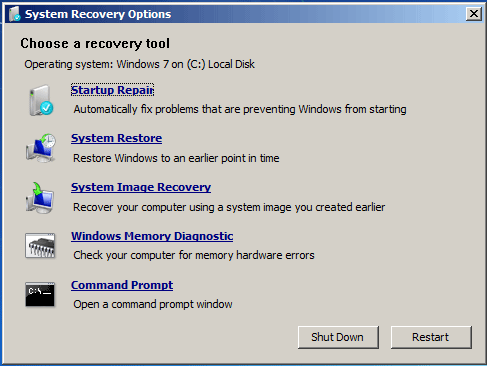
Then, the repair process starts. This may take several minutes to complete and you just need to wait patiently. Also, it may require the system to restart.
Windows 10:
Step 1: Connect the installation medium to your Windows 10 PC, enter BIOS by pressing F2, Del, etc., and change the boot order to run the computer from the disc or USB drive.
Step 2: Choose a language and keyboard options, and click the Repair your computer button to enter WinRE or access System Recovery Options.
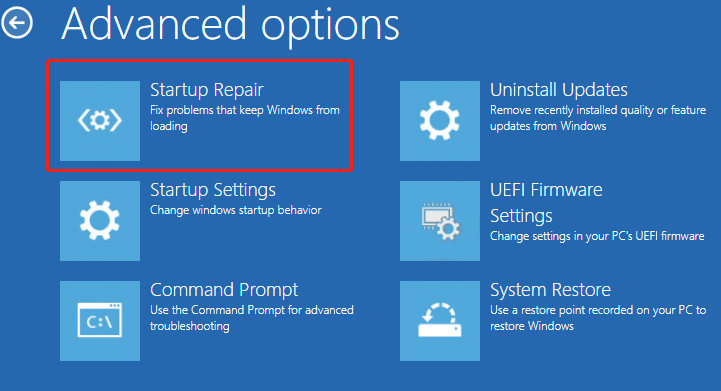
Step 3: Go to Choose an option > Troubleshoot > Advanced options. Then, click Startup Repair to start fixing problems that keep Windows from loading.
Fix 3: Run Windows Update from Safe Mode
To fix the “Cleaning up. Do Not Turn off Your Computer” issue, you can run Windows Update from Safe Mode.
Windows 7:
Step 1: Restart your computer and press F8 while your computer is booting to display the Advanced Boot Options menu.
Step 2: Use the arrow keys to highlight Safe Mode and press Enter.
Step 3: Run Windows Update again. After the updates are installed successfully, you can repeat steps 1-2 and select Start Windows Normally to return to your normal Windows configuration.
Windows 10:
Step 1: Enter WinRE. Go to Choose an option > Troubleshoot > Advanced options.
Step 2: Choose Startup Settings. Click Restart. Once the PC restarts, choose Safe Mode with Networking.
Step 3: Press the Windows key + I key together to open the Settings application. Then, go to Update & Security.
Step 4: Next, click Check for updates. Wait for Windows to download and install the latest updates.

Fix 4: Perform a System Restore
If you have created a system restore point or system image backup with Windows snap-in tools, you can try using the restore point or image file to restore your computer to fix the “Cleaning up. Do Not Turn off Your Computer” error message.
Step 1: Restart your computer and press the Shift key continuously.
Step 2: After that, click Troubleshoot, then click Advanced options to continue.
Step 3: Then click Startup Setting > Restart> Enable Safe Mode with Command Prompt.
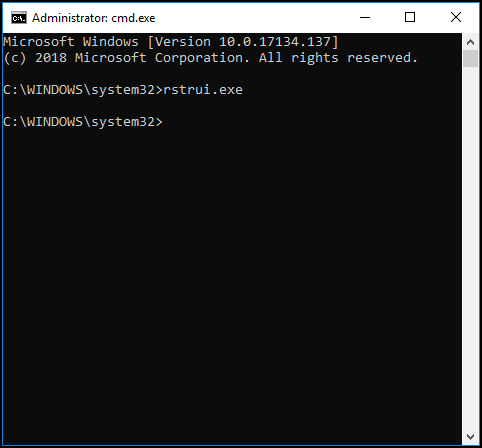
Step 4: Type rstrui.exe and press Enter to continue.
Step 5: In the next interface, click Next to continue.
Step 6: Choose the time to restore your computer to the state it was in the selected event and click Next to continue.
Step 7: You need to confirm the restore point and click Finish. After the system restore is finished, try to shut down your computer again.
When the system restore process is finished, you can reverse your computer to a previous state. Then you can check if the error has gone.
Fix 5: Repair Corrupted System Files
Windows system files corruption can cause the issue. In such an event, you can use two command-line utilities – SFC (System File Checker) and DISM (Deployment Image Servicing and Management) to fix your Windows system files.
SFC is a tool that can scan your system and repair any corrupted files. However, when SFC isn’t able to get the errors, DISM can help you do this work. It will perform a thorough search of your system and fix the corrupted files.
Here is how to use SFC to fix corrupt system files:
Step 1: Input Command Prompt in the search bar and click Run as administrator from the context menu.
Step 2: Type the following command and press Enter.
sfc /scannow
After the verification is 100% completed, you can check the scan results to see if there are some errors found.
If sfc /scannow command is unable to fix Check the Hide All Microsoft Services box, you can run DISM to fix the Windows system image. Type the following command.
Dism /Online /Cleanup-Image /CheckHealth
Dism /Online /Cleanup-Image /ScanHealth
Dism /Online /Cleanup-Image /RestoreHealth
After that, you can check whether you still encounter the issue.
Fix 6: Perform a Clean Boot
Performing a Clean Boot can avoid software conflicts while installing Windows updates. To perform a clean boot, you need to do:
Step 1: Type msconfig in the Run box, and click OK.
Step 2: Then go to the Services tab. Check the Hide All Microsoft Services box.
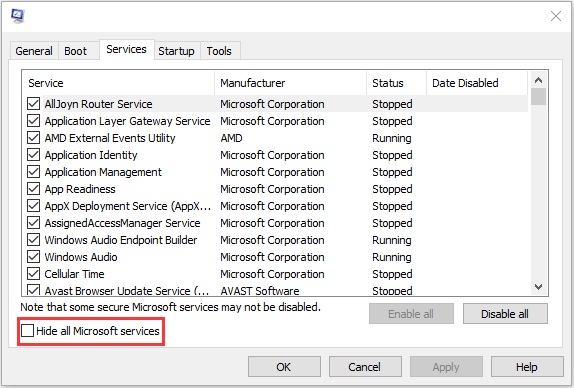
Step 3: Now, click the Disable all button, and click Apply to save the change.
Step 4: Navigate to the Startup tab and click Open Task Manager.
Step 5: In the Task Manager tab, select the first enabled application and click Disable. Here you need to disable all enabled applications one by one. After disabling all programs, close Task Manager and click OK.
Afterward, you can restart the computer to update Windows again.
Fix 7: Reset Your PC
Finally, if none of the above solutions can fix the “Cleaning up. Do Not Turn off Your Computer” error, there is only one solution left – reset your Windows. This is more like a refresh of the system than reinstalling.
Step 1: Enter the WinRE. Then go to Choose an option > Troubleshoot > Reset this PC.
Step 2: Choose Keep my files and continue with the resetting process.
Back Up Your System Before Future Windows Updates
Recovering from a failed Windows update can take time. Once your PC is working again, creating a system backup can protect against future update failures, allowing for a faster restore if Windows becomes unbootable again.
MiniTool ShadowMaker helps you create a full system image and supports backups for files, folders, disks, and partitions. This allows you to recover your operating system and important data with just a few clicks.
How to create a system backup:
MiniTool ShadowMaker TrialClick to Download100%Clean & Safe
Step 1: Launch MiniTool ShadowMaker, then click Keep Trial.
Step 2: MiniTool ShadowMaker selects the source by default. Thus, you just need to choose the backup destination.
Step 3: Go to the Backup page. Click Back Up Now to start creating a system image.
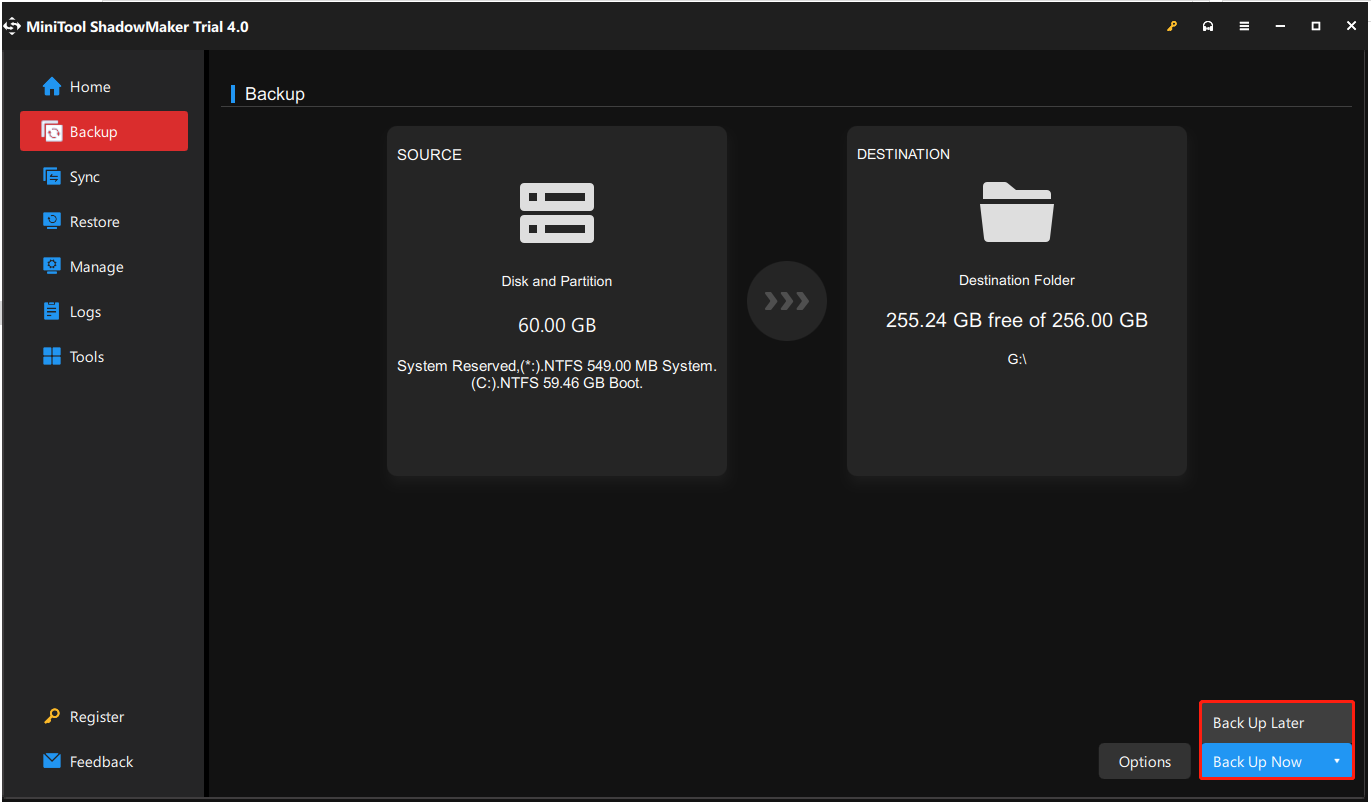
Tip: If you click Back Up Later, then you can click Back Up Now to begin the backup task on the Manage page.
Step 4: Wait for MiniTool ShadowMaker to finish backing up the operating system.
Cleaning up. Do Not Turn off Your Computer FAQ
Bottom Line
If your PC is stuck on the “Cleaning Up. Do Not Turn Off Your Computer” screen for hours, try Startup Repair, Safe Mode, or System Restore.
To prevent future issues, keep sufficient disk space and regularly back up your system before major Windows updates. For assistance with the MiniTool program, contact [email protected].
About The Author

Position: Columnist
Charlotte is a technology columnist with a strong focus on the Windows operating system, specializing in disk management, backup, and data recovery. She is passionate about analyzing computer errors, identifying root causes, and delivering practical solutions. In her free time, she stays updated on the latest developments in computer systems and hardware while continuously learning new technologies to broaden her expertise. Her writing style is clear and easy to understand, making complex technical topics accessible even to users with limited computer knowledge.
User Comments :