
You can easily dual boot Zorin OS with Windows 11 or Windows 10 on the same PC. First, back up important data. Then, prepare the Windows PC for Zorin OS, create a bootable Zorin OS USB drive, and start the installation.
About Zorin OS Dual Boot Windows 11/10
Dual boot allows you to install two operating systems on the same PC and choose which one to start when the computer boots.
Zorin OS, a Linux distribution based on Ubuntu, is an alternative to Windows. Its familiar desktop interface makes it a popular choice for Windows users who want to try Linux.
If you want to keep Windows while trying Zorin OS, it is recommended to set up a dual boot system.
Back up Files in Windows
To install Zorin OS on your Windows computer, you should prepare an external hard drive to back up your important data in case something goes wrong since it is also possible to run into errors/issues even after correctly following all the steps.
For file backup, MiniTool ShadowMaker, one of the best backup software, is a great recommendation. It offers several powerful features to back up your PC such as creating a system image and regularly backing up files/folders.
Moreover, this PC backup software allows you to set a schedule plan for regular backups and create incremental & differential backups for data backup.
MiniTool ShadowMaker TrialClick to Download100%Clean & Safe
Step 1: Connect a USB flash drive or external drive to your Windows 11/10 computer.
Step 2: Launch MiniTool ShadowMaker and tap Keep Trial to enter its main interface.
Step 3: Move to Backup > SOURCE > Folders and Files, browse your computer, choose the files and folders that you wish to backup, and click OK.
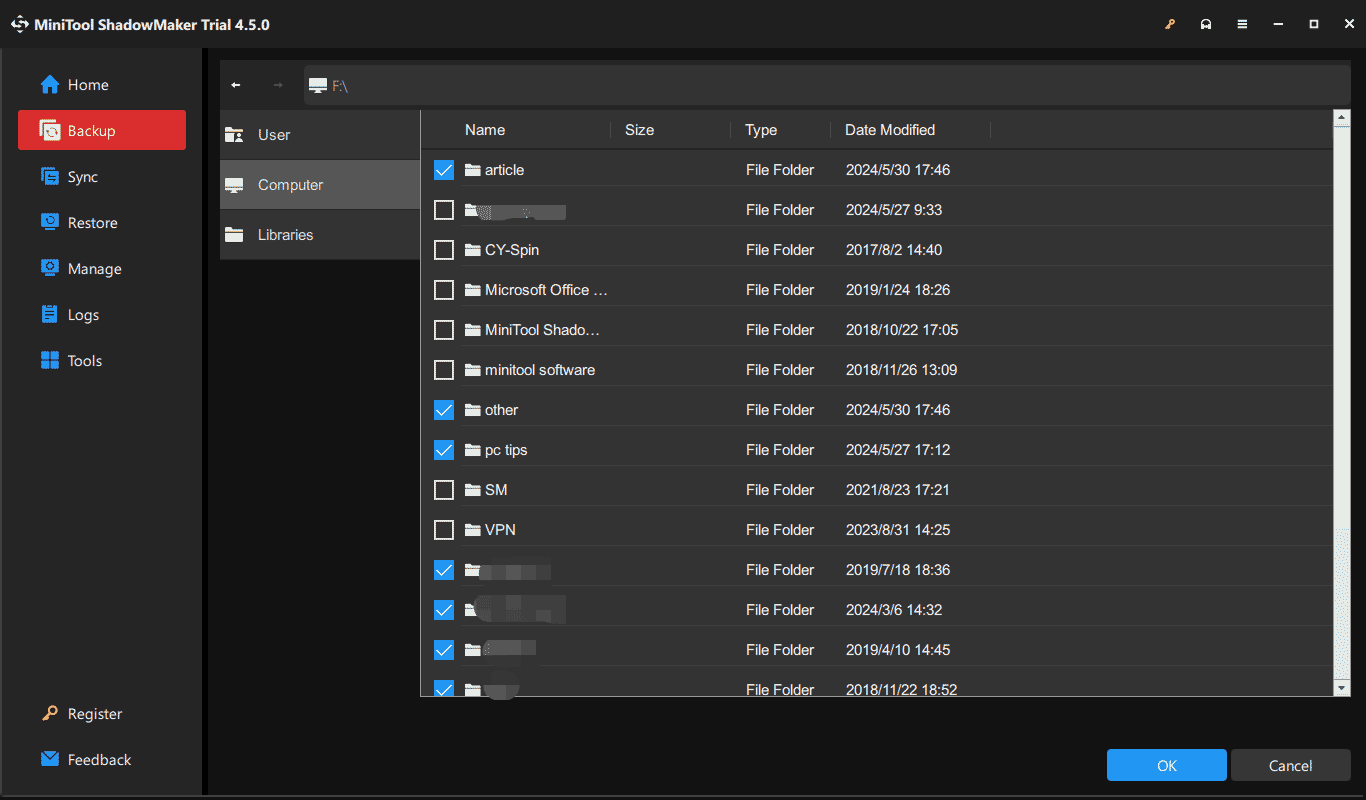
Step 4: Tap on DESTINATION to choose a drive to save the backup image.
Step 5: Hit Back Up Now to execute the backup task.
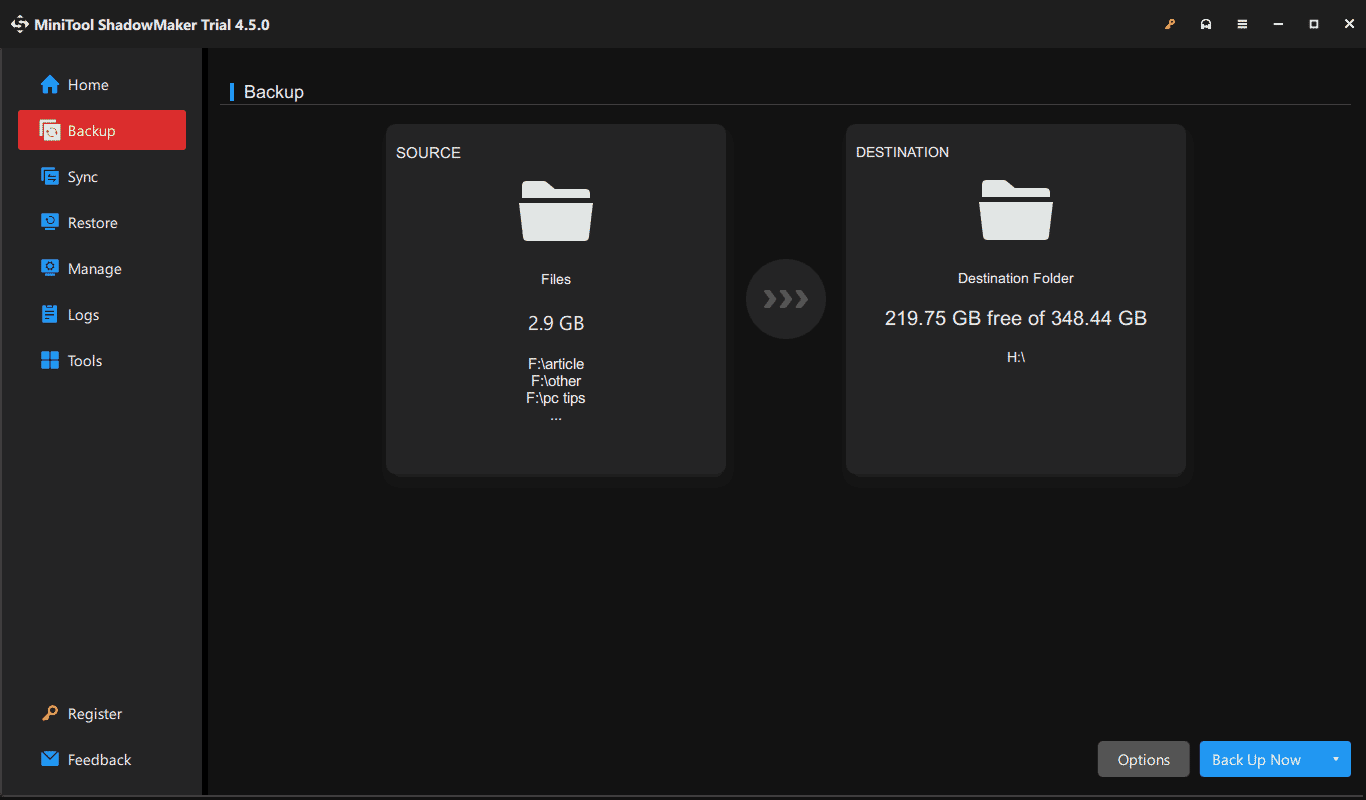
After the backup, follow the step-by-step guide on how to install Zorin OS alongside Windows 11/10.
Move 1: Prepare to Dual Boot Zorin OS
The first step you should take is to perform some operations in Windows 11/10. Just do something to get ready for the dual-boot process.
#1. Check Windows BIOS Mode
Make sure your PC is running in UEFI mode. Go to open System Information via the search box and check BIOS Mode that should say UEFI.
#2. Check Windows Disk Partition Style
To run Zorin OS and Windows on the same PC, make sure the disk partition style is set to GPT.
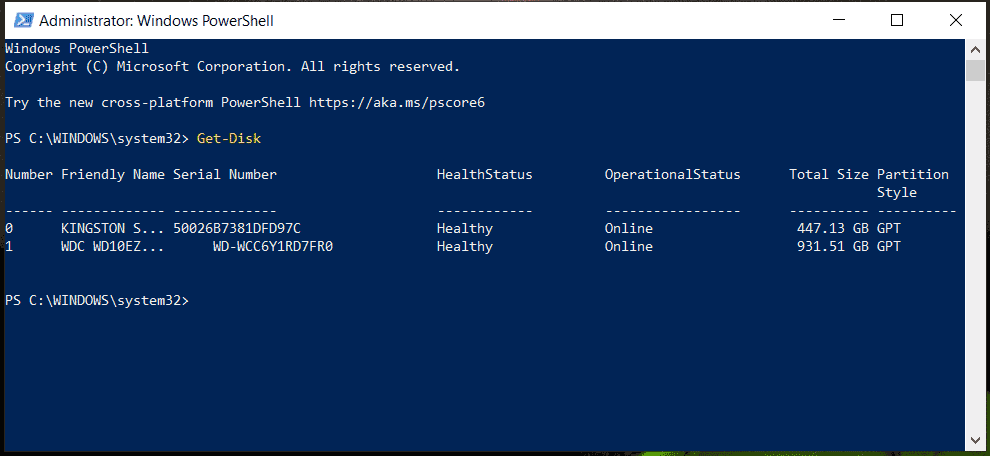
- Run Windows PowerShell with admin rights.
- Type the Get-Disk command and press Enter. Then, you can view Partition Style. If it says GPT, continue the next step.
#3. Disable Secure Boot
Secure Boot, a feature in Windows 11 and 10, helps prevent malicious software from loading when your PC boots to enhance the device’s security.
However, this feature sometimes blocks a dual-boot setup. Try to disable it beforehand.
Step 1: Check if Secure Boot is off or on – type system information into the search box, press Enter and then check Secure Boot State. If it is On, continue the steps below. If it is Off, proceed to the next section.
Step 2: To disable Secure Boot, hold Shift and press Restart to enter Windows Recovery Environment (WinRE).
Step 3: Go to Troubleshoot > Advanced options > UEFI Firmware Settings.
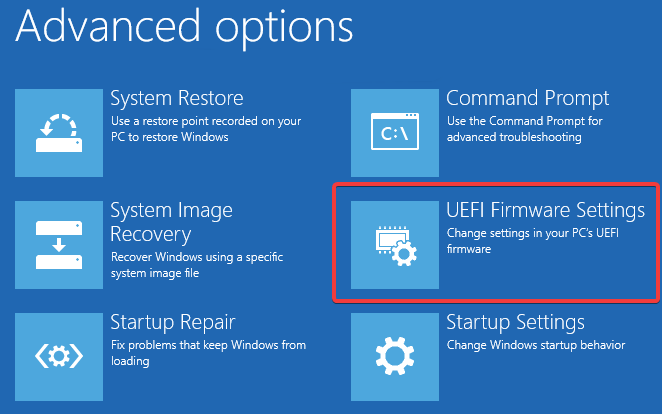
Step 4: Tap Restart to enter the BIOS settings window. Then, locate the Secure Boot item or a similar one, and disable it.
#4. Free Up Disk Space for Zorin OS
Before installing Zorin OS, make sure your Windows drive has enough free space.
You can shrink an existing Windows partition in Disk Management to create unallocated space.
Alternatively, use the installer to automatically allocate the space for the system.
To create a new partition:
Step 1: Press Win + X on your keyboard and choose Disk Management.
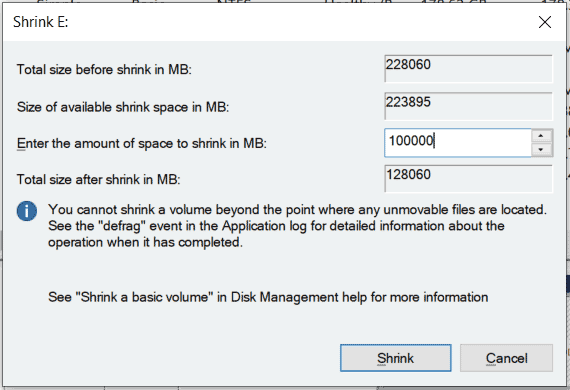
Step 2: Right-click on a large partition and choose Shrink Volume.
Step 3: Enter the amount of space as per your situation and tap Shrink. Then, the space you set will be listed as an unallocated space. Right-click on it and create a new partition.
After getting everything ready, take the rest steps to begin installing Zorin OS on your Windows 11/10 PC.
Move 2: Zorin OS Download
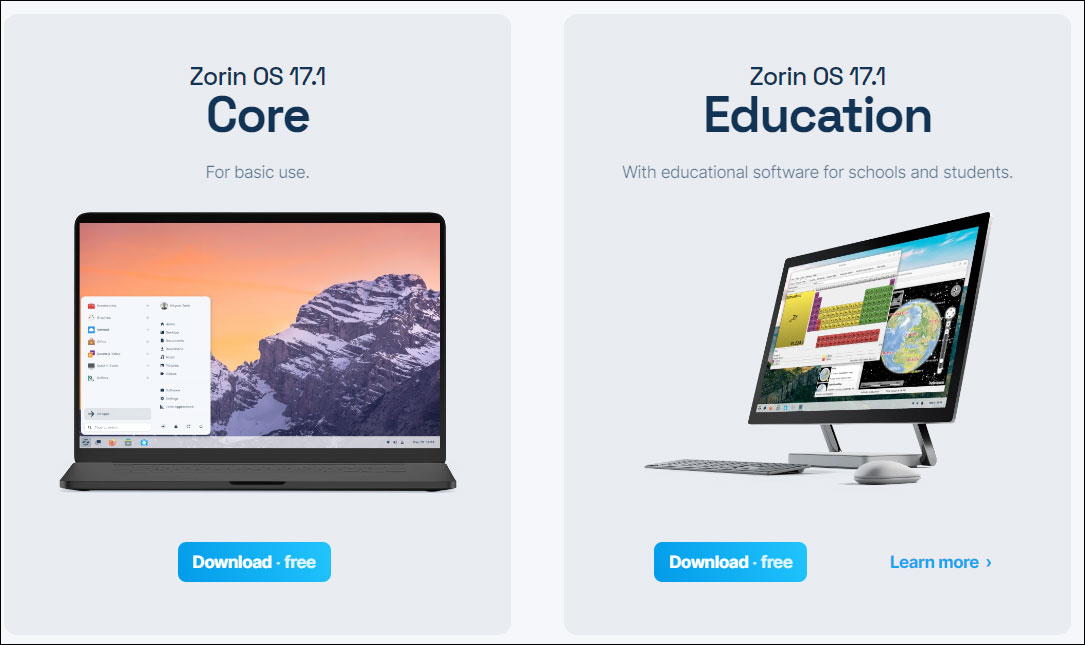
As stated above, this Linux system includes several editions and each one targets different objects and has different features.
Core: For basic use; free to download
Education: With educational software for schools and students; free to download
Pro: Supports premium desktop layouts, offers advanced productivity tools, etc.; a paid edition
Steps on Zorin OS Download
Step 1: In a web browser, open the website: https://zorin.com/os/download/.
Step 2: Tap on the download button and get one as per your needs.
Move 3: Create Zorin OS Bootable USB Drive
After downloading the Zorin OS ISO file, you need to create a bootable USB drive to install Zorin OS.
Step 1: Prepare a USB flash drive with enough capacity for the OS – if you want to install Core, 4 GB is enough while at least 8 GB is required for Pro and Education. Then, connect the drive to your Windows 11/10 computer.
Step 2: Open a web browser, visit the website of Rufus, and free download this utility.
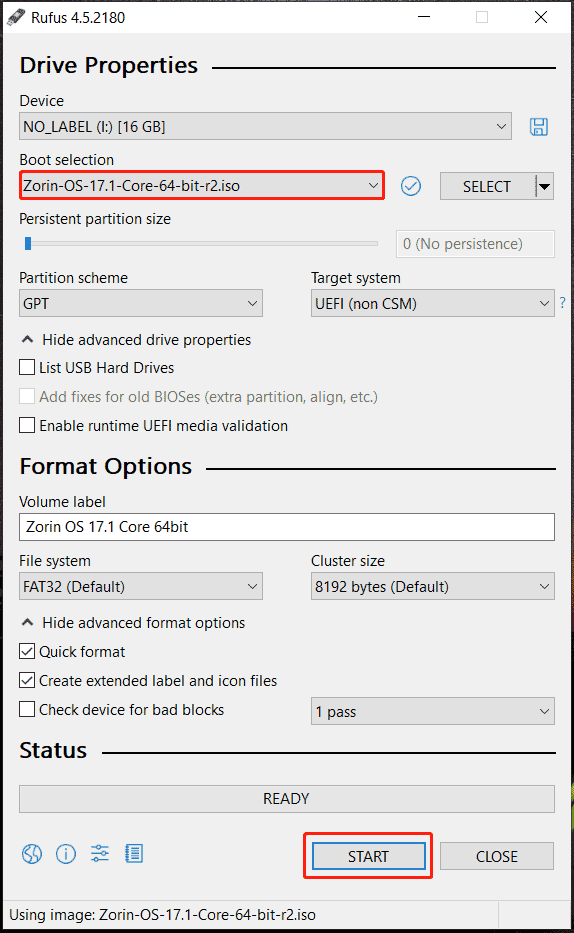
Step 3: Run the Rufus .exe file to its main interface. Tap the SELECT button, browser your PC, and choose the Zorin OS ISO file you downloaded beforehand.
Step 4: Choose GPT from Partition scheme and complete other preferences.
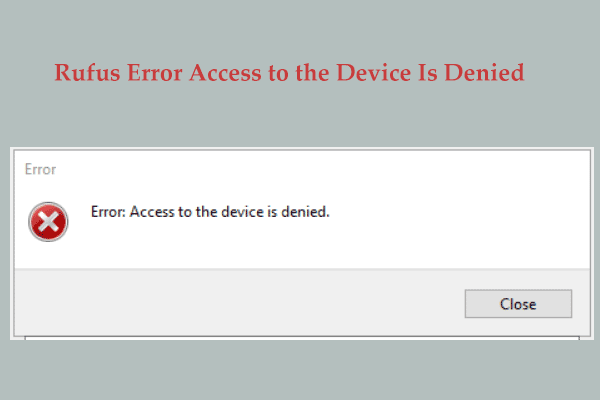
Step 5: Click START, check Write in ISO Image mode, and click OK to begin creating a bootable Zorin OS USB drive. This will take a while.
Move 4: Boot from the USB Stick
To dual boot Zorin OS, you should boot the PC from your created USB drive to finish installing this operating system.
Step 1: Plug the USB flash drive into the computer and switch off this device. Make sure it is completely shut down, rather than in sleep or hibernate mode.
Step 2: Turn on that computer. As soon as the motherboard logo or Windows logo appears at startup, press the boot key which generally refers to the F2 or Del function key to enter the BISO menu. Apart from them, it can be another key like F10, F12, F1, etc. which varies from computer to computer.
Step 3: In BIOS, locate the Boot Device menu or a similar one, highlight the option that mentions USB, EFI, or the name of the flash drive manufacturer using the arrow keys, and hit Enter to boot the PC from USB.
![[5 Ways] How to Get Into BIOS on Windows 11 on Restart?](https://images.minitool.com/minitool.com/images/uploads/2021/11/windows-11-bios-settings-thumbnail.png)
Move 5: Start Zorin OS Installation
Next, it is time to begin the installation. So how to install Zorin OS on your Windows 11/10 PC for dual-boot? Proceed with the following steps:
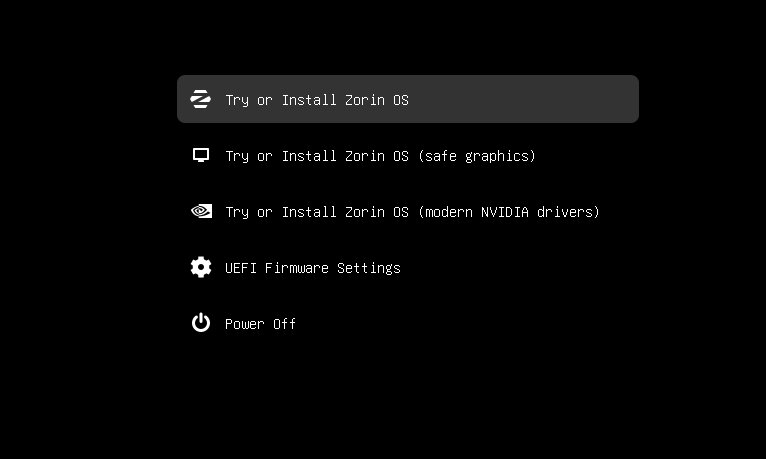
Step 1: After booting from USB, you will be presented with a menu, as shown below. Just highlight Try or Install Zorin OS and press Enter to continue.
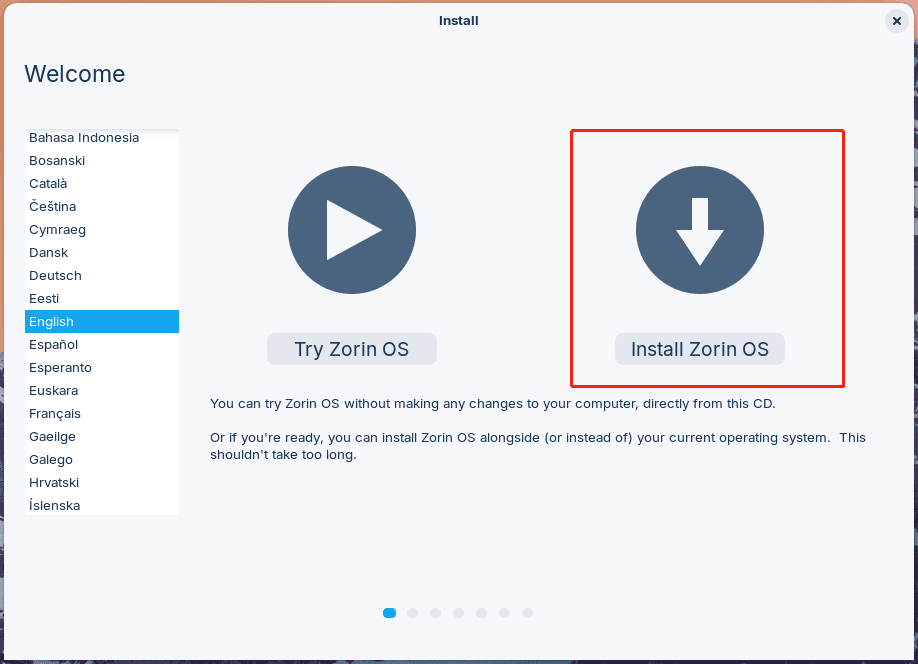
Step 2: The setup will check something to see if everything is in place. Then, click Try Zorin OS without making any changes to your computer.
To dual boot Windows 11/10 and Zorin OS, we recommend clicking Install Zorin OS to initiate the installation.
Step 3: Choose a keyboard layout like English (US) to continue.
Step 4: Choose a method in the Updates and other software window.
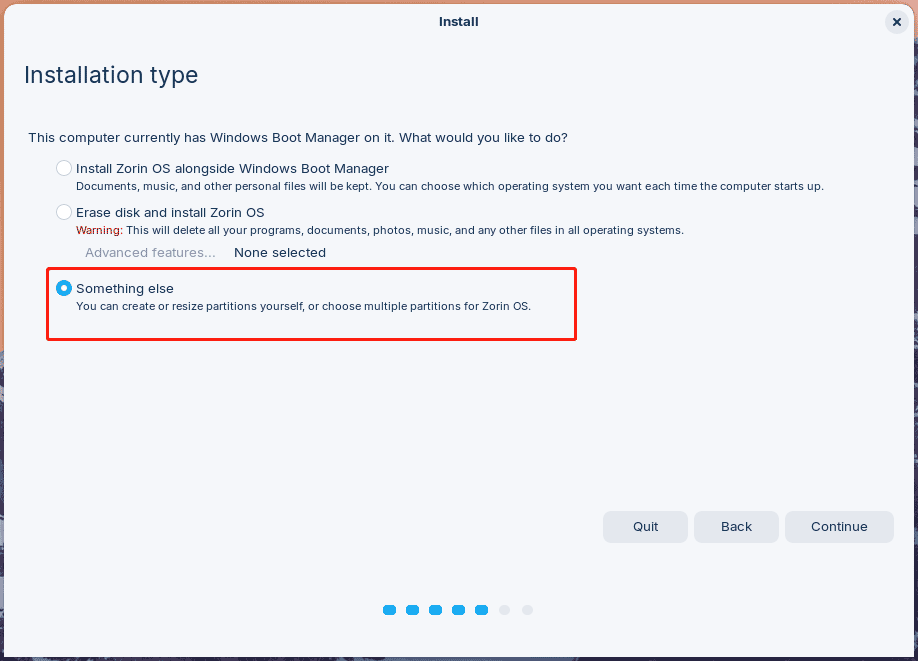
Step 5: Select an installation type.
- Choose Install Zorin OS alongside Windows if this option is available.
- If this option does not appear or you have multiple drives, select Something else.
Step 6: When seeing the partition manager window, choose the created Linux partition beforehand for Zorin OS or create a new partition using free space if you forget to create it.
Step 7: Complete the installation as per the instructions on the screen.
Now, you have succeeded in completing installing Zorin OS on your Windows PC. Just remove your USB flash drive, and you can take a tour of the new OS.
Bottom Line
It used to be a daunting task when talking about installing an operating system but now it is just a piece of cake. You can follow the given guide to easily dual boot Zorin OS and Windows 10/11 – back up files in advance, prepare something for dual boot, download ISO, create a bootable USB drive, boot from USB, and start the installation.
While starting up your device, you have two options to choose, Zorin OS or Windows, which allows you to seamlessly switch between these two systems.
Dual Boot Zorin OS FAQ
About The Author

Position: Columnist
Vera has been working at the MiniTool Team for over 10 years as a technical editor and content writer. She mainly focuses on disk and partition management, data recovery, Windows backup and restore, and PC troubleshooting. Through in-depth software testing and hands-on experience, she has helped users solve a wide range of computer problems and better protect their data on Windows devices.
User Comments :