
If you are switching to a new computer, how can you migrate all your files, settings, or programs from the old computer? In this guide from MiniTool, we will walk you through how to copy old computer to new computer effortlessly.
How to Copy Old Computer to New Computer?
What can you do after getting a shiny new PC? How to copy old computer to new computer? Do you need to redownload, reinstall, or reconfigure everything? Don’t worry! It is not troublesome to transfer data from an old computer to a new computer.
No matter you intend to move big files, application data, operating system, or something else, you can find the best way and tool in this guide. Keep reading and then choose one method as per your needs and budgets.
Way 1: Use External Hard Drive
If you don’t want to rely on any third-party programs or transfer data from an old computer to a new computer without internet connection, external storage media is ideal for you. Follow these steps to copy and paste files between PCs:
Step 1. Connect your external hard drive to the old computer.
Step 2. Open File Explorer and locate the drive under Devices and drives.
Step 3. Drag and drop the files you want to transfer to the drive.
Step 4. Eject and then remove the drive from the old computer.
Step 4. Then, connect the drive to the new computer and transfer files to this Windows machine.
What We Like and Dislike
| Pros | Cost-effective Offline access Large Storage Capacity |
| Cons | Vulnerable to data loss and damage Slower data transfer speed compared with internal drives Not friendly to file transfer between 2 distant computers |
Way 2: via Wi-Fi or LAN
As long as your computers are on the same router or network, you can work on one computer while searching through another PC’s internal hard drives to choose the files or folders you want to transfer. This method works well between computers in the same home or office. Follow these steps:
On the current computer:
Step 1. Connect the 2 computers to the same network.
Step 2. Switch on File Sharing:
- Open Control Panel.
- Go to Network and Internet > Network and Sharing Center > Change advanced sharing settings.
- Under Private, tick Turn on network discovery, Turn on automatic setup of network-connected devices, and Turn on file and printer sharing.
- Under Guest or Public, check Turn on file and printer sharing in the Network discovery and File and printer sharing section.
- Under All Networks, tick Turn on public file sharing and Turn off password-protected sharing.
Step 3. Right-click on the folder you want to transfer from the current PC to another PC to select Give access > Specific people.
Step 4. Choose Everyone from the drop-down menu and hit Add.
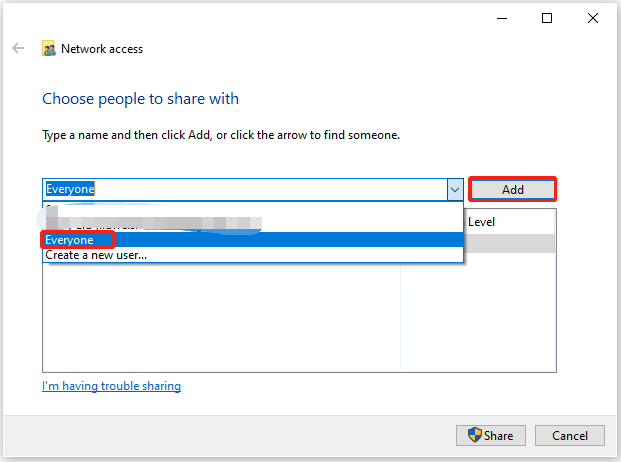
Step 5. Set the permission level to Read/Write and click on Share.
Step 6. Note down the shared link.
On the new computer:
Step 1. Open File Explorer.
Step 2. In the address bar, copy and past the shared link and then hit Enter to open the shared folder.
What We Like and Dislike
| Pro | Secure. Don’t need external hard drives or flash drives. |
| Cons | Transfer depends on internet connection. Computers need to be close to each other. |
Way 3: via Cloud Storage Drive
In addition, the cloud storage drive also allows you to transfer data from an old computer to a new computer. Commonly used cloud storage drives include Microsoft OneDrive, Dropbox, and Google Drive. Among them, OneDrive is ideal for users who heavily rely on Microsoft Windows and Microsoft 365 because it is tightly integrated with Windows File Explorer, Word, Excel, PowerPoint, and more, making it easy to access and manage files. Here’s how to how to copy old computer to new computer with OneDrive:
On the old computer:
Step 1. Download and install OneDrive on your computer if you don’t have it.
Step 2. Sign into OneDrive with your Microsoft account and then upload the items you want to transfer from the current computer.
On the new computer:
Step 1. Log into your OneDrive with the same Microsoft account.
Step 2. Wait for OneDrive to sync your files to the new computer.
What We Like and Dislike
| Precondition | A Microsoft account |
| Data transfer types | documents, images, videos, and other files |
| Supported OS | Windows 10/11 |
| Pros | Integrated with Microsoft 365 apps Ease of accessibility Strong encryption and security |
| Cons | Internet dependency Limited free storage. (5 GB for free) Possible occurrence of sync issues |
Way 4: Via MiniTool ShadowMaker
As you can see, most methods below can only transfer files from PC to PC? How to transfer other data such as customized settings, application data, and even the operating system? To achieve this goal, MiniTool ShadowMaker is the best choice to you.
With its Clone Disk feature, you can transfer everything from old computer to new computer. No matter you need to move HDD to SSD or clone SSD to larger SSD, this feature can satisfy all your needs. After cloning, the cloned disk is bootable so that it doesn’t need a fresh install of OS or applications, which might save much time and effort.
Meanwhile, as a piece of PC backup software, MiniTool ShadowMaker also boasts file backup, system backup, partition backup, disk backup and more. When your data gets lost after a system crash, hard drive failure, or virus infection, you can quickly restore your data with the backup and get back on track.
Now, let me show you how to copy old computer to new computer with this tool:
Step 1. Connect an external HDD or SSD to your old computer.
Step 2. Launch MiniTool ShadowMaker Trial Edition to enter its main interface.
MiniTool ShadowMaker TrialClick to Download100%Clean & Safe
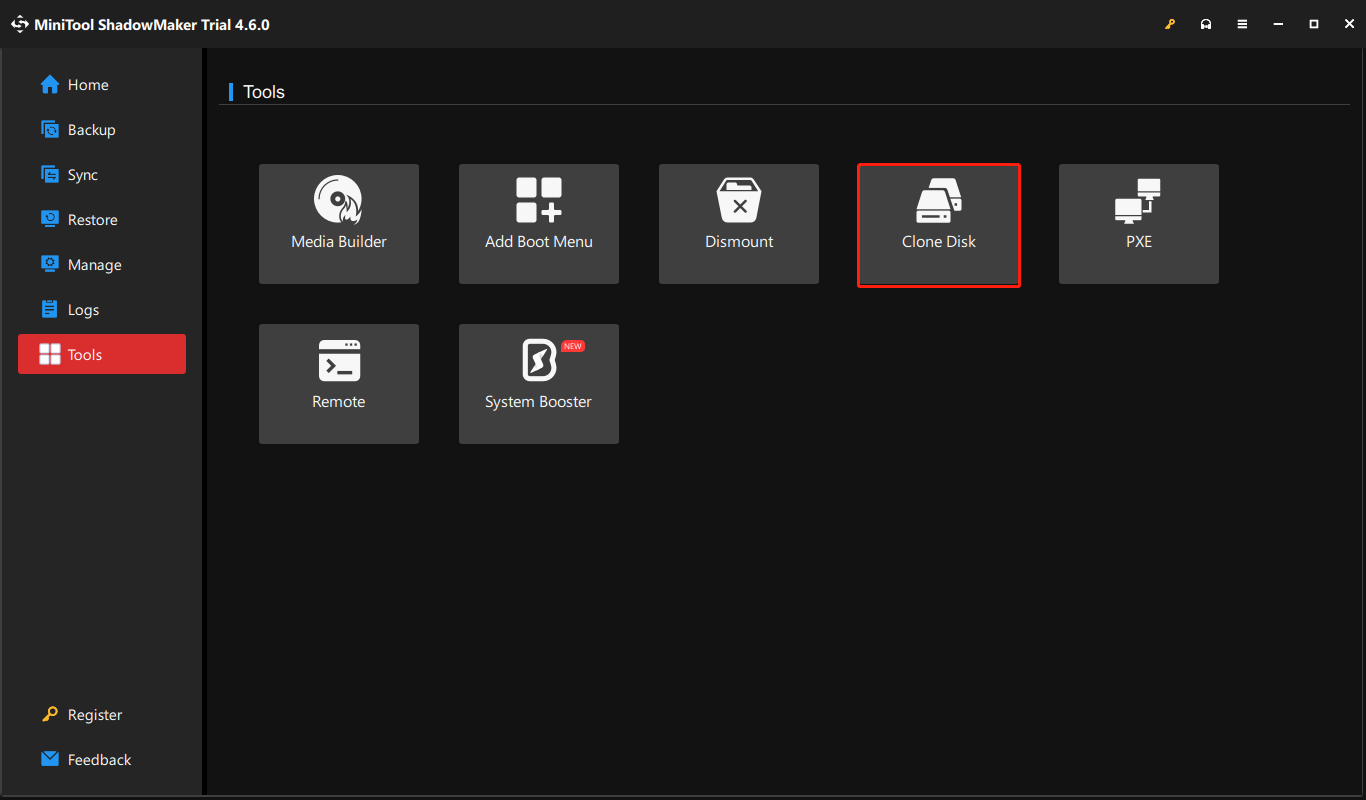
Step 3. In the Tools page, click on Clone Disk.
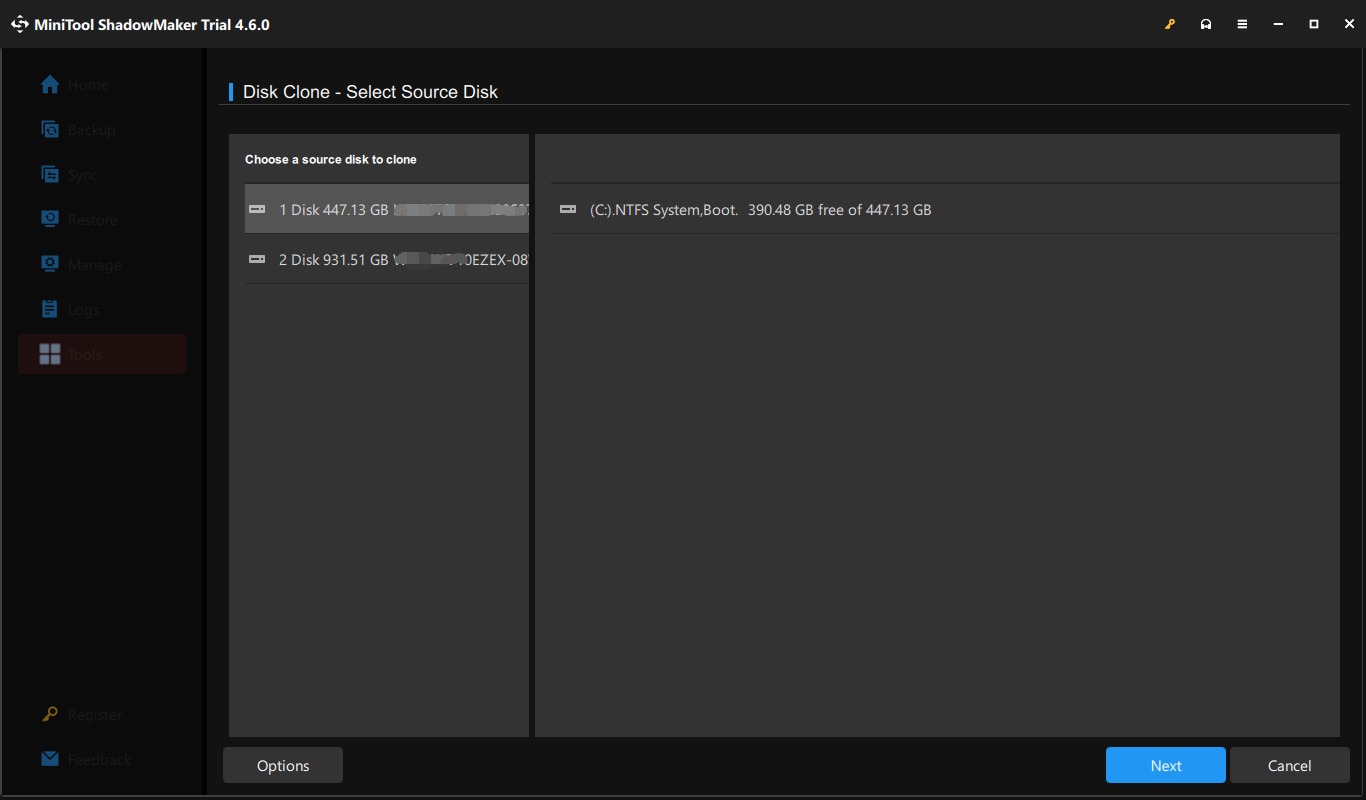
Step 4. Select the drive you want to copy as the source disk and then select the external hard drive as the destination disk.
Step 5. After making your choice, click on Start to begin the cloning. Once done, eject and remove it from the computer and then hook it up to your new computer.
What We Like and Dislike
| Supported OS | Windows 11/10/8.1/8/7 |
| Data transfer type | files, programs, settings and system |
| Pros | Clear and user-friendly interface Ease to follow and understand Transfer all the data without a fresh installation |
| Cons | Data loss on destination drive Resource-intensive cloning process Can’t clone drives with dynamic volumes |
Further Reading: What Can You Do After Transferring Your Data
After moving everything from the old PC to the new PC, please sign out of all your accounts, such as Google, browser sync, OneDrive, Microsoft and more. Most importantly, make sure to factory reset or wipe the old computer to secure your privacy.
Wrapping Things Up
This guide shows you how to copy old computer to new computer in 4 ways. Which method do you prefer? If you have a stable internet connection and only need to transfer a small amount of files, external hard drive, cloud storage and a shared folder might be ideal for you. For those who want to transfer everything from old computer to new computer, MiniTool ShadowMaker is a go-to solution.
MiniTool ShadowMaker TrialClick to Download100%Clean & Safe
This all-in-one tool cannot only migrate files efficiently, it can also get your new system set up properly without spending much time reinstalling it from scratch. Do you have any problems while using our product? Don’t hesitate to contact our support team to share your ideas! We are looking forward to your feedback!
User Comments :